Writing Your Business Plan
Adding a chapter or section to your plan
The LivePlan outline is highly customizable; you can add content to any portion. We offer a selection of available content you can add to your plan and create custom chapters, sections, and topics.
How the LivePlan outline is organized
The current plan outline is displayed in the left-hand column when you click the Plan section. You can click on any chapter title to see the sections included in it:
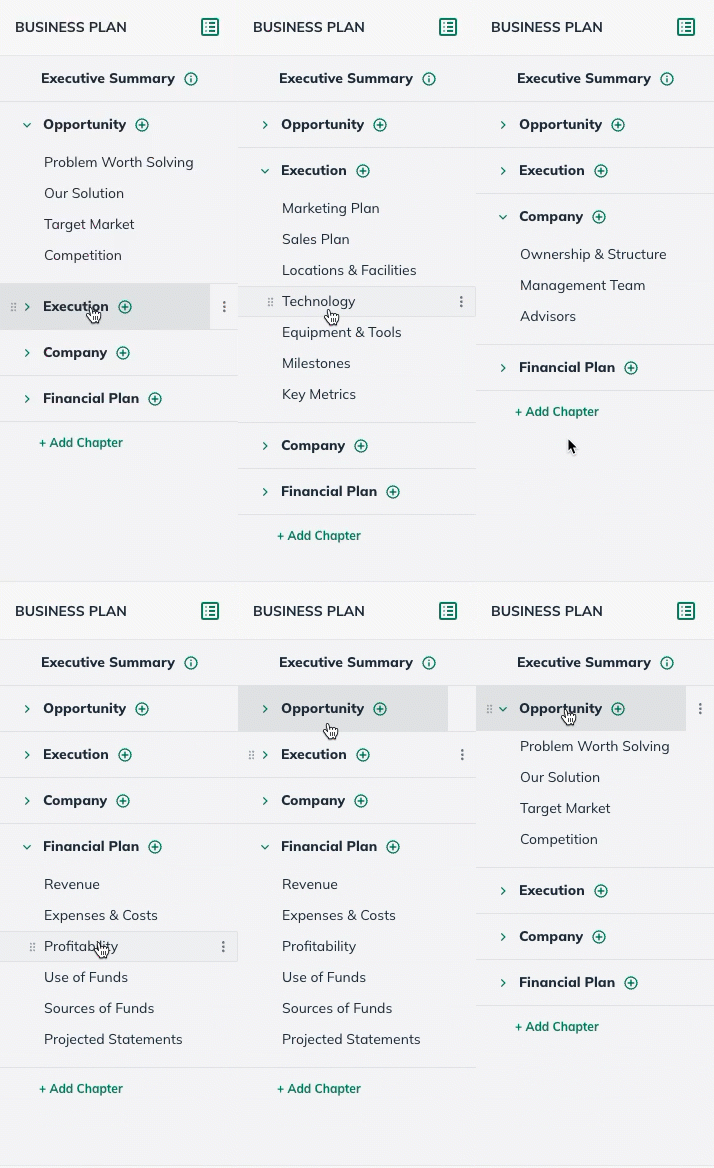
The Plan is organized by chapters and sections. The sections are where you'll enter the content of your business plan. This view makes it easy to navigate to any part of the plan so you can edit it.
For more on editing sections, read Writing and editing plan content.
What are chapters and sections?
To see an editable view of your outline, click on the Plan section:
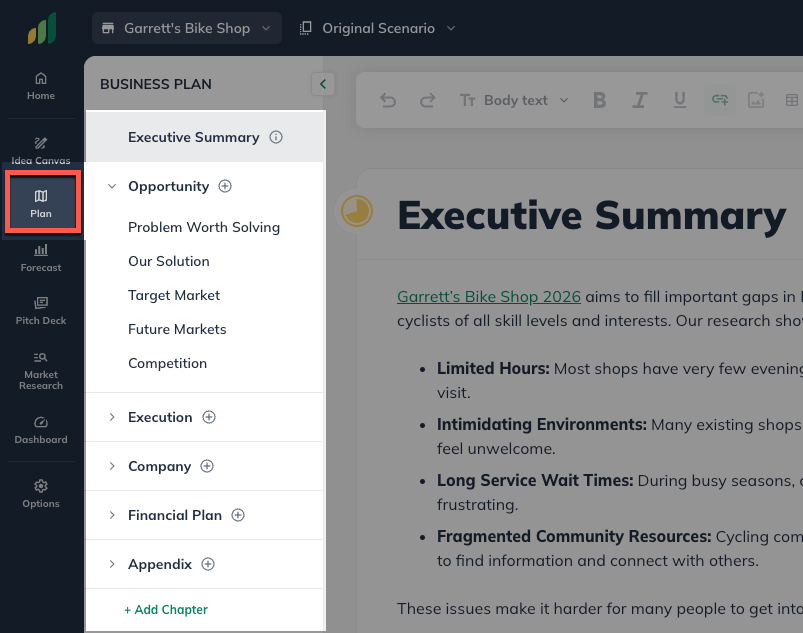
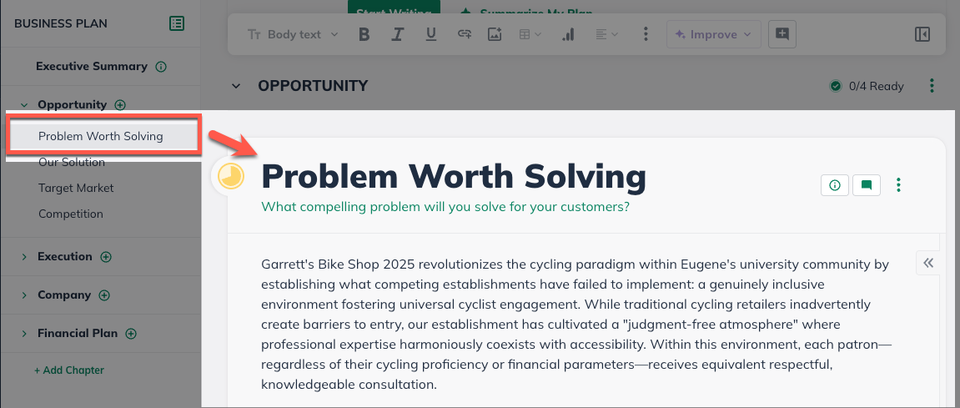
In this view, you will see the same outline with the chapters and sections in place. If you select a Chapter or Section, LivePlan will jump to that selection in the editing field.
What additional content can I add to my plan?
In addition to the default plan outline, LivePlan provides a selection of pre-built sections as well as embeddable charts and tables that may be useful for specific kinds of businesses.
This content is available on the Outline page of the Plan section. You can easily add these items to any section of your plan by clicking on the Add Section icon in your outline.
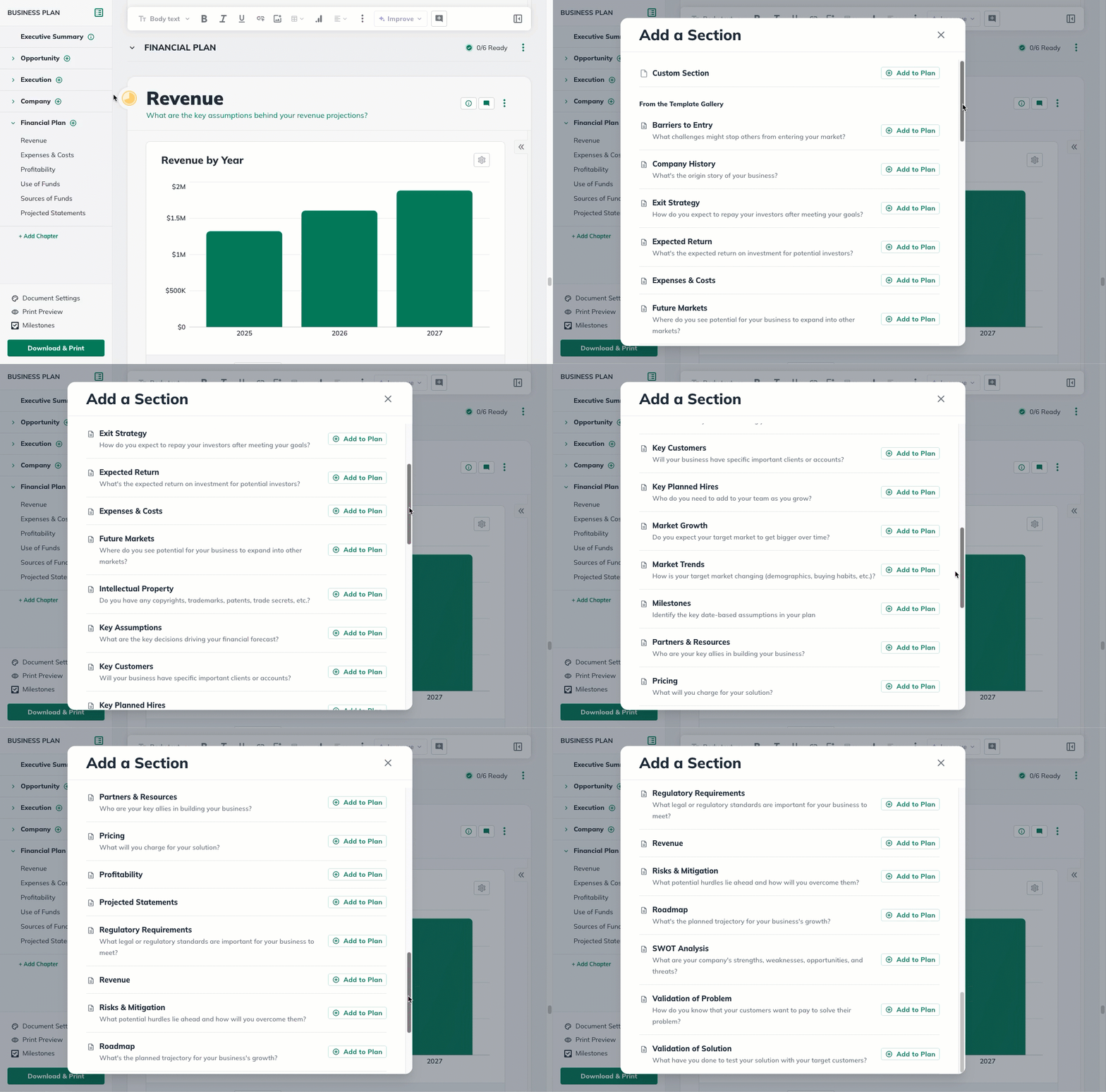
Adding a pre-made section to your plan
In the Plan section, select the Add Section button in the applicable chapter:
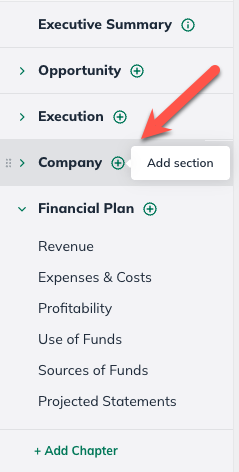
In the Available Content menu, find the section you would like to add:
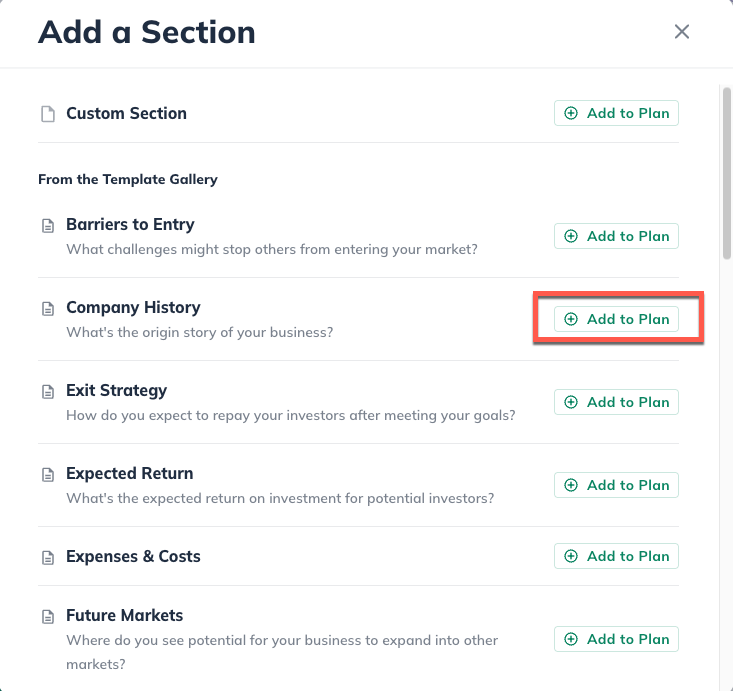
Click on the section you want to add to your outline and it will automatically add it to your outline and navigate you to that section. The change will save automatically:
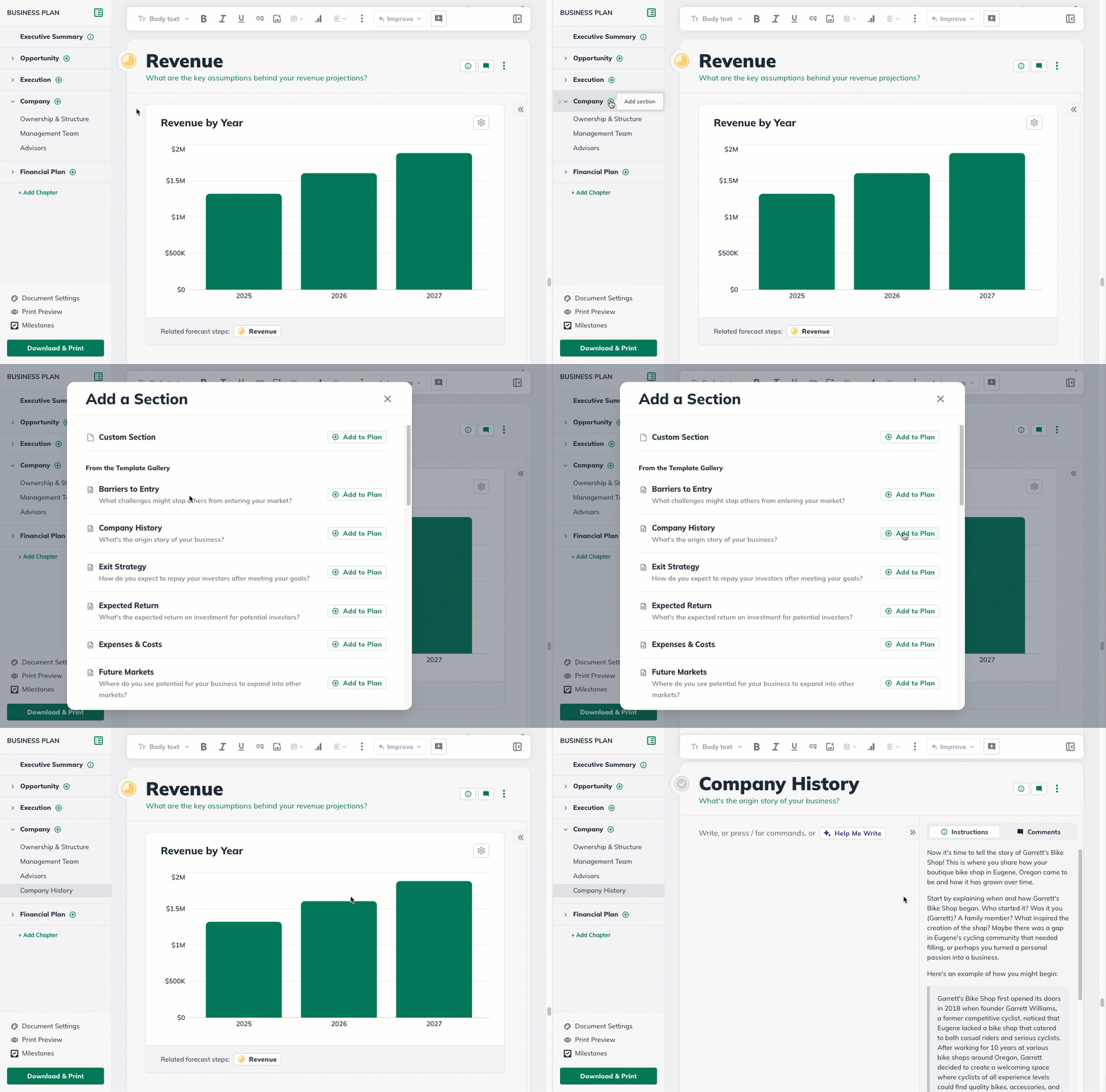
Adding custom chapters or sections
In addition to the default outline, LivePlan lets you create custom chapters and sections to place anywhere in the plan.
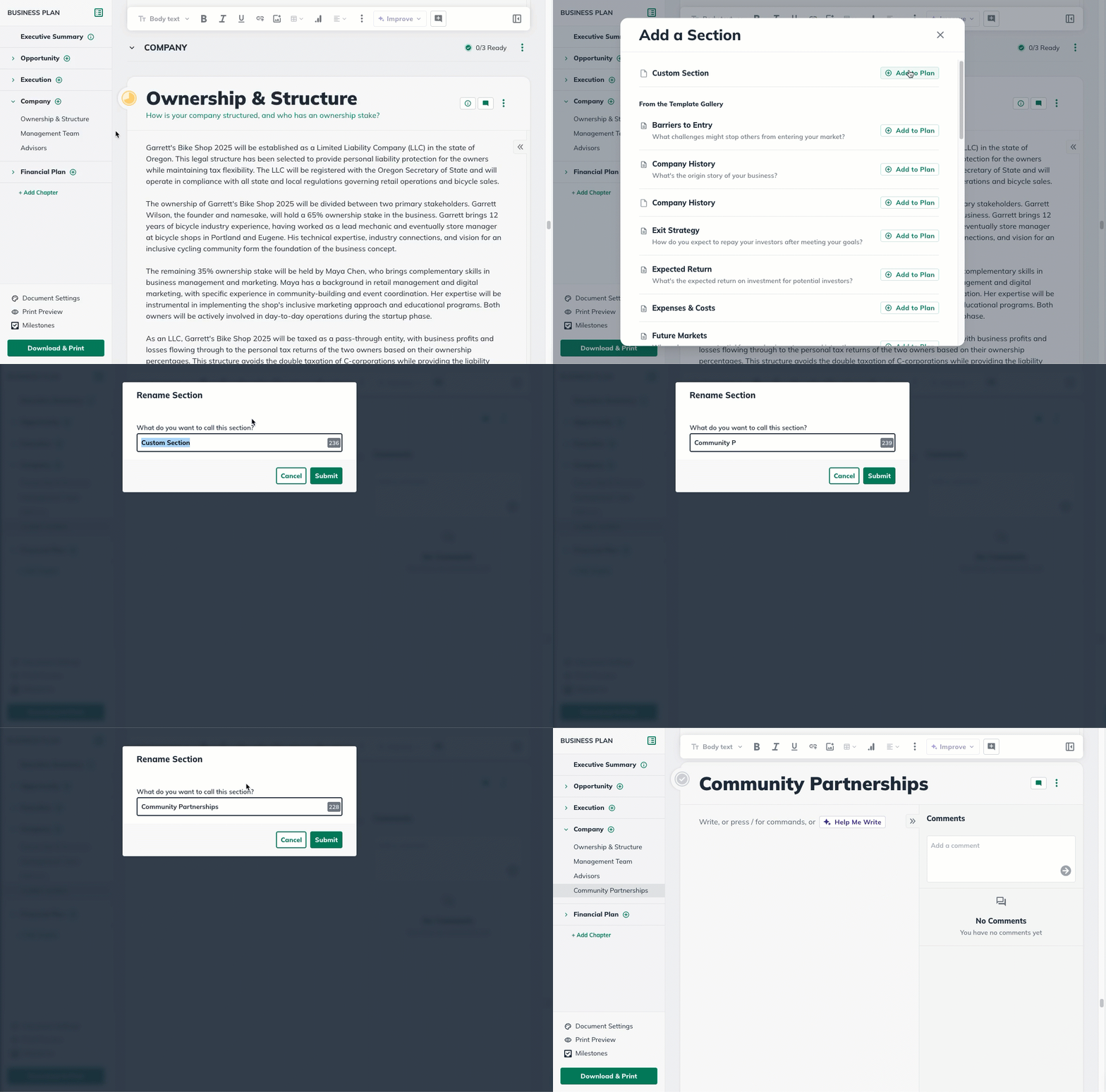
To add a custom chapter or section
In the Plan section, select the Add Section button in the applicable chapter:
At the top of the Available Content menu, select Custom Section:
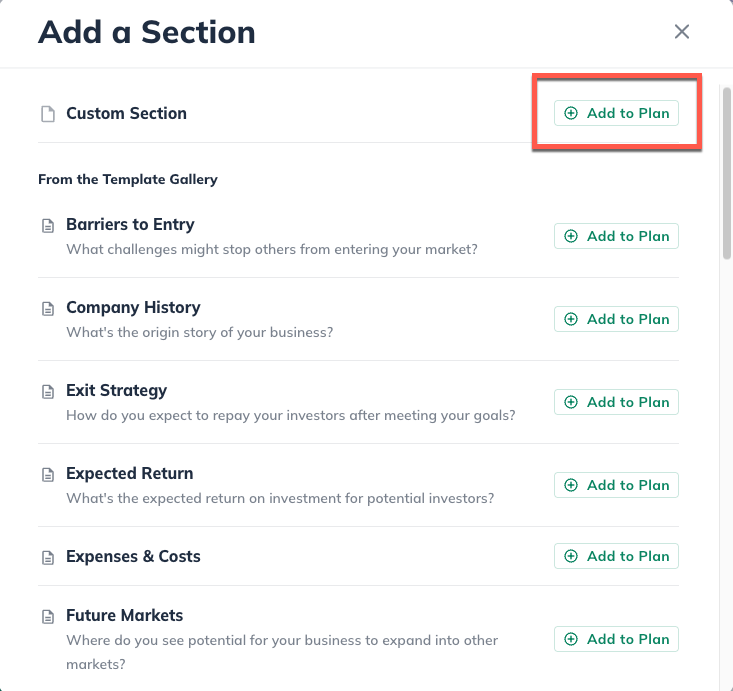
Click on the section you want to add to your outline and it will automatically add it to your outline and navigate you to that section.
Then type in the title of the new Section: