
Writing Your Business Plan
Removing chapters or sections from your plan outline
What are chapters and sections?
To see an editable view of your outline, click on the Plan section:
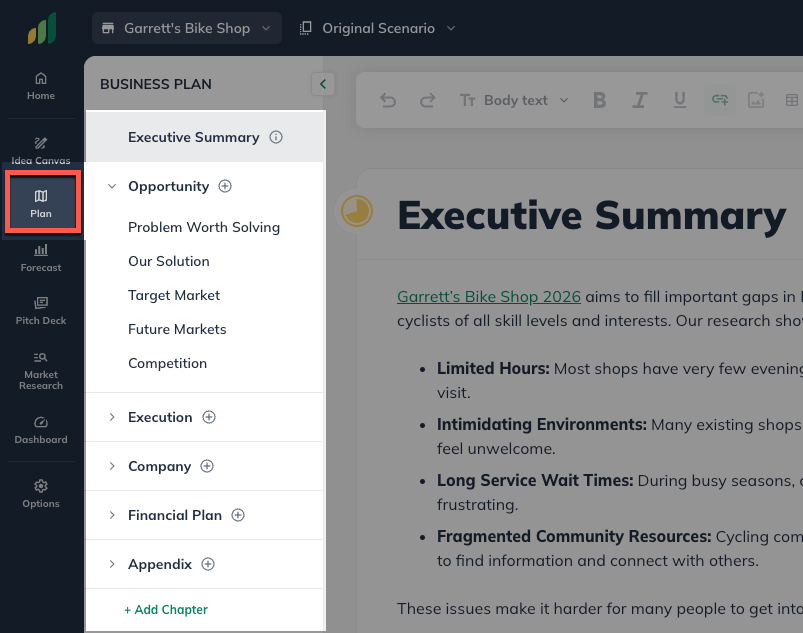
In this view, you will see the same outline with the chapters and sections in place. If you select a Chapter or Section, LivePlan will jump to that selection in the editing field.
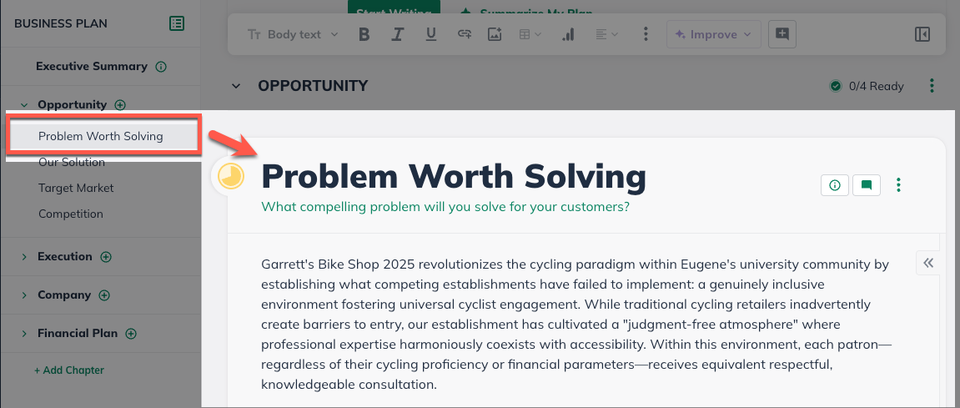
Removing chapters or sections from your plan outline
If there are chapters, or sections in the outline that you don’t want to be included in your plan, it is straightforward to remove them.
When you remove a section, it will no longer appear as part of your plan’s printed output, but any information you have entered in the section will be saved. Other users on your account can view the contents of any removed section, and you can restore it to your plan at any time.
Removing a chapter or section
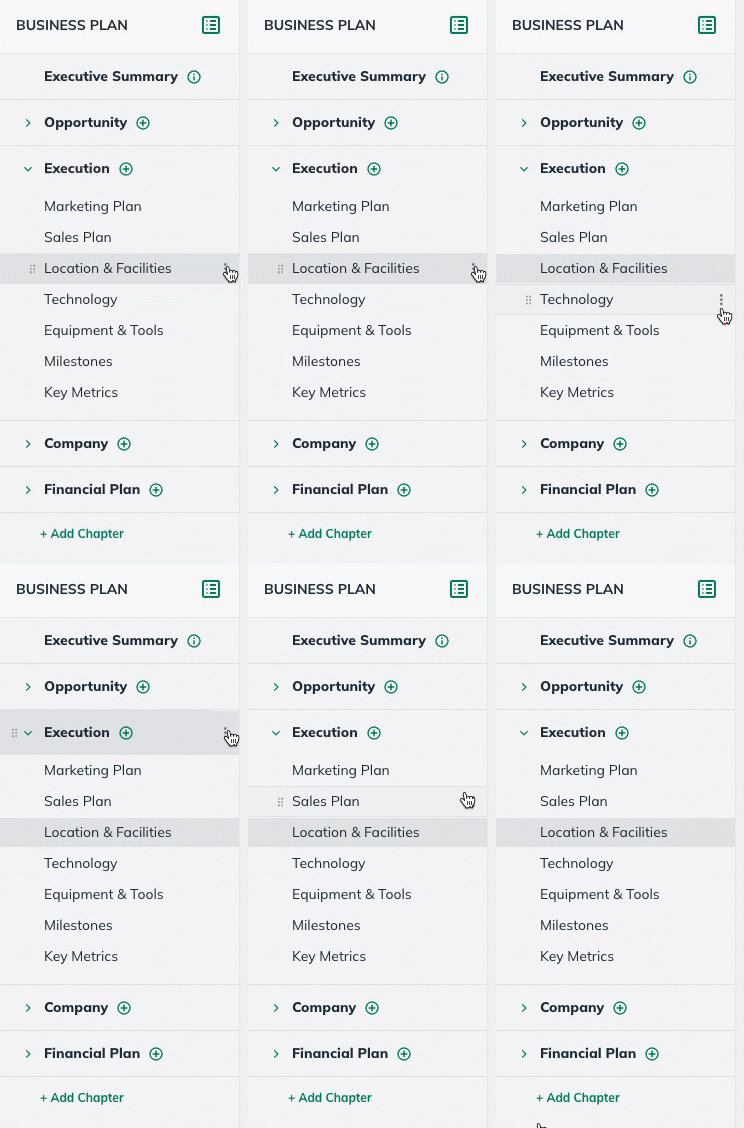
In the Plan section, click the three dots next to any section or chapter in your outline:
Select Remove From Plan.
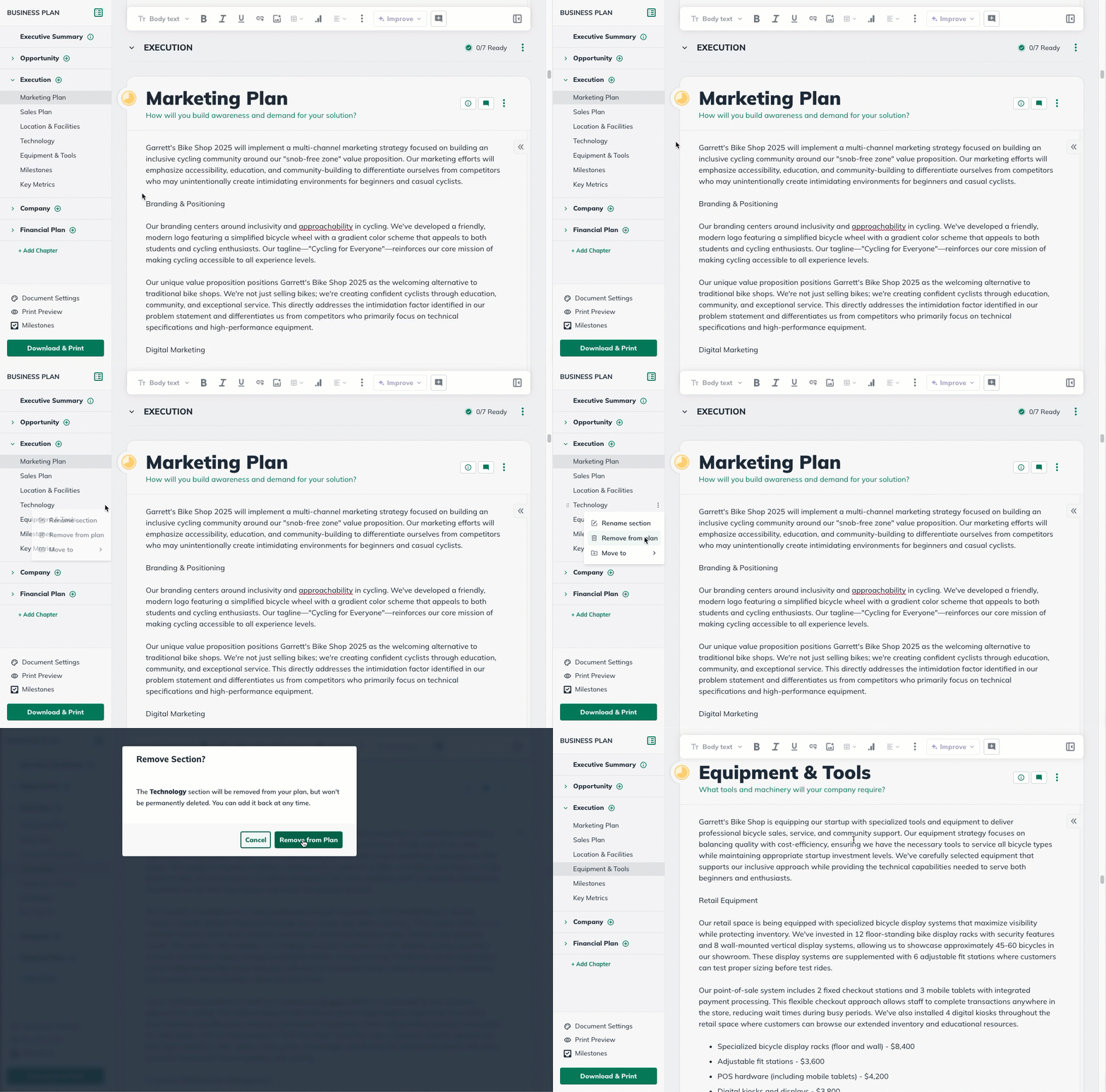
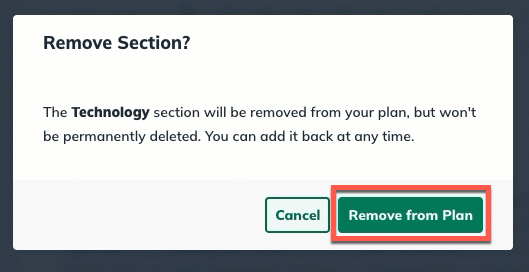
Click Remove from Plan to save the change. Any topics you've created within it will automatically be saved in the Available Content list.
Restoring a chapter or section you've deleted from your plan
When you remove a chapter or section from your plan outline, sections and any content you've entered into those sections will automatically be saved in the Available Content list for later use. The chapter headings, however, are deleted permanently.
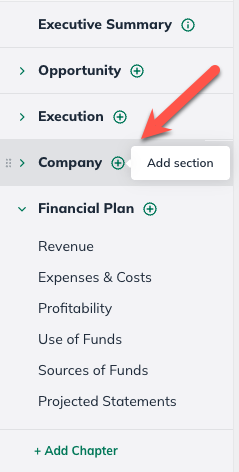
In the Plan section, select the Add Section button in the applicable chapter:
In the Available Content menu, find the section you previously removed and click Add to Plan to restore it:
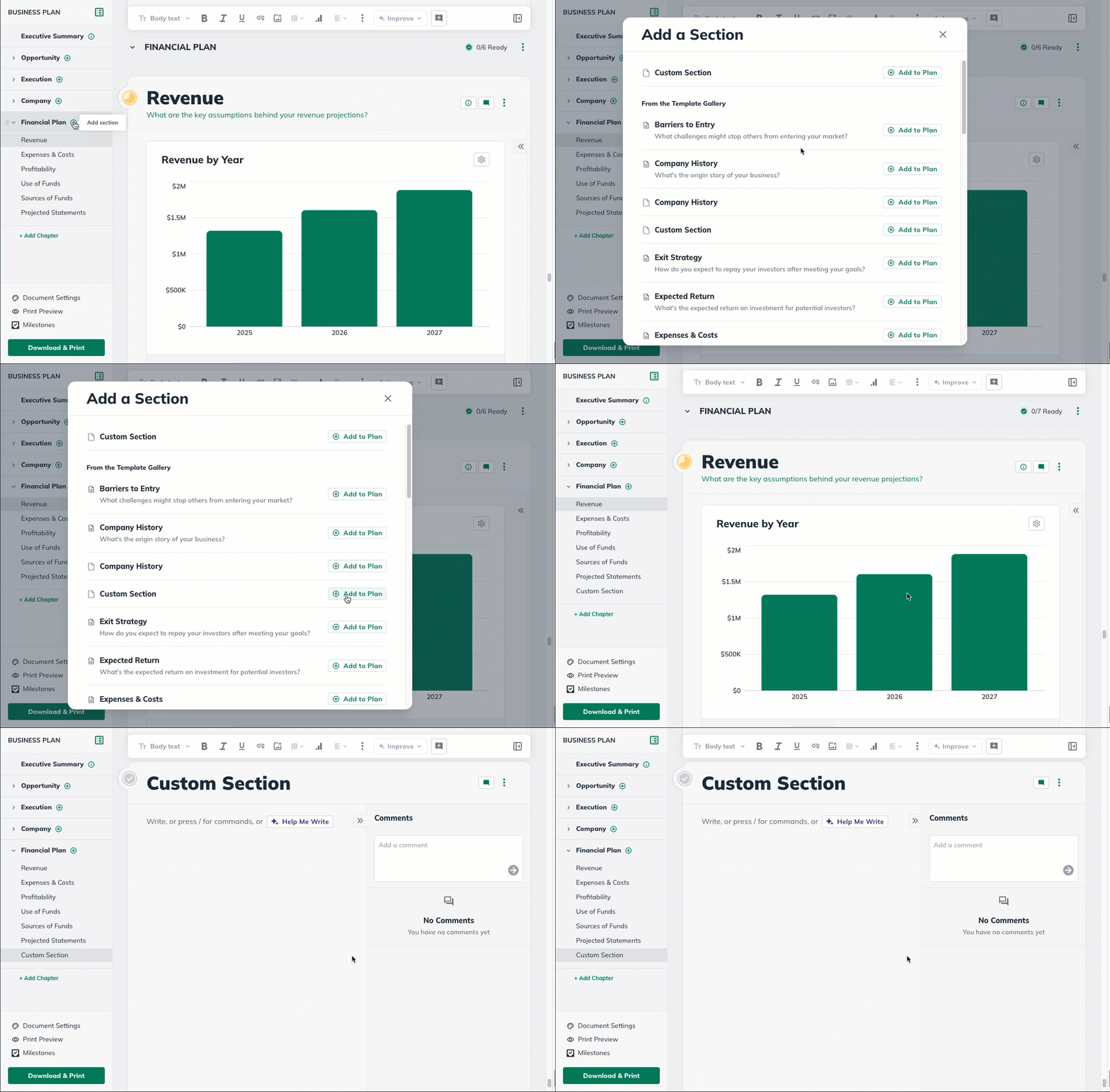
If the restored section had any content in it previously, that content will still be in place when you restore it.