
Writing Your Business Plan
Using the Plan outline
Jump to
When you create a new company in LivePlan, it contains the default business plan outline. We intentionally start you out with a simple, lightweight outline containing the sections nearly everyone should have in their plans.
To help you customize your plan, we also offer many optional items that may be important for particular types of businesses. You can add, remove, rename, and re-order the default outline parts as needed.
How the LivePlan outline is organized
The current plan outline is displayed in the left-hand column when you click the Plan section. You can click on any chapter title to see the sections included in it:
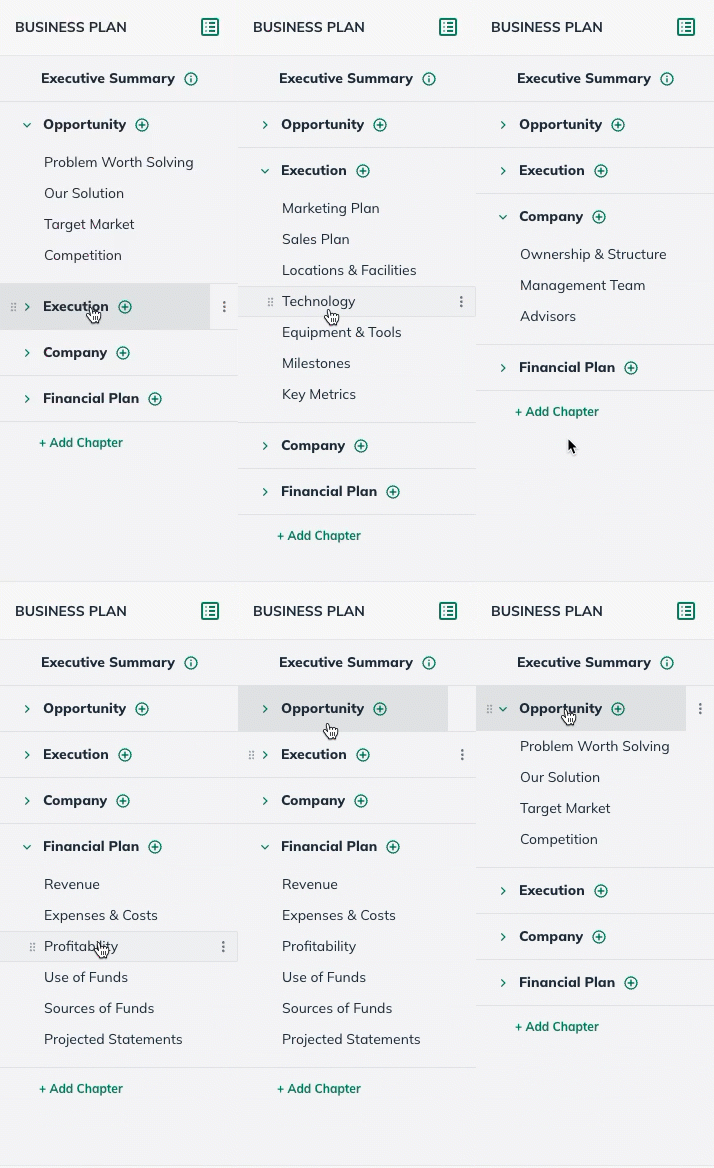
The Plan is organized by chapters and sections. The sections are where you'll enter the content of your business plan. This view makes it easy to navigate to any part of the plan so you can edit it.
For more on editing sections, read Writing and editing plan content.
What are chapters and sections?
To see an editable view of your outline, click on the Plan section:
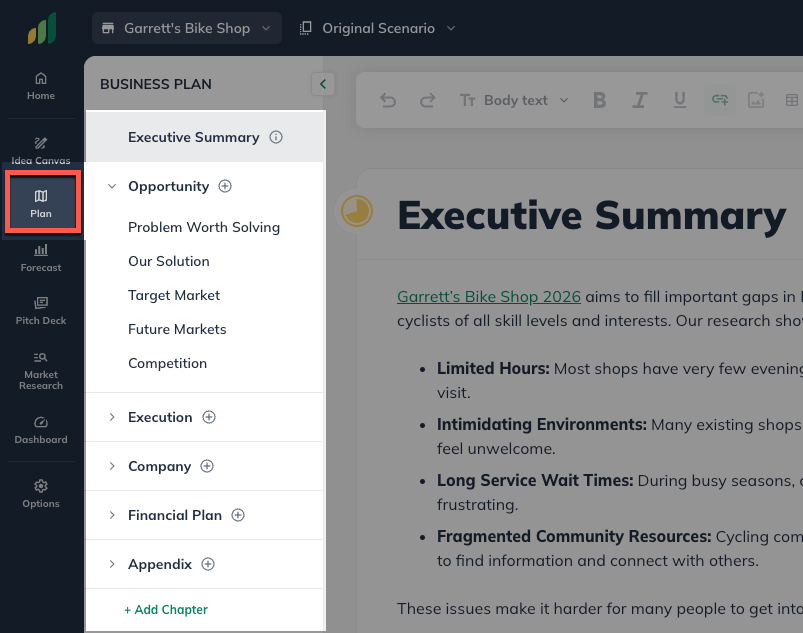
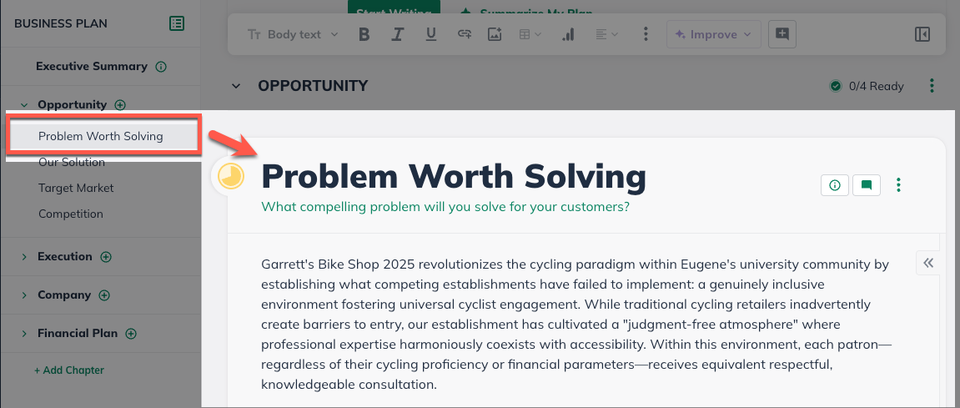
In this view, you will see the same outline with the chapters and sections in place. If you select a Chapter or Section, LivePlan will jump to that selection in the editing field.
What's included in the default outline
The first chapter in any newly created plan will be your Executive Summary. It will look a little different from the rest of the plan outline. We recommend writing the executive summary last after the later sections of the plan have been completed. This makes it easy to summarize your work in the direct and concise language that will best convey your ideas to the reader.
If you’re new to business planning, you may wish to use this default outline. It includes instructions and examples for each topic to help direct your writing, and LivePlan Assistant can revise and rewrite your work.
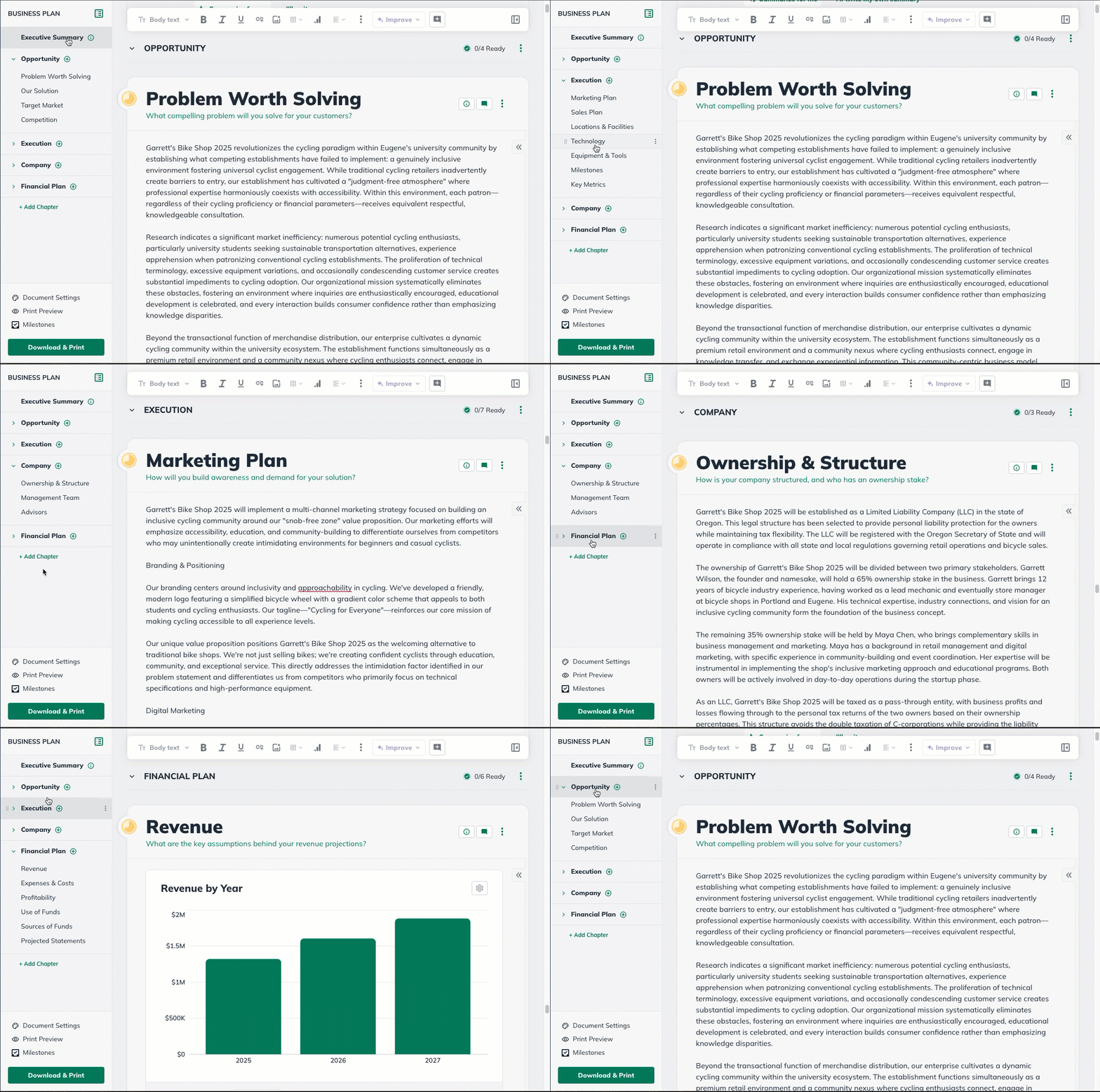
The default sections that are included in a new company's plan document are listed below:
Executive Summary
Opportunity
Problem worth Solving
Our Solution
Target Market
Competition
Execution
Marketing Plan
Sales Plan
Location & Facilities
Technology
Equipment & Tools
Milestones
Key Metrics
Company
Ownership & Structure
Management Team
Advisors
Financial Plan
Revenue
Expenses & Costs
Profitability
Use of Funds
Source of Funds
Projected Statements
What additional content can I add to my plan?
In addition to the default plan outline, LivePlan provides a selection of pre-built sections as well as embeddable charts and tables that may be useful for specific kinds of businesses.
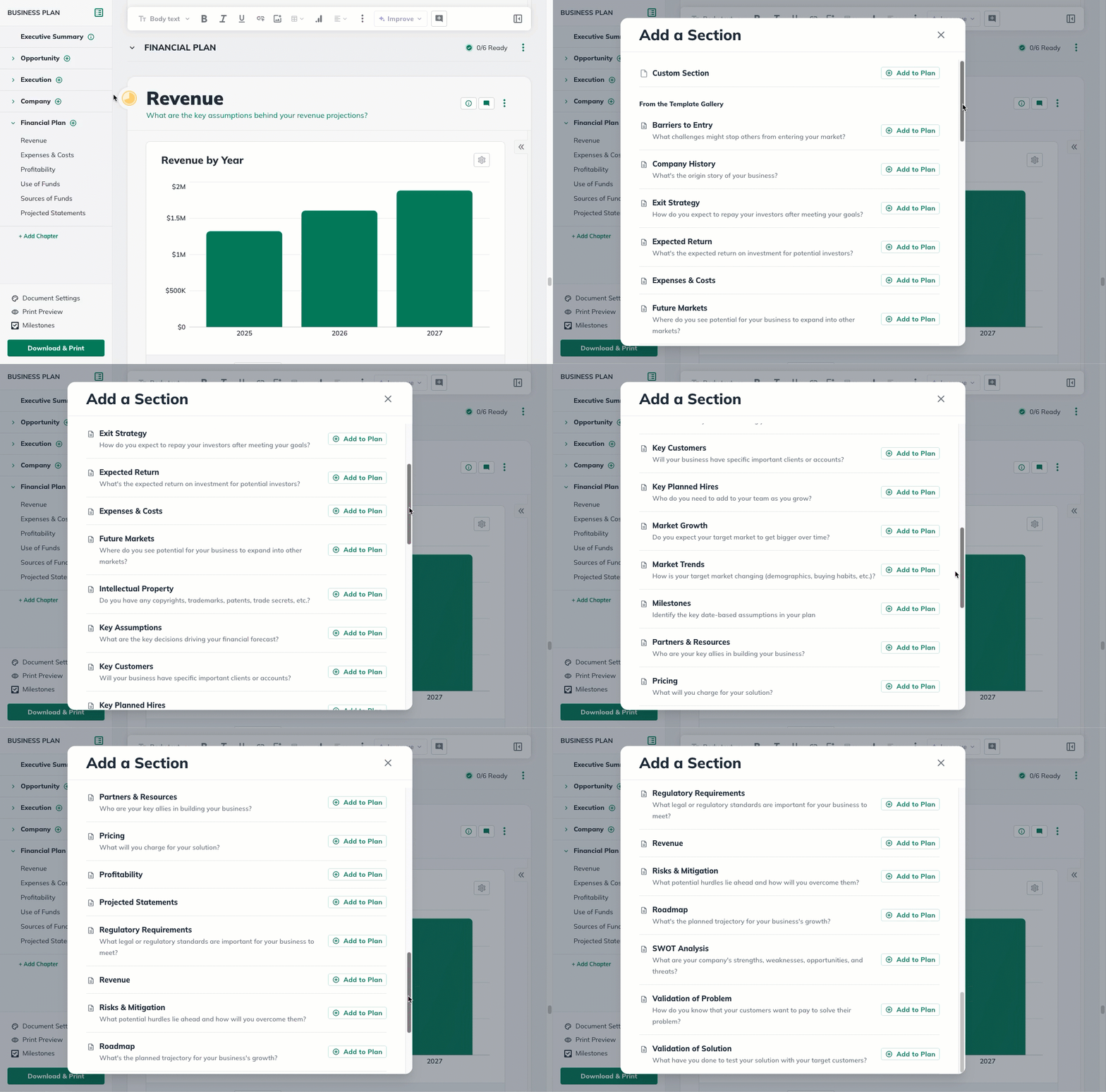
This content is available on the Outline page of the Plan section. You can easily add these items to any section of your plan by clicking on the Add Section icon in your outline.
Adding a pre-made section to your plan
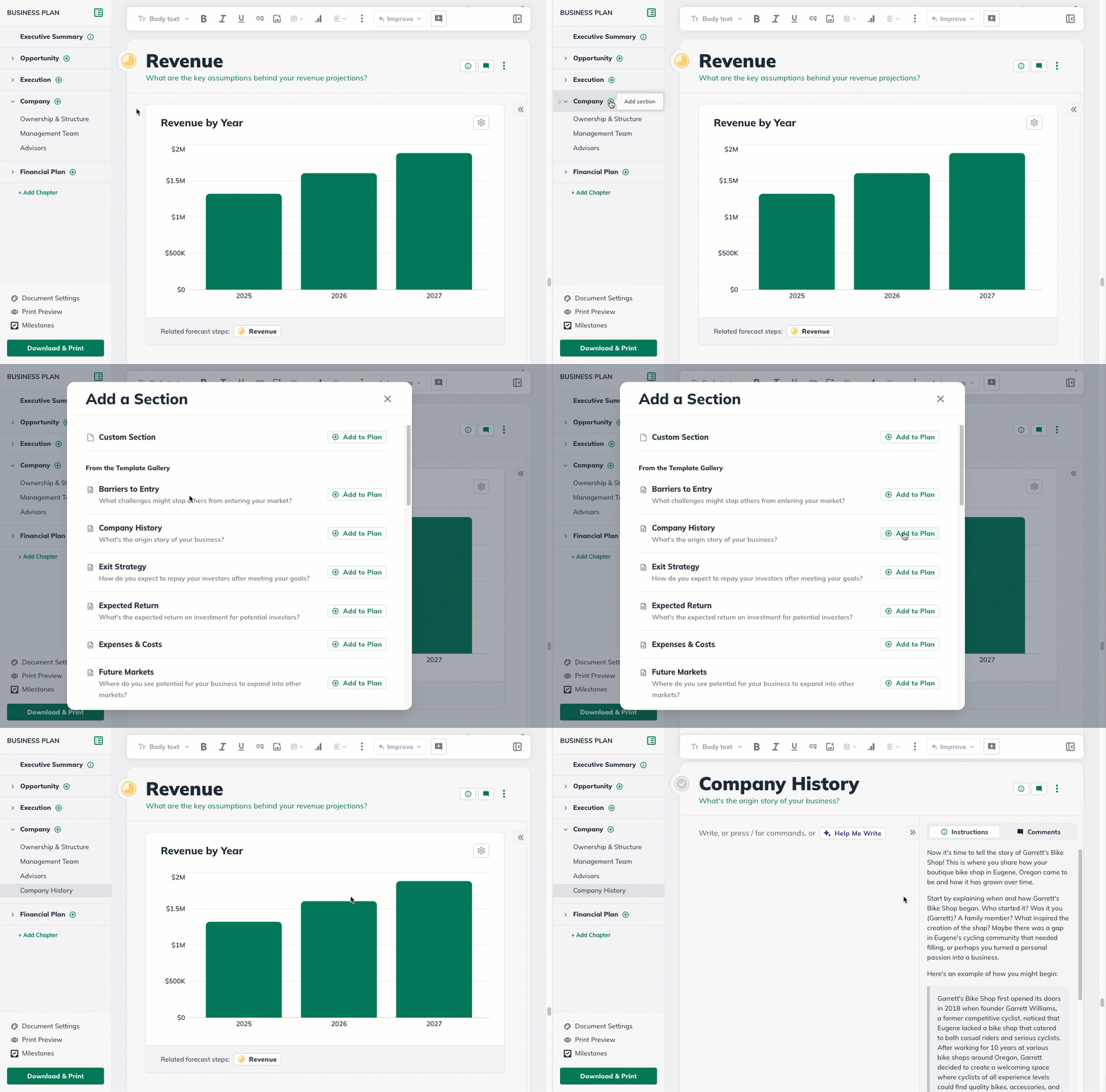
In the Plan section, select the Add Section button in the applicable chapter:
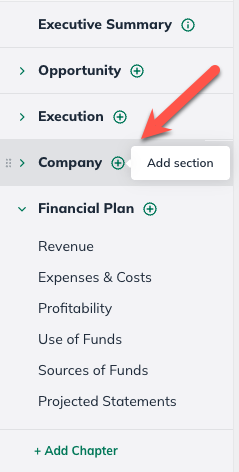
In the Available Content menu, find the section you would like to add:
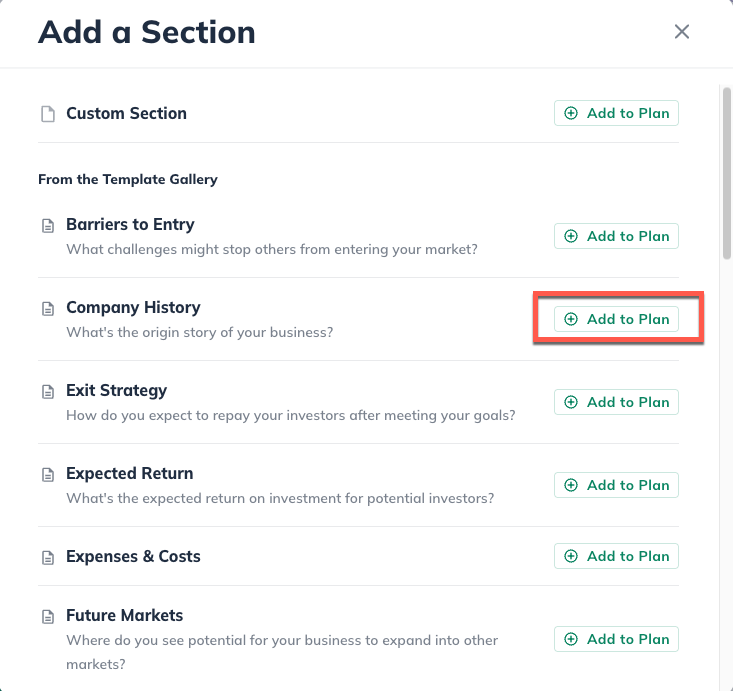
Click on the section you want to add to your outline and it will automatically add it to your outline and navigate you to that section. The change will save automatically:
Adding custom chapters, sections, and topics
In addition to the default outline, LivePlan lets you create custom chapters and sections to place anywhere in the plan.
To add a custom chapter, section, or topic:
In the Plan section, select the Add Section button in the applicable chapter:
At the top of the Available Content menu, select Custom Section:
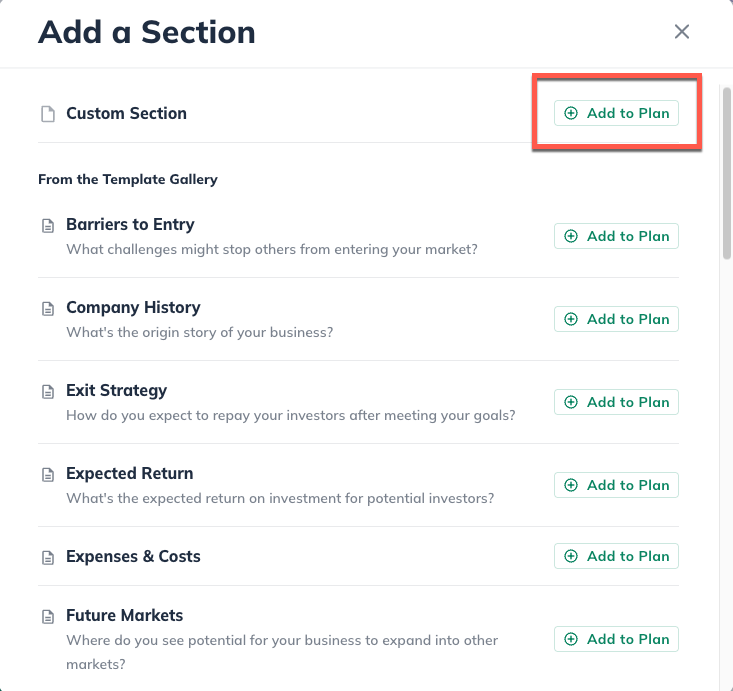
Click on the section you want to add to your outline and it will automatically add it to your outline and navigate you to that section.
Then type in the title of the new Section:
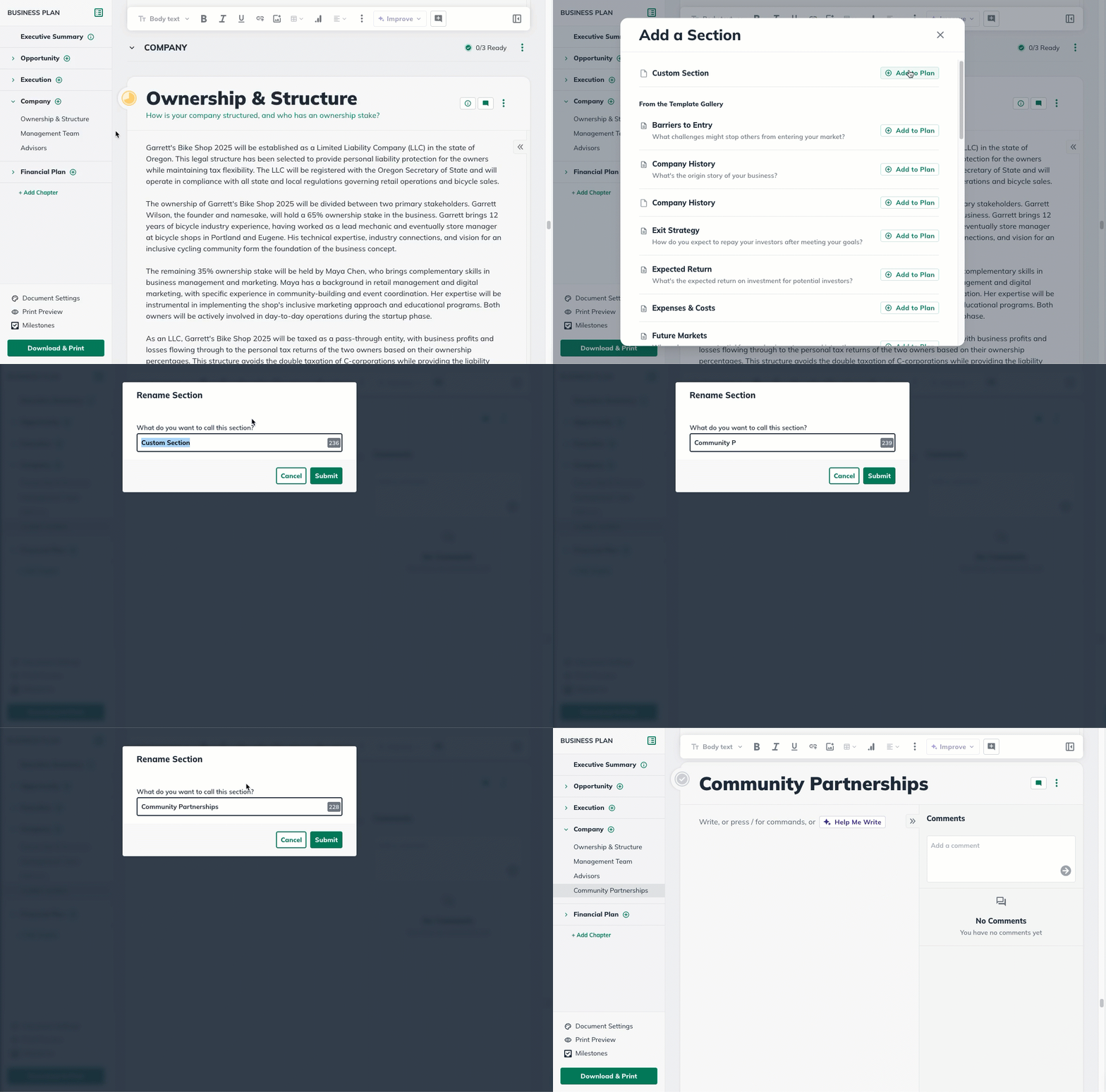
Changing the title of a chapter or section
You can change the default title of any chapter or section in the plan outline to better suit your needs. For example, if you sell products but not services, you can change the preset title “Products and Services” to just “Products.”
Changing the title of a chapter or section
In the Plan section, click the three dots next to any section or chapter in your outline:
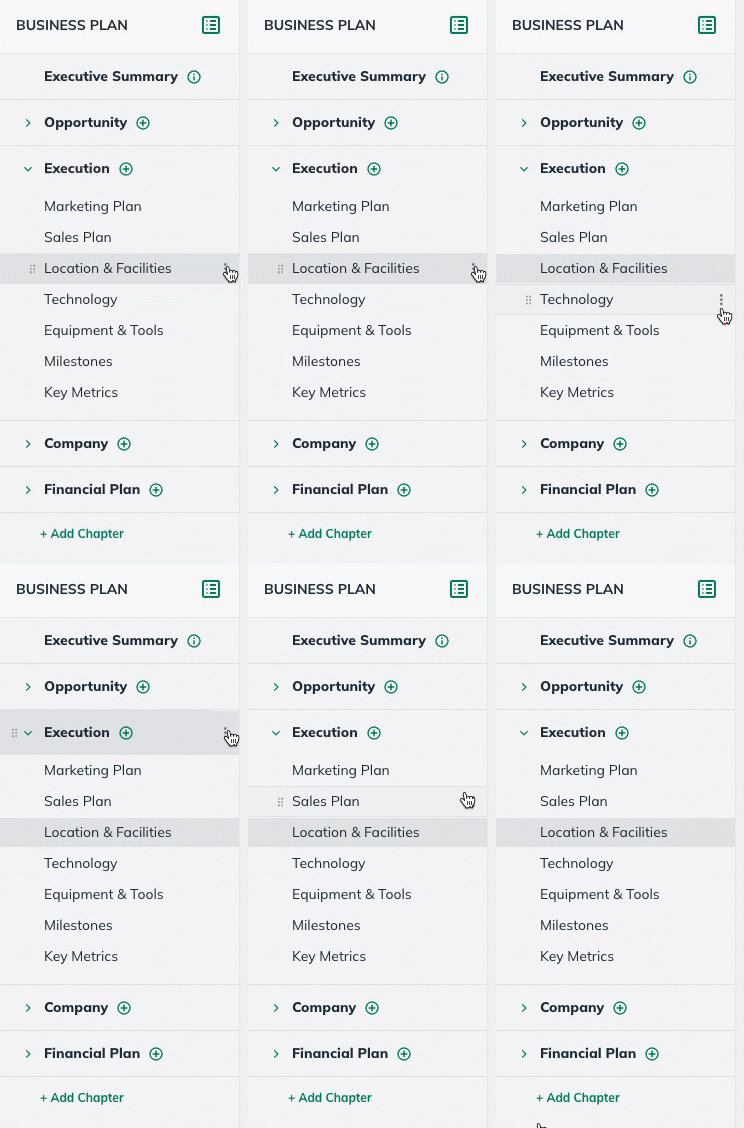
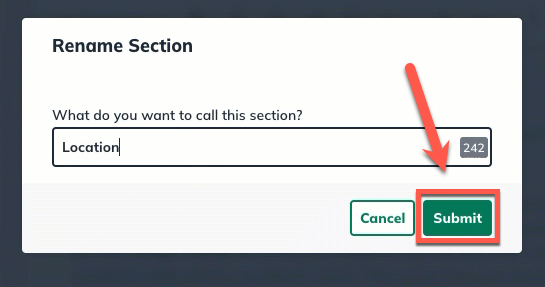
Select Rename Section or Rename Chapter and then change the name of the selection.
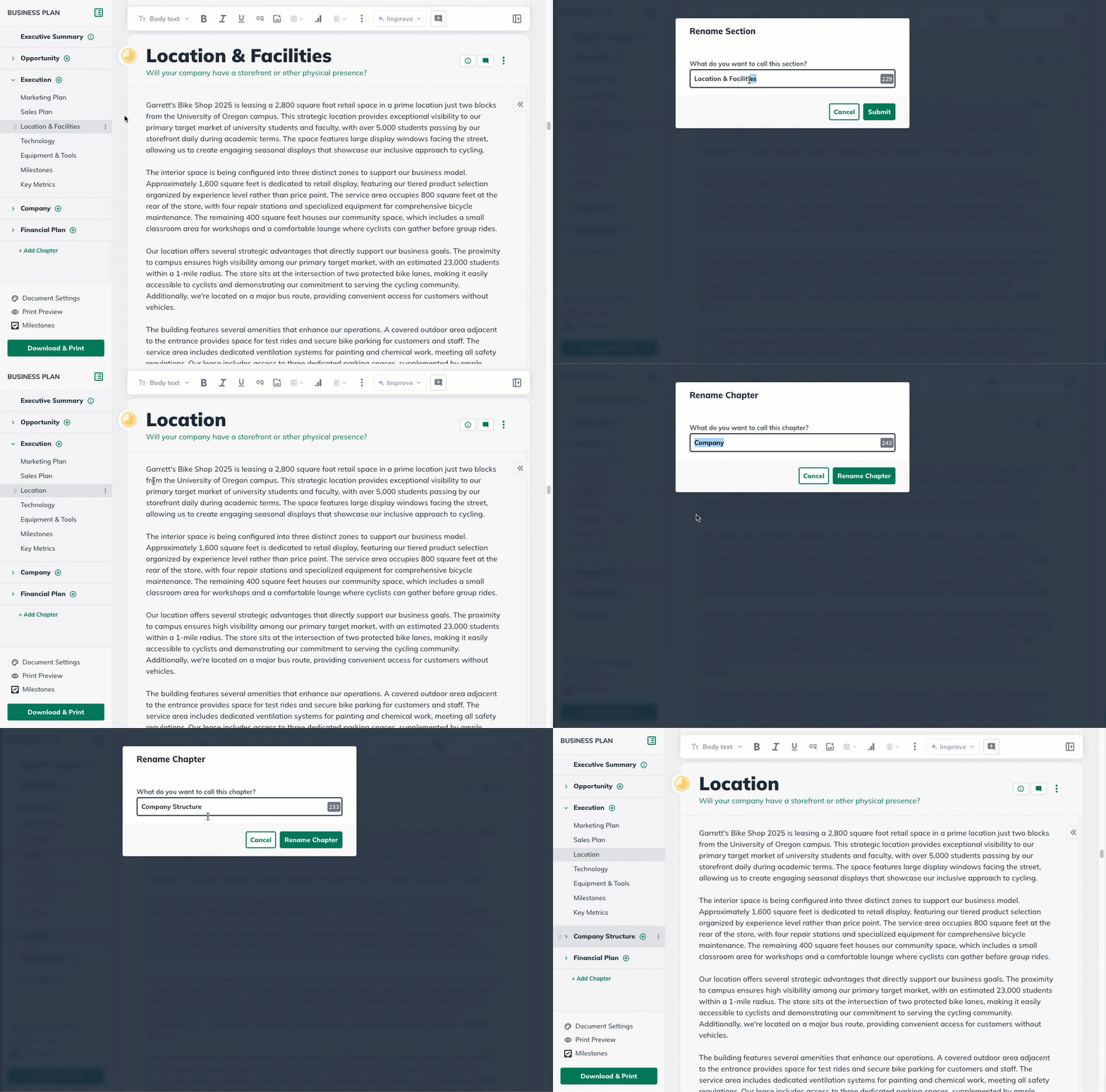
Click Submit to save your changes.
Changing the organization of your plan outline
LivePlan's business plan outline is fully customizable. You can build a plan that reflects your unique business and market by adding, removing, renaming, and rearranging chapters and sections.
Moving a chapter, section, or topic in the plan outline
The plan outline is highly flexible. You can change the order of the chapters within the plan and the order of sections within a chapter. You can even move sections and topics from one chapter to another.
Moving a chapter
In the Plan section, click on the chapter heading you'd like to move, and drag the chapter or section to the new location:
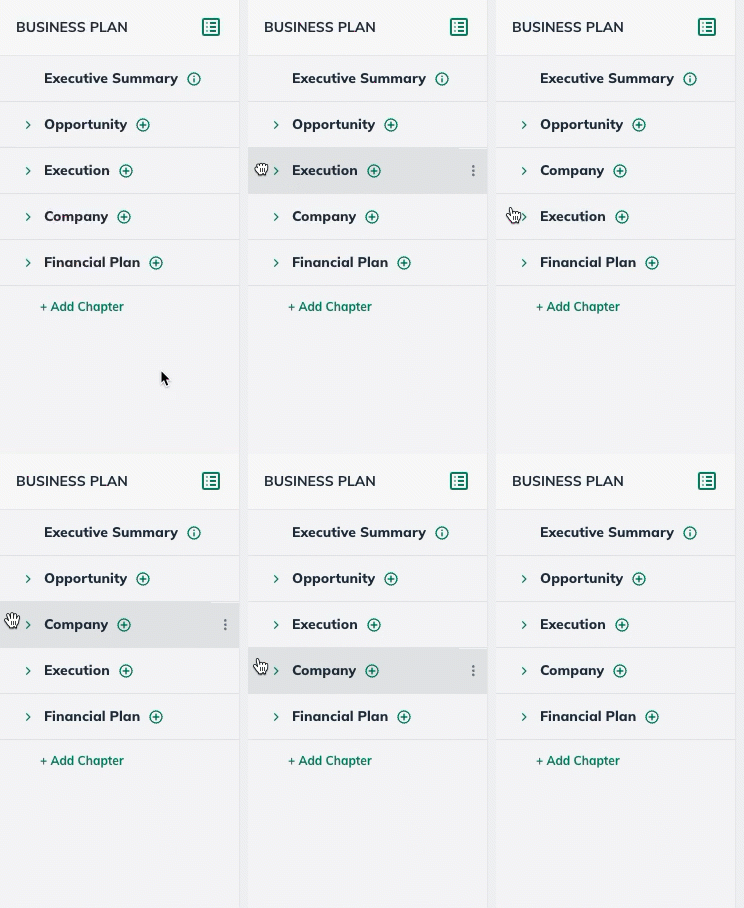
When you move a chapter, all the sections in that chapter will move along with it. The change will save automatically.
Moving a section
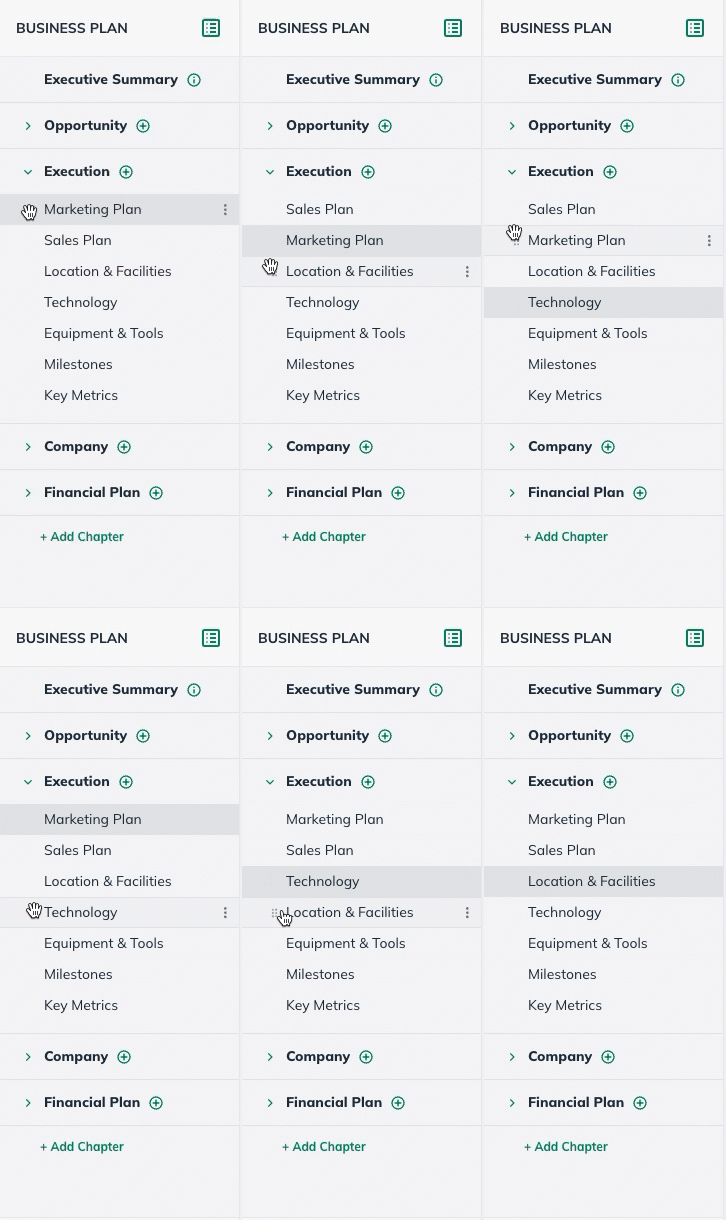
In the Plan section, click on the section heading you'd like to move, and drag the chapter or section to the new location:
Removing chapters or sections from your plan outline
If there are chapters, or sections in the outline that you don’t want to be included in your plan, it is straightforward to remove them.
When you remove a section, it will no longer appear as part of your plan’s printed output, but any information you have entered in the section will be saved. Other users on your account can view the contents of any removed section, and you can restore it to your plan at any time.
Removing a chapter or section
In the Plan section, click the three dots next to any section or chapter in your outline:
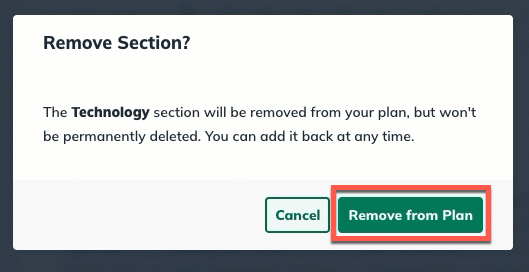
Select Remove From Plan.
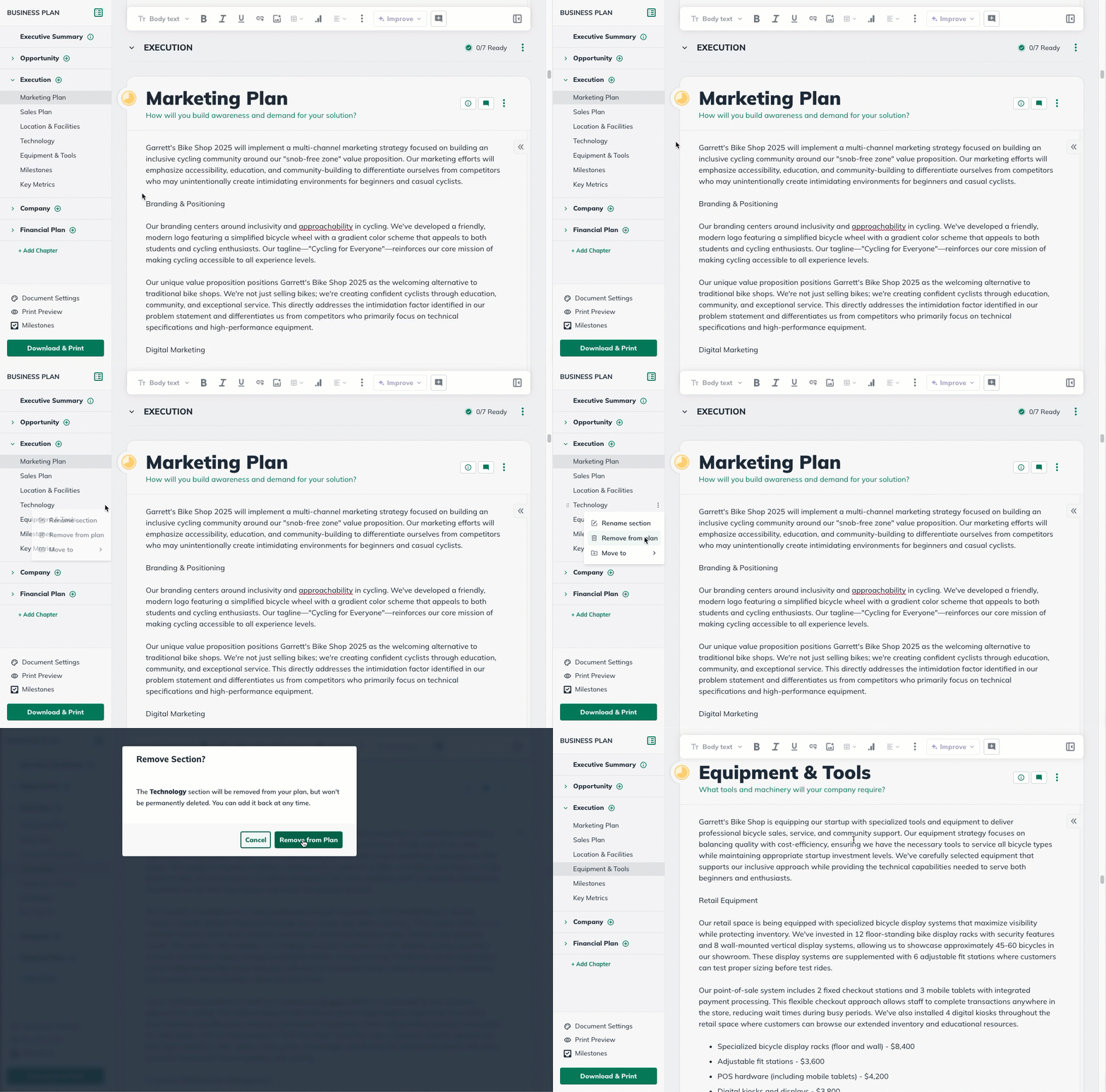
Click Remove from Plan to save the change. Any topics you've created within it will automatically be saved in the Available Content list.
Restoring a chapter or section you've deleted from your plan
When you remove a chapter or section from your plan outline, sections and any content you've entered into those sections will automatically be saved in the Available Content list for later use. The chapter headings, however, are deleted permanently.
In the Plan section, select the Add Section button in the applicable chapter:
In the Available Content menu, find the section you previously removed and click Add to Plan to restore it:
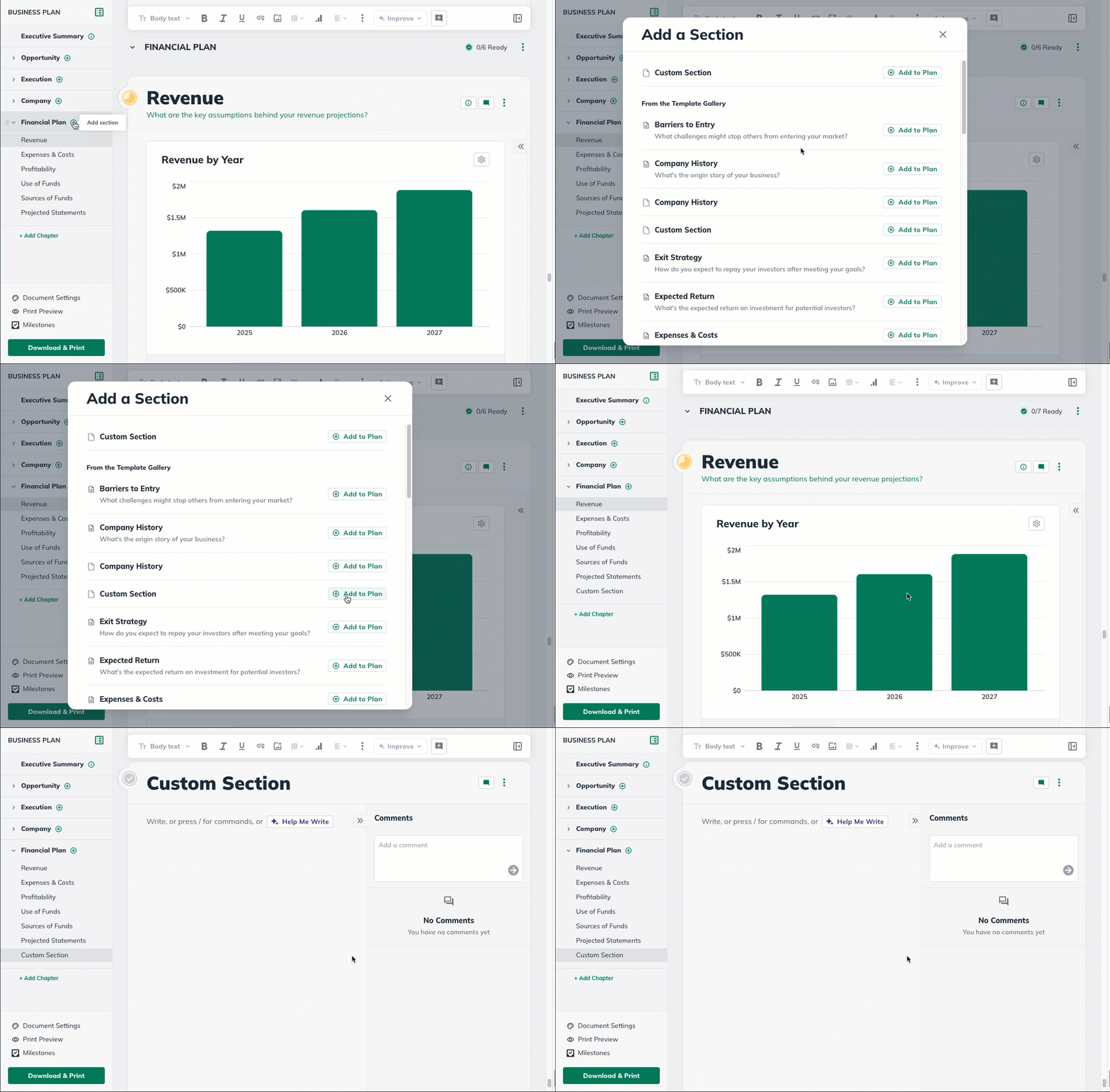
If the restored section had any content in it previously, that content will still be in place when you restore it.
Adding a pre-made chart or table to your plan
LivePlan includes multiple pre-made charts and tables you can add to any sections within your plan outline.
To add a chart or table, select the section you want to add it to.
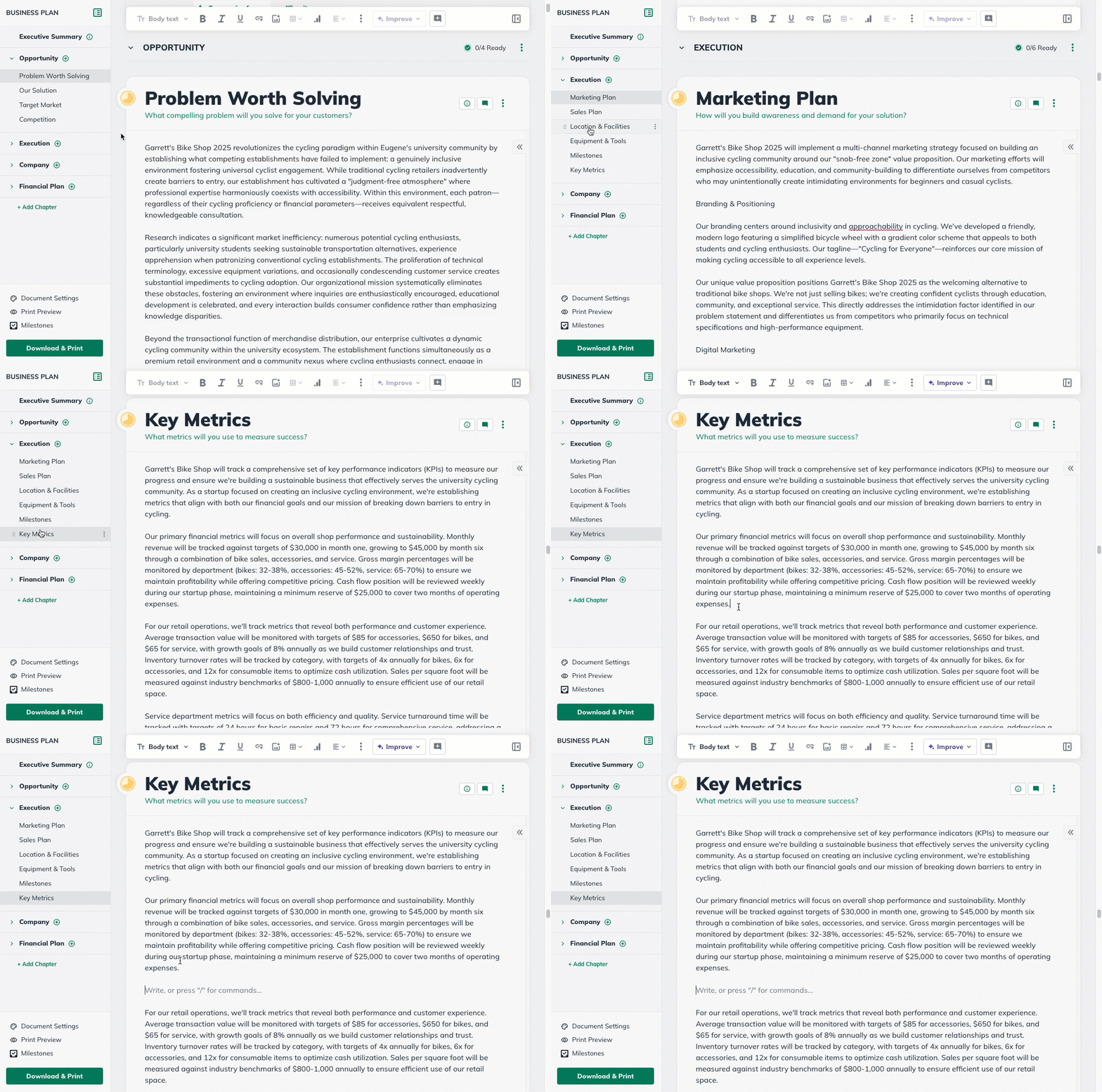
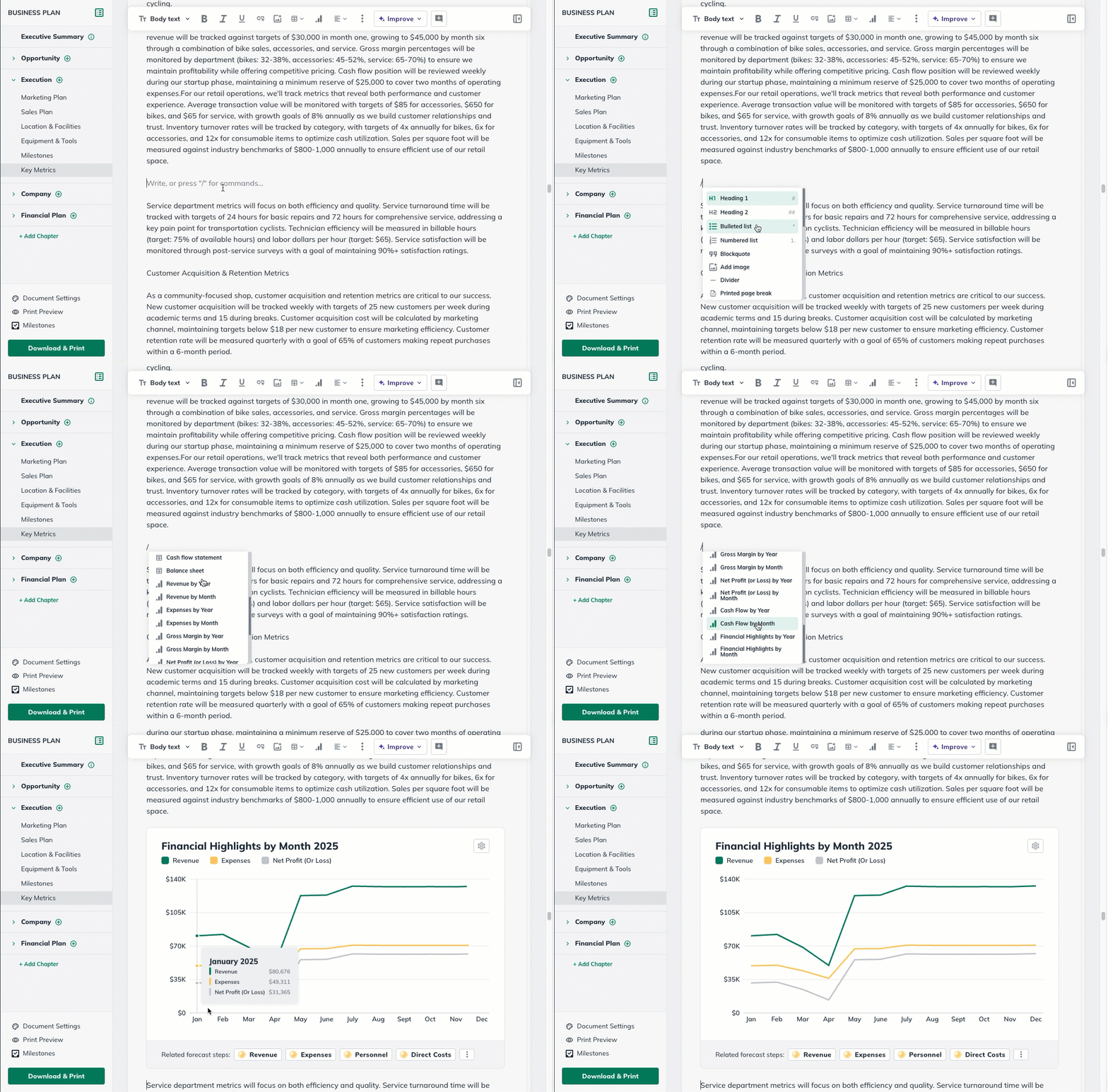
In the top menu bar, select the chart or table you would like to add to that section. Configure how you would like the chart to display and click Add to Plan:
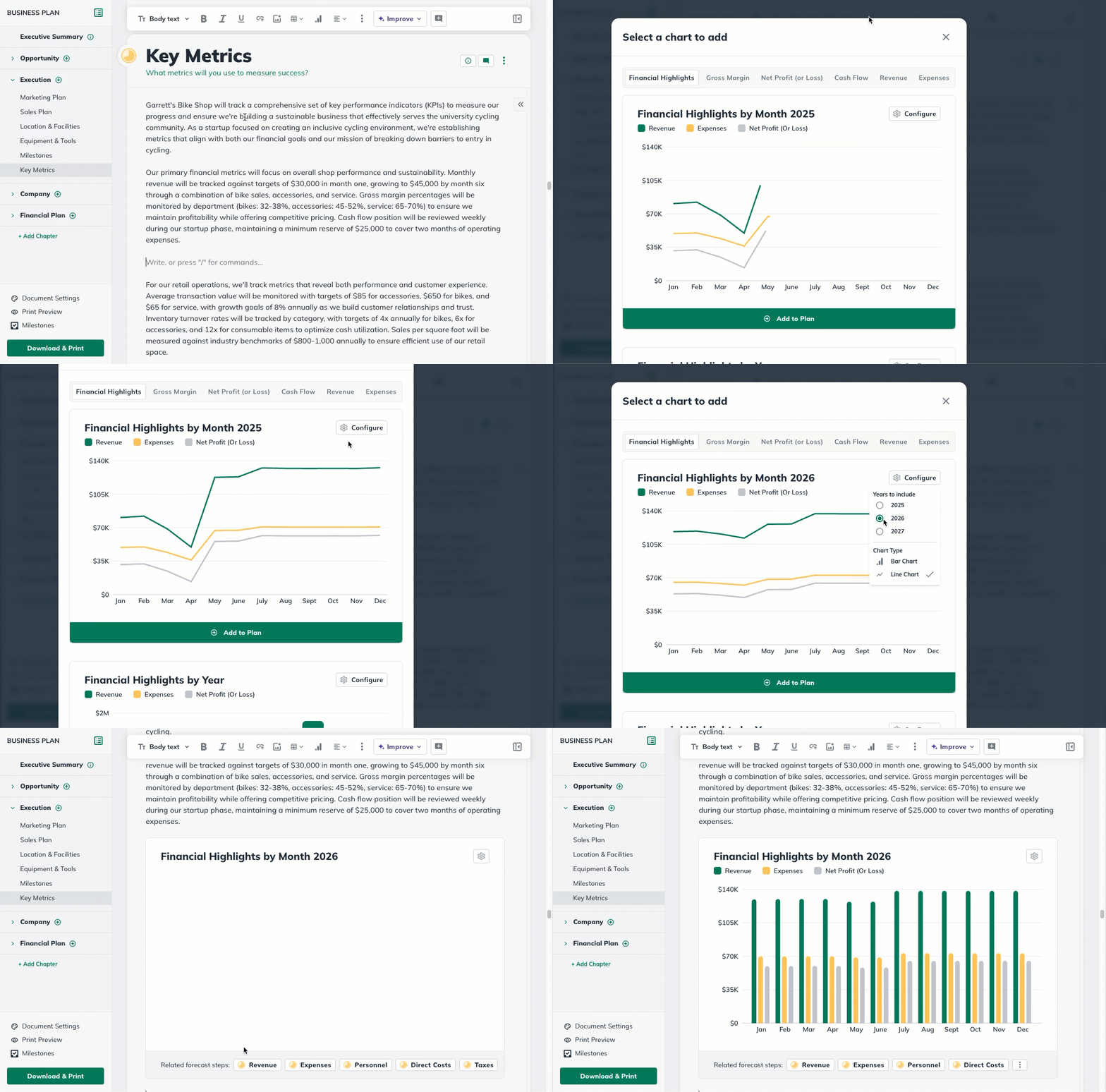
Once in the body of the plan, you can change the configuration of the chart to reflect how you would like it to look upon export.
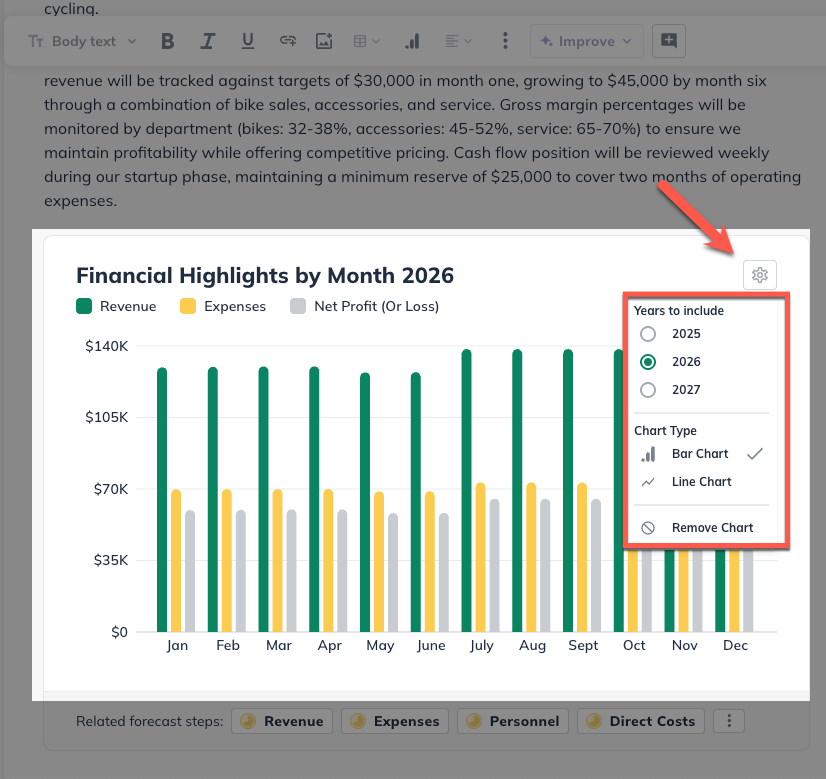
Note: You can access this function by using the / key command in the body anywhere in the plan sections.
Using the instructions and examples to help write your plan
LivePlan's default outline includes instructions for each written section and examples of responses. The examples' specifics will be customized to your company description.
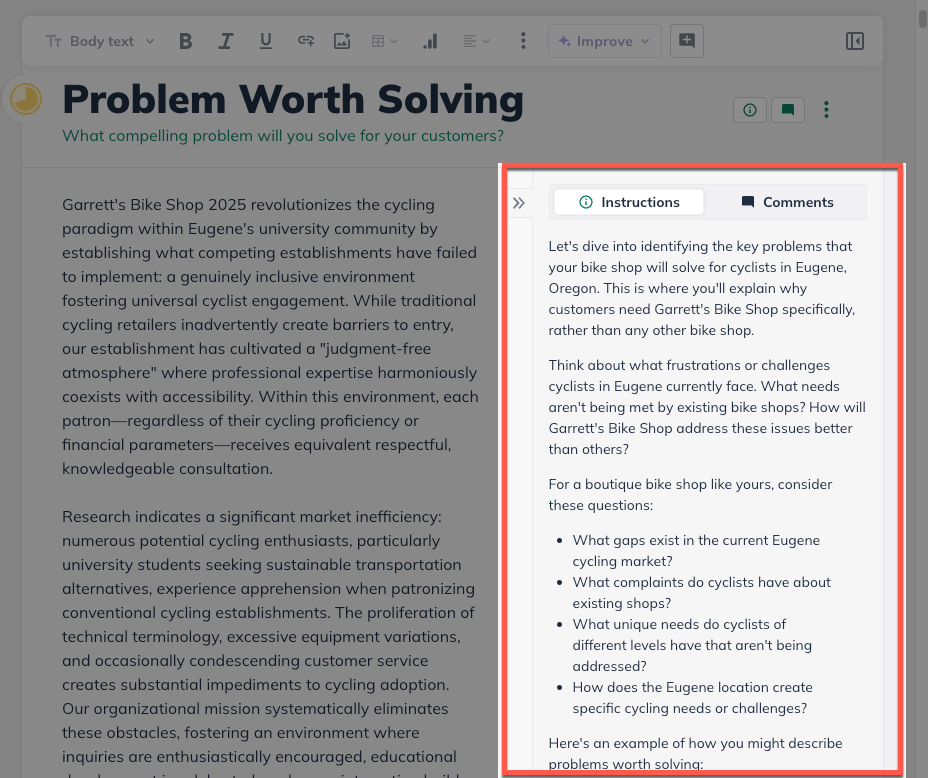
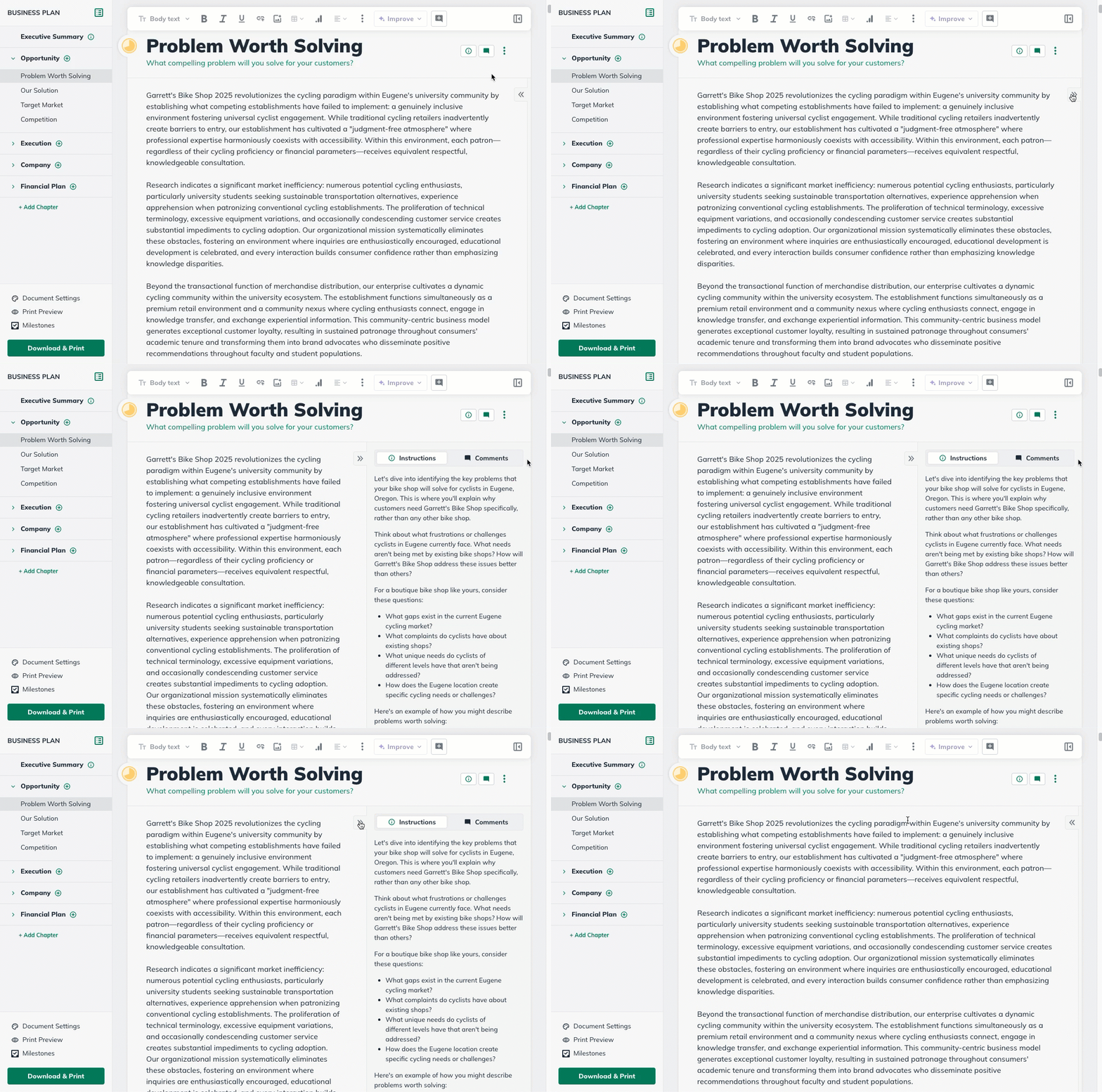
You can expand and collapse the instructions by clicking on the instructions tab in each plan section:
Troubleshooting your Plan outline
What if I don't know what a business plan for my industry should look like?
You may want to use the library of sample business plans within LivePlan to see how other similar businesses have approached their business plans. Seeing how other entrepreneurs in your industry have expressed their business ideas can help inspire you to describe your business.
While we don't offer these sample plans as templates, you are always welcome to copy material from them and paste it into your plan to use as a starting point for your editing.
What if I'm unsure what changes to make to my plan outline?
Remember that the essential information in most business plans is quite similar. You'll need to explain how your company is solving a problem and who your target market is. You'll need to explain how you'll be distinct from your competitors. You'll need to build a forecast. All of that is the same in any industry.
If you're unsure how to customize the LivePlan outline, don't worry too much about it. You can start by filling in the default outline. As you do, you may be able to think of other details to add that would help describe the company you're starting. You can add these to your plan at any time.
In other words, don't worry about starting perfectly. Think of your business plan as a living document that evolves as you get deeper into starting your business.