Writing Your Business Plan
Writing your plan
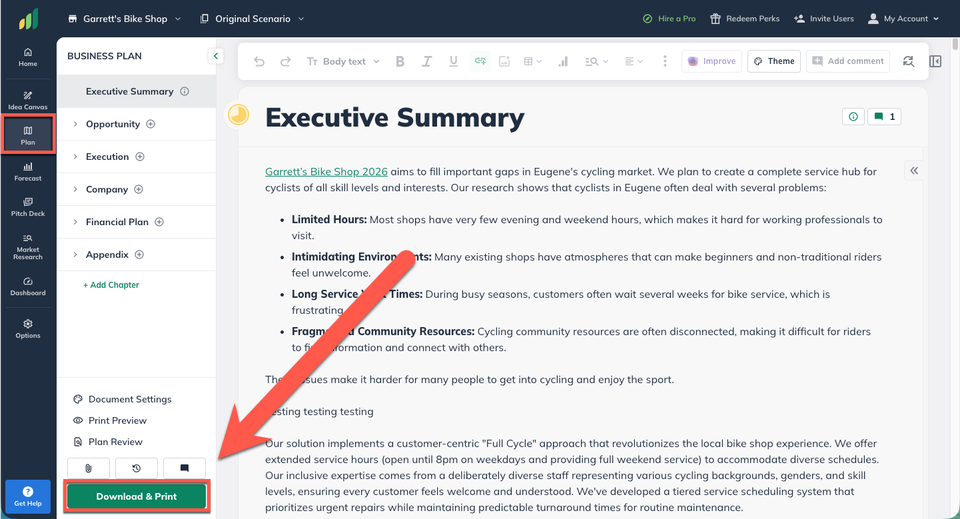
The Plan section in LivePlan is where you’ll write, edit, and refine your business plan. When you create your company, the plan will be set up with an outline that includes chapters and sections that form the foundational base of almost any business plan, along with tables and charts populated with your forecast data.
The default plan outline is intentionally simple and lightweight to make writing your plan more approachable.
You can start writing your plan in the provided outline, or you can customize the outline to meet the needs of your unique business.
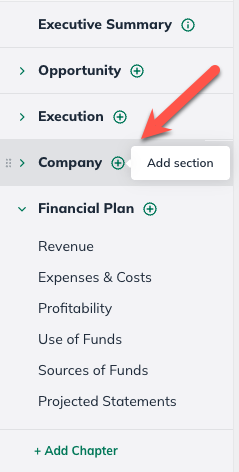
In the Plan section, select the Add Section button in the applicable chapter:
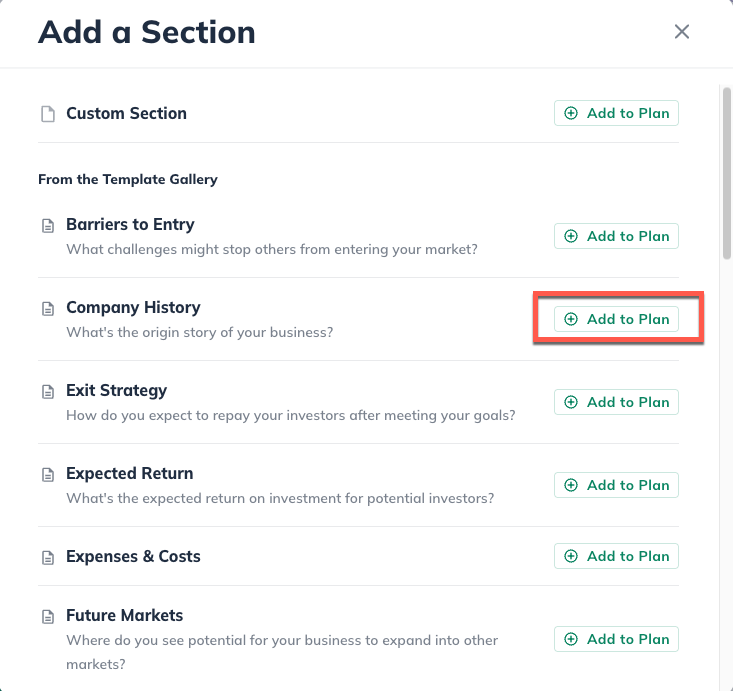
In the Available Content menu, find the section you would like to add:
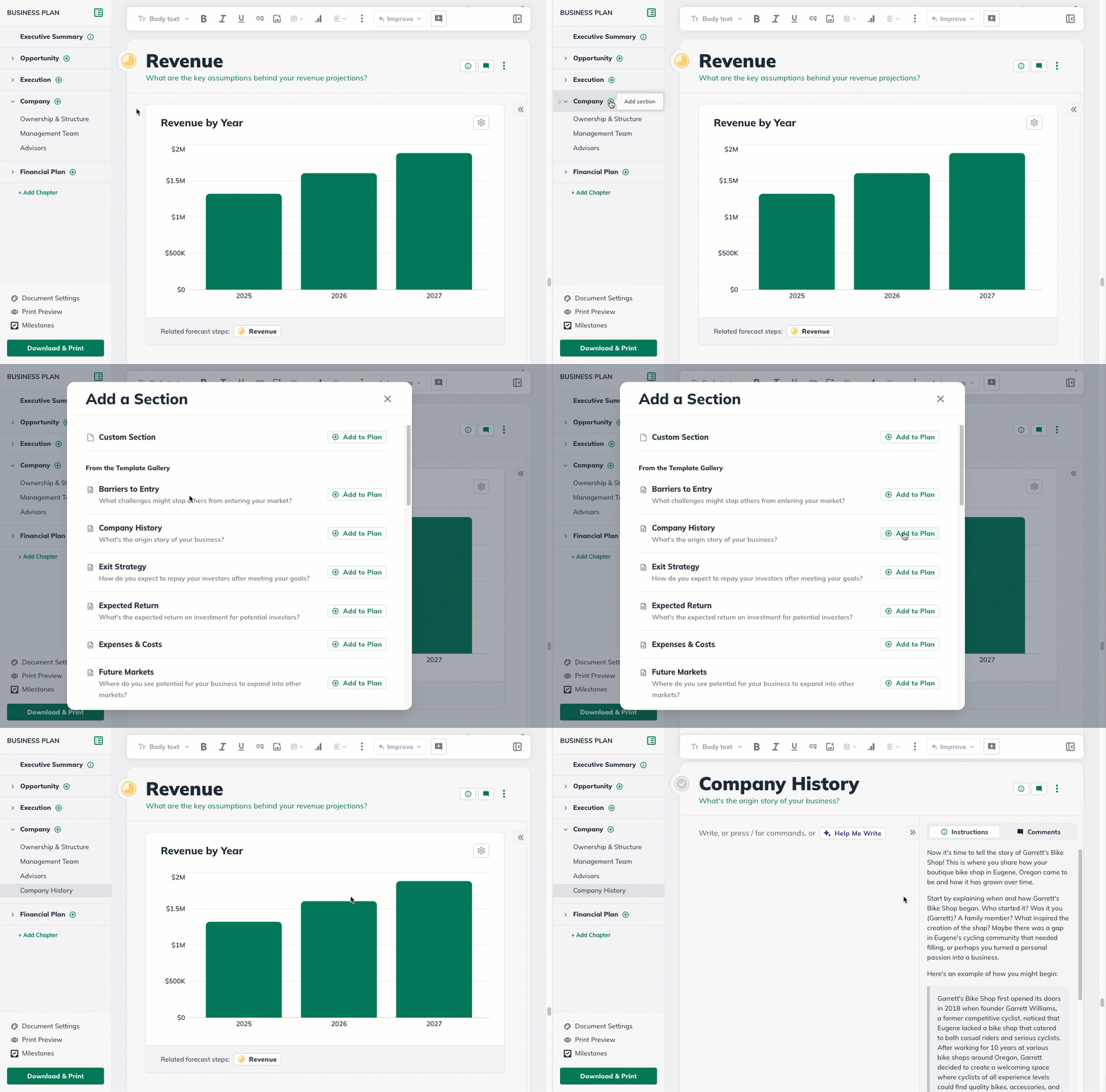
Click on the section you want to add to your outline and it will automatically add it to your outline and navigate you to that section. The change will save automatically:
If you’re unsure how to customize your outline, don’t worry too much about it. Just start with the sections in the default outline. Customizations can be added at any time.
To begin writing a text section, click on the Plan tab. This will bring you to the Plan Editor.
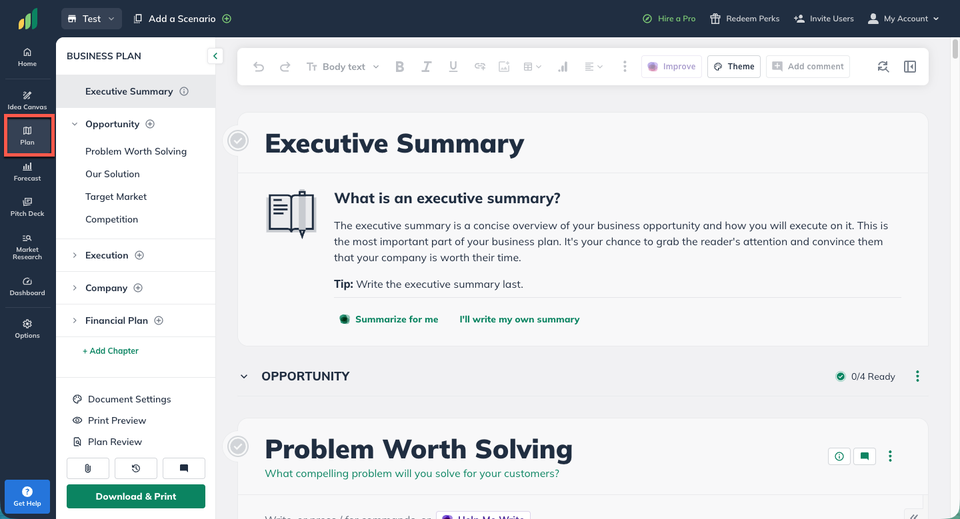
The main area of the page then displays the sections and chapters that make up the outline.
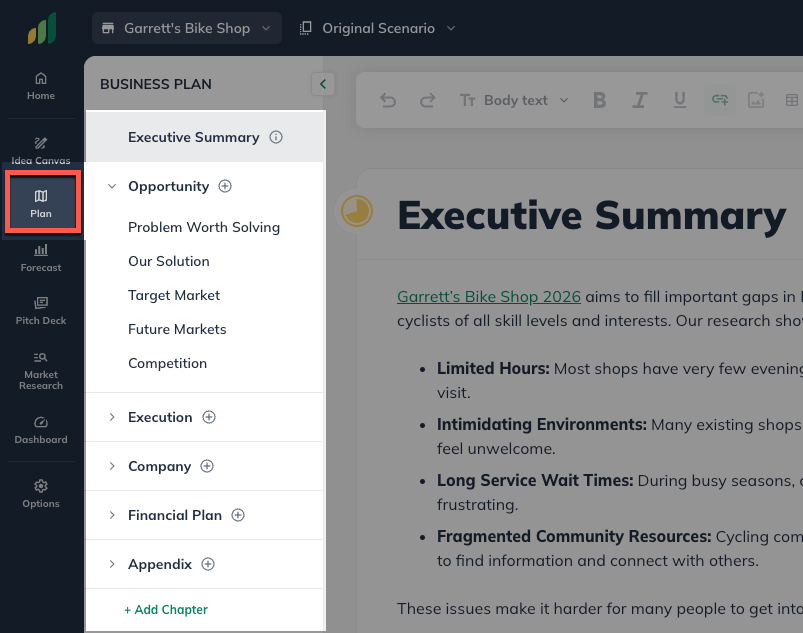
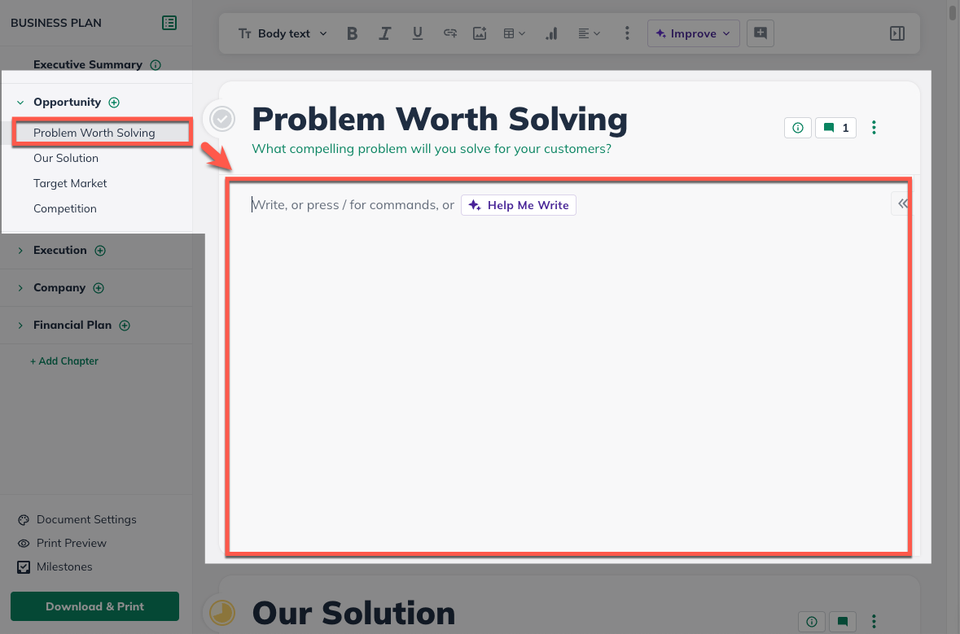
Select the section you want to work on and you will be automatically brought to that section to begin editing.
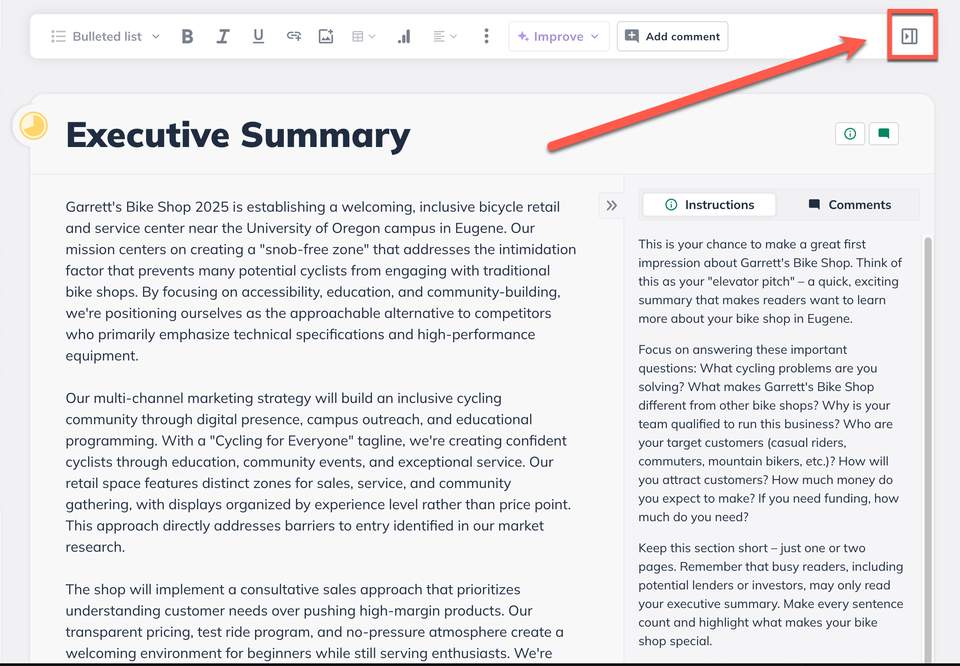
In the text editor, for each section, you'll see a collapsible sidebar that contains instructions for writing the section along with examples.
To learn more about the examples, read Using the Instructions and Examples.
To enter your text into the section, type into the editor field. Add formatting, images, or hyperlinks with the formatting toolbar as needed:
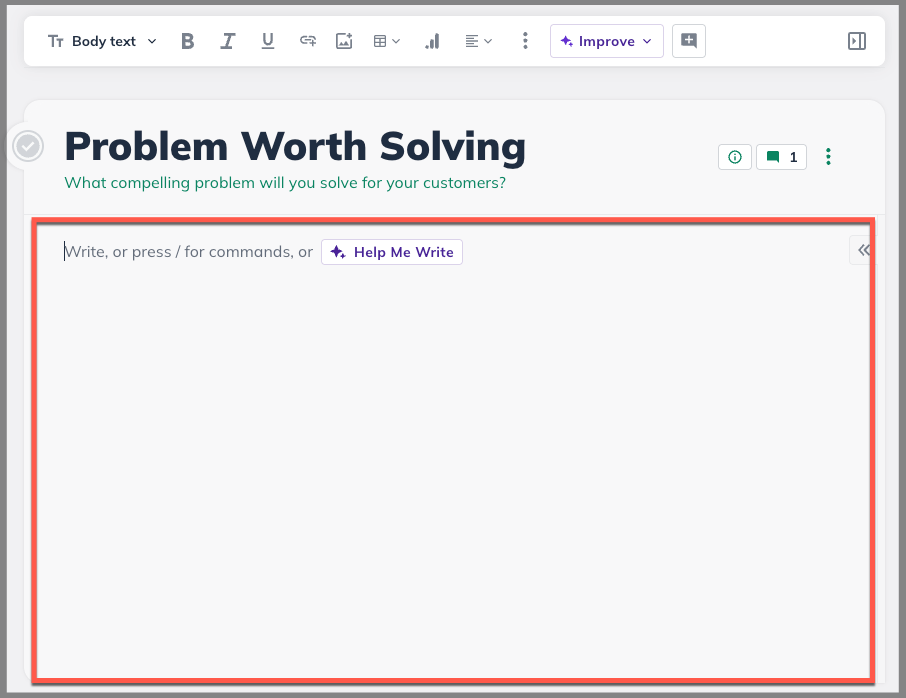
Note: You can access a list of quick commands in the text editors by pressing the / key.
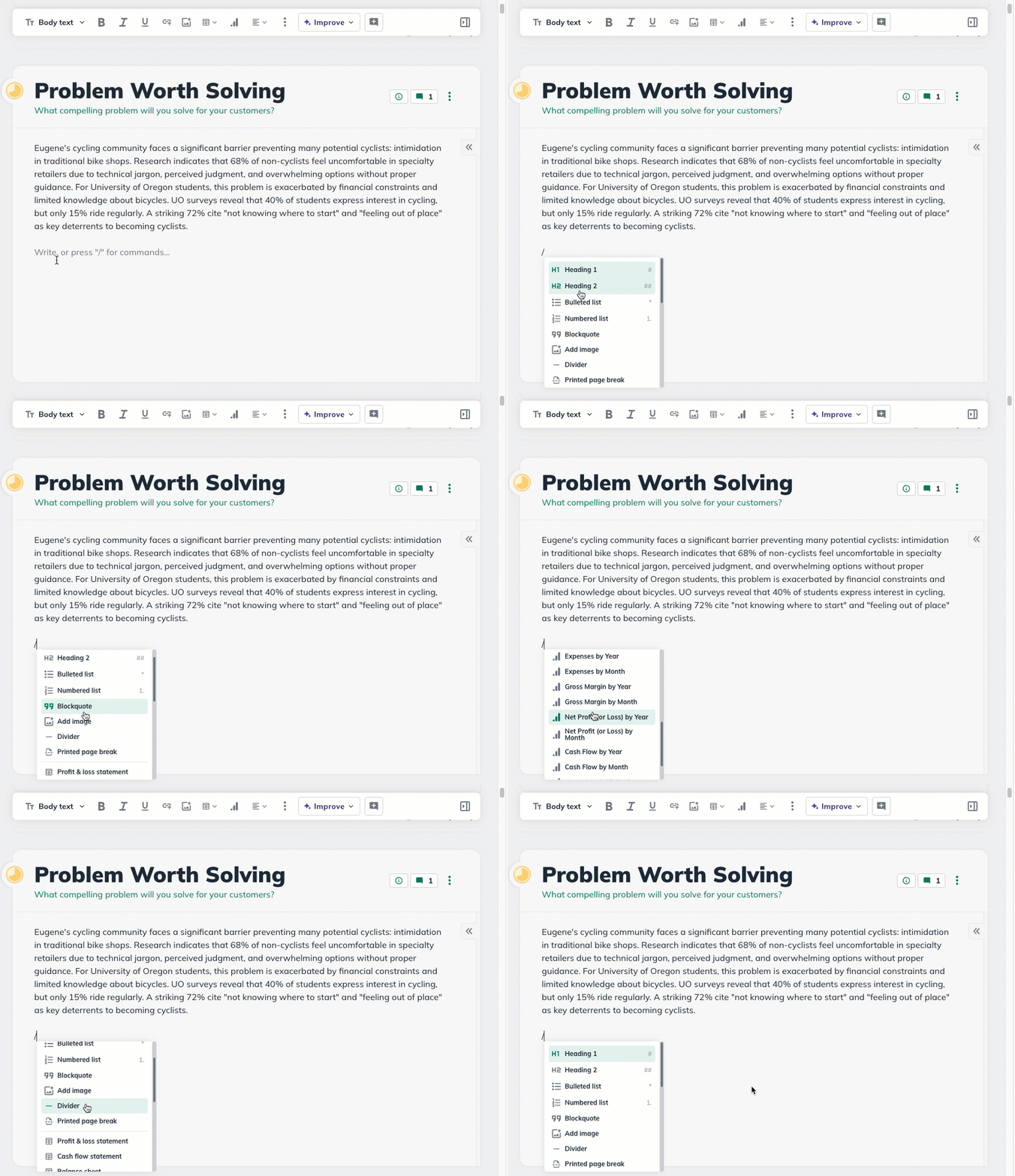
Using the / command allows you to quickly add anything from the top toolbar without interrupting the flow of your work.
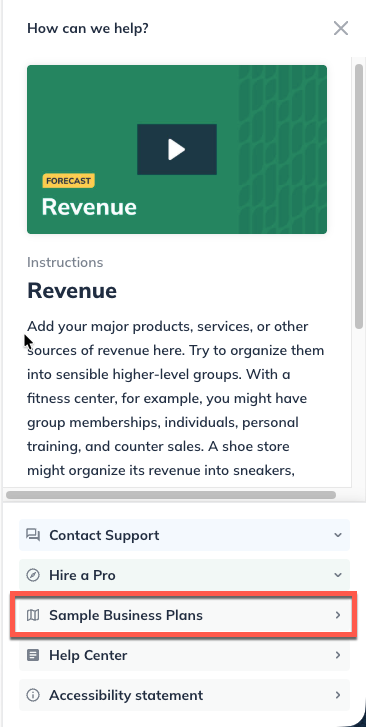
On the lower right sidebar, you’ll see some instructions and examples for the section you’re working on. These will help guide you as you go through the writing process. If examples closer to your intended business plan would be helpful, our Sample Plan Library can be found in the LivePlan Learning menu.
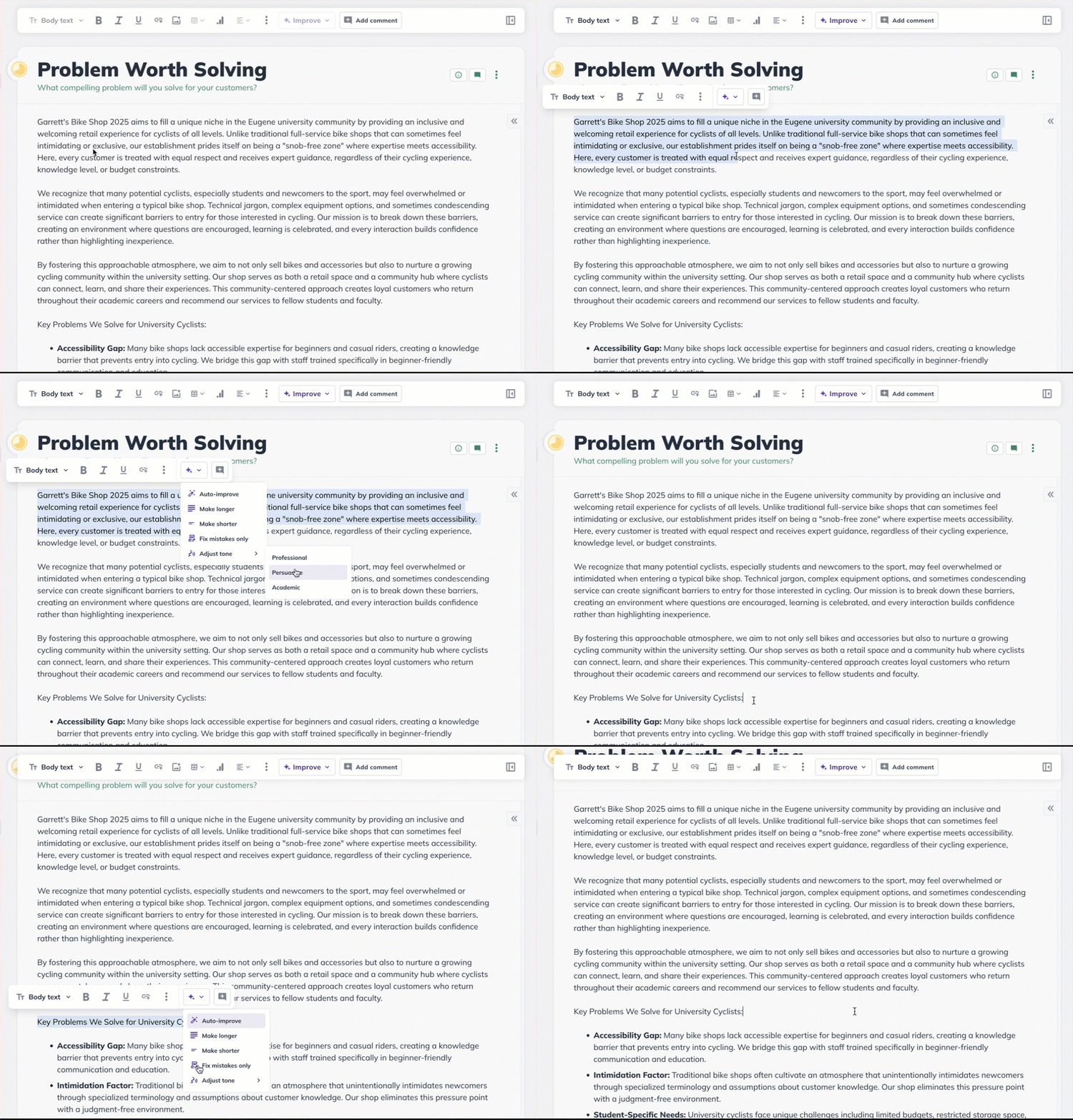
If you'd like further help getting started with your written plan, you can use the LivePlan Assistant to generate custom instructions and help write content for the section that you're working on. It will give you a good starting place for further revising that section. Or you can use the LivePlan Assistant to adjust the tone of your writing with the Rewrite feature.
We offer an outline formatted for nonprofits if you’re working on a business plan for a nonprofit organization. This outline redefines many default sections to fit nonprofit planning better and adds customized instructions.
Once you’ve finished crafting your plan, it can be exported by clicking on the grey printer icon in the lower left corner of the Plan page.