
Managing Your Account
LivePlan Assistant
The LivePlan Assistant helps you brainstorm, draft, and refine content across your Plan, Idea Canvas, and Forecast. Its suggestions use the business context you build in LivePlan to provide a more relevant starting point, while keeping you in control of what is added to your plan.
Custom instructions for writing your plan
The LivePlan Assistant can generate custom instructions for each plan section that are specific to your business and industry. The Assistant will automatically generate those instructions in the default sections based on the description of your business in the Company Options.
This will generate instructions with questions specifically geared to get you thinking about your business, and can even include examples to help you get started in writing your plan section.
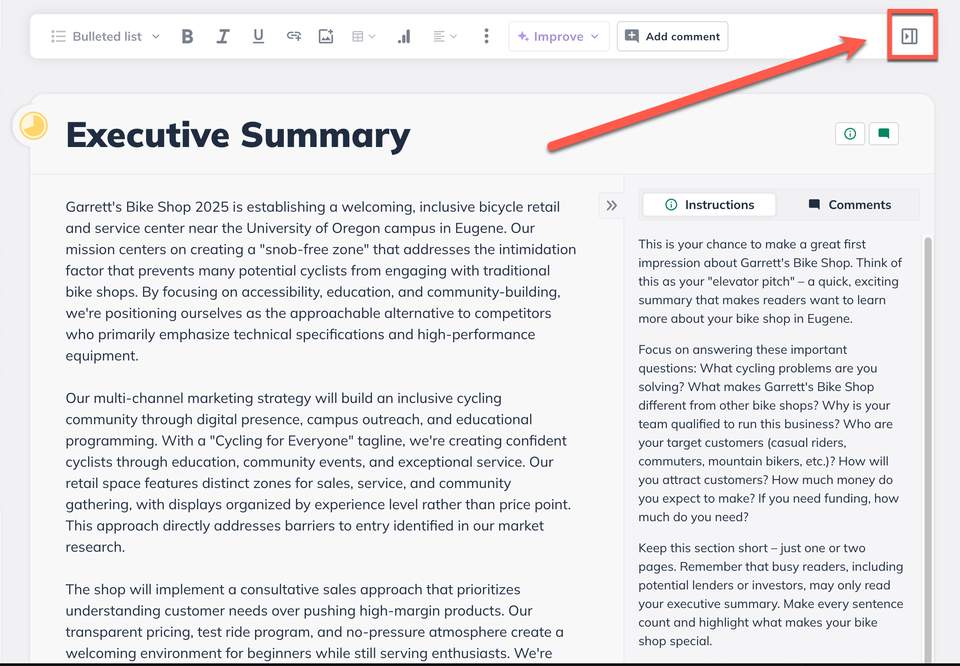
From the top menu, you can click the arrow icon at the end to slide out all of the plan sections’ instructions:
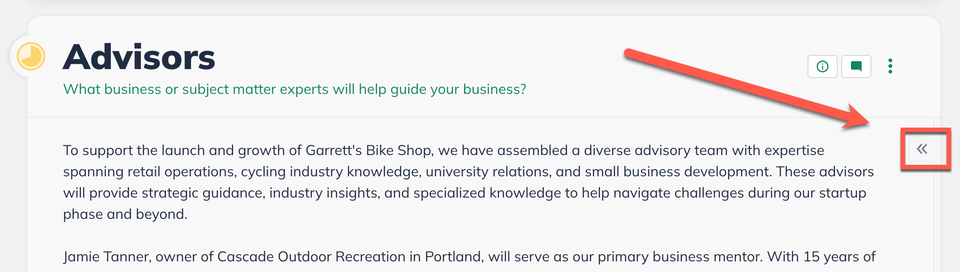
To access these instructions within a specific section, click on the chevron icon in section you’re currently in:
You’ll then see the instructions slide out from the right hand side of the plan:
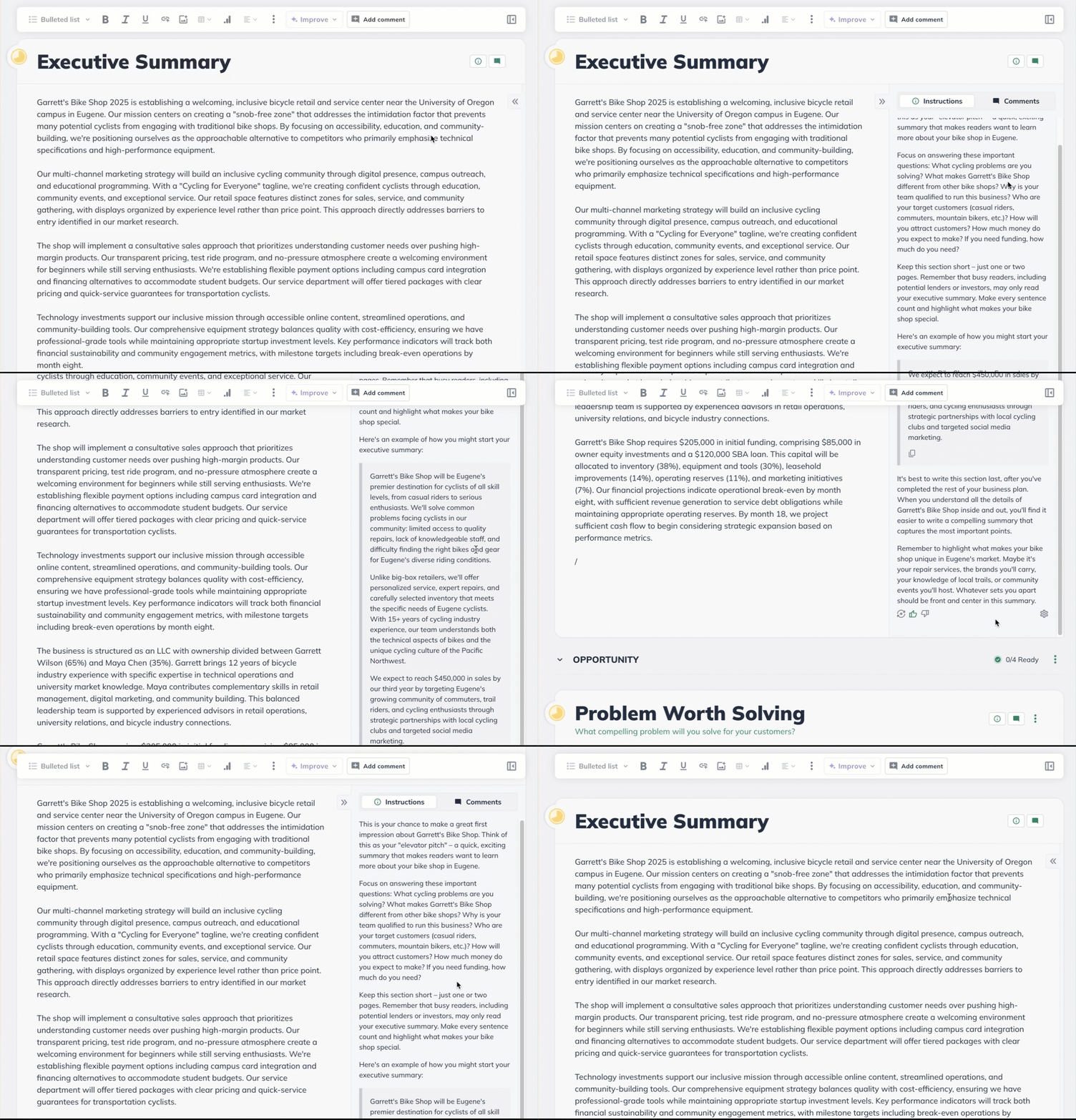
The instructions can be scrolled through which then give additional options to copy a provided example, regenerate the instructions, or provide feedback.
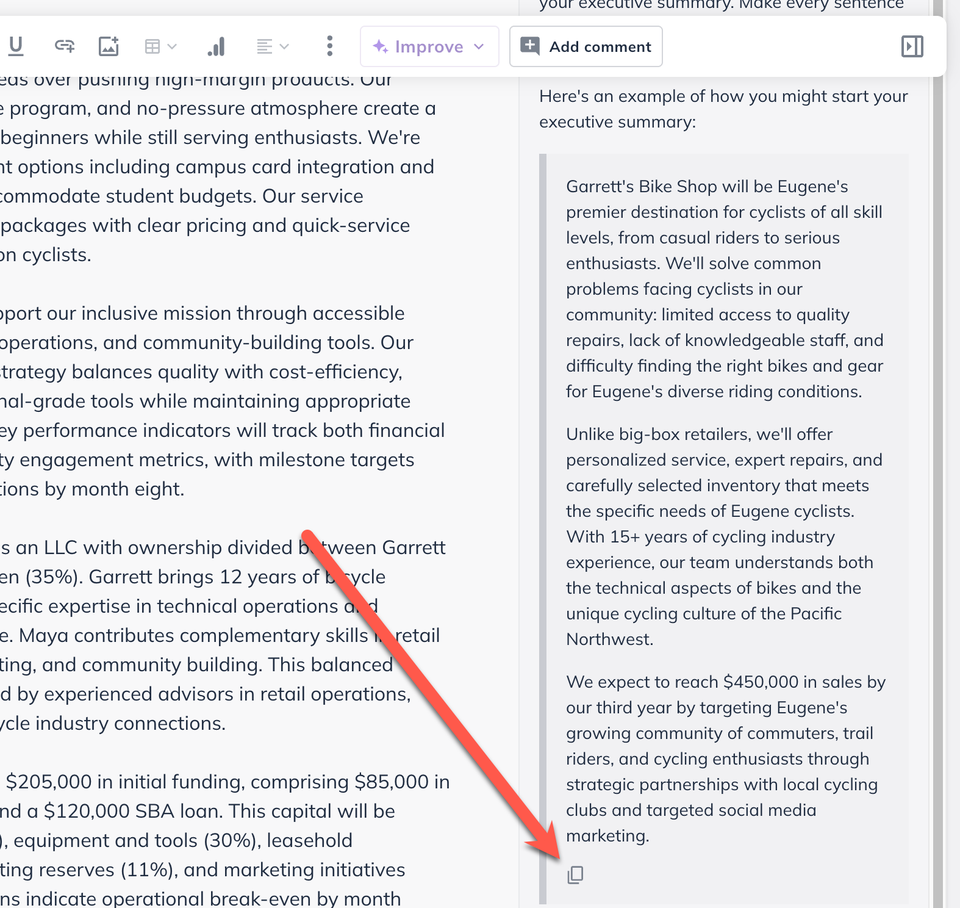
Click on the copy icon within the instruction’s example to copy it in order to paste directly into the section:
There is also a Regenerate option for the instructions. You’ll want to click on this option if you have updated the What kind of business is this description or changed the language in the Options.
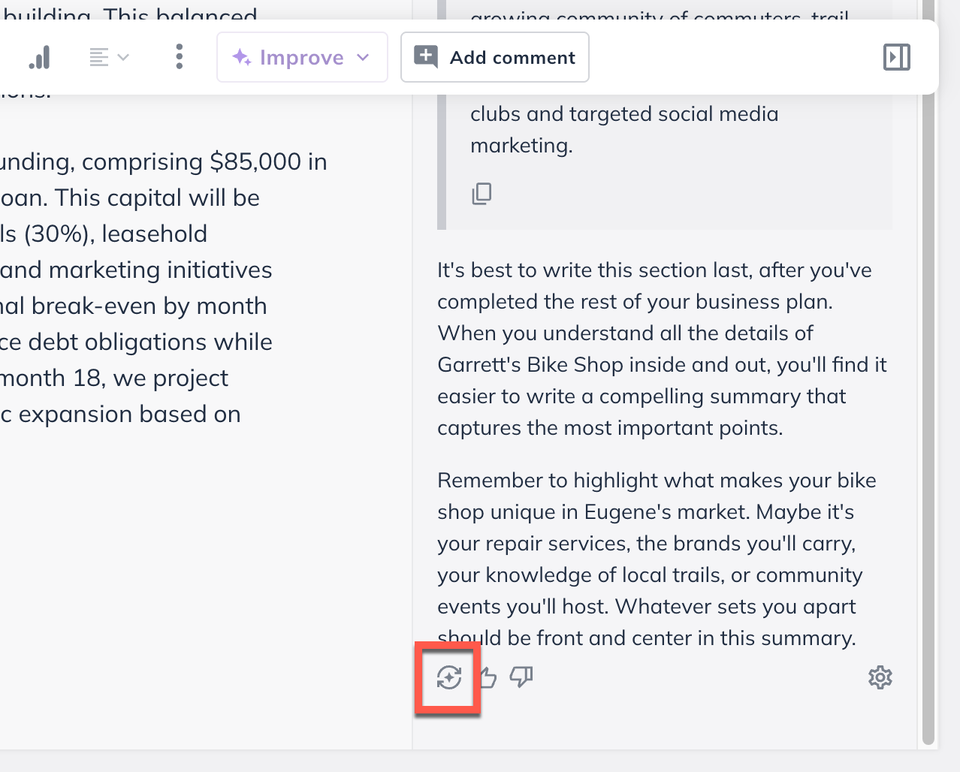
You’ll see LivePlan regenerating the instructions after clicking on the regenerate icon:
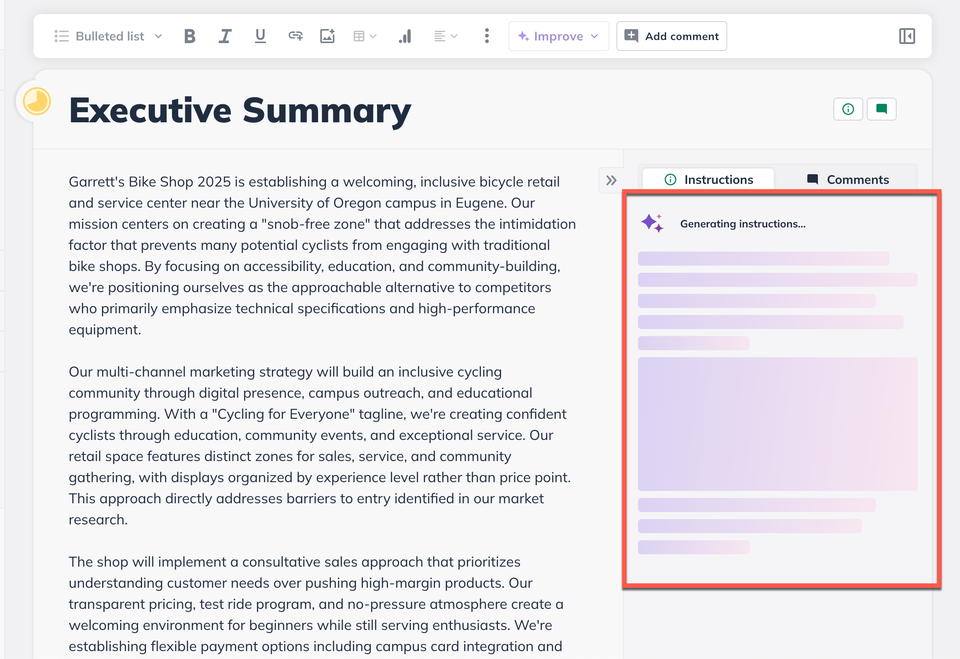
Note: We will generate the customized instructions using the same language as your Plan language setting in the Options menu. You will need to regenerate the instructions after changing the language to have it display correctly.
For the custom instructions, there is the option to provide feedback through a thumbs up or thumbs down option:
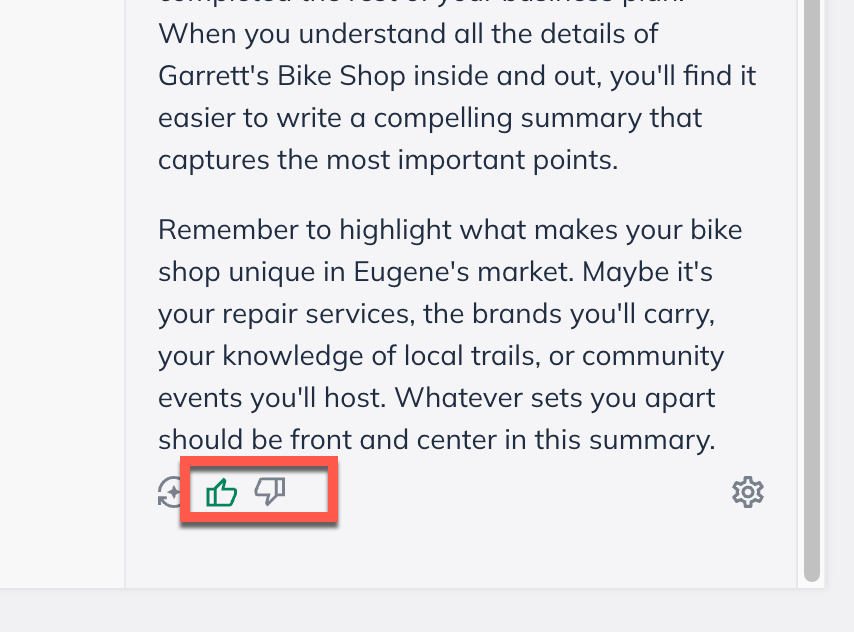
Thumbs down will provide an additional field to provide detailed feedback:
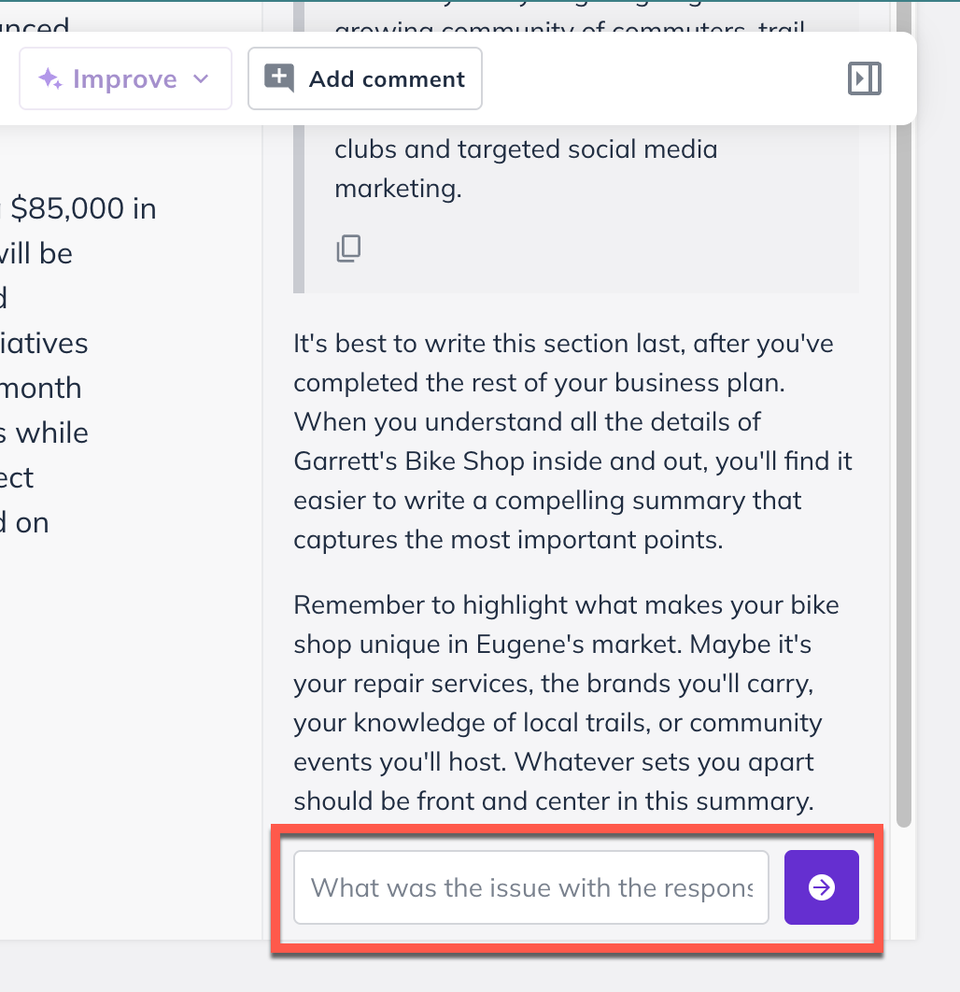
LivePlan Assistant for writing plan sections
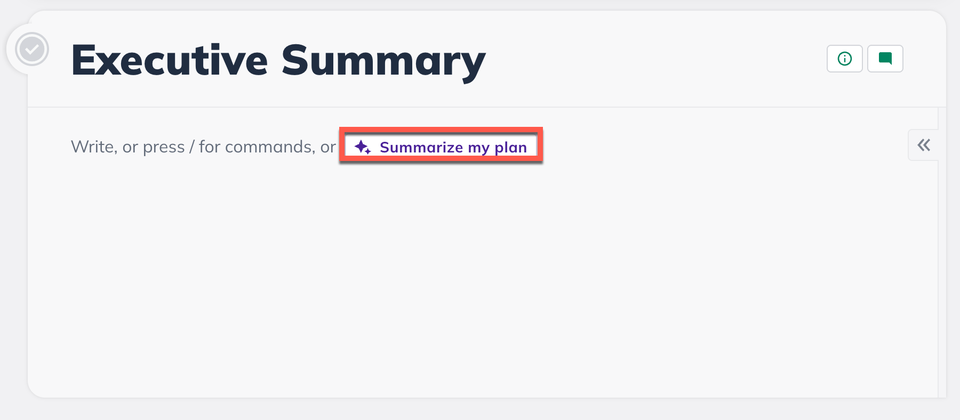
LivePlan Assistant integrates seamlessly with the Plan section text editor. While you are working on a plan section that you would like the LivePlan Assistant to help generate work for, you can use the Assistant's purple Improve button at the top of the text editor. If you're working in a blank section, you'll see a purple Help Me Write icon that, once clicked, will open a box where you can prompt the Assistant.
For supported market-focused sections, completed Market Research can give the Assistant additional context about your customers, competitors, market size, and industry trends. This helps Help Me Write generate a more specific starting point based on research you have already completed in LivePlan.

It should look like this:
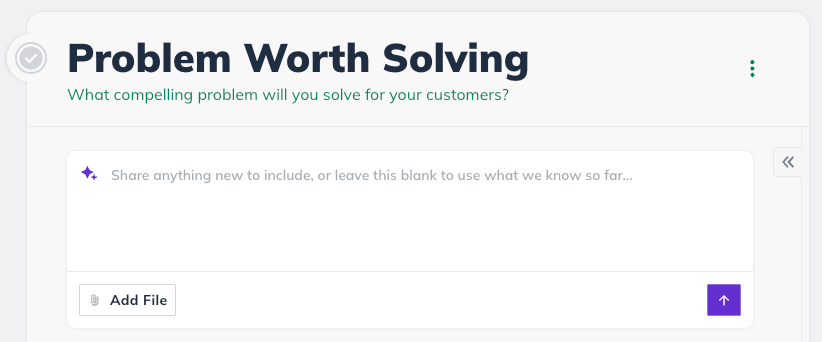
From the simplified Executive Summary, you can use the Help Me Write feature to fully draft your summary. The LivePlan Assistant will reference your business description and the content written in the rest of your plan to generate your simplified Executive Summary. We recommend leaving the summary for last as the assistant will reference the work you have throughout your plan sections.
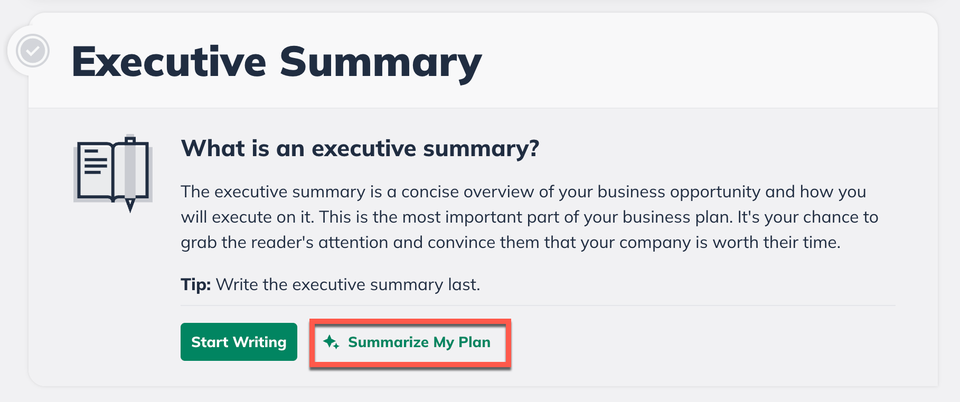
You can also access the Summarize My Plan once you have opened the Executive Summary:
If you're working on a section that already has some writing in it, then the AI Assistant icon will highlight the Improve button in the top menu:
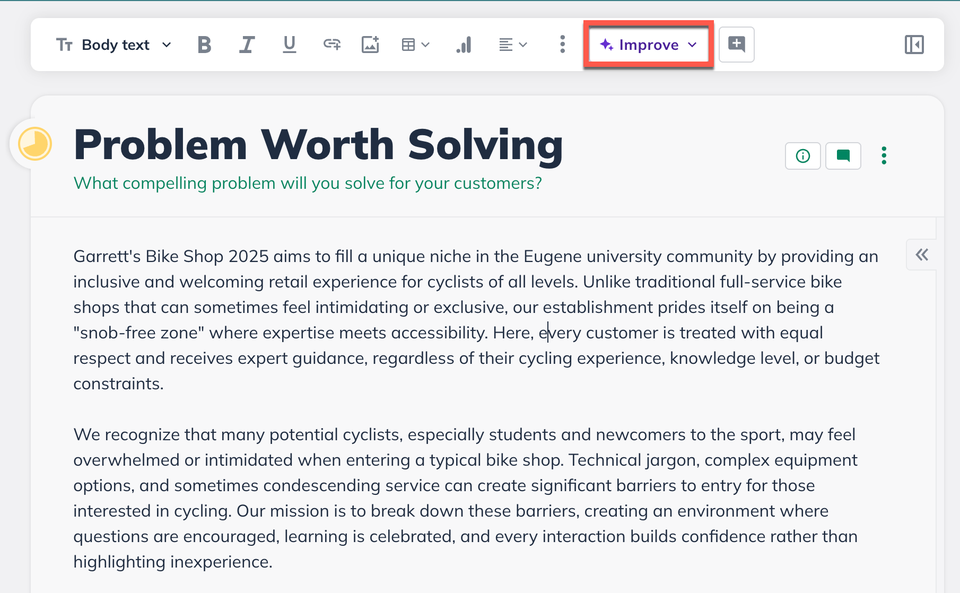
Make sure the text cursor is in the section you want to Improve or have highlighted specific text. Clicking on Improve will a menu appearing below the section you’re currently working in.
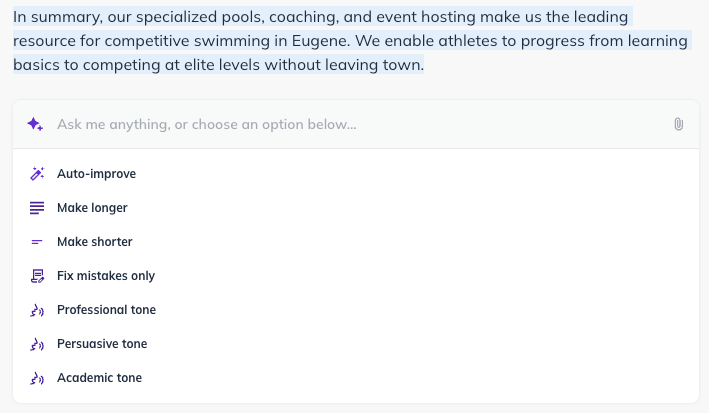
This menu provides a space to provide context to Improve along with other various options to rewrite your content, catering to your specific needs. The available options include:
Auto-Improve: Enhances the overall quality of the passage by refining grammar, tone, and style.
Make Longer: Lengthens the passage, providing additional detail and context.
Make Shorter: Summarizes the passage, highlighting the key points.
Fix Mistakes Only: Will only fix spelling and grammar mistakes without rewriting the plan.
Adjust Tone: Rewrites the passage using one of the 3 listed tones below to speak to a specific audience
Professional Tone: Reframes the passage with a formal, respectful tone, ensuring clarity and thoroughness.
Persuasive Tone: Recomposes the passage with the intent of convincing the reader to align with the writer's perspective, utilizing assertive, passionate, or even aggressive language to persuade effectively.
Academic Tone: Adapts the passage to convey an academic style suitable for scholarly writing.
To access the Improve options and tones, click on Improve to expand out the options:
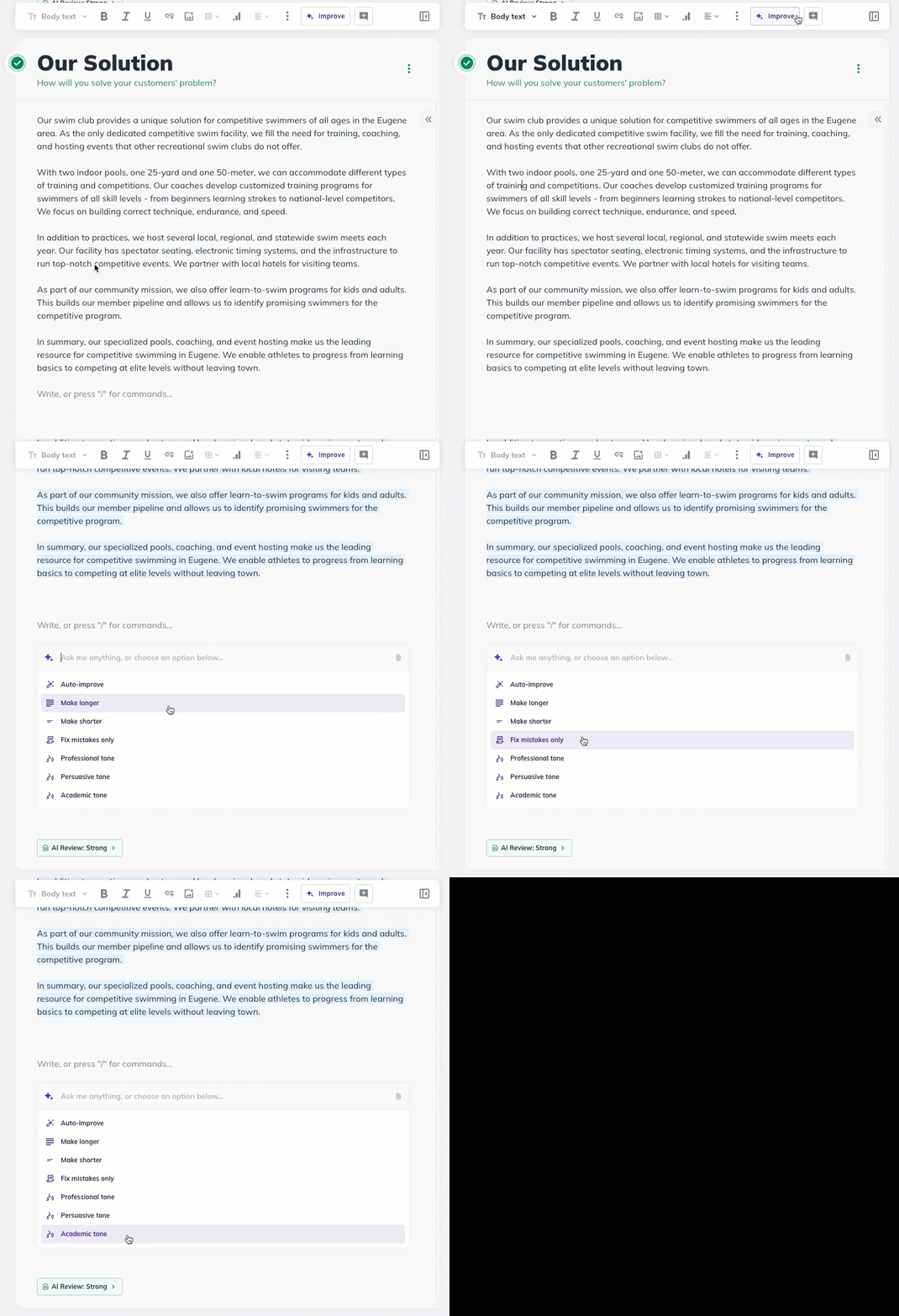
You can also apply the Improve feature on highlighted text within the section:
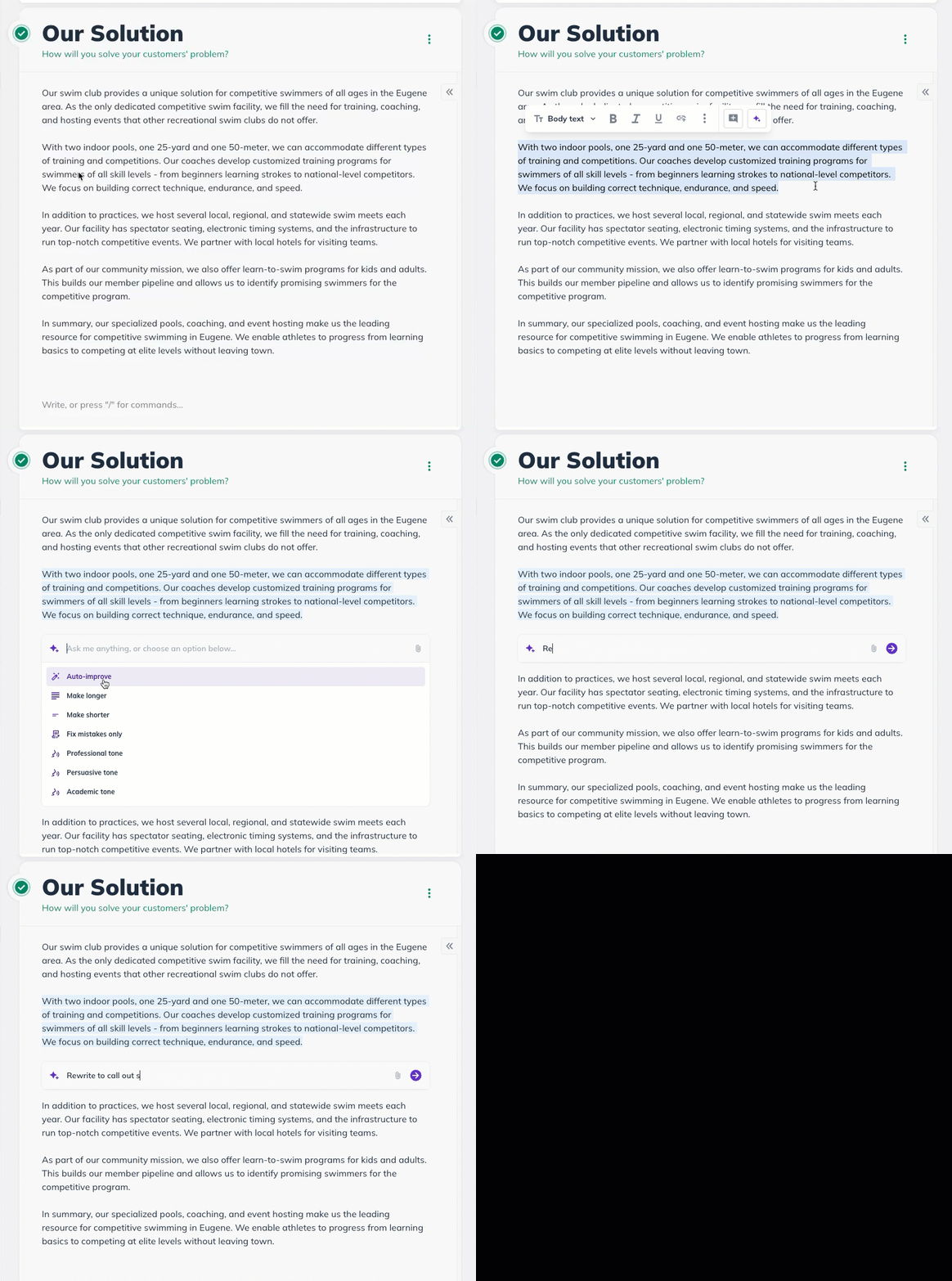
These tools let you customize your business plan content, tailoring it to your target audience and effectively communicating your ideas. Don't worry; your original content will only be replaced once you review and approve the rewritten section.
Select an Improve option to begin generating a new passage for your section:
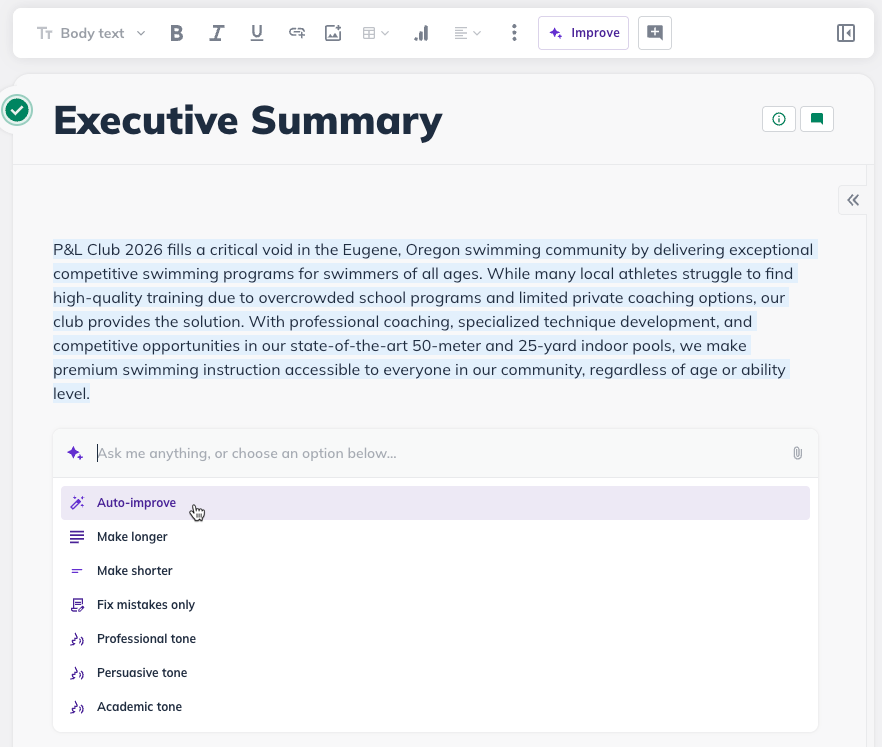
In this example, we'll select Auto-Improve. The Assistant will display the “Generating content” message as it rewrites the existing text:
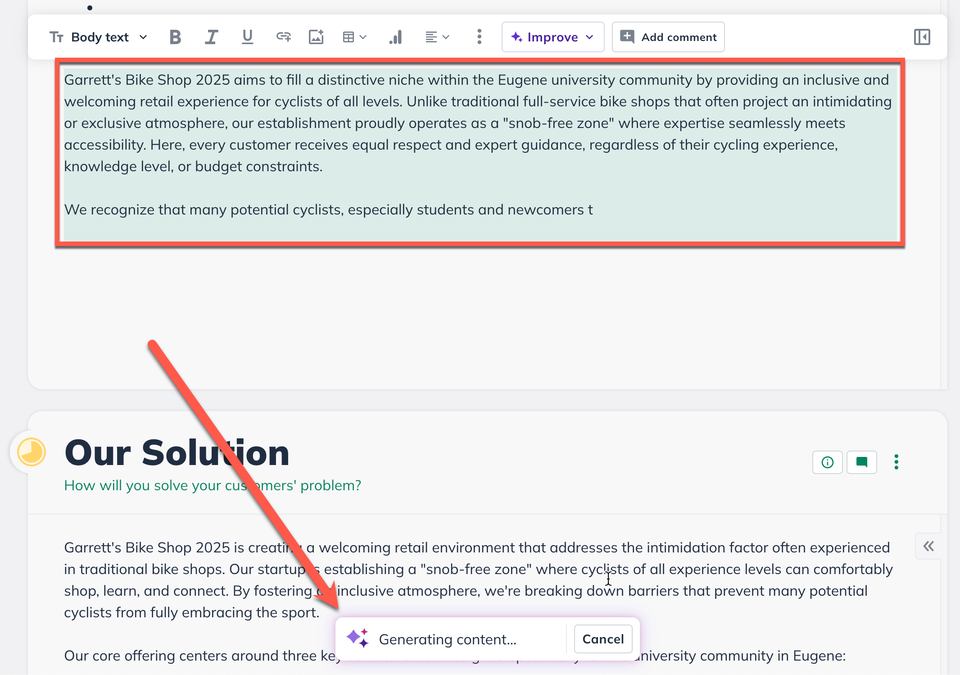
You can also use this time to cancel the Assistant from rewriting by clicking on “cancel” next to Generating Content.
After the Assistant has finished rewriting the existing text, you'll see the red text showing what was removed and then the purposed rewrite underneath it:
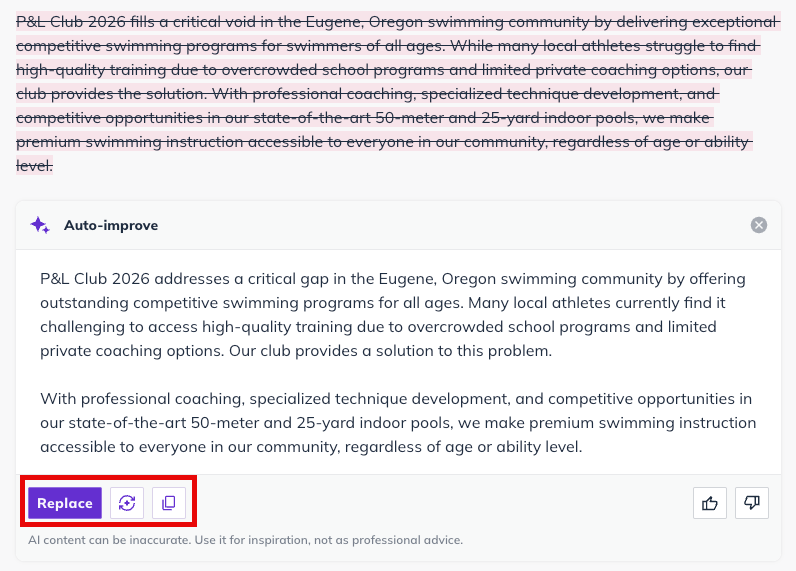
You can then decide to Replace, Regenerate or Copy the Assistant’s rewrites. Clicking “Replace” will then overwrite the section's current work with the Assistant's generated version. You can click on the "x" in the top right corner of the purposed rewrite box to dismiss it.
If you'd like to see another rewrite, click on the purple circle icon next to the “Replace” button to have the Assistant regenerate a new response instead. You can also copy the rewritten text to then use in the AI Assistant prompt options or paste it else where in your plan.
Please remember that replacing your section content with the Assistant's generated work will erase and overwrite the highlighted green text of what you had in the section before. You can use the CMD+Z or CTRL+Z keyboard shortcuts to undo the content replacement.
Use Reference Files to Improve AI Writing
Uploading reference files allows LivePlan’s AI writing tools to generate content that better reflects your specific business. To supplement the context given in the company description and Help Me Write prompt, the AI uses your uploaded materials to create consistent, tailored, and even more accurate plan content.
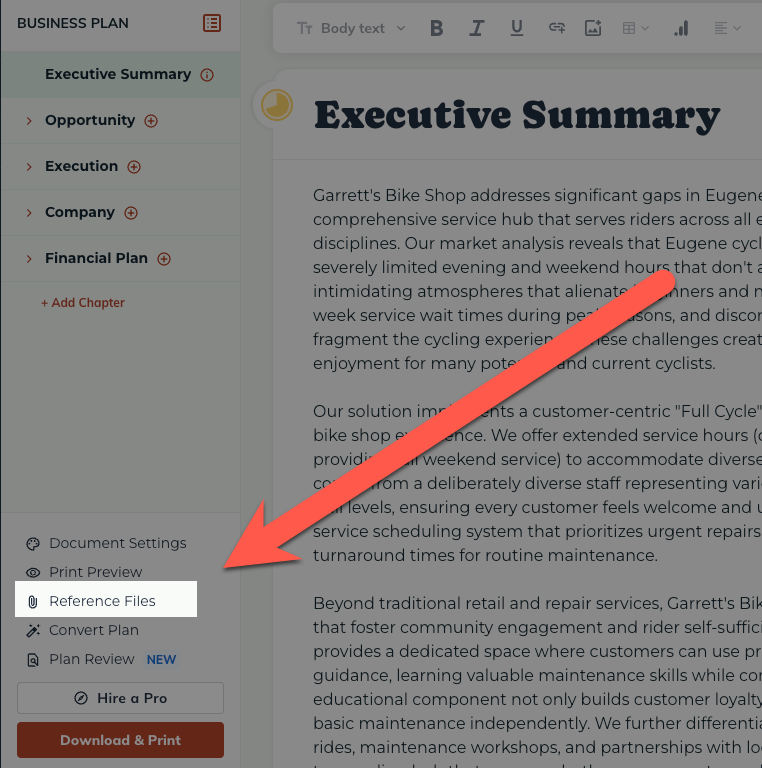
Once uploaded, your reference files are automatically used whenever you run Help Me Write or other AI rewrite tools in your plan. This means your documents help guide AI-generated content across your entire plan, improving clarity and consistency with every draft.
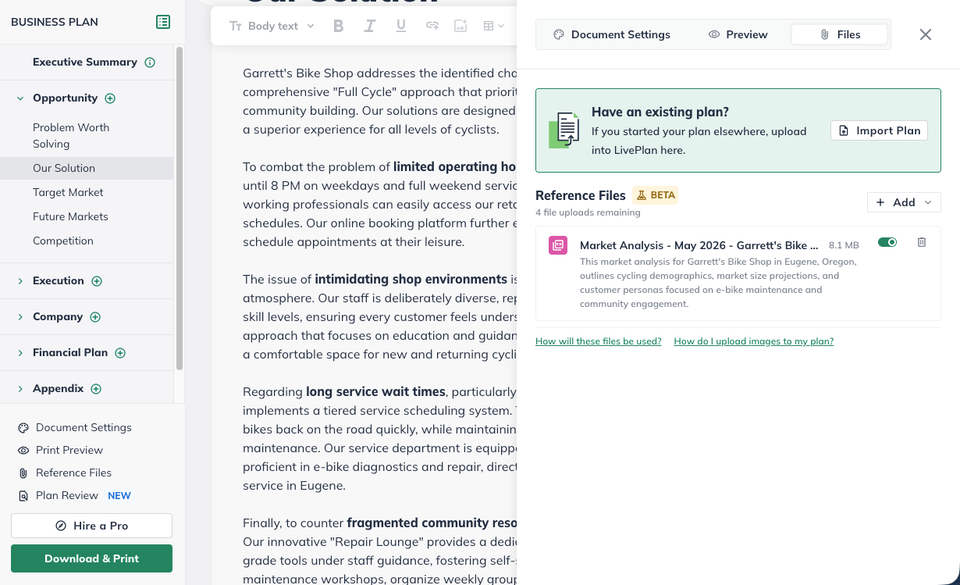
You can upload and manage reference files from the Plan section under Document Settings. From there, you can add files, review what’s been uploaded, preview individual documents, and remove or replace files as needed.
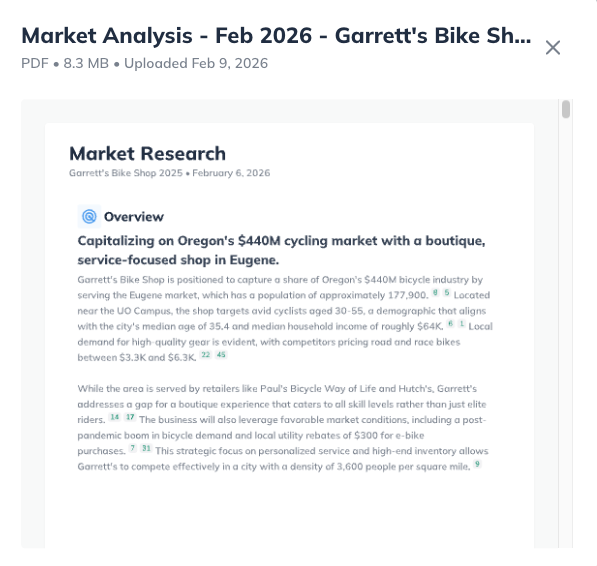
Reference files and Market Research provide different types of context for the Assistant. Reference files contribute information from your own documents and source materials, while Market Research adds organized insights about your customers, competitors, market opportunity, and trends. Used together, they can help AI-generated content reflect both your knowledge of the business and the broader market around it.
LivePlan Assistant in the Idea Canvas
Every section of the Idea Canvas includes a Help & Suggestions button.
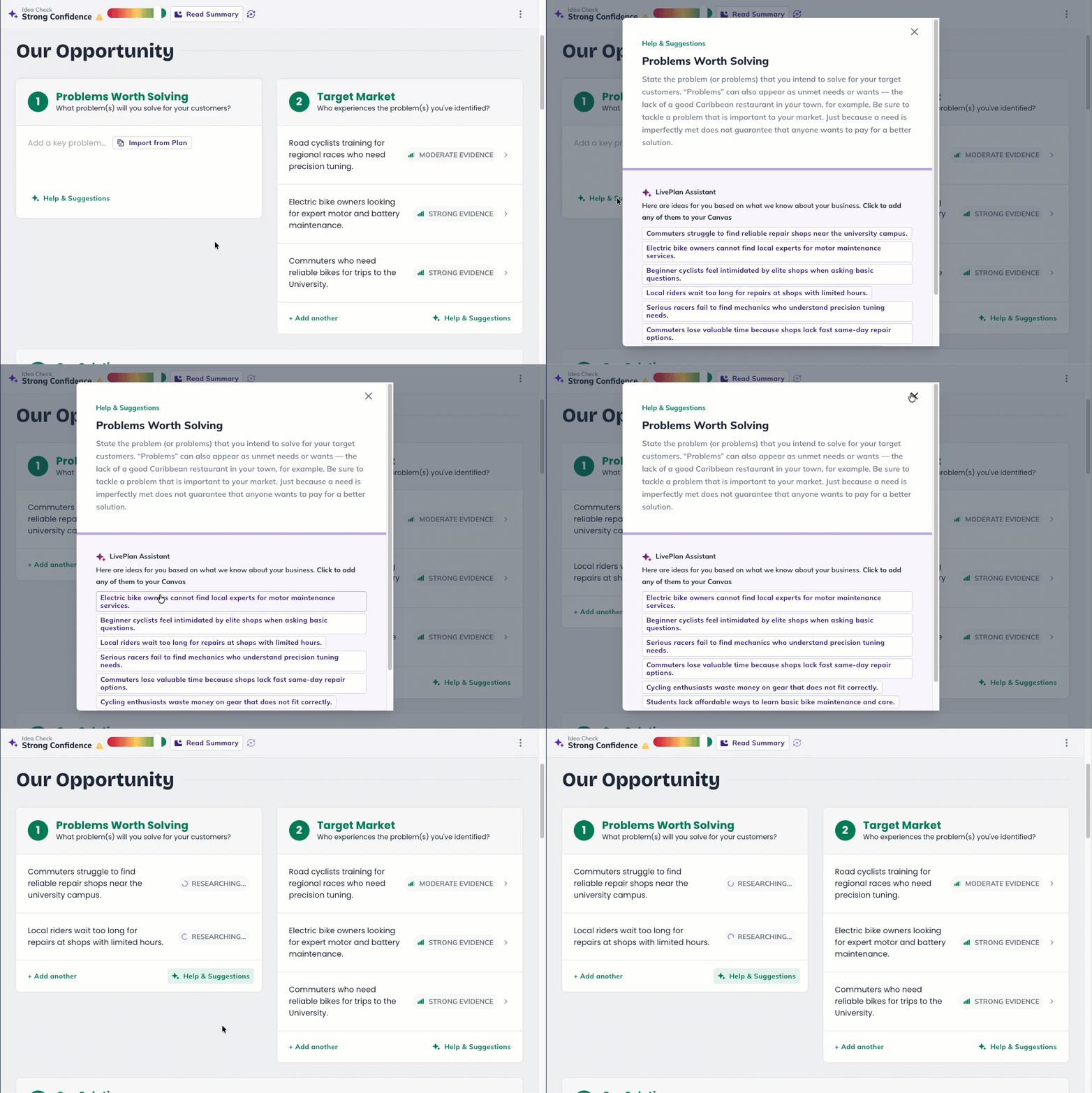
This generates AI-powered ideas based on what you’ve already added to your canvas, not generic advice, but suggestions specific to your business.
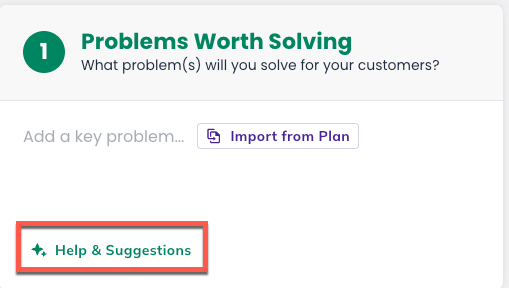
Click Help & Suggestions in any section to receive a list of AI-generated ideas tailored to your business.
Review the suggestions and add any that fit.
Using Help Me Forecast
Help Me Forecast is a guided, question-and-answer experience that helps you build a starting forecast in LivePlan.
This AI-powered tool is designed to get you to a useful starting point quickly. Reviewing and fine-tuning the results in the Forecast lets you apply your own knowledge and make sure the final numbers reflect how you expect your business to operate.
For the full walkthrough — including adding reference files, reviewing proposals, and editing entries afterward — see Using Help Me Forecast.
Importing Financials into LivePlan
If you already have a financial forecast in a spreadsheet, Import Financials can use it to build your forecast in LivePlan. Upload an Excel or CSV file, and Help Me Forecast will map your data into LivePlan's forecast structure. You will then review and approve the proposed entries before anything is created.
Import Financials is designed to create a new forecast from a spreadsheet — it's not for adding a spreadsheet to a forecast you've already started in LivePlan.
Using Forecast Suggestions
In the Forecast you can use the LivePlan Assistant to suggest entries for Revenue, Direct Costs, Personnel, and Expenses. The AI Assistant will generate a list of entries depending on the business details entered in the Company Options under "What type of business is this?". You can change these details anytime by going to Options in the left sidebar and adjusting your business description. Think of this as part of your prompt for the LivePlan Assistant to generate possible revenue streams or expenses for your Forecast.
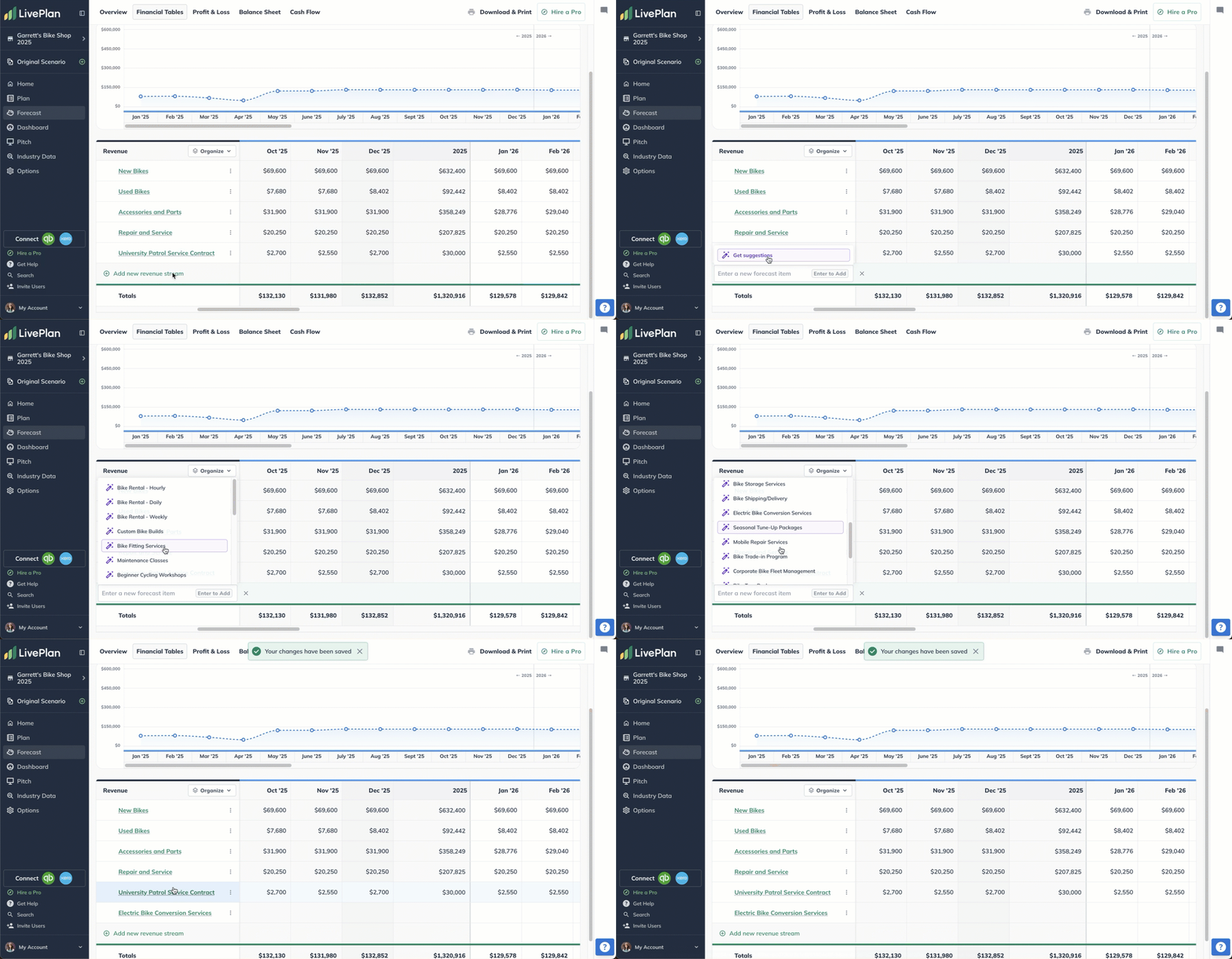
To use the LivePlan Assistant in the Forecast, first go to the section where you'd like to generate entries, then select the option to add a new forecast item at the lower left corner of each forecast table.
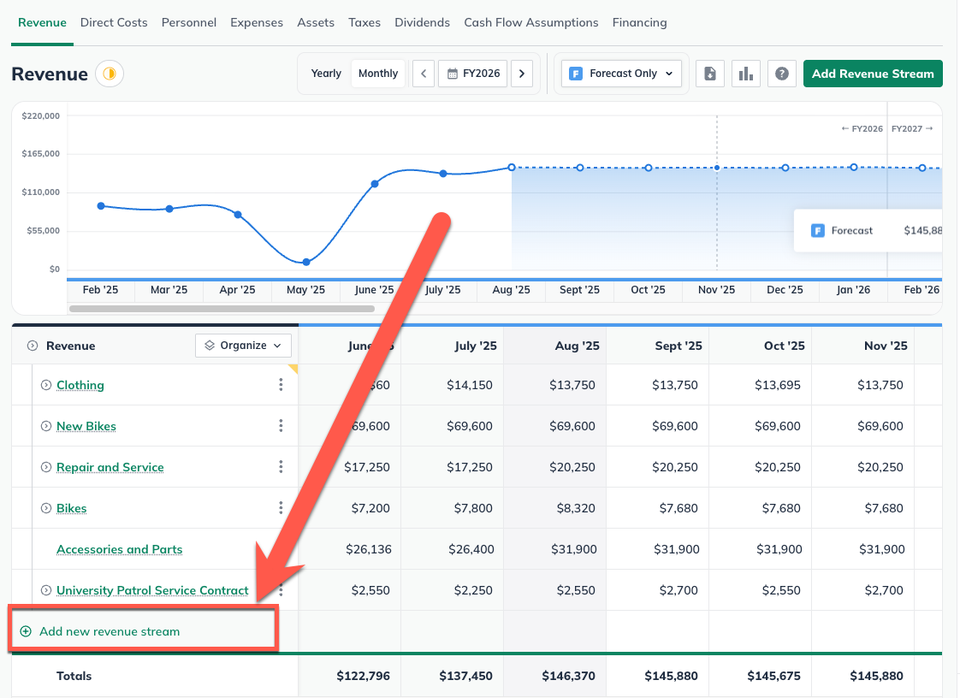
This will open a pop-up menu where the Assistant will generate possible line entries for your business.
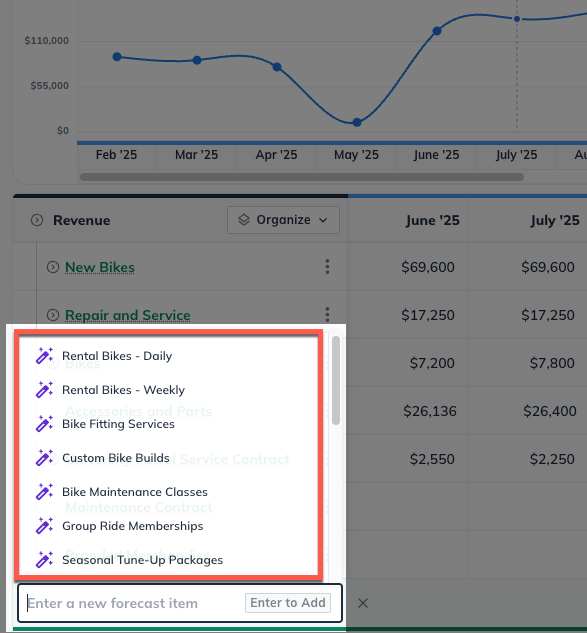
You can select as many suggested entries from this menu as you like. When you're done entering suggested line entries, click I'm done adding streams. The system will automatically add the entries to the forecast without any financial data. You will then have to add the values to the entries after they've been added to the forecast.
Here is a short video to better illustrate this process:
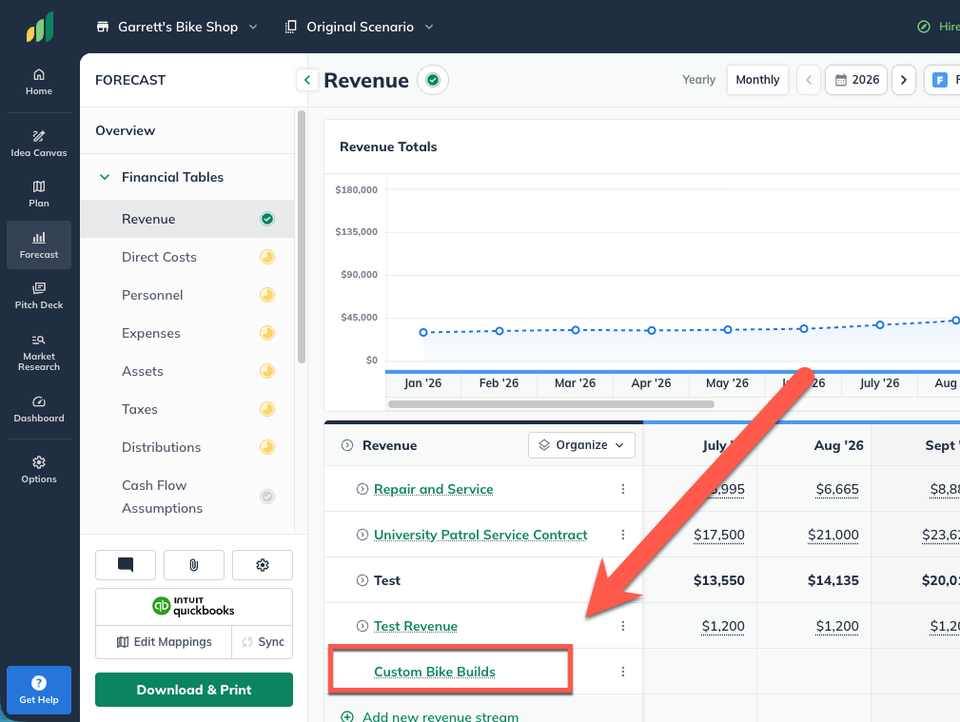
To edit your new suggested forecast line entries, click on the green title text. That will open the details of the line entry so that you can add your financial details.
Turning LivePlan Assistant on and off
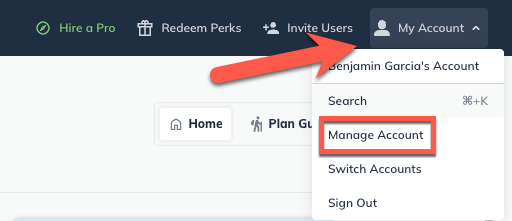
Click the Profile icon in the top-right corner of your LivePlan window and select Manage Account, or click here:
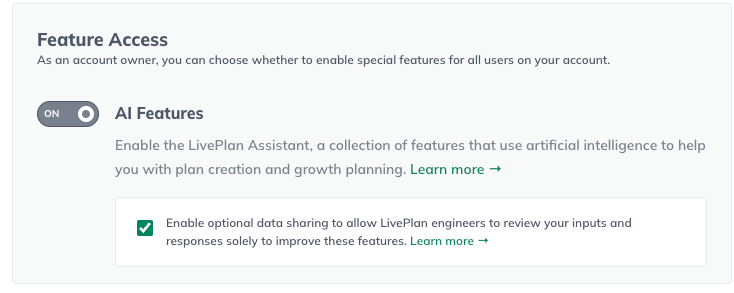
On the Account Details page, scroll down to the Feature Access field and click on the toggle to turn LivePlan Assistant on or off:
Tips for using LivePlan assistant
Apply multiple rewrites: Try using different combinations of rewrites in LivePlan Assistant to refine the responses further. For example, consider using the Expand feature to expand on brief ideas you've jotted down for a particular topic. Then, apply Professional Tone to help ensure your ideas are presented with a confident and businesslike tone.
Regenerate responses: Sometimes, the initial response may not meet your expectations. By regenerating the response, the topic's content can be rephrased while maintaining its original essence.
Add relevant business context: Complete Market Research before drafting sections about your customers, market, or competition. You can also upload reference files containing details from your own research and business materials. Review and refine the Assistant’s response so the final content accurately reflects your business.