
Quick Answers
Saving and locating data in LivePlan
LivePlan saves your work as you go, so you don’t need to worry about losing your progress between sessions. You can return to your company and pick up where you left off.
How LivePlan saves your work
There are two primary ways your changes are saved in LivePlan:
Autosave
Most of your work in LivePlan is saved automatically as you make changes. This allows you to seamlessly navigate between sections you're working in.
Note: Some autosaves are accompanied by notifications at the top of the screen.

Save buttons
Some areas of LivePlan, such as the forecast editing windows or AI features require you to confirm if changes are to be saved before exiting.
To save changes, click any button labeled:
I'm Done
Save & Close
Save Changes

What if I can't find where I left off?
If you've been working in LivePlan, signed out, and then you're having trouble finding it when you come back, don't worry. Usually your work is still there and can be located if you follow some simple steps.
Below are the 3 most common examples of missing work:
Use the linked sections above to assess if you can locate your work before you need to consider restoring anything.
Locating data in your written plan
If you’re looking for something you wrote, LivePlan has a Plan Version History available.
However, before reverting to a previous version, we recommend these two quick steps to help you avoid accidental overwrites.
STEP 1 - Search your plan with Find and Replace
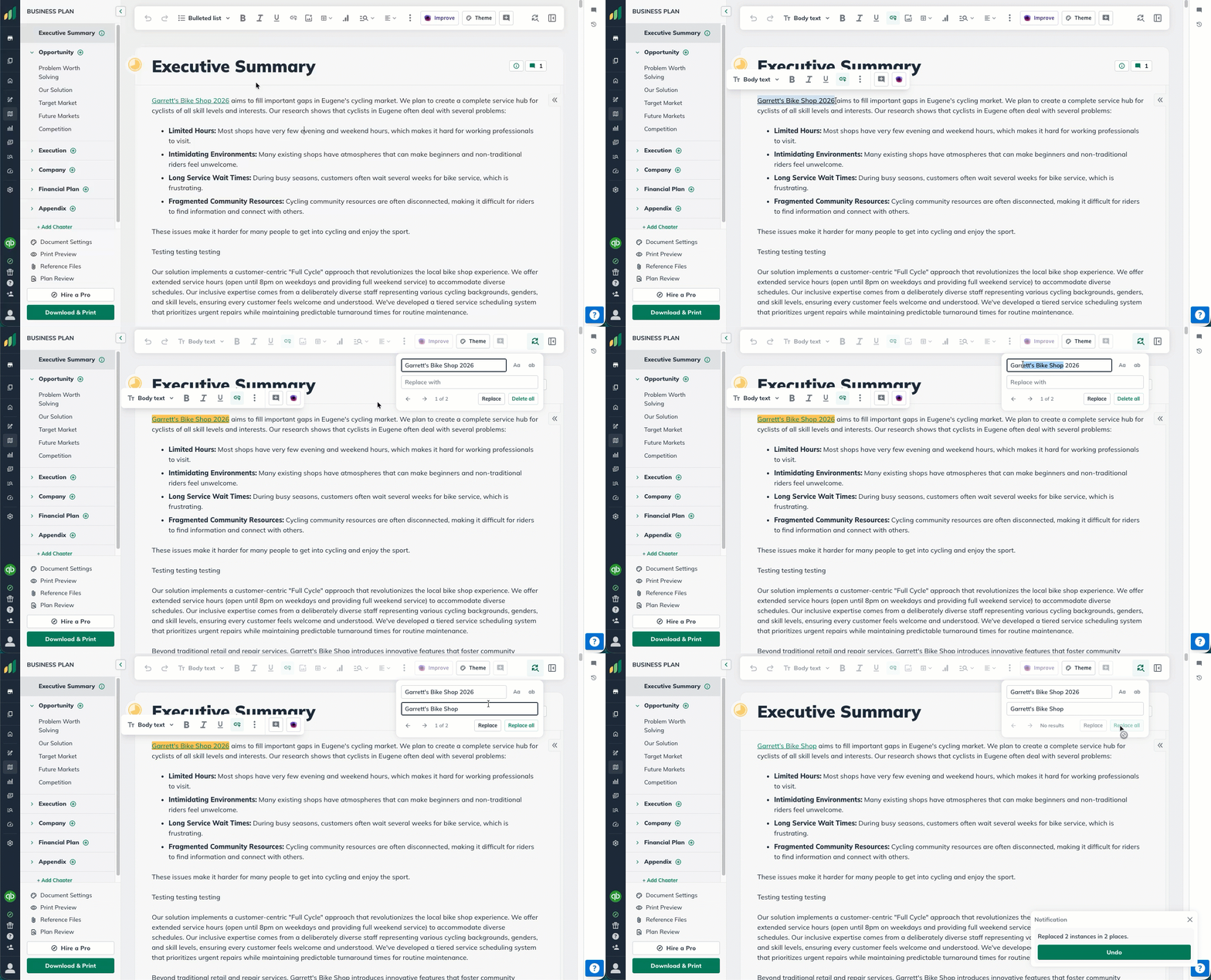
Find and replace is a great first step if you're unsure which chapter a section is in, or if you've recently uploaded an existing plan into LivePlan.
Find and Replace is located on the righthand side the toolbar above your text fields.
Open Find and Replace in the Plan and search for a word or phrase you remember writing.
A distinctive phrase can help you locate content when you’re not sure which section contains it.
STEP 2 - Check for sections removed from the outline
Removing a section from your Plan outline doesn’t delete its content. LivePlan keeps the section intact as available content so you can add it back later.
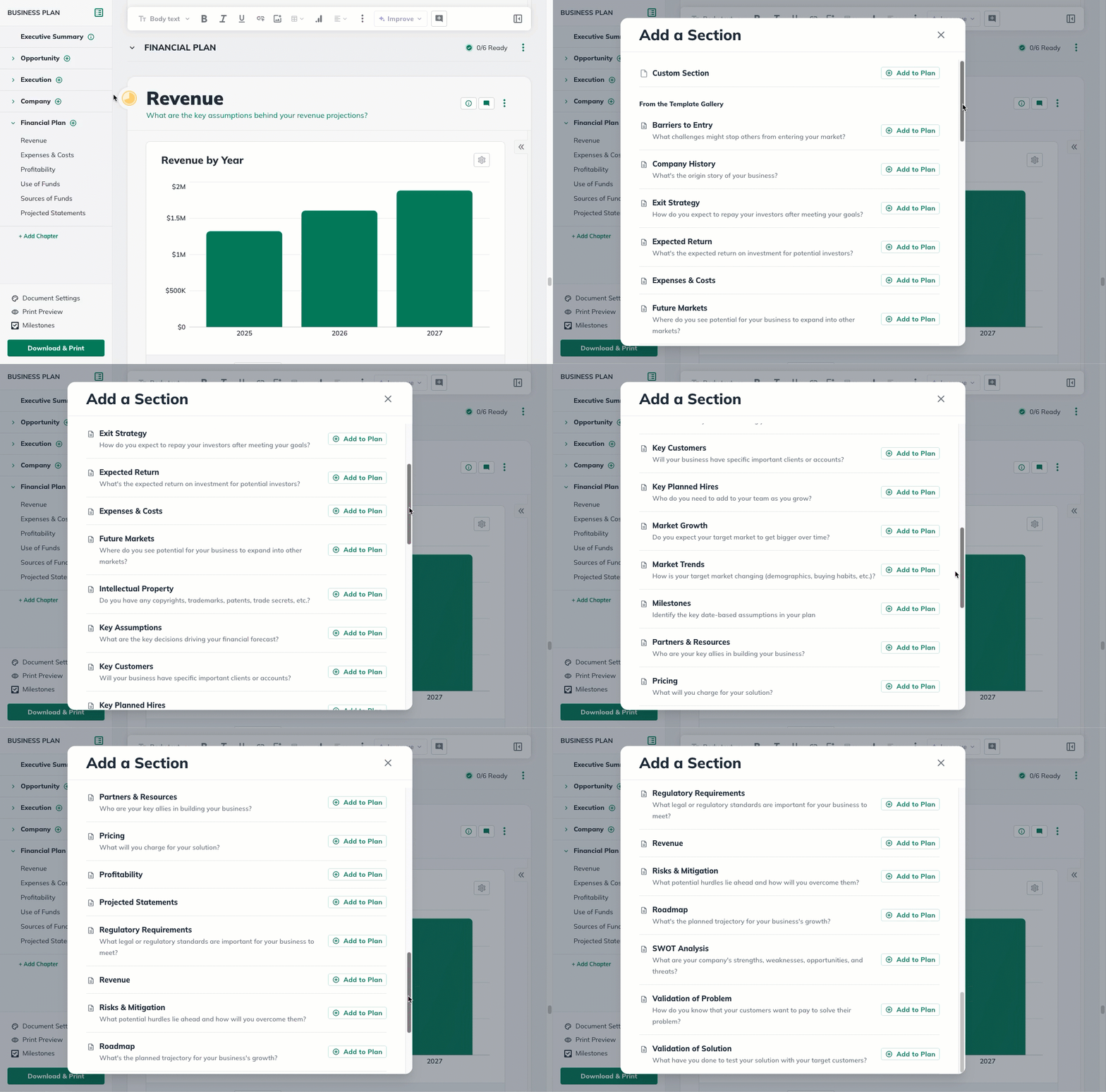
In your plan outline, you will see a green ⨁ button next to each chapter.
Click the green ⨁ button to open the Add a Section menu.
Scroll through the available sections to see if your missing section is there.
If you see it, ⨁ Add to Plan will return it to your outline with its content intact.
If you can find the section but its writing has changed, then use Plan Version History to return to the previous version. Learn more in Recovering your work
Note: If you removed an entire chapter, don't worry! Its contained sections will automatically be saved in available content. It's easy to recreate the chapter and add them back in!
Locating data in your forecast
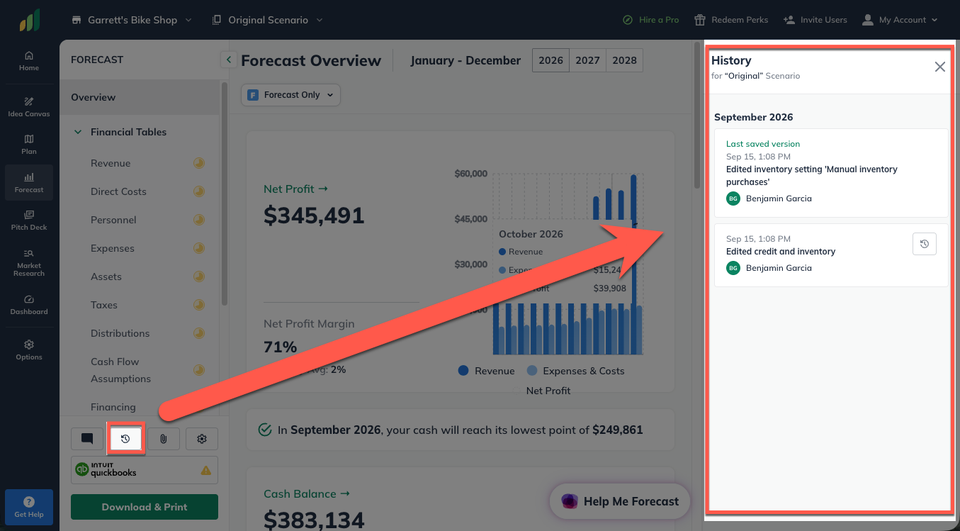
If you’re looking for data you no longer see in your forecast, LivePlan has a Forecast Version History available.
However, before reverting to a previous version, we recommend these two quick steps to help you avoid accidental overwrites.
STEP 1 - Check which scenario you’re currently viewing
For Premium users, a company can contain more than one forecast scenario, which has its own financial assumptions and entries. Oftentimes the active scenario being accidentally switched is the reason you don't see your recent work.
The Scenario selector is found in the top nav menu throughout LivePlan.
Navigate to the Forecast section and select the scenario name to see the available scenarios.
If you recognize the scenario you were working in, your numbers are likely located there.
If you're unsure, but there are other scenarios available, check those to see if they contain the numbers you're looking for.

Note: The active scenario also determines which forecast figures appear in your Plan. If the numbers in your Plan look off, checking the active scenario is where to start.
STEP 2 - Analyze the financial table where you last entered figures
If you determine that you're in the right scenario and you remember where you were last working, it's worthwhile to double check your financial tables.
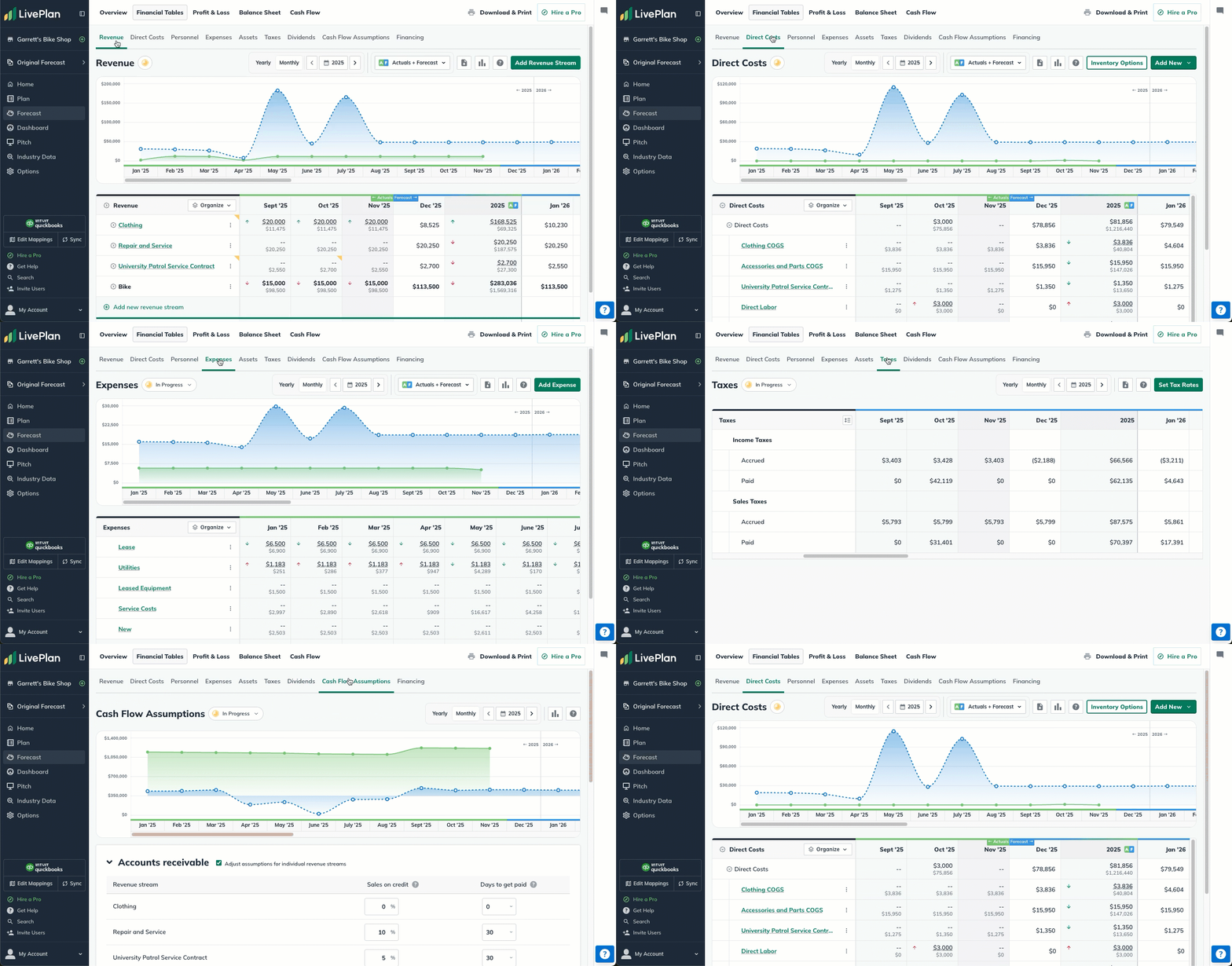
Open the relevant financial table, such as Revenue, Personnel, or Expenses.
Once you're there, open an entry you recently created to review its assumptions and values.
Pay special attention to the dates across the table.
Are the forecast figures in the correct months?
If your forecast figures are in the correct months but the numbers have been changed, then Forecast Version History can help you find an earlier version.
To learn how, jump to Recovering your work
Important: If you remember entering your forecast figures in a particular period of months but your figures have all moved or you can no longer see that period, you may have changed your forecast timeline.
If you suspect that you have, jump to the next section of this article.
What happens when I change my start date?
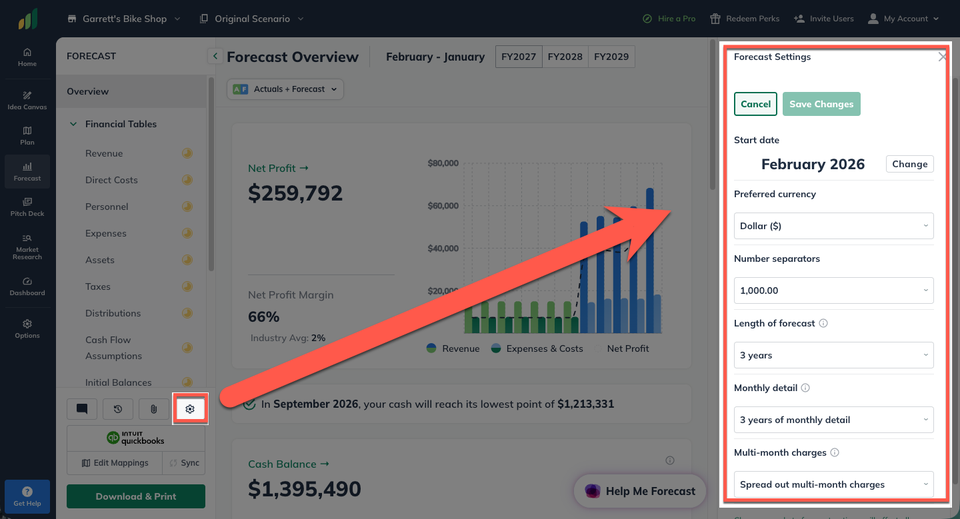
Your forecast start date and length determine which months and years appear in your financial tables.
Changing these settings can move figures to different months or even cut off projections.
Start by comparing the dates shown in your Forecast tables with the dates where you remember entering your numbers.
You can also quickly review your timeline settings in Forecast Options.
What if I'm not sure?
If you're unsure if your forecast timeline has been changed, the 3 following indicators can help you determine if that has happened.


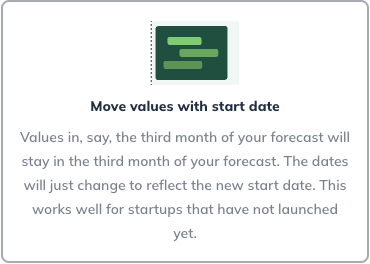
You may have changed your start date - Move values with start date
When you change your start date, one option is for LivePlan to move your existing values along with it.
What do look for: Besides the dates, all your financial figures would be the same.
You can change back your forecast start date:
If this is the case, you can change back your start date using the same Move values with start date option.
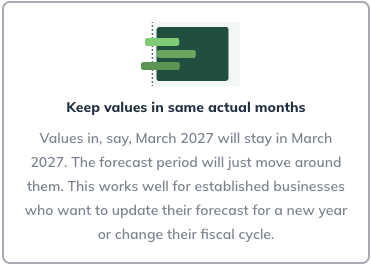
You may have changed your start date - Keep values in same actual months
When you change your start date, you can also choose to Keep values in the same actual months.
That keeps your entries tied to their original calendar dates, but figure outside of the new forecast period are deleted.
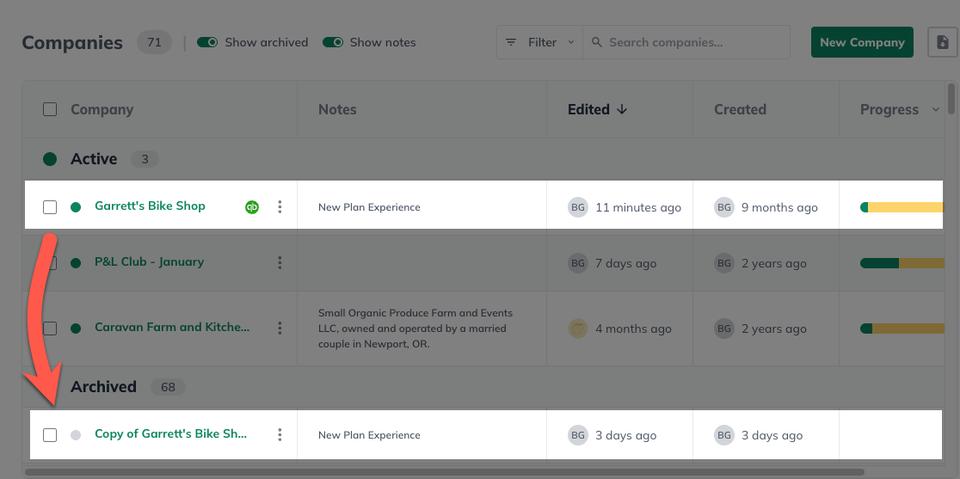
LivePlan backs up your company when you make this type of change!
Don't worry! Those copies can be found and restored in your Company Management Screen.
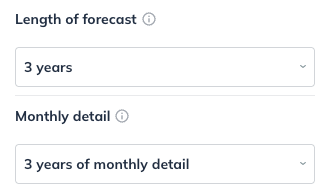
You may have changed your forecast length or monthly detail.
Shortening these settings will remove any forecasted entries from the years you cut off.
Increasing these settings again will not restore those lost entries.
What do I if this happens?
In this situation, contact our Customer Advocacy Team.
We can investigate what happened and discuss if there are ways to reconstruct the missing information.
If you previously exported your Forecast, let us know.
A Plan export may also be useful in some cases.
Other areas where your work may be stored
LivePlan has several places to create, upload, and use information about your business. Some features add content directly to your Plan or Forecast. Others keep information available as a reference for our AI Assistant.
These distinctions can help when you remember uploading or generating something but don’t see it in the place you expected. Below are a few common scenarios:
The document may have been uploaded as a reference file.
A document uploaded as a Reference File gives LivePlan’s AI writing tools information about your business. But It doesn’t automatically place that document’s contents into your written Plan.
Import Plan works differently. It analyzes an existing business plan and maps its writing into LivePlan’s Plan sections. If you used Import Plan, scroll through your written Plan to see where the content was organized.
The spreadsheet may have been uploaded as a reference file.
A spreadsheet added as a Reference File gives Help Me Forecast information it can use while helping you build your forecast. But it does not directly map your data to LivePlan.
Import Financials is the feature that maps an existing spreadsheet forecast into a blank LivePlan forecast. You review the proposed entries before approving them, and the approved entries populate in your regular Forecast tables.
Open Help Me Forecast and check whether any entries are awaiting approval.
Help Me Forecast lets you review and approve proposed entries before creating them.
If you were still working through the questions or making corrections, the numbers you saw may not have been added to the Forecast yet. Open Help Me Forecast and check your last chat to see if you still need to approve changes.
Review your Document Settings
The downloaded Plan reflects the content included in your current Plan outline. However, sometimes you may only want to download certain portions. To allow for this, Plan Chapters can be excluded for selected downloads.
Check your Included Chapters settings in Document Settings to make sure everything is being included.
Recovering your work
If you’ve checked the likely locations and still can’t find your work, it may have been changed or removed. Fortunately, LivePlan has versioning for this very situation.
Version History is the best place to start when you believe that work was overwritten.
LivePlan keeps separate histories for the Plan and Forecast sections.
This allows you to restore earlier work only in the applicable LivePlan section without overwriting work in the other.
FAQs about data recovery in LivePlan
The answers below cover some frequent questions about version history as well as other recovery options, including deleted forecast scenarios and companies.
Whether you or a collaborator accidentally overwrites work, you can still restore an earlier version.
Open Plan Version History and look through the available versions for the writing you need to restore.
Note: Restoring a version affects the Plan as a whole, not just the sentence or section you’re looking for. Export your current version before reverting to prevent lost work.
Each scenario has its own history, beginning when that scenario was created. You can safely revert to an older version in one scenario without worrying about overwriting the others.
If you can’t find the version you need, contact Customer Advocacy before making more changes. We can help you determine whether another recovery option is available.
Changing your forecast start date, length, or months-of-detail setting resets the available history across all scenarios in the company.
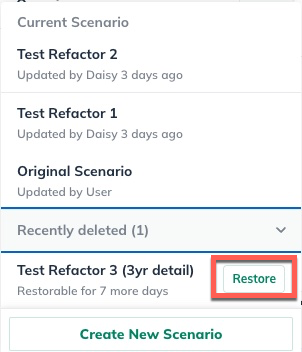
LivePlan provides an easy way to restore recently deleted forecast scenarios.
Open the scenario menu in Forecast and scroll to the bottom to see any scenarios that were deleted within the last 7 days.
Click Restore to return it to your company.
If the scenario is no longer available, contact Customer Advocacy.
Contact our Customer Advocacy Team.
Please include the company’s name and approximately when it was deleted so we can quickly investigate if we're able to restore it for you.
If you changed the start date and selected Keep values in the same actual months, check your archived companies for the backup LivePlan automatically created.
A backup or copy will contain an earlier forecast, but it does not necessarily retain the Version History that was available before the timeline change.
Changes to forecast timeline settings reset Version History, so an earlier forecast version may no longer be available.
If you cannot find a backup, contact Customer Advocacy. If you have a previous Forecast or Plan export, it may help us work with you to reconstruct your earlier numbers.
https://www.liveplan.com/contact-us
When you contact us, please include as much information as you can.
The name of your company
The part of LivePlan where you were working.
Approximately when you last saw the information.
If you remember switching scenarios, removing a section, or changing your forecast dates, include that too. These details can help us identify where to look, and get you back to work quicker!