
Downloading And Printing
Choosing which chapters to include in the downloaded plan
You can customize the outline of your plan, adding and removing chapters, sections, and charts to reflect your business model. Once you have your plan outline as you like it, you can choose which chapters to include when downloading the plan for printing or sharing.
You may want to exclude chapters you haven't written yet. Or you may want to download a version of your plan that only includes the financial plan information. You can create these customized downloads and change them at any time.
Note: This option applies to full chapters only. If you exclude a chapter from a download, all sections and charts in that chapter will also be excluded.
If you need to remove sections or charts please take a look at this article instead: Removing chapters, sections, or charts from your plan outline
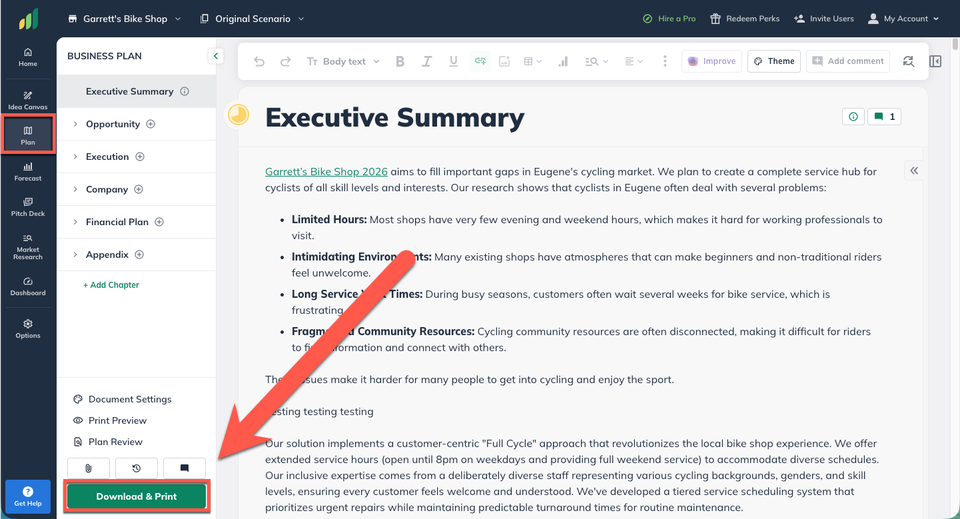
In the Plan section, click Download & Print near the bottom-left of your LivePlan window:
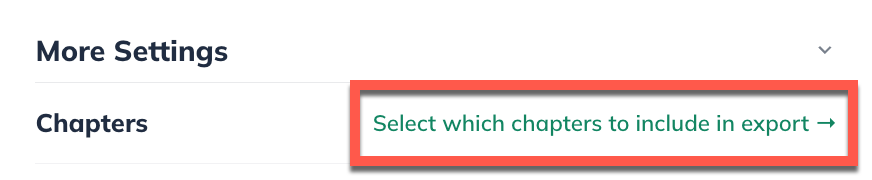
From the Document Settings slide out, scroll down to More Settings and click on Select which chapters to include in the export:
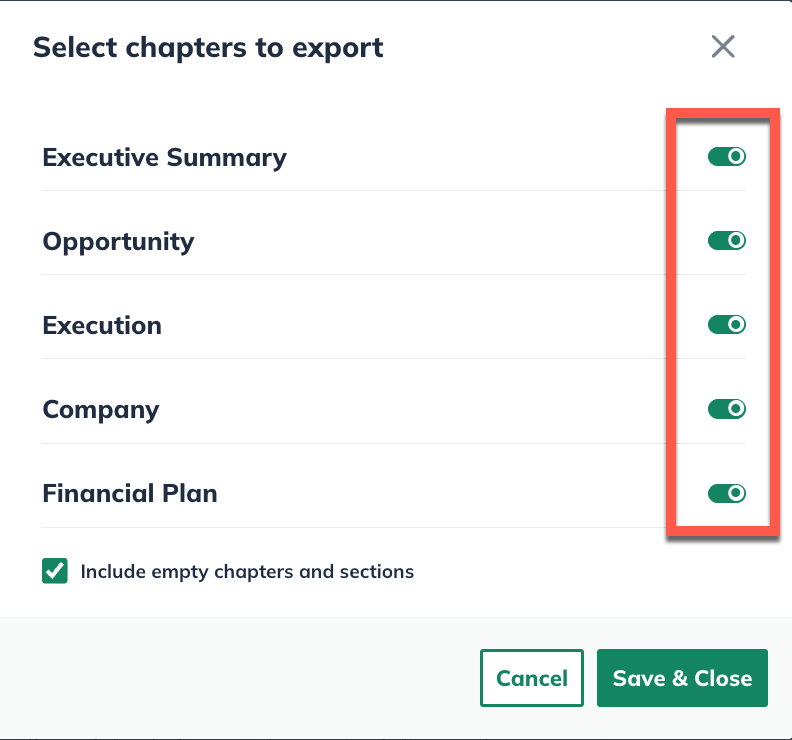
Next to the chapter names, toggle their respective button to green to include those chapters in the export:
Finally, you can include or exclude currently empty chapters in your plan outline (meaning you still need to write them.) To include these empty chapters and sections in the printed copies, tick the box next to Include empty chapters and sections:
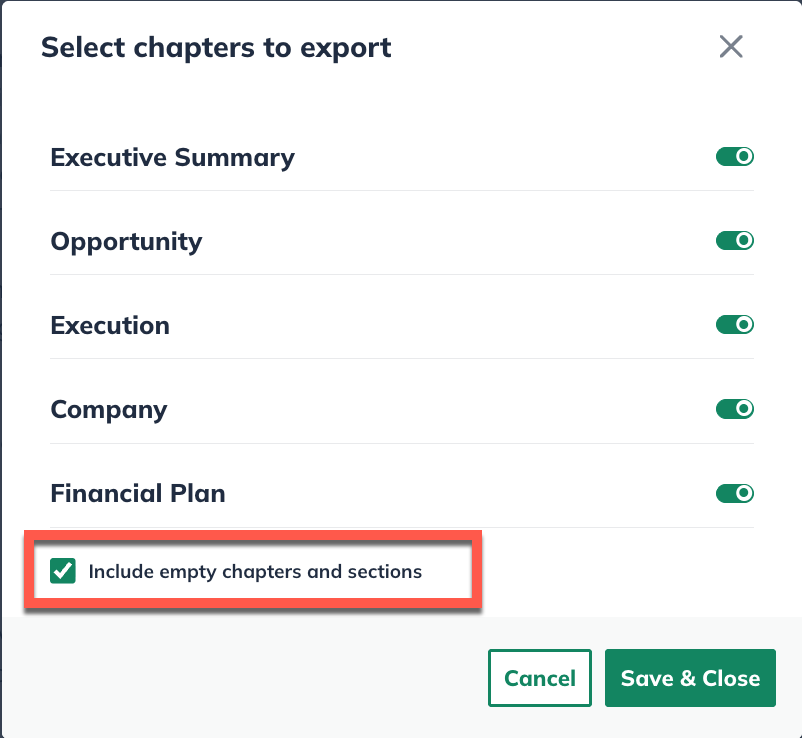
Note: Keep in mind that if you've selected an empty chapter and unchecked the box for "Include empty chapters" , that empty chapter won't be included.
Click the green Save & Close button once you have decided what chapters to include in the export.