
Collaborating With Others
Adding and editing comments
Comments in LivePlan are a feature that allows teams, advisors, and business planners to collaborate in the plan section of LivePlan. Like Forecast Notes, the Plan Comments tool can be very useful in supporting team communication, transparency, and project alignment as a business plan is developed.
Posting plan comments
Users with different access levels, such as account owners, contributors, and guests, can all post comments in the Plan for each section included in the plan document. This feature is an excellent way to share ideas and discuss specific areas of the plan in an organized manner. Users can even use the comments to jot down notes related to topics they want to cover.
Comments are only displayed within the LivePlan application; they will not appear in the downloaded plan document or the print preview. Also, if you remove a section from your plan, its comments will be stored. If you add that section to the plan later, the comments will be restored.
Note: If you like, you can receive email notifications when comments are posted.
To post a comment:
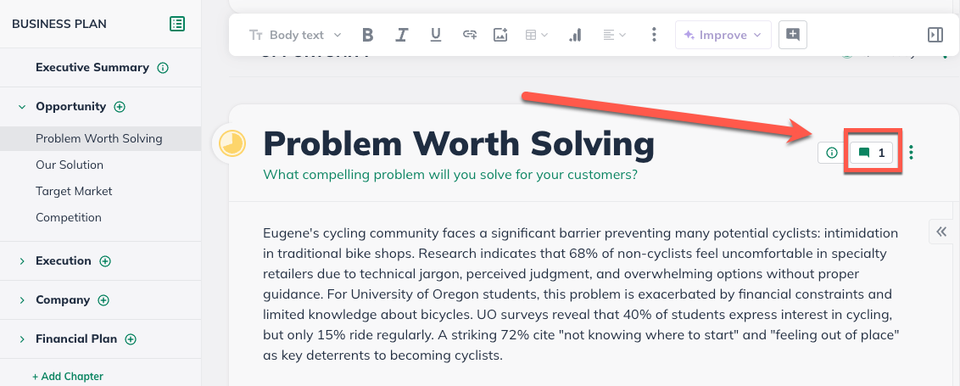
Click the Comments button in the top right of the section where you'd like to post a comment:
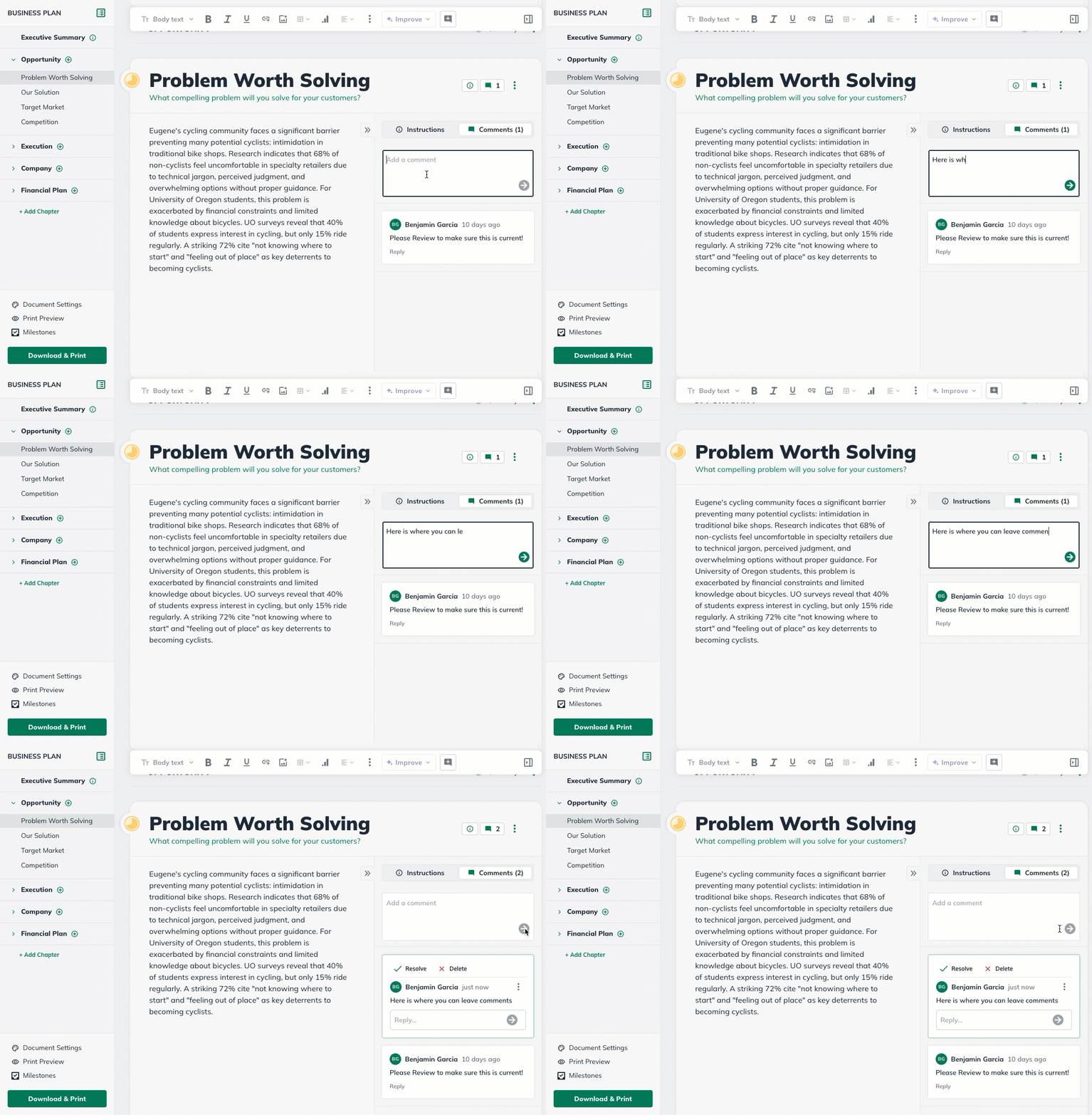
Type your comment in the field provided, then click the green arrow button to the right to post the comment on the topic.
Viewing comments
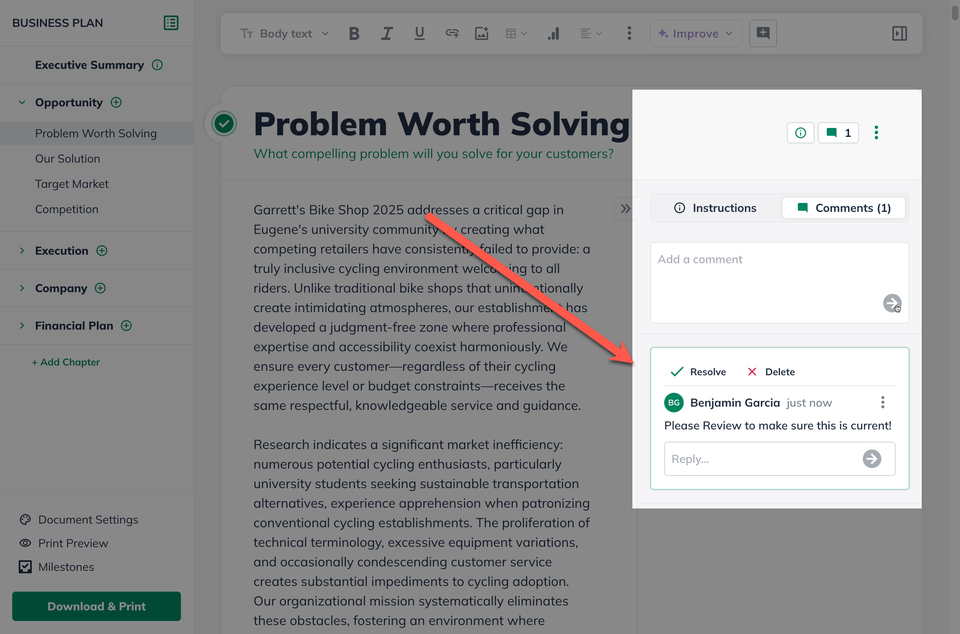
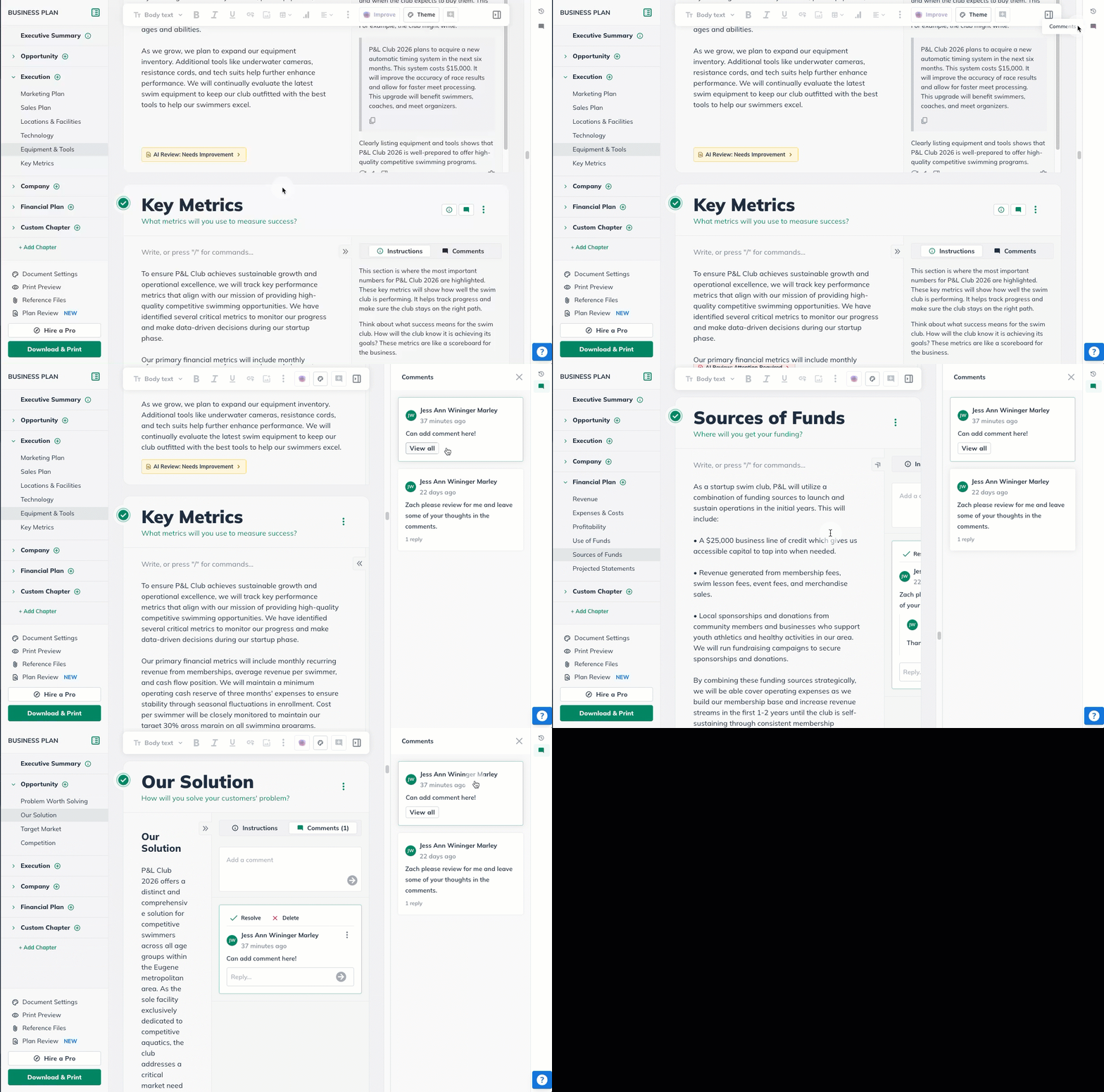
To view comments, navigate to the desired section in your plan outline. If there are comments, the number of comments will be shown at the top right of the section.
Click the link to expand the comment, and click again to minimize:
You can also see all comments that have been added to the Plan by clicking on the Comment icon on the far hand side of the screen:
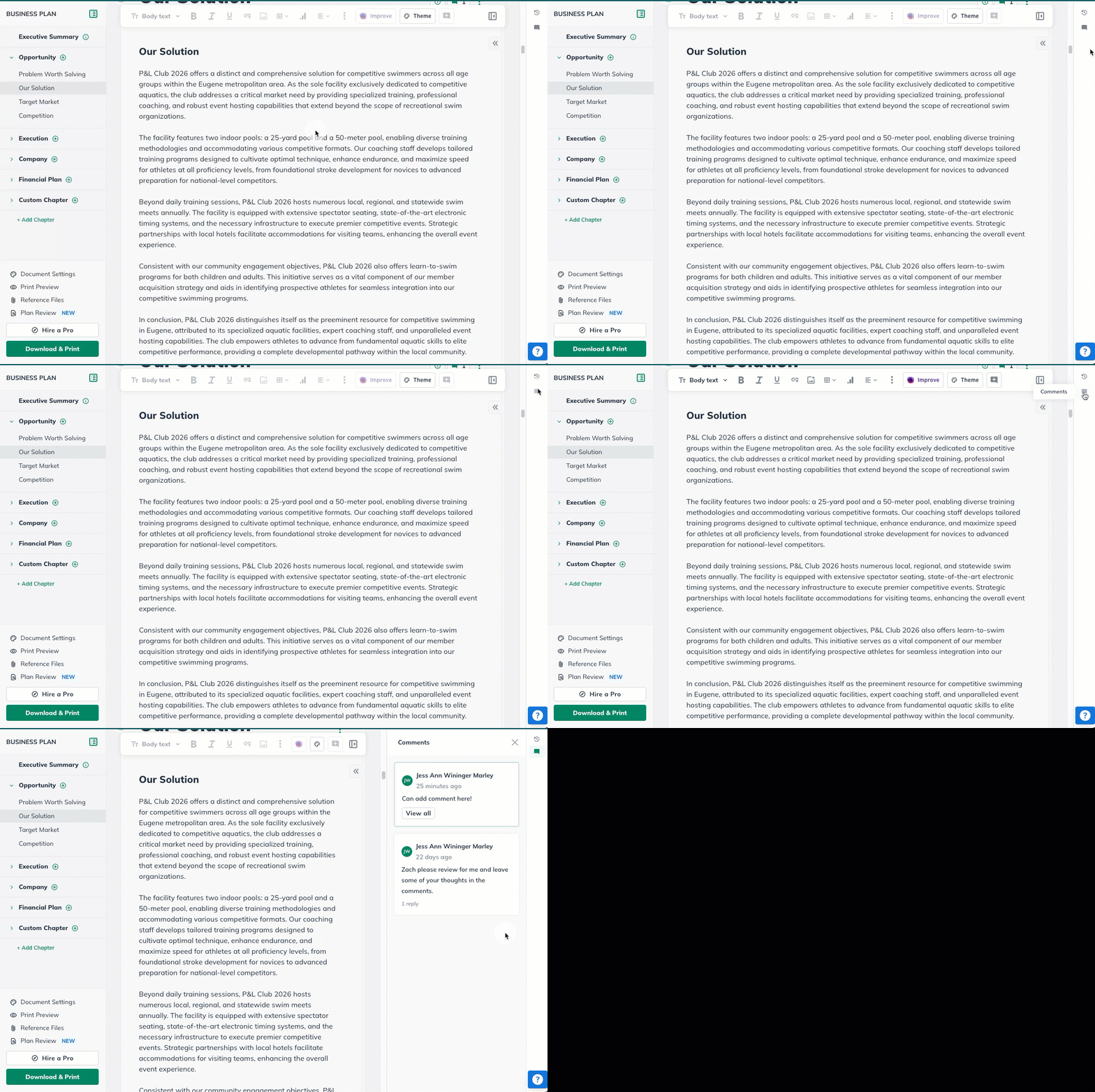
You can also click on a comment within the All Comments panel for the Plan to navigate to that section:
Editing a comment
All users can edit their comments. Only LivePlan account owners can edit others' comments.
To edit a comment:
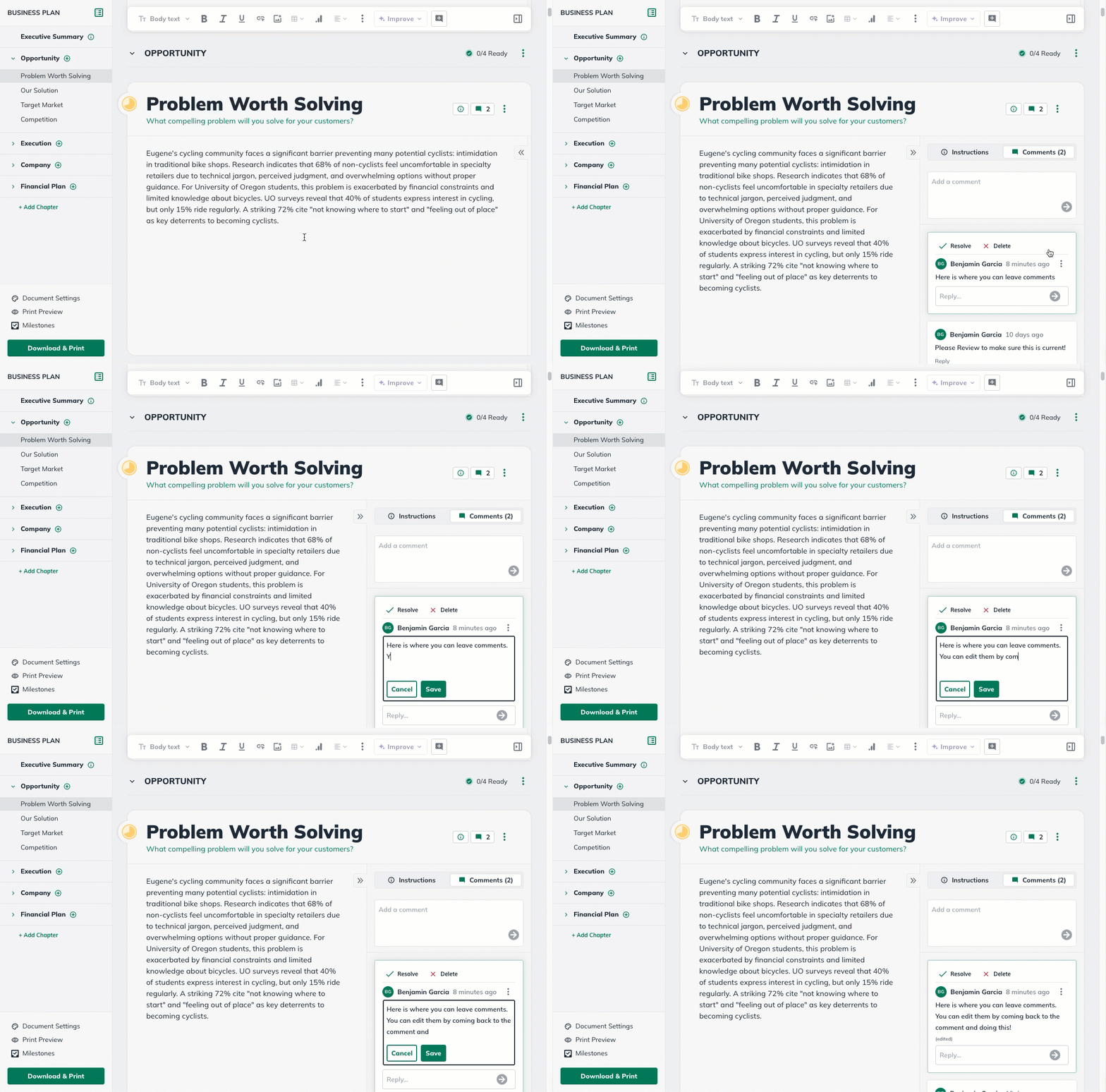
Click the Comments button in the top right of the section where you'd like to edit a comment:
The comments will be displayed next to the text section content. Make any desired changes to your comment, then click the Save button:
Deleting a comment
Both contributors and guests can create and delete their comments. However, only LivePlan account owners can delete others' comments.
To delete a comment:
Click the Comments button in the top right of the section where you'd like to delete a comment:
Select the comment you would like to delete and then select Delete from the available options.
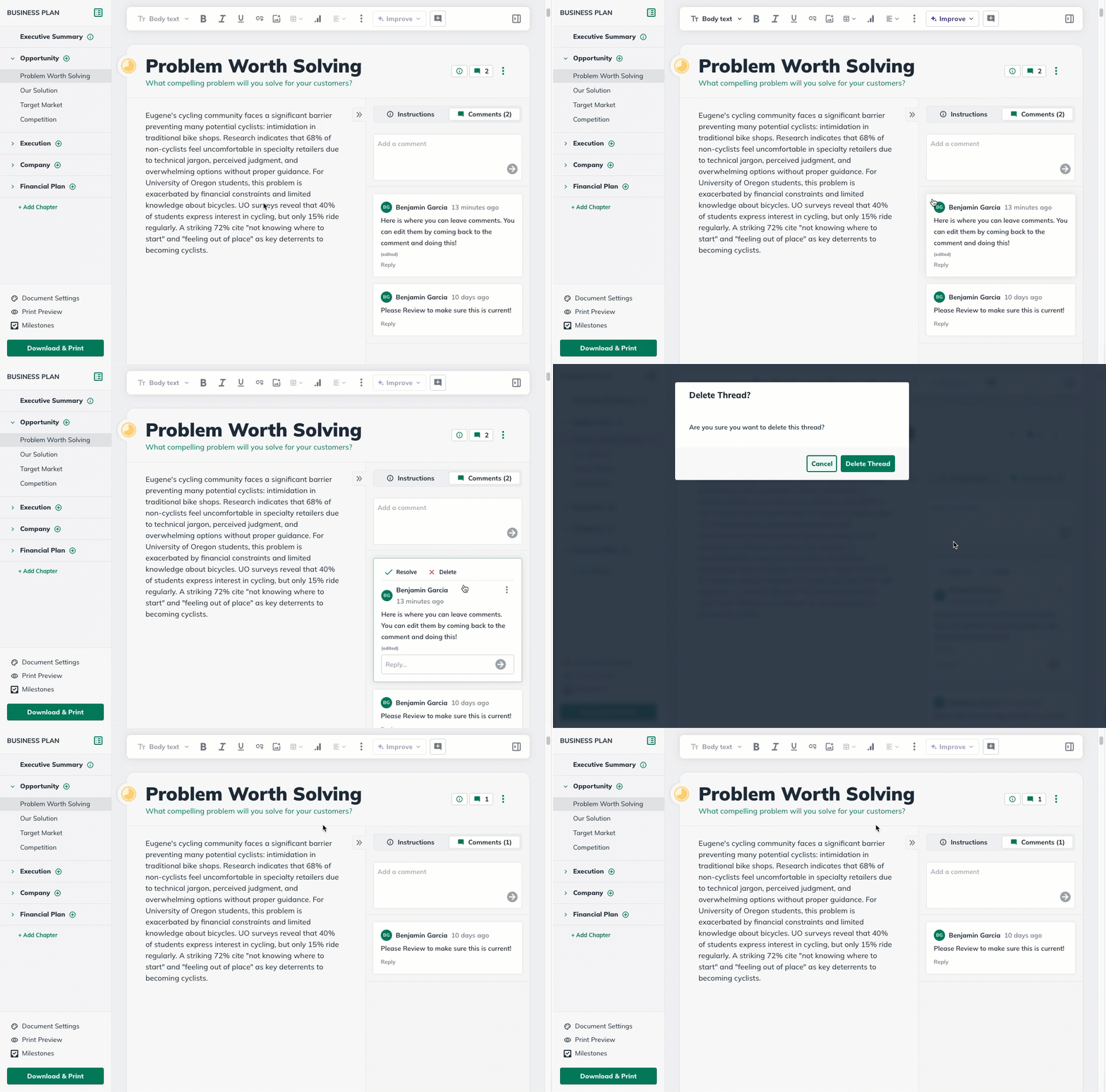
Note: Comments cannot be restored once deleted.