
Performance Tracking And Dashboard
Switching between an accounting solution and direct entry
Switching from direct entry to your accounting solution
If you’ve already entered some of your actual results directly, you can still connect to QuickBooks Online or Xero. However, once you connect to an accounting solution, any data you enter directly will be deleted and replaced with the data uploaded from that accounting solution.
To switch from direct entry to an accounting solution:
Click the Connect to Accounting button, located near the lower-left of your LivePlan window:
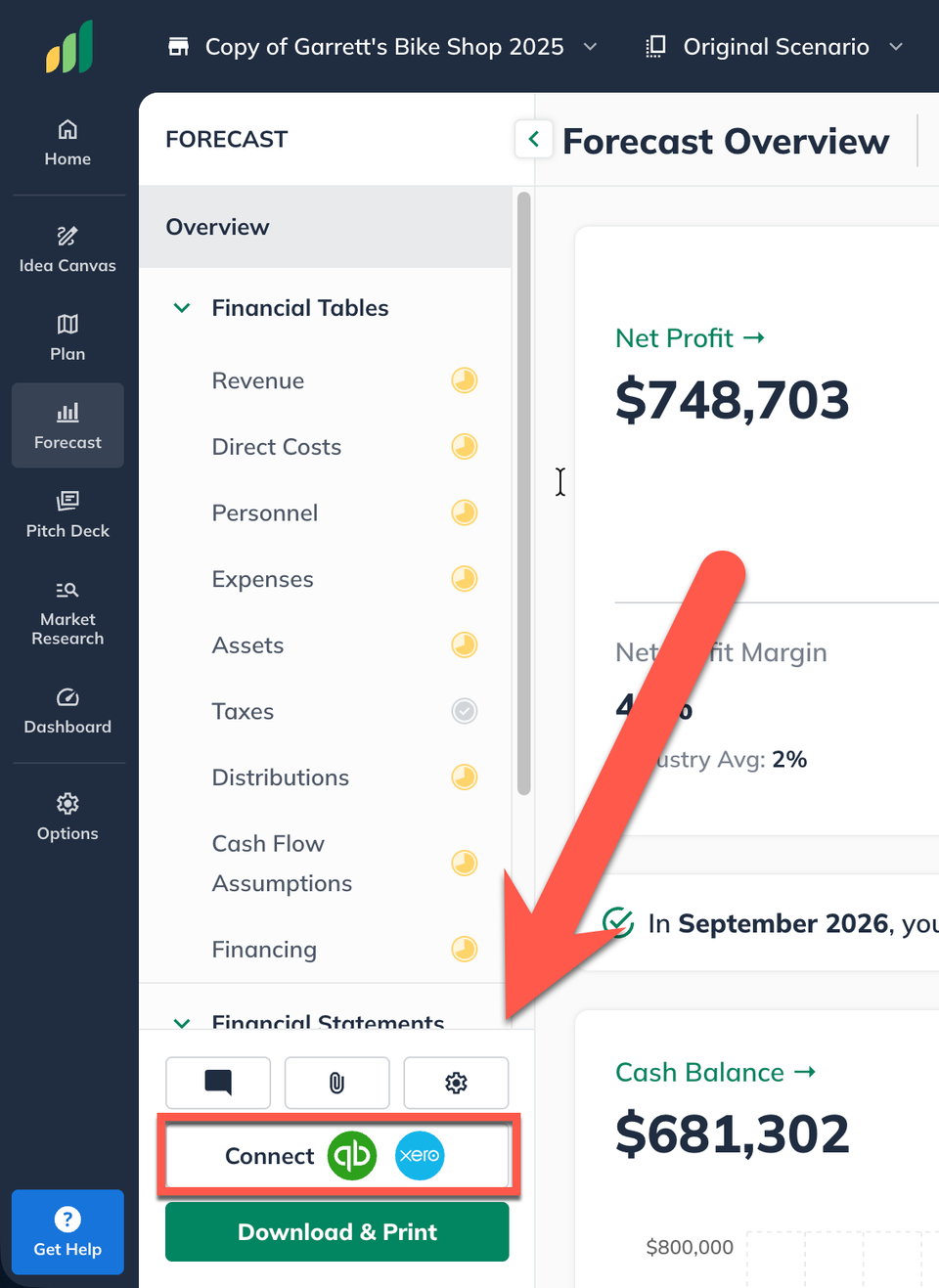
Follow the steps for connecting to your accounting solution provided in the following articles:
Switching from your accounting solution to direct entry
You can still switch to direct entry if you’ve already used either QuickBooks Online or Xero to upload your actual results into the Dashboard. The data you uploaded from the accounting solution will not be discarded but will no longer be automatically updated.
To switch from an accounting solution to direct results entry:
Click the Edit Mappings button, near the bottom of the left sidebar:
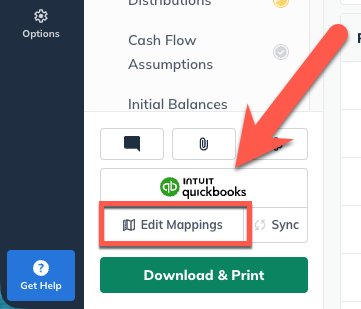
Near the top-right of the Account mapping pane, click the three vertical dots and select Disconnect from QuickBooks:
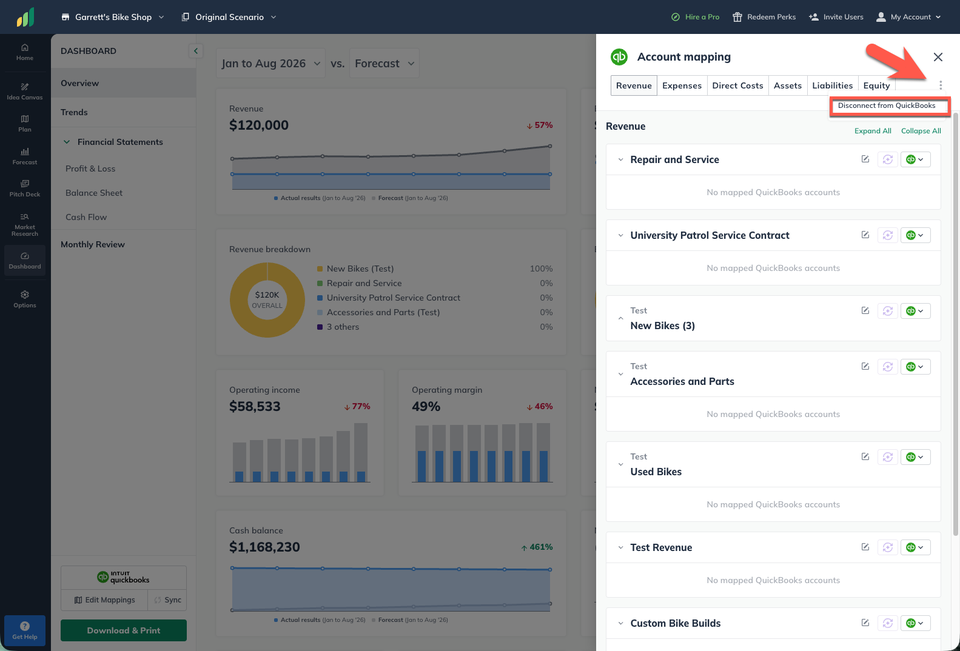
Select Yes, Disconnect to confirm:
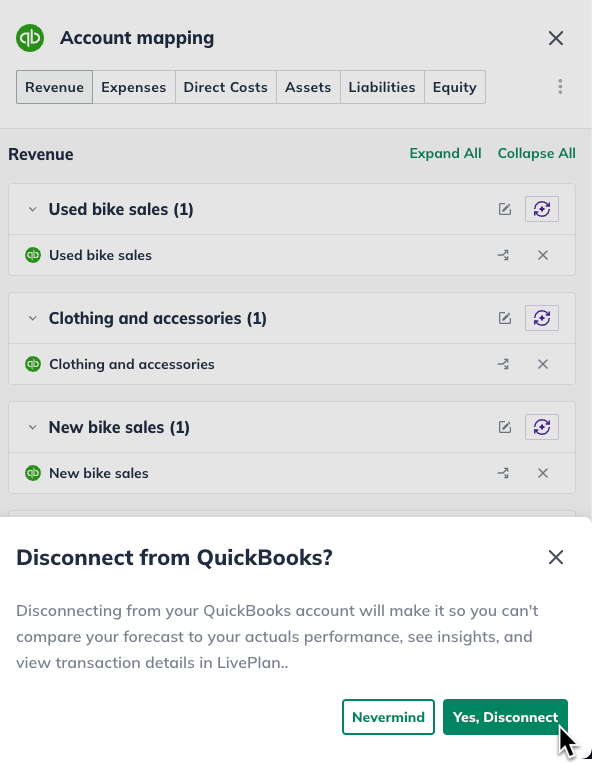
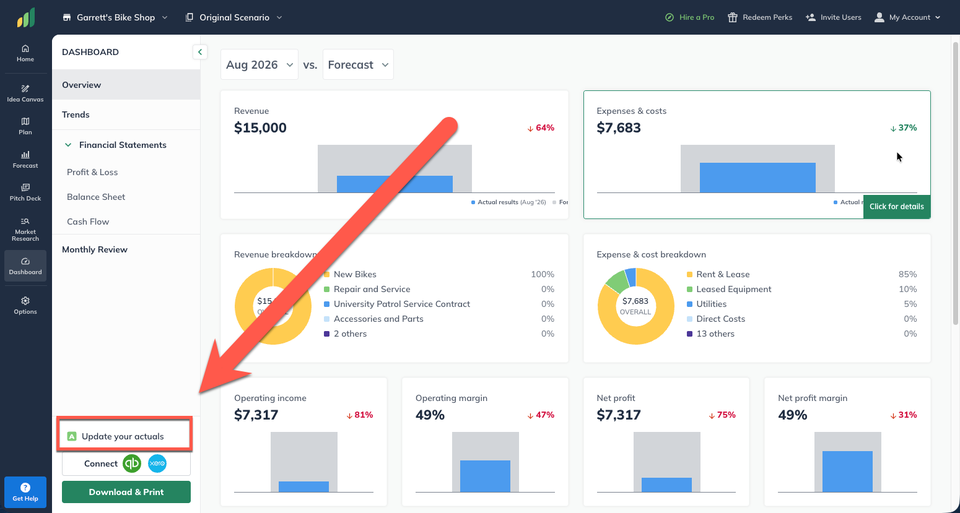
Note: All actuals downloaded from QuickBooks Online will be retained upon disconnecting, and can be edited or updated by clicking Update Your Actuals in the Dashboard section:
You can also disconnect QBO from LivePlan when signed into your QBO account. This article shows you step by step how.
Now, you can add direct-entered actuals to your Dashboard.