
Create a Pitch Deck in LivePlan
Pitch Deck helps you turn your LivePlan business plan into a polished presentation. This guide walks you through creating a deck, editing your slides, and sharing or exporting the finished product.
You can generate a full deck from your business plan using AI, start from a guided investor-ready outline, or build from scratch with a blank deck. After creating your deck, you can edit any slide, adjust the design, and share it with a link or export it to PowerPoint.
Choose How to Start
When you open Pitch Deck, you’ll see three options for getting started. Choose the one that fits where you are in your planning process.
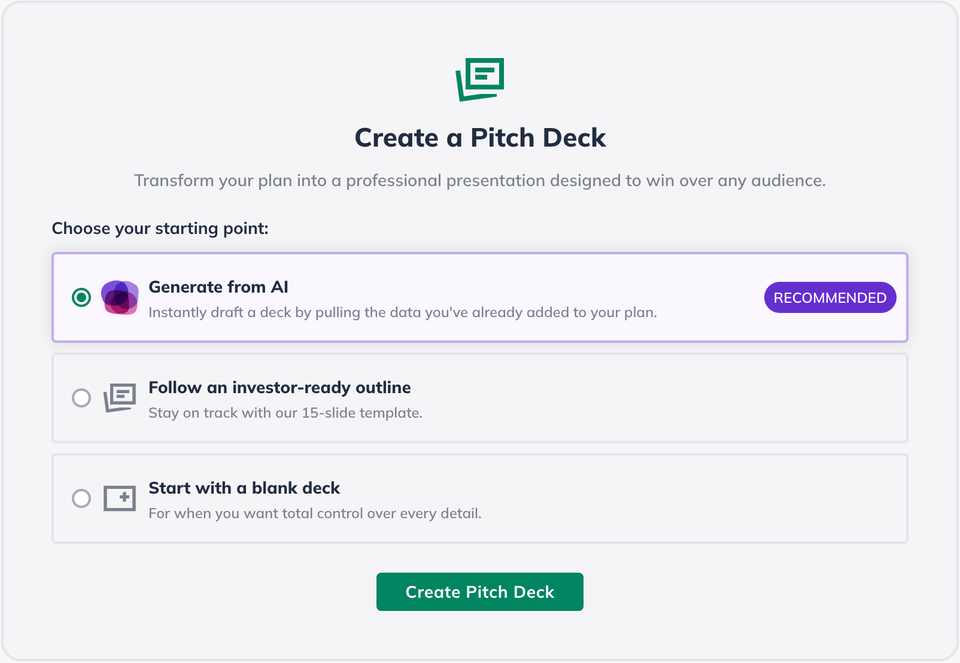
Breakdown of different starting options:
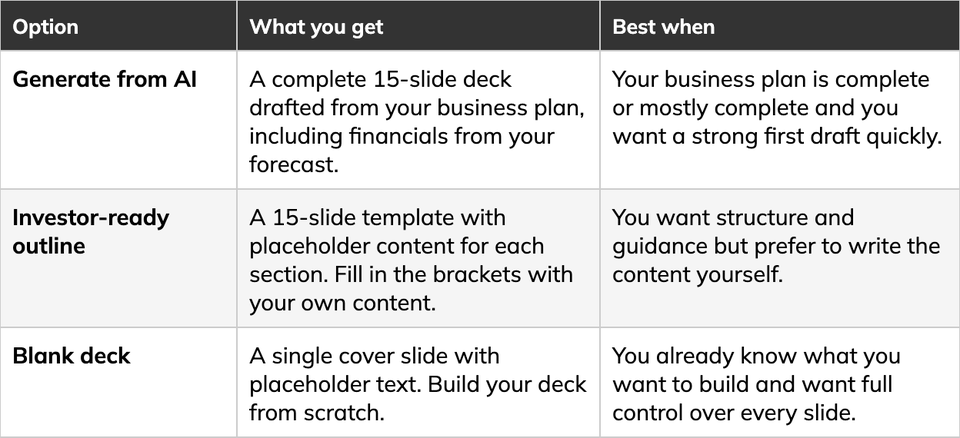
Generating a Pitch Deck from Your Plan
The fastest way to create a pitch deck is to generate one from your business plan. LivePlan analyzes your plan content and builds a complete deck with slides covering your opportunity, solution, target market, competition, business model, financials, and more.
You can have up to 10 different Pitch Decks per LivePlan company.
Note: For best results, complete or update your business plan before generating a deck. The AI uses your plan content as its source, so a more complete plan produces a stronger first draft.
Step-by-step guide: Generating Pitch Deck with AI
Click Pitch Deck in the left-hand navigation menu:

Click on the grey arrow to open up the drop down menu:
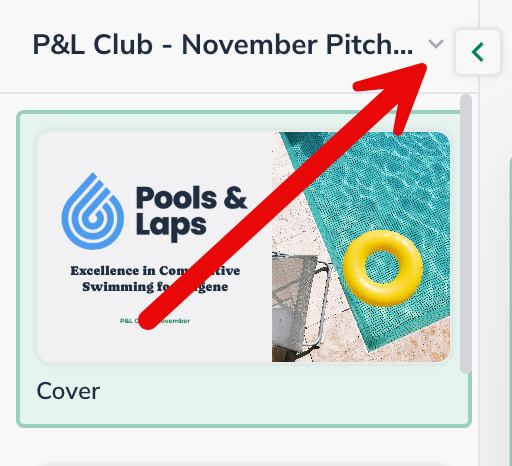
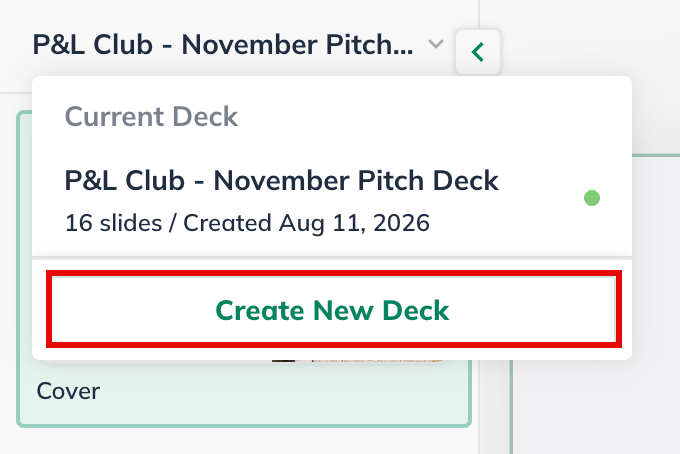
From this drop down menu, click on the Generate New Pitch button:
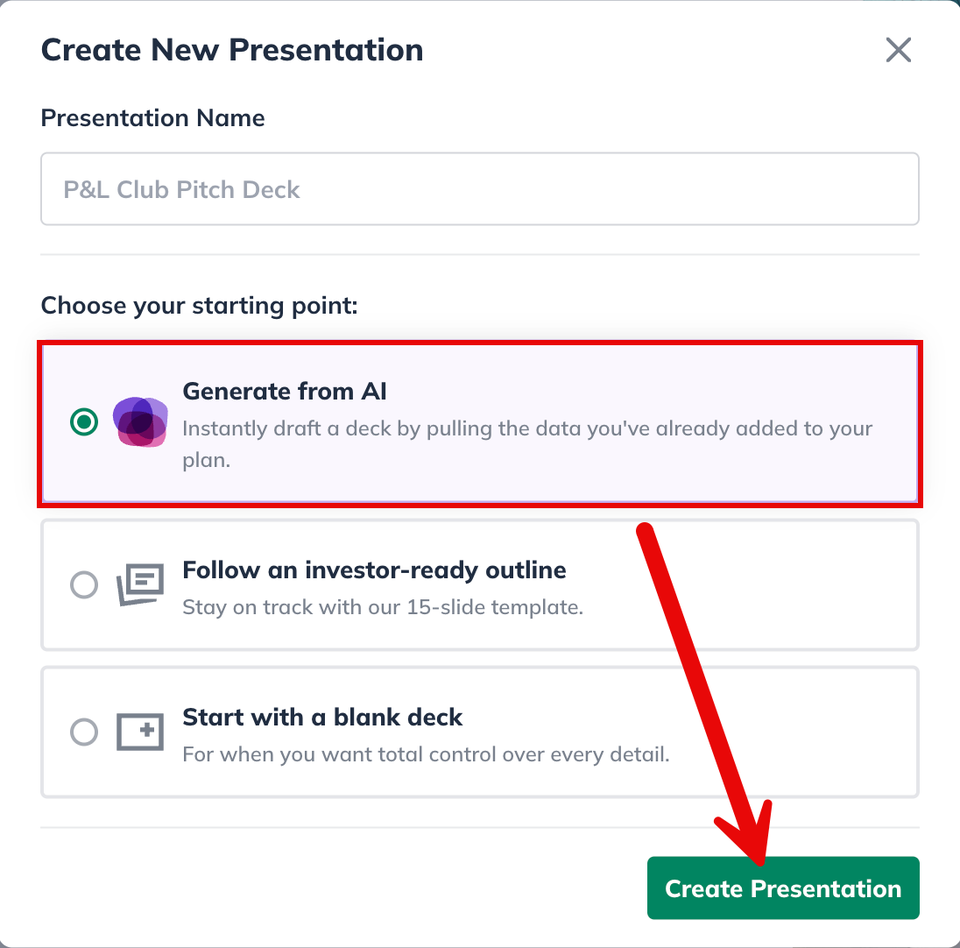
Select "Generate from AI" option and then click on the Create Presentation button:
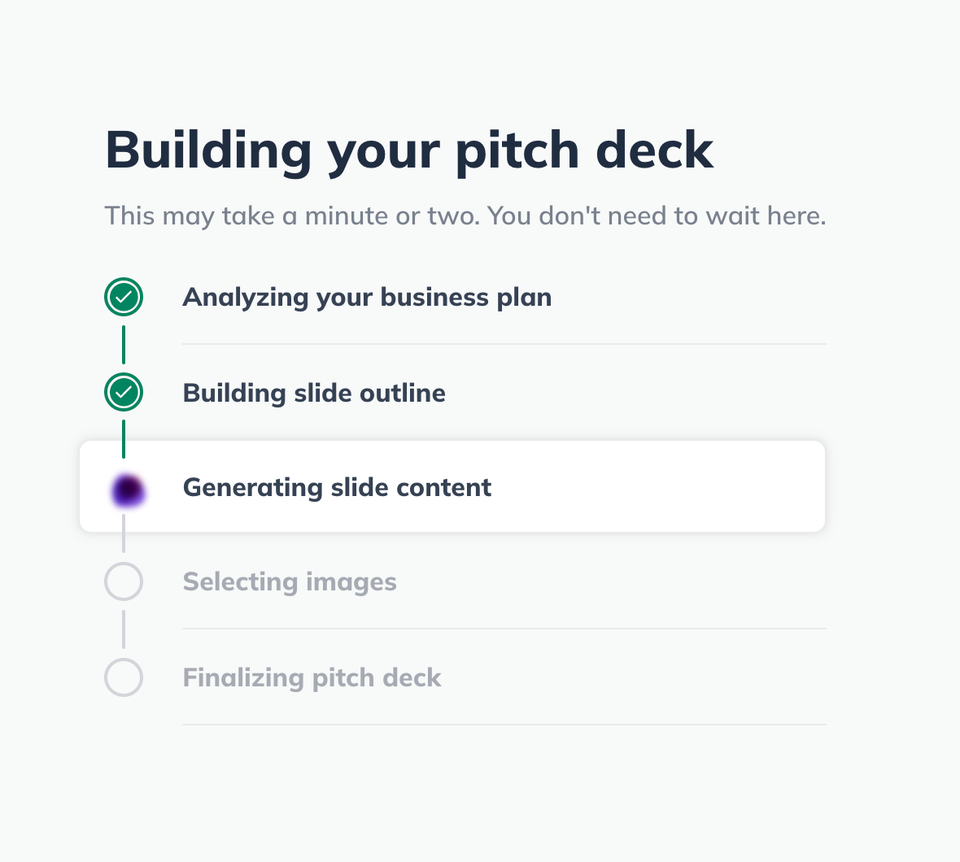
LivePlan will then start the Pitch Deck generation:
When generation is complete, you’ll land in the Pitch Deck editor with your slides ready to review.
Note: The AI generated Pitch Deck will have between 15-17 slides depending on how much content is in your Plan.
The generated deck is a starting point. Review each slide for accuracy and edit anything that doesn’t fit your message or audience.
Starting from an Outline or Blank Deck
If you prefer more control over your deck content, you can start from a guided outline or a blank slate.
Investor-ready outline
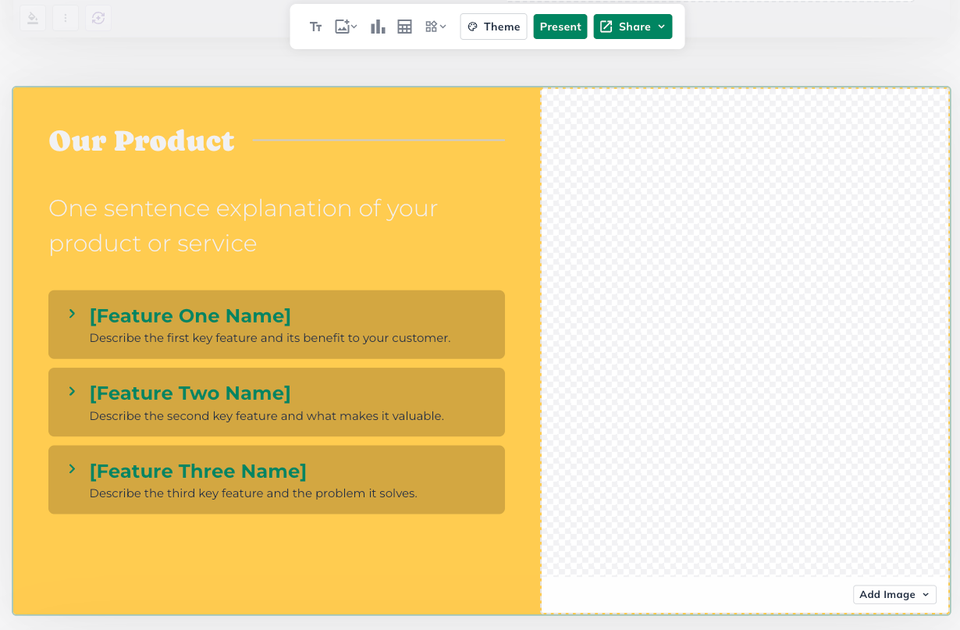
This option creates a 15-slide deck with a professional pitch structure already in place. Each slide includes placeholder text in brackets that tells you exactly what to fill in.
The outline covers the same sections as the AI-generated deck: problem, solution, product, target market, competition, business model, customer acquisition, traction, team, financials, the ask, and contact information.
Walk through each slide and replace the bracketed placeholders with your own content. You can also add, remove, or reorder slides as needed.
Blank deck
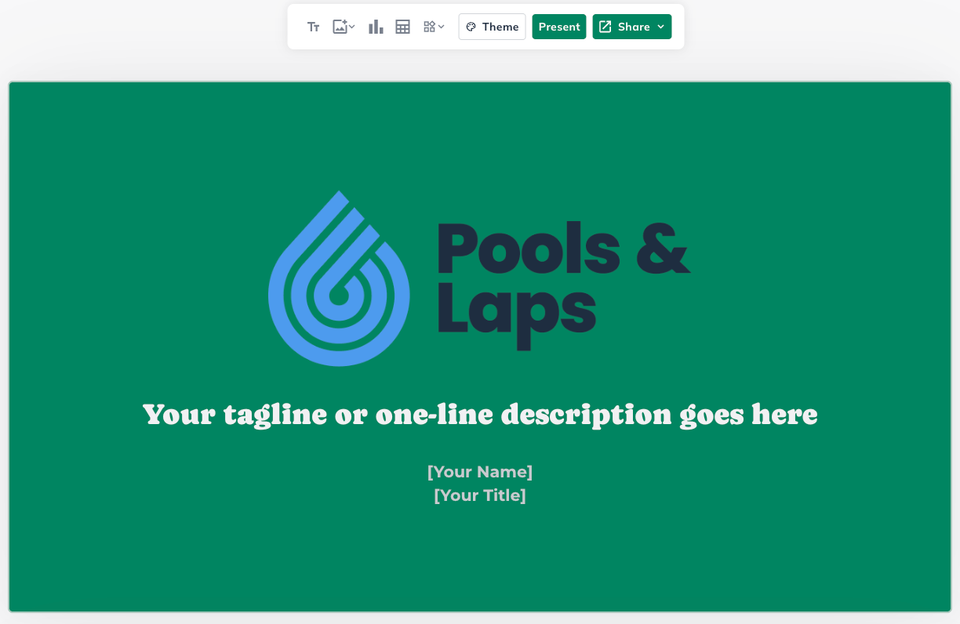
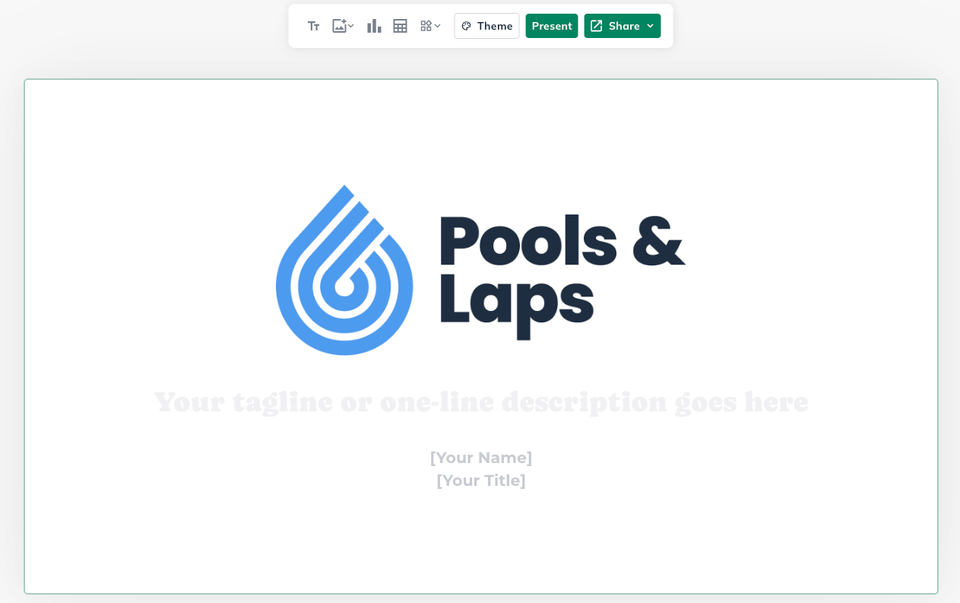
This option starts you with a single cover slide containing basic placeholder text. Use the Add Slide button at the bottom of the slide panel to add new slides and build your deck from scratch.
This is the best option if you already know what you want to present and don’t need a predefined structure.
Ways to Edit the Pitch Deck
Every slide in your pitch deck is fully editable, whether it was generated by AI, filled in from an outline, or built from scratch. The Pitch Deck editor gives you control over content, layout, and design.
Summary: Editing the Pitch Deck
Edit slide text. Click on any text on a slide to edit it directly.
Regenerate a slide. Use the regenerate button on any individual slide to have AI rewrite that slide’s content. This doesn’t affect other slides.
Reorder slides. Drag slides in the left-hand thumbnail panel to change their order.
Add or delete slides. Remove slides you don’t need or click Add Slide to insert new ones.
Swap images. Use the image tools in the toolbar to replace images on any slide.
Edit charts and tables. Edit charts and tables directly when they appear on financial or data slides.
Change slide layouts. Use the layout options in the toolbar to switch between available slide layouts.
Adjust the theme. Click Theme in the top toolbar to change the visual style of your entire deck.
Blocks to Add to Slides
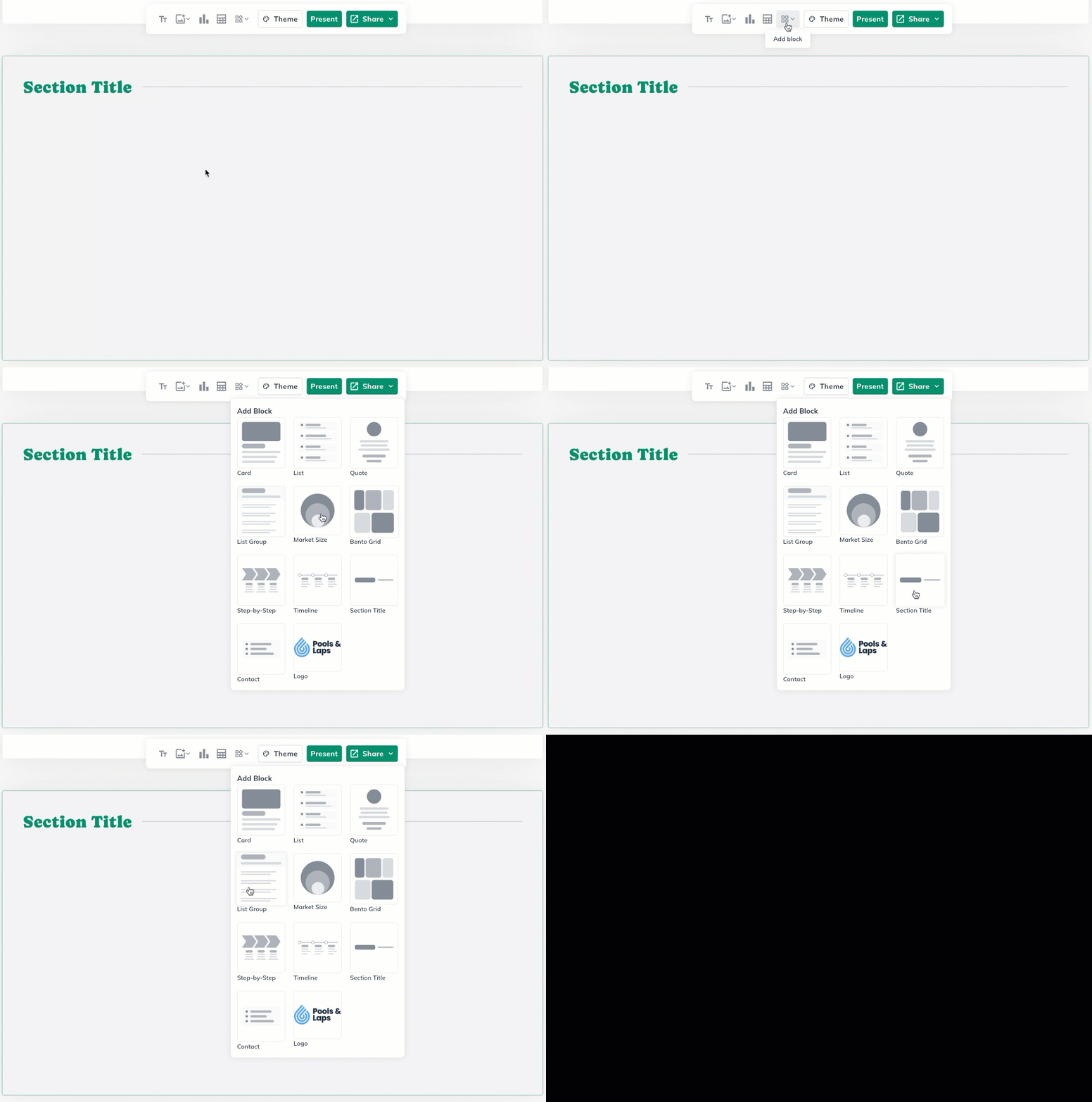
The Pitch Deck comes with 11 different blocks that you can add to your Pitch Deck's slides. These blocks provide additional visual elements to call out key information along with giving your Pitch Deck a polished professional appearance.


If a single slide doesn’t fit, use the regenerate button on that slide to get new AI-generated content based on your plan. This is faster than starting over and doesn’t affect the rest of your deck.
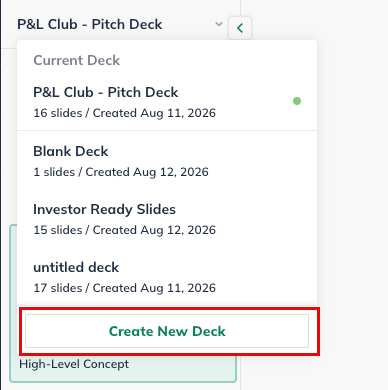
If you want a completely new deck, you can go back to the starting options and generate a fresh deck from scratch.

Sharing and Exporting Your Pitch Deck
Once your deck is ready, you can share it directly from LivePlan or export it for use in other presentation software.
LivePlan's sharing and export options are:
Sharing a link with the Pitch Deck as a published webpage
Presenting the Pitch Deck in LivePlan
Export options for PowerPoint and PDF
Step-by-step guide: Sharing your Pitch Deck
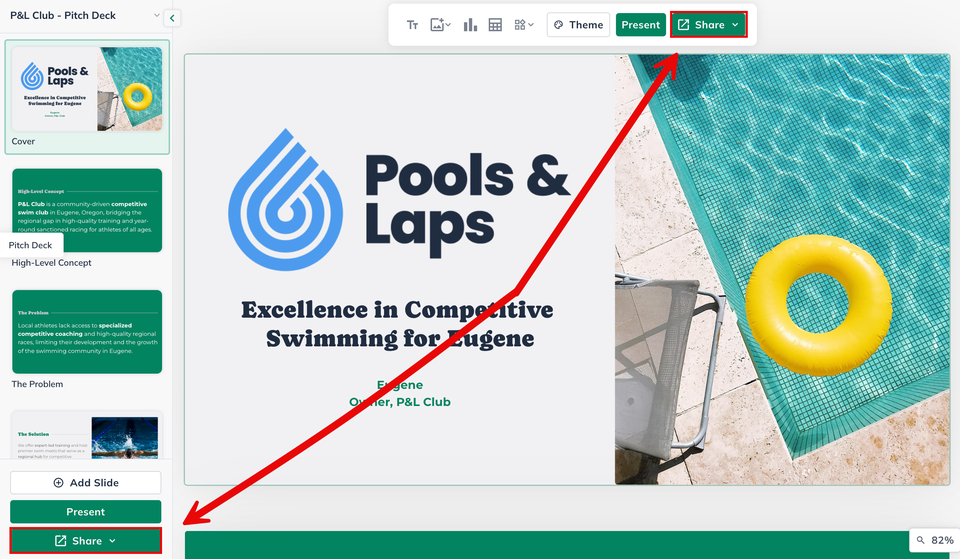
Click on either of the green Share buttons:
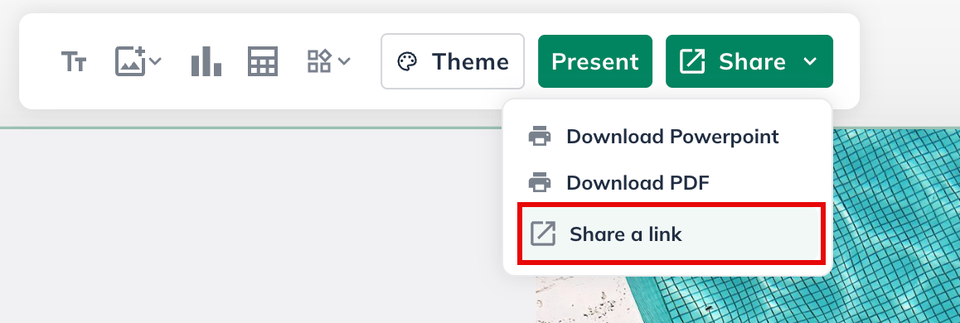
From the drop down menu, click Share a link:
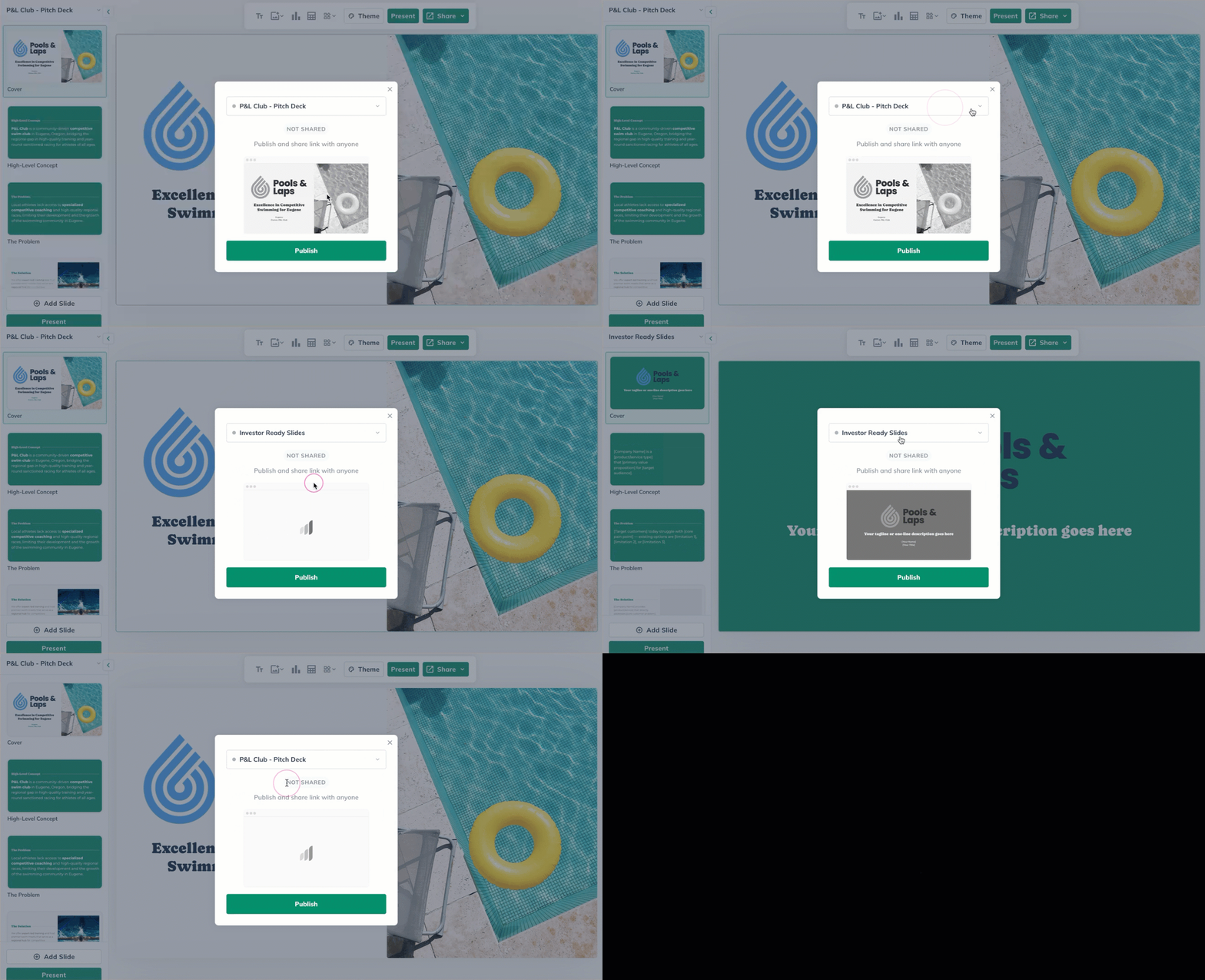
You can then select which Pitch Deck to publish as a webpage. You'll see LivePlan switch to the selected Pitch Deck in the background:
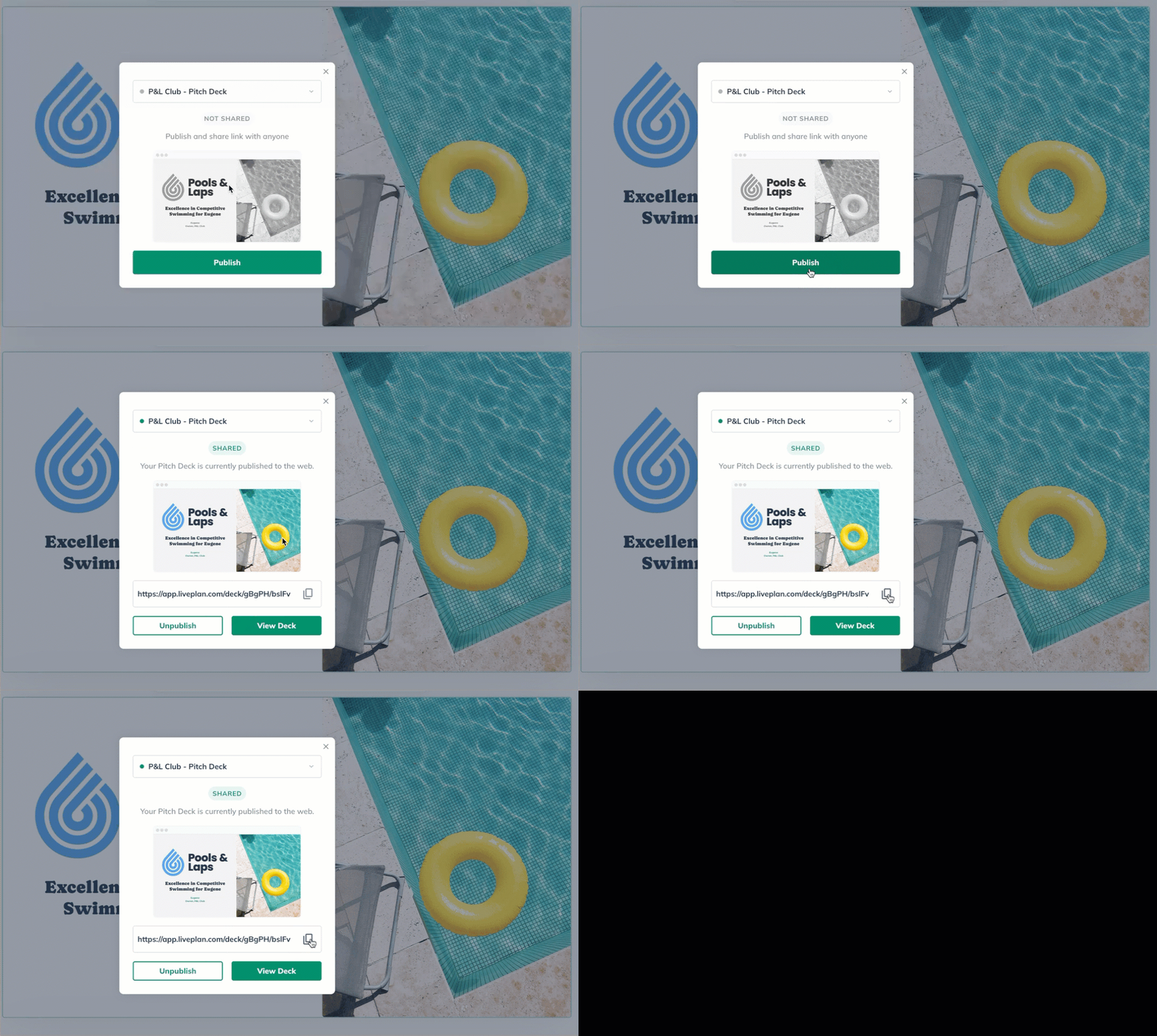
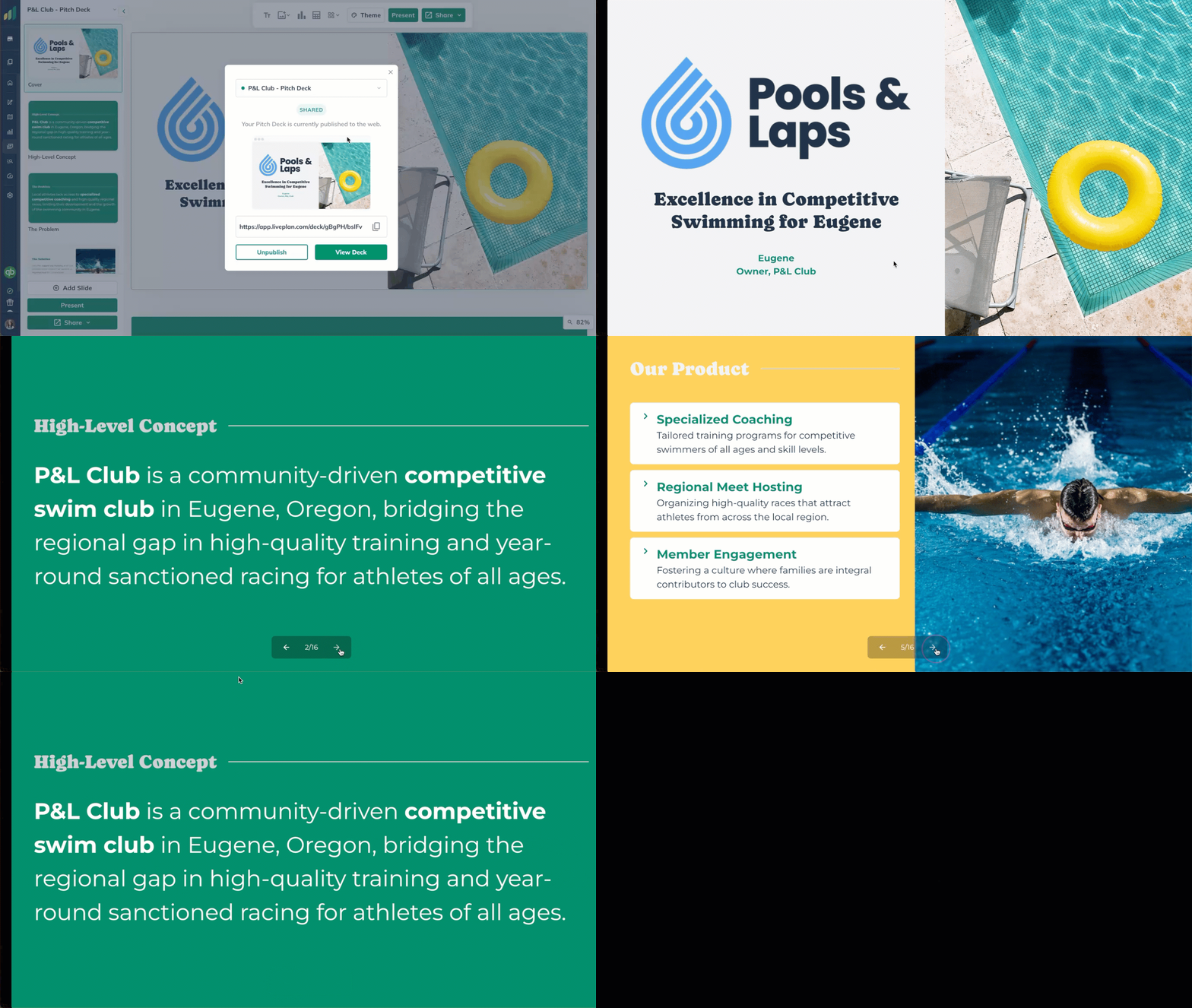
Click on the Publish button. You'll then see the the options to copy the link or click on View Deck button. It will open in a new tab:
The webpage works as a presentation slide show that can be moved through by clicking with your cursor:
Unpublishing your Pitch Deck
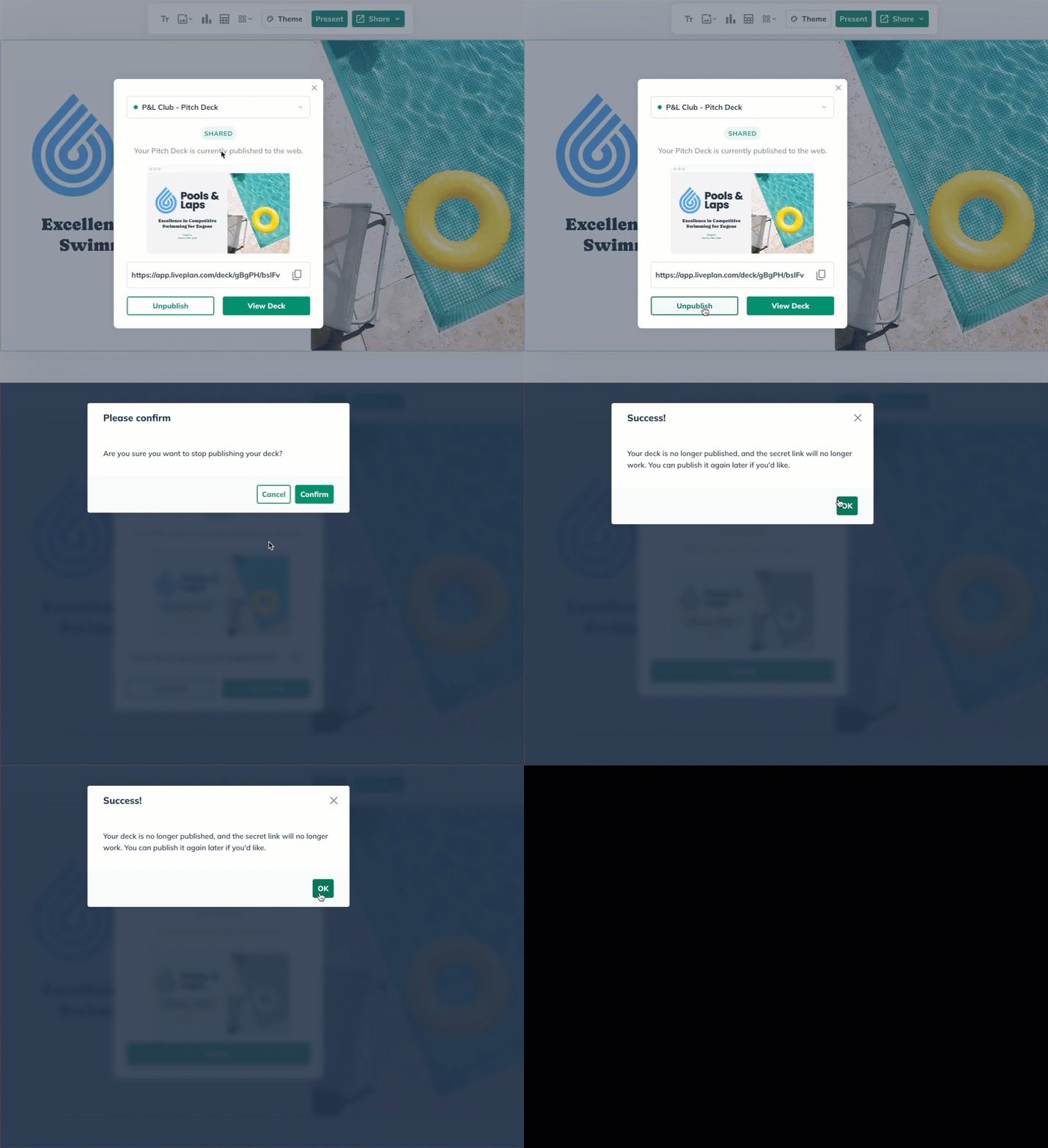
Step 1: Click either Share buttons
Step 2: Click the Unpublish button and then confirm the action:
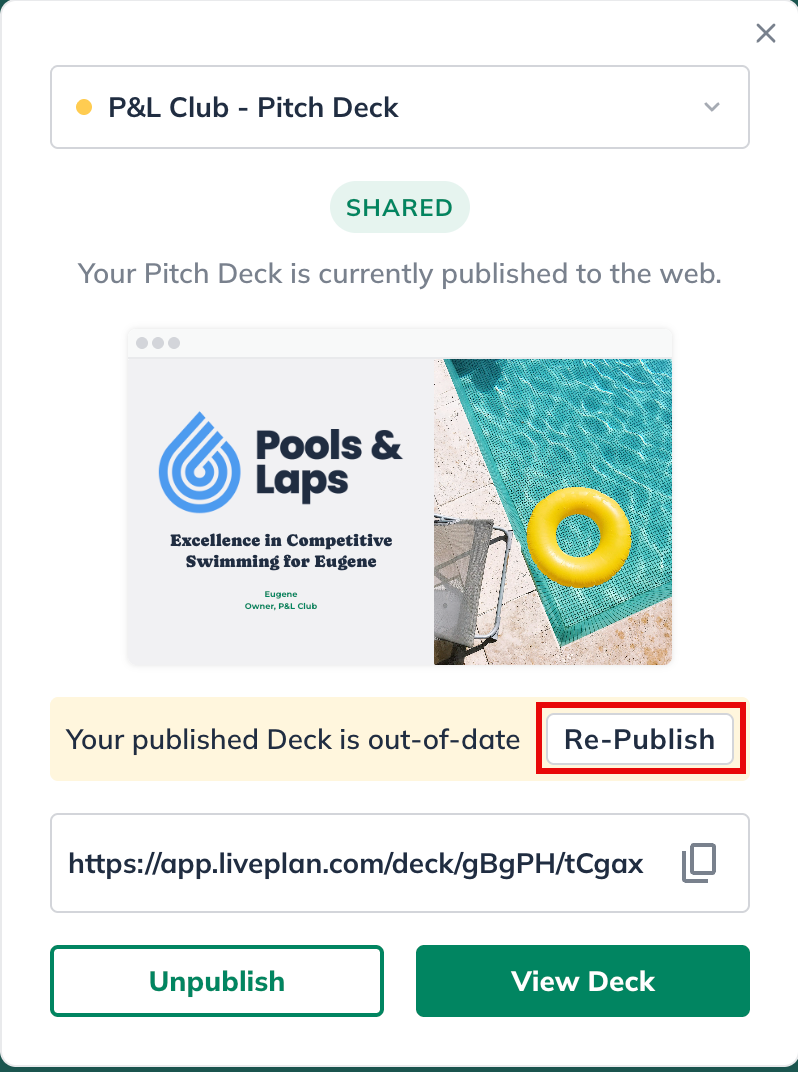
Note: You'll need to Re-Publish your Pitch Deck when you make any changes:
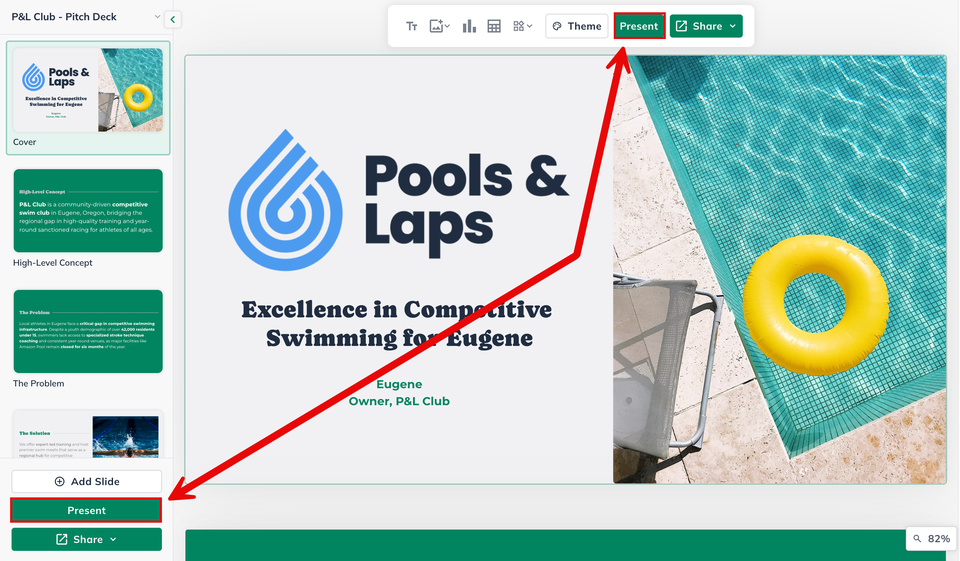
Step-by-step guide: Presenting Pitch Deck in LivePlan
Click on either green Present button:
LivePlan will then display the Pitch Deck in Presentation mode. You'll then see the UI to click through the slides and exit:
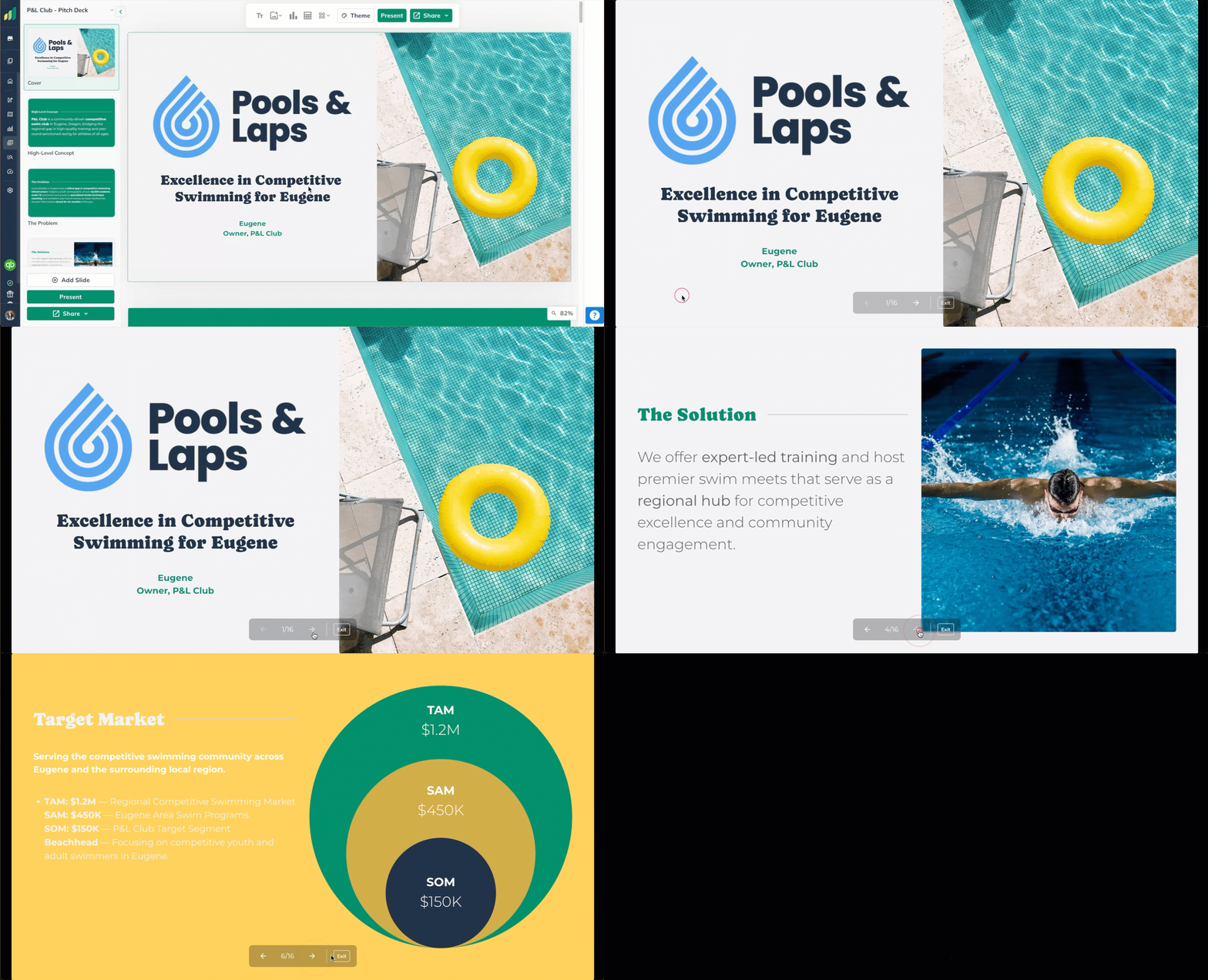
Step-by-step guide: Summary: Exporting to PowerPoint & PDF
Click on either Share button:
Select either the PowerPoint or PDF export option:
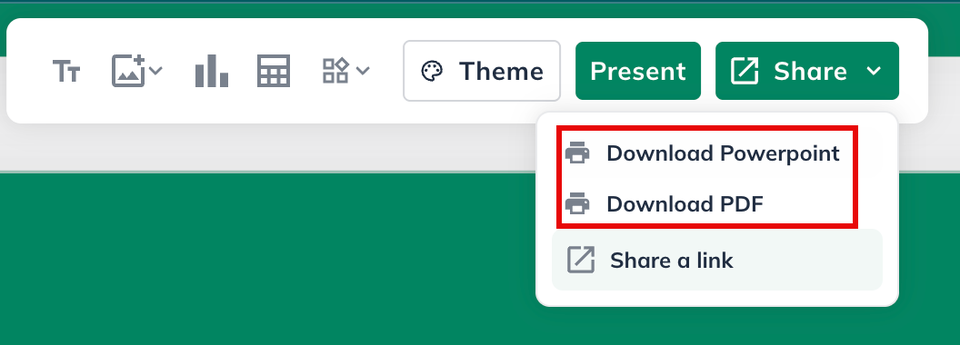
The exported PowerPoint file can be opened in Microsoft PowerPoint, Google Slides, or other compatible presentation software. PDF can be opened in your browser tab and then saved directly to your device.
Note: Review your deck in LivePlan before exporting. The exported file reflects what you see in the editor, including any edits you’ve made.
Tips for a Stronger Deck
A few practical suggestions to get the most out of Pitch Deck:
Review every slide before sharing. After generating or building your deck, walk through each slide and check that the content accurately represents your business. AI-generated content is a starting point, not a final draft.
Regenerate individual slides. If a slide’s content doesn’t fit your message, regenerate just that slide rather than starting the whole deck over.
Update your forecast for better financial slides. Financial slides pull data from your LivePlan forecast. If the numbers on your financial slides need updating, update your forecast and regenerate those slides.
Try the investor-ready outline. If you want to write your own content with professional structure as a guide, the investor-ready outline gives you a complete pitch framework with placeholders to fill in.