Forecasting: Revenue, Expenses, Direct Costs, & Personnel
Entering regular labor employees
In a business forecast, the distinction between regular labor (sometimes referred to as indirect labor) and direct labor is crucial for budgeting, planning, and understanding product costs. Regular labor are employees who are paid a regular salary, are considered part of your team, and are included in your overhead expenses.
Employees who are paid a regular salary are considered part of your team and are included in your overhead expenses. For more details, see What is the difference between direct labor and regular labor?
Adding regular labor employees
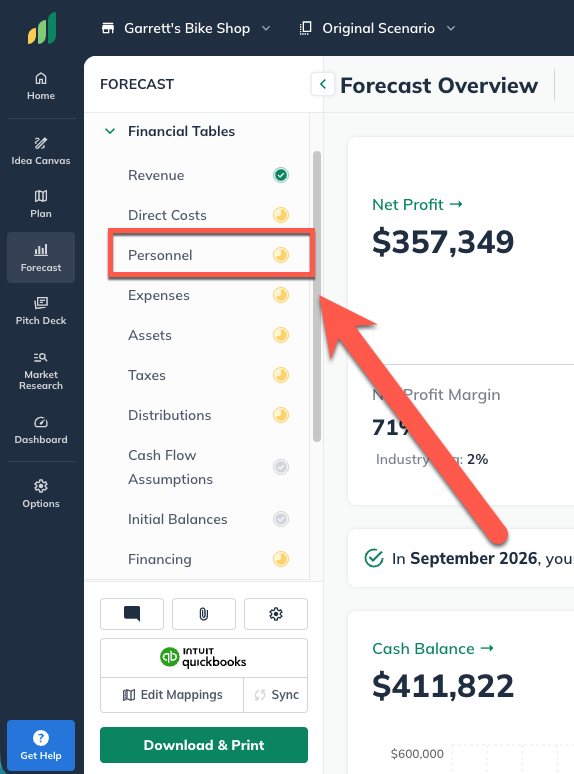
In the Forecast Overview click Personnel:
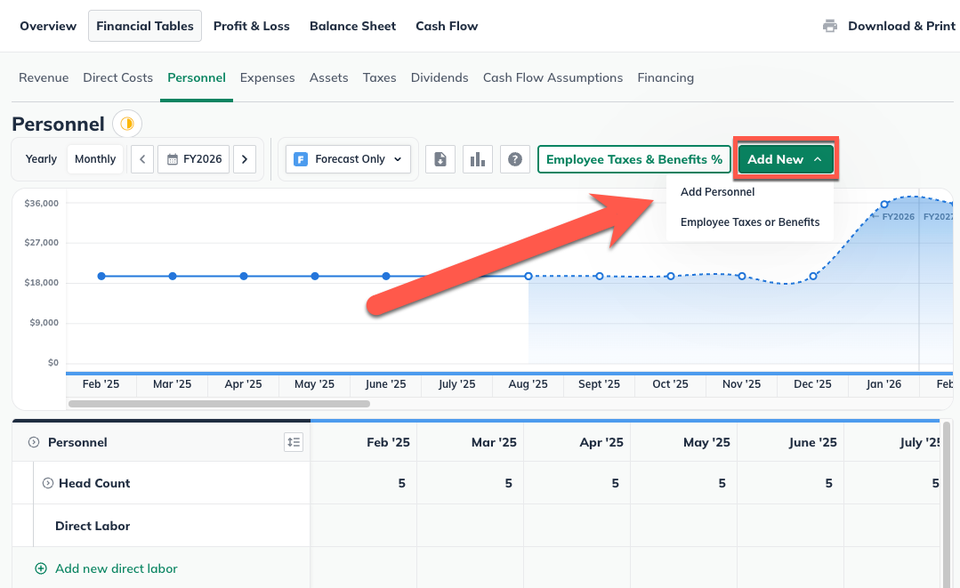
Click the Add Personnel button:
Select whether you're adding an individual employee or a group of employees:

If you chose Group of employees, enter the number of full-time equivalents (FTEs) you'll be hiring.
If this number will be constant during the period of your forecast, select Constant number.
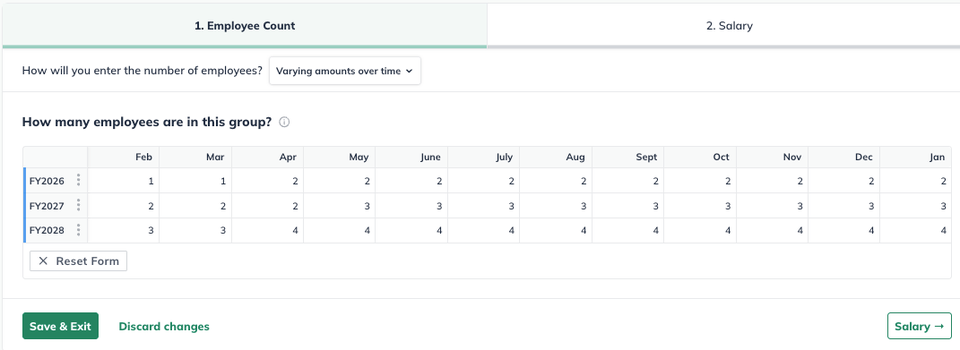
If the number of employees will vary during the forecast period, select Varying numbers:
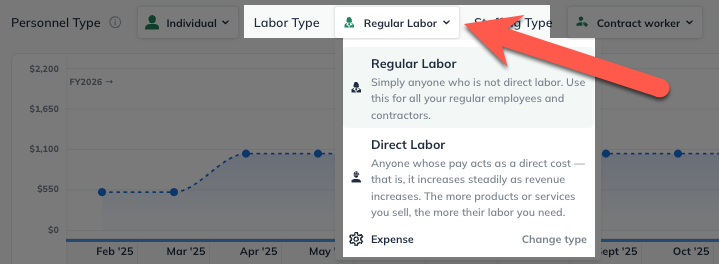
Choose Regular labor:
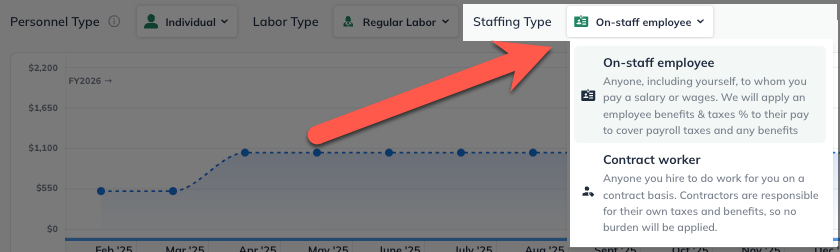
Indicate whether these are on-staff or contract employees, then click Next:
Choose whether to pay them the same amount each period throughout the duration of your forecast or whether the pay will vary during your forecasted period:
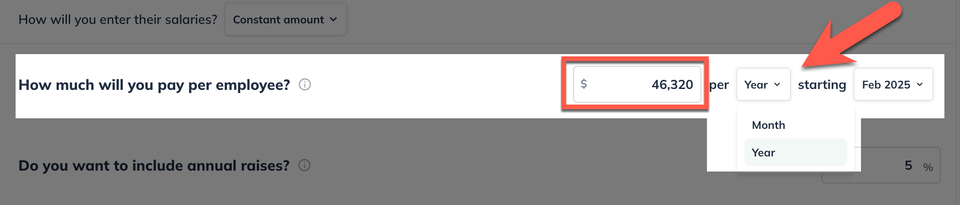
If you chose Constant amount, enter the amount you'll pay them either per month or per year:
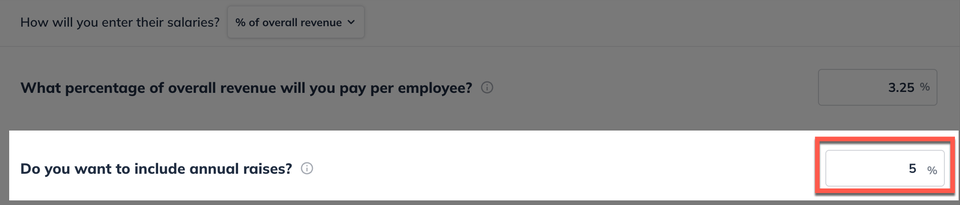
Next, indicate whether you want to include annual raises (and if so, what percent):
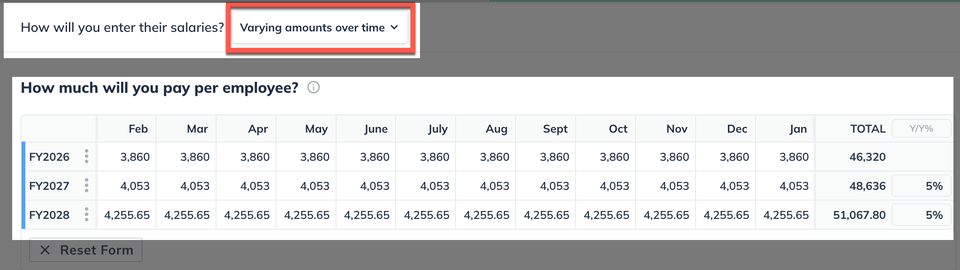
If you chose Varying amounts over time, enter the salary you expect to pay for a single full-time individual in this group. If you are adding a group of employees, we will multiply that single salary by the total number of staff in the group:
Click Create & Exit: