
Forecasting Financing Taxes And Advanced Topics
Entering a tenant improvement allowance
In commercial leases, a tenant improvement allowance is a pre-agreed amount that the tenant can use for office renovations. This allowance can cover costs such as interior build-outs, painting, floor installations, electrical upgrades, and other changes essential to making the space suitable for a tenant’s specific business needs. In exchange, the tenant typically agrees to lease the property for a set term, and the allowance terms are spelled out in the lease agreement. TIAs can play a significant role in shaping a business’s overall financial picture since they directly impact initial out-of-pocket expenses, capital investments, and projected cash flow requirements.
If your business plan includes a lease and you need to represent a tenant improvement allowance in your forecast, you'll need two entries:
One Long-Term Asset entry representing the dollar value of the improvement
One Investment entry to balance the expenditure
Entry #1: Asset entry for improvement value
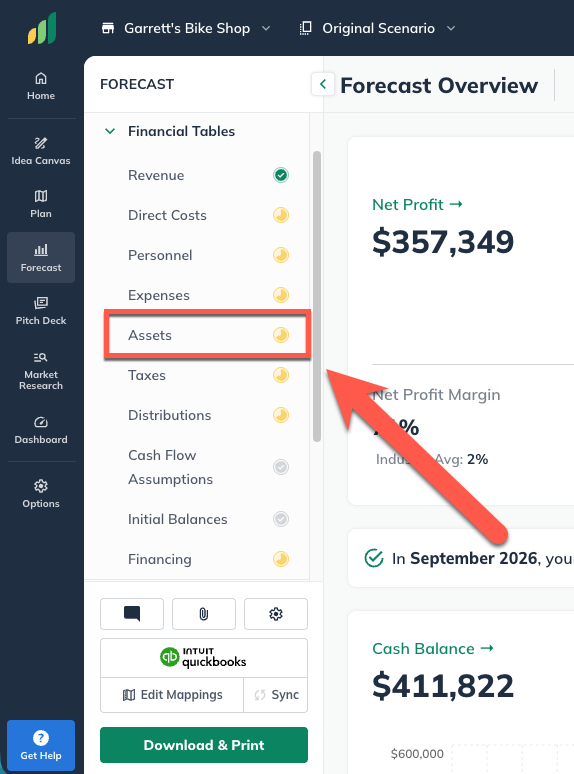
In the Forecast Overview, click Assets:
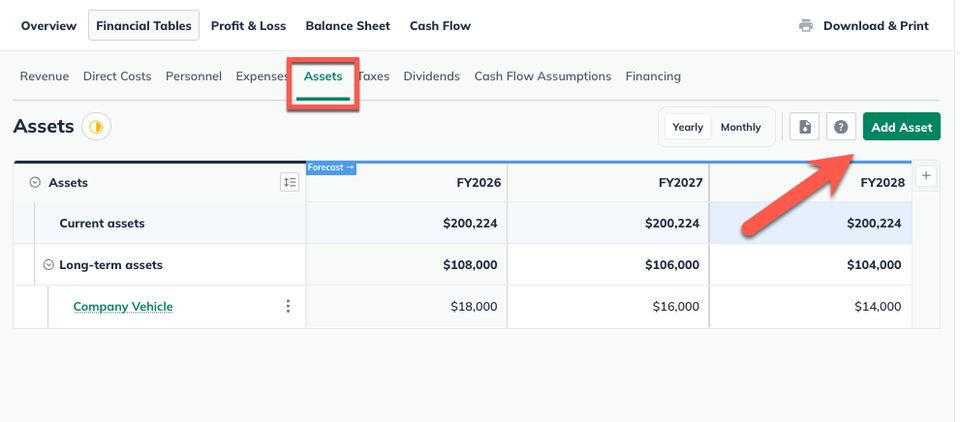
Click Add Asset
Name the asset
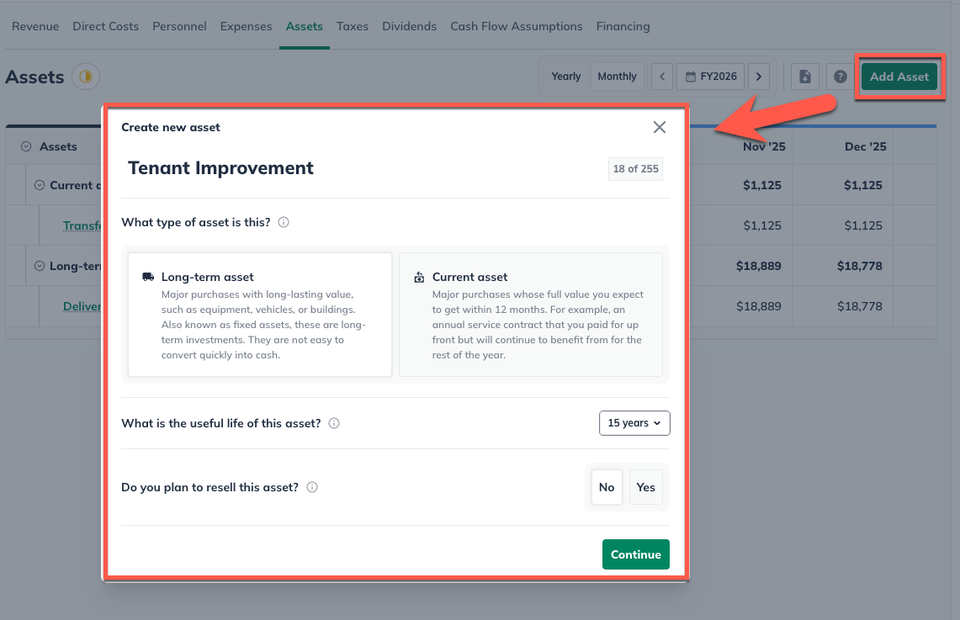
Under Type, choose Long-term asset:
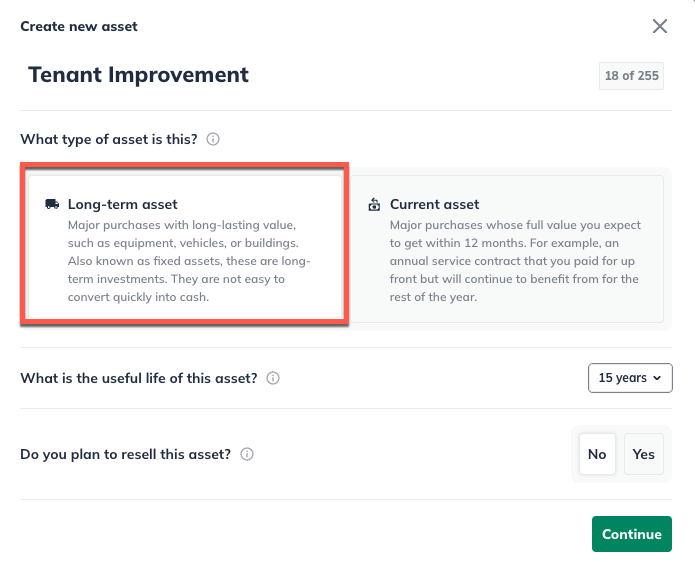
Enter the improvement's useful life. Under Do you plan to resell this asset, click No:
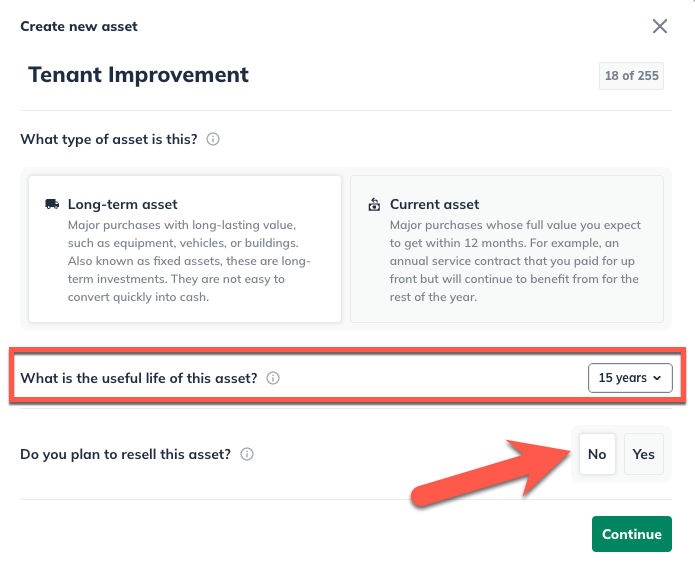
Note: In the U.S., the useful life of a tenant improvement is often the length of the lease. However, we recommend checking with your accounting advisor to ensure this is accurate for your local area.
Select One-time amount, and then enter the full amount of the allowance. Select the month in which the improvement work will begin.

Click Create & Exit.
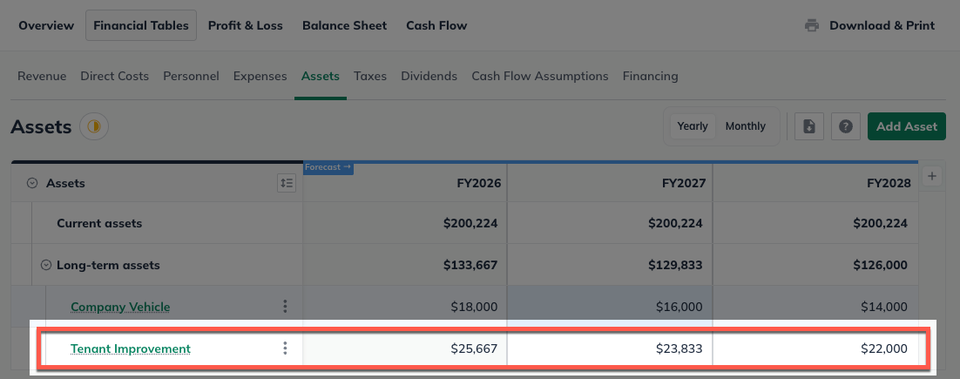
The Assets table will now show the value of the improvement, depreciating over time:
Note: The asset entry you created in the previous step represents the funds spent on the improvement. This Investment entry places the cash into your forecast for that expenditure.
Entry #2: Investment to balance the asset entry
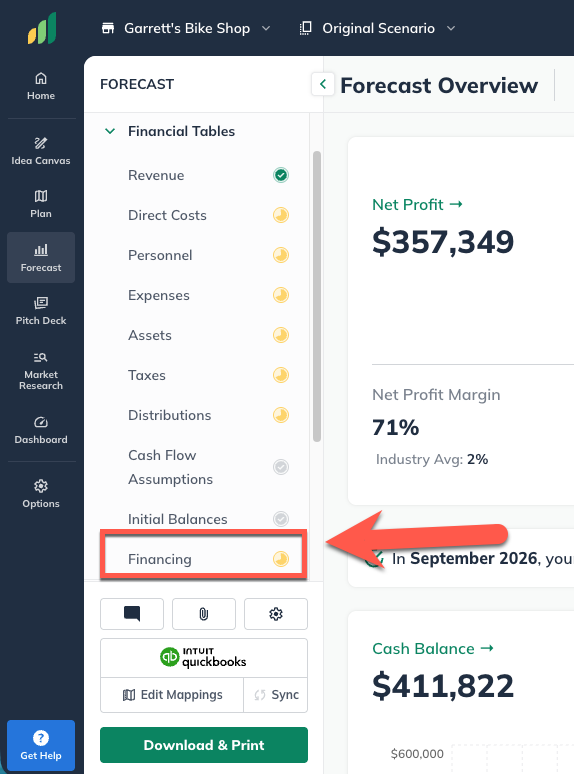
In the Forecast Overview, click Financing:
Click Add Financing and select Investment:
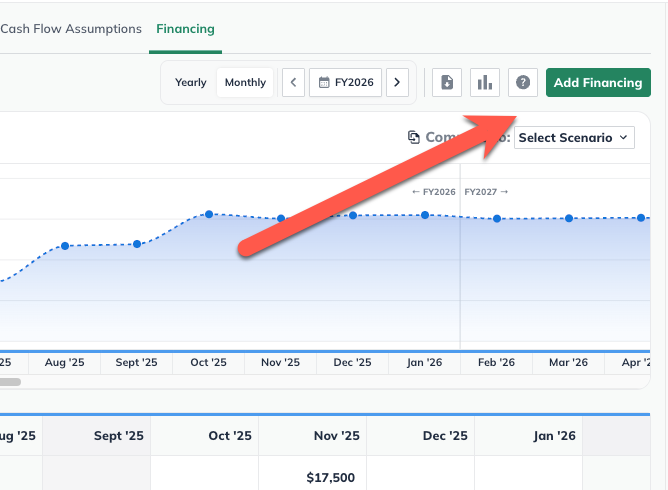
Enter a name for the investment.
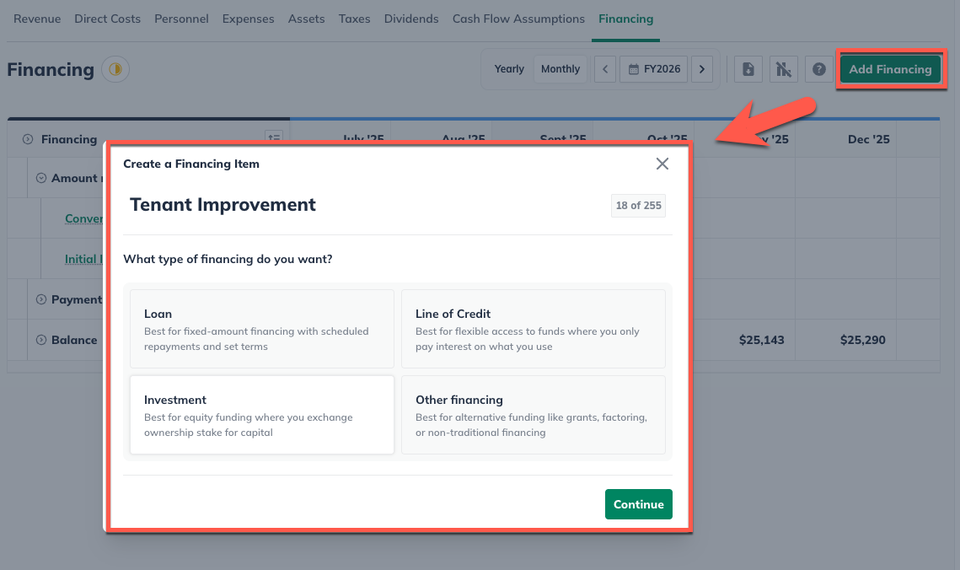
Select One-time amount. Enter the same amount as you entered in your asset entry, and select the same month in which the improvement work will begin:

Click Create & Exit: