
Advisors And Consultants
Best Practices for using the Spanish Language LivePlan template with clients
We created a template company in LivePlan where the English instructions and examples in the Plan tab were translated into Spanish and replaced. The translated instructions were reviewed by Spanish speakers at Palo Alto Software, but there may be errors and opportunities for improvement, so please let us know if you see anything.
This template should be considered an evolving Beta version, not a full Spanish version of LivePlan. The instructions in the other tabs (Pitch, Forecast, Industry Data, etc.) are still in English. However, we hope that this template makes it much easier for Spanish speakers to complete an excellent business plan in LivePlan, and your feedback will be used to continue to improve the app for Spanish speakers.
The best practices below will help you give your Spanish-speaking clients the best possible experience in LivePlan.
Getting started
If you’d like to use the Spanish language template with a client, start by finding the “Spanish Language Template” company in your company view. Rather than creating a new company for this client, you’ll create a copy of the template company and use the client’s company name when renaming the copy.
Options/ template setup
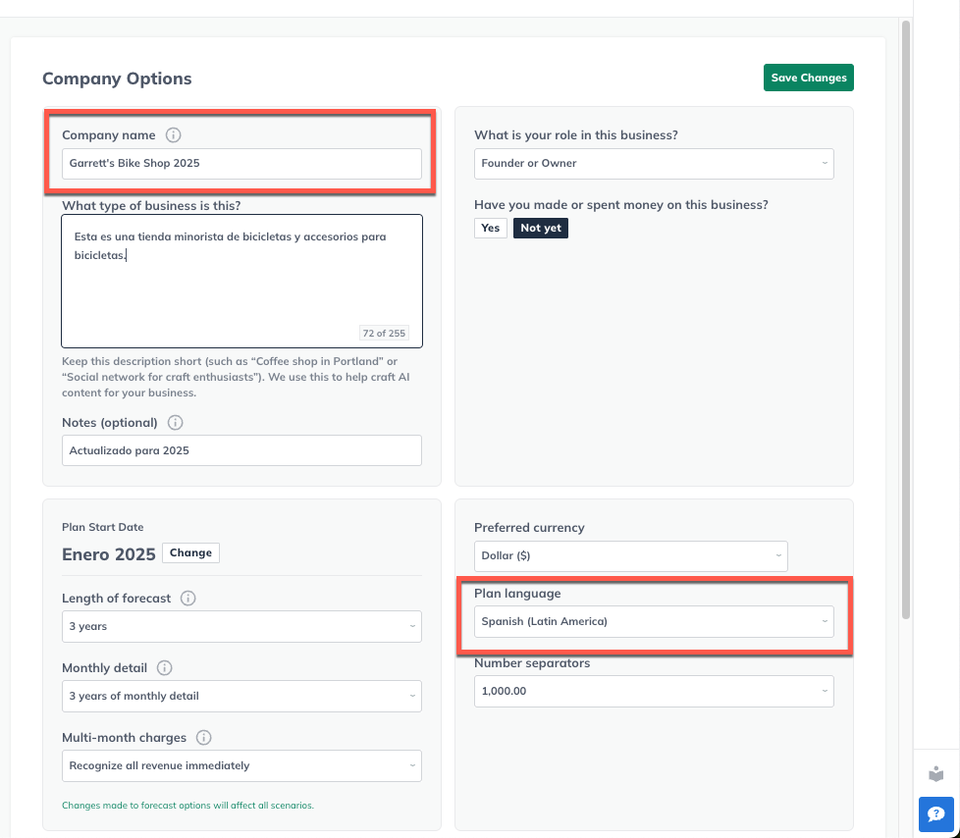
When using the Spanish Language Template company, go to the Options tab and ensure the Plan language setting is set to Spanish (Latin America.) This translates some of the section titles and table labels into Spanish, which can be helpful. It also instructs LivePlan Assistant to write in the selected language. If your client wants to download/share their plan in English, they'll want to change the language pack to English and use the LivePlan Assistant to help with translation before downloading their plan.
Writing the Plan
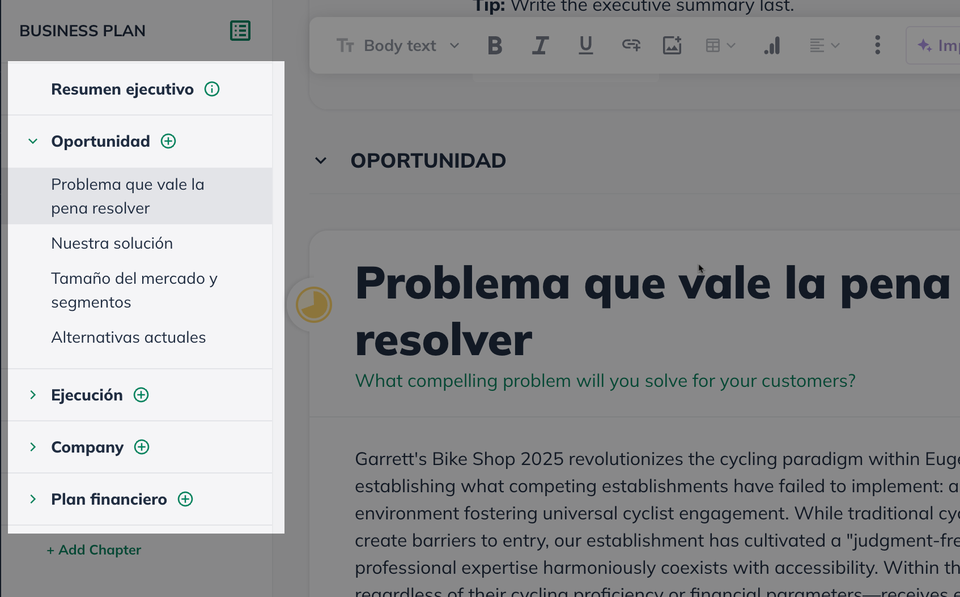
When your client is ready to work on writing their plan, they will want to navigate to the Plan section, and then select the section they would like to work in:
After clicking on the desired section, your client will see customized Instructions in Spanish and Plan Examples in Spanish.
Note: LivePlan's custom instructions can be toggled on and off, and are generated by the LivePlan Assistant, based upon the company description. Learn more here: LivePlan's Custom Instructions
When the client is ready to start after reading the instructions and examples, they can either begin writing their plan in the space below that says, Start writing here or click Help Me Write to use the LivePlan Assistant.
If they click Help Me Write, a box will ask for more information about their business so that the LivePlan Assistant knows more about what business the client wants a plan for.
The client can write their content in either English or Spanish.
English example:
Spanish example:
Add additional information if you’d like, and then click Generate Draft.
The LivePlan assistant will write an initial draft based on the name of the company, the info included What kind of business is this?, and the plan language selection.

After the plan is written, if the export needs to be in English, the LivePlan Assistant can help with that as well. You’ll need to go back to Options and switch from Spanish to English. Then, in each section, you can select Rewrite, and it will write it again but in English.
Our Help Center is full of hundreds of articles written based on our FAQs that come through our Customer Advocacy Team. These articles are updated regularly and address most everything that could come up in LivePlan. To use these articles with Spanish speaking clients, try using the Google Translate option in the browser window.