
Managing Your Account
Switching to another LivePlan account
If you have access to multiple LivePlan accounts, switching between them is easy.
To switch to another account:
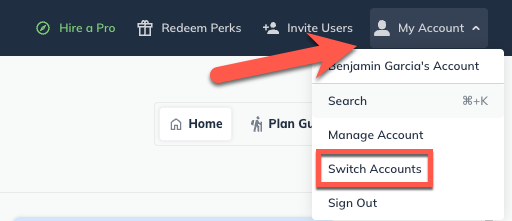
From the Account menu, top-right of your LivePlan window, choose Switch Accounts:
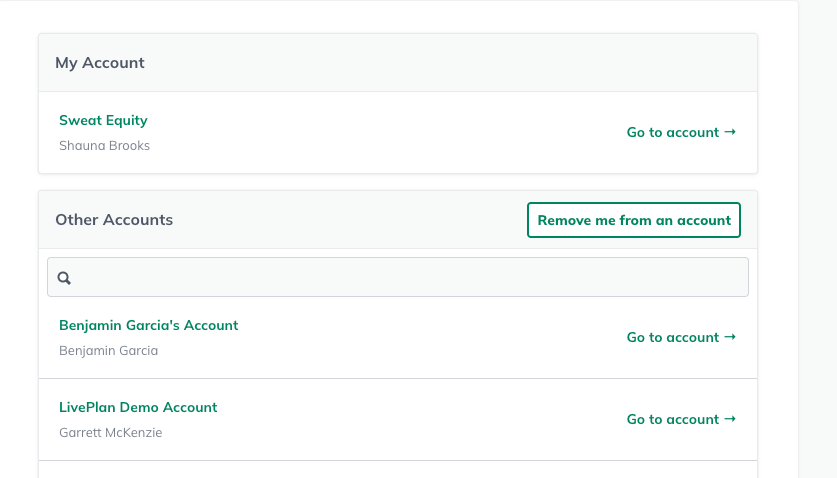
You'll see a list of the accounts you are currently participating in. Accounts you own will be in the upper section, and accounts you're a contributor or guest on will be in the lower section.
Click Go to account for the one you would like to switch to:
To remove yourself from an account:
If you are participating in a LivePlan account and wish to disconnect your account from another account to which you have been a Contributor or Guest, you can do so from the Switch Accounts page.
From the Account menu, near the top-right of your LivePlan window, choose Switch Accounts:
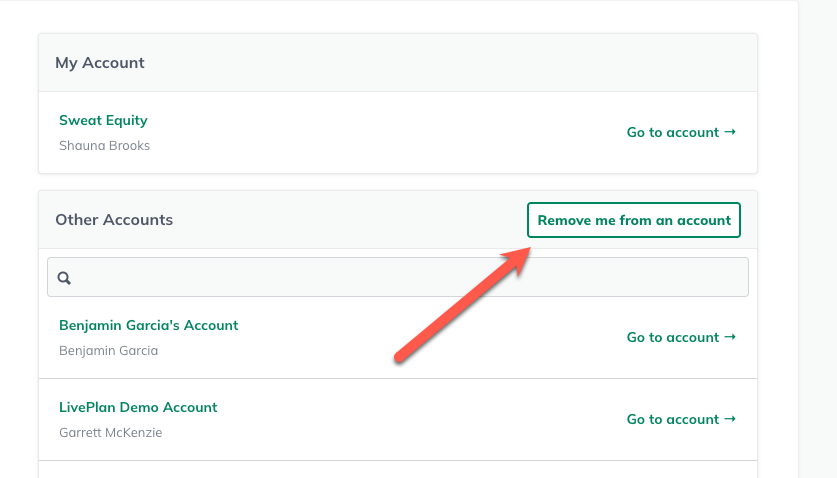
Click Remove me from an account:
Select an account to remove access to and click Confirm:
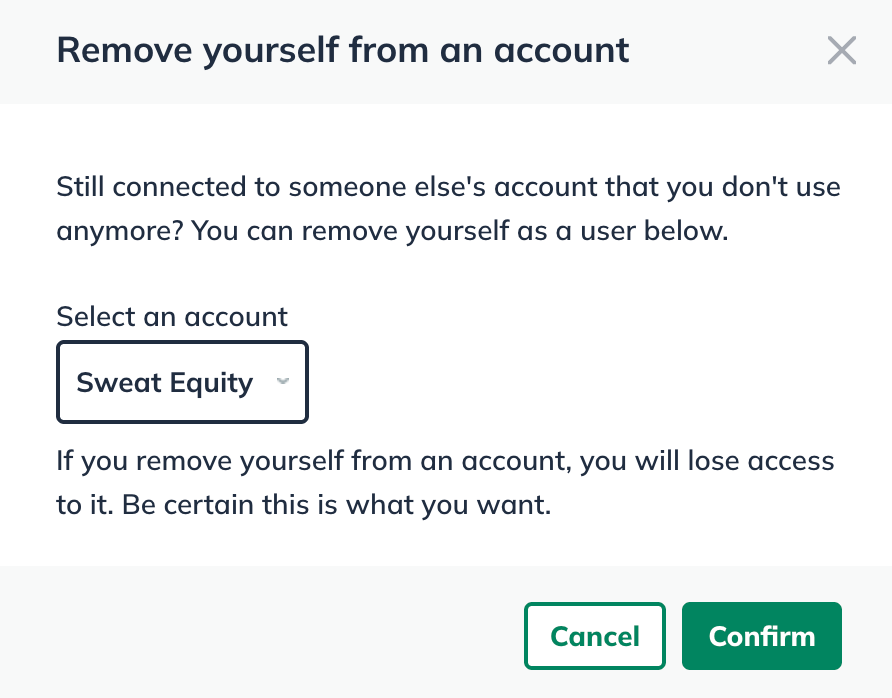
After access is removed, you won't be able to view or edit the plan(s) on the account you had access to before. In order to regain access to that plan, you will need a new invitation from the account owner.