
Managing Your Account
How can I get a receipt for my LivePlan payment?
Your receipt will be visible immediately in the Account Details section of the Account Management menu each time a monthly or annual subscription payment is posted to your LivePlan account.
Viewing and emailing LivePlan billing receipts
If you need a copy of a past LivePlan receipt, you can send it from within your LivePlan account.
Please note that an account must be active to resend the receipts, and only the account owner can access past receipts. Contributors and guests cannot view billing history and payment details for accounts to which they have been invited. For accounts that have been canceled or are on hold, please contact us to resend receipts.
To send billing receipts via email:
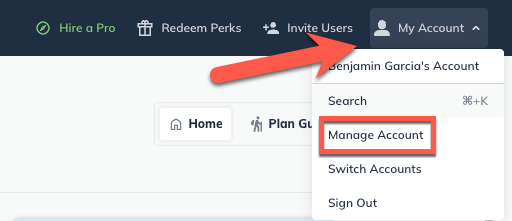
From the Account menu, choose Manage Account:
On the Manage Account page, the Account Details page contains a Payment history section:
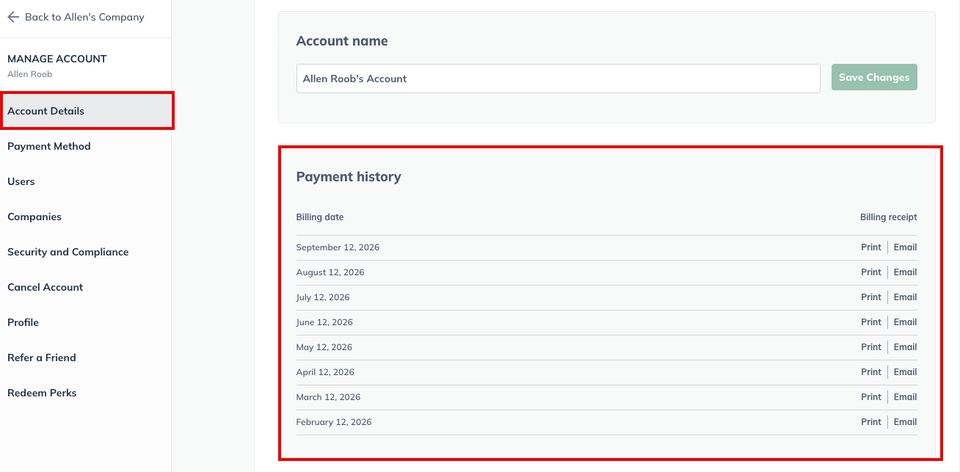
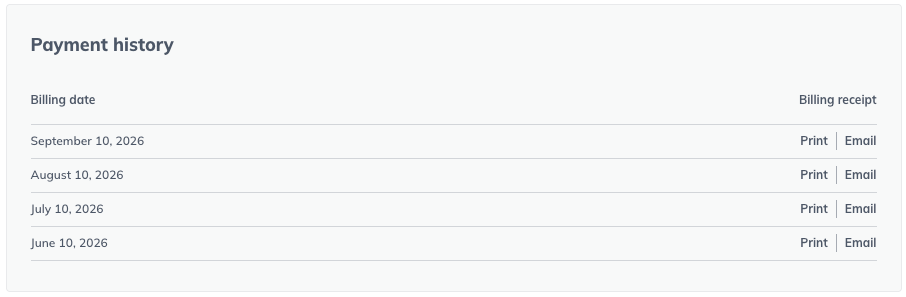
This section displays the available receipts with the newest one at the top. You'll see the 12 most recent receipts. To display older receipts, click the Show More button:
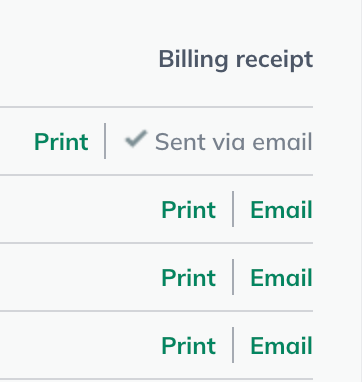
Click the Email link next to any receipts you want to send. Each receipt that you select will be emailed individually to the account owner's email address:
To exit the Manage Account page, click on the back arrow in the upper-left corner of your LivePlan window:
Printing your LivePlan billing receipts
From the Account menu, choose Manage Account:
On the Manage Account page, the Account Details page contains a Payment history section:
This section displays the available receipts with the newest one at the top. You'll see the 12 most recent receipts. To display older receipts, click the Show More button:
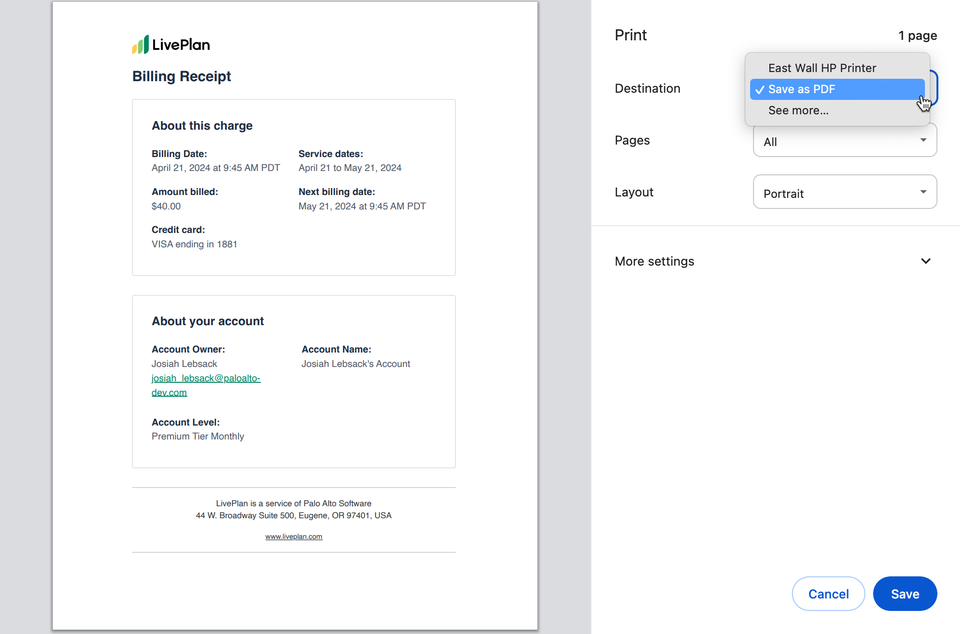
Click the Print link next to any receipts you want to print. Each receipt that you select will be printed off separately:
To exit the Manage Account page, click on the back arrow in the upper-left corner of your LivePlan window:
Adding a business name and address to your billing receipt
Our receipt format specifies only the account owner's name, but if you need your business name to be included instead, you can change the name of your LivePlan account to your business name.
From the Account menu, choose Manage Account:
On the Account Details page, the Account Name and logo field will display your current account name:
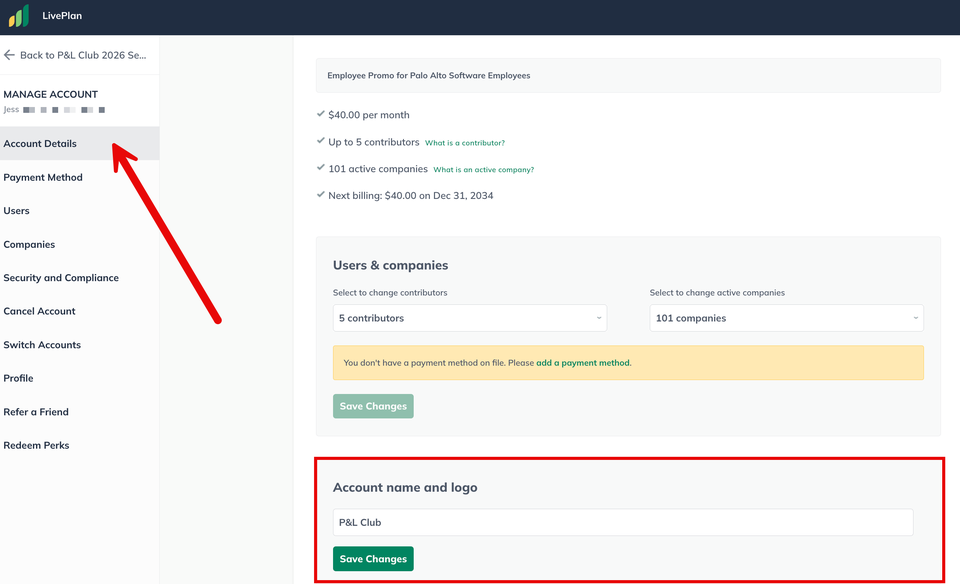
Change the account name to your company name, and click Save Changes. The new name will appear on your future billing receipts:
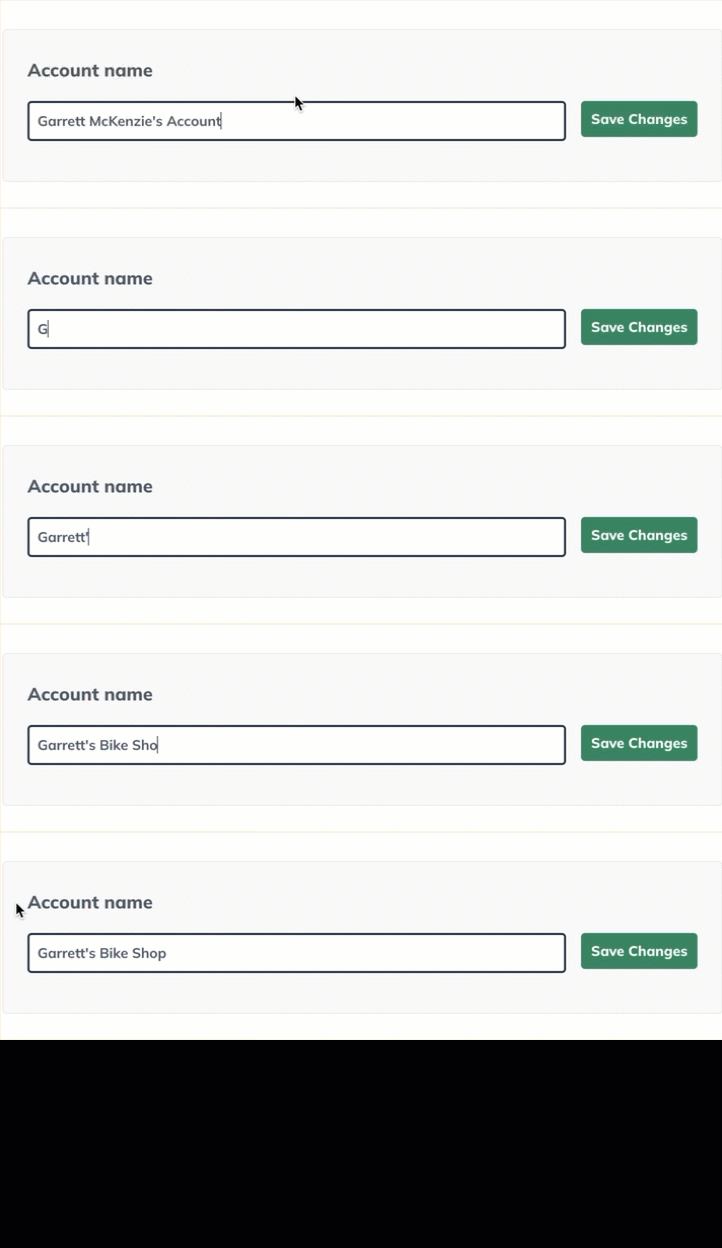
If you'd prefer to add a business address, follow the steps above, but type your company name and address into the Account Name field. (There is no character limit in this field.) Click Save Changes:
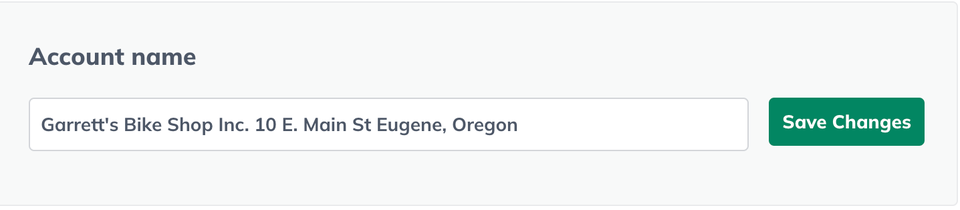
The company name and address will now appear on your future billing receipts.
To exit the account management page, click on the back arrow in the upper-left corner of your LivePlan window:
For VAT invoice requests:
Palo Alto Software is a U.S. company with no VAT registration. We do not apply any VAT to your LivePlan purchase, so we do not issue any VAT invoices.