
Collaborating With Others
Changing contributor and guest user roles and permissions
Changing contributor and guest roles
LivePlan account owners can invite additional users to their accounts. These users can either be contributors who can view and edit a plan or guests who can only view a plan. LivePlan accounts come with unlimited guest users and a limited number of contributors.
To change a user’s role:
In the top menu bar, click Invite Users:

In the user's row, click the drop down below the Role column:

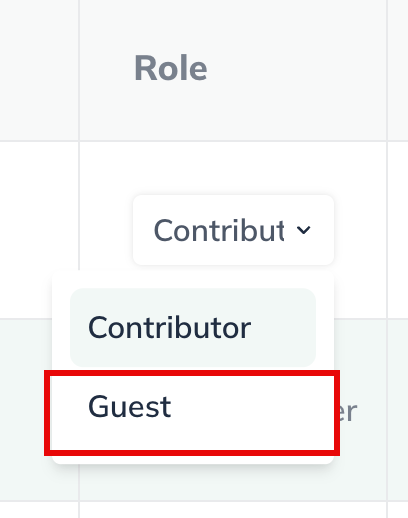
From the drop down menu, select a new role for the user:
LivePlan will then auto save the change and you'll see the number of contributors and guests automatically update:

To exit the account management page, click the back arrow near the upper-left corner of your LivePlan window.

Changing the permissions of a contributor or guest
Once you've sent a contributor or guest invitation for your account and it has been accepted, you can still add or remove certain permissions for that user.
In the top menu bar, click Invite Users:
On the Users page, you'll see all the current users on your account listed. You'll access the permissions in the Permissions column:
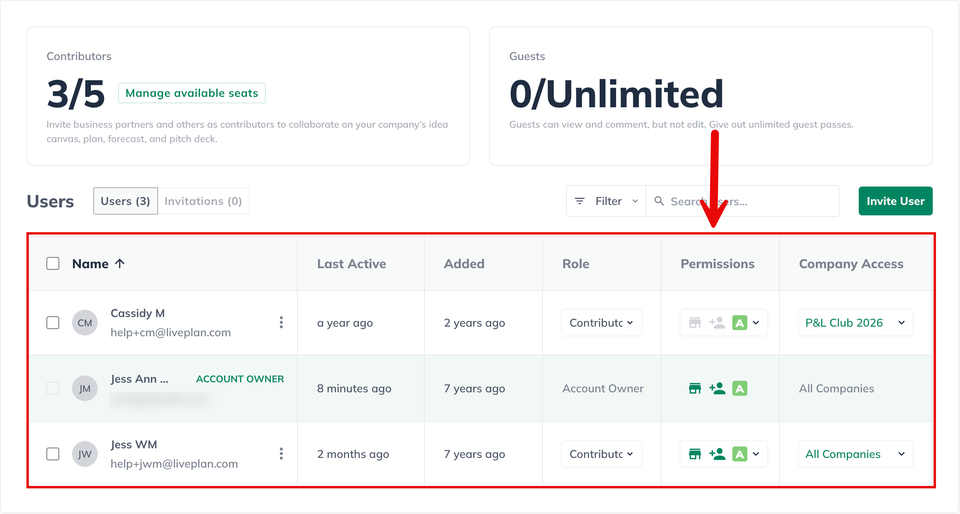
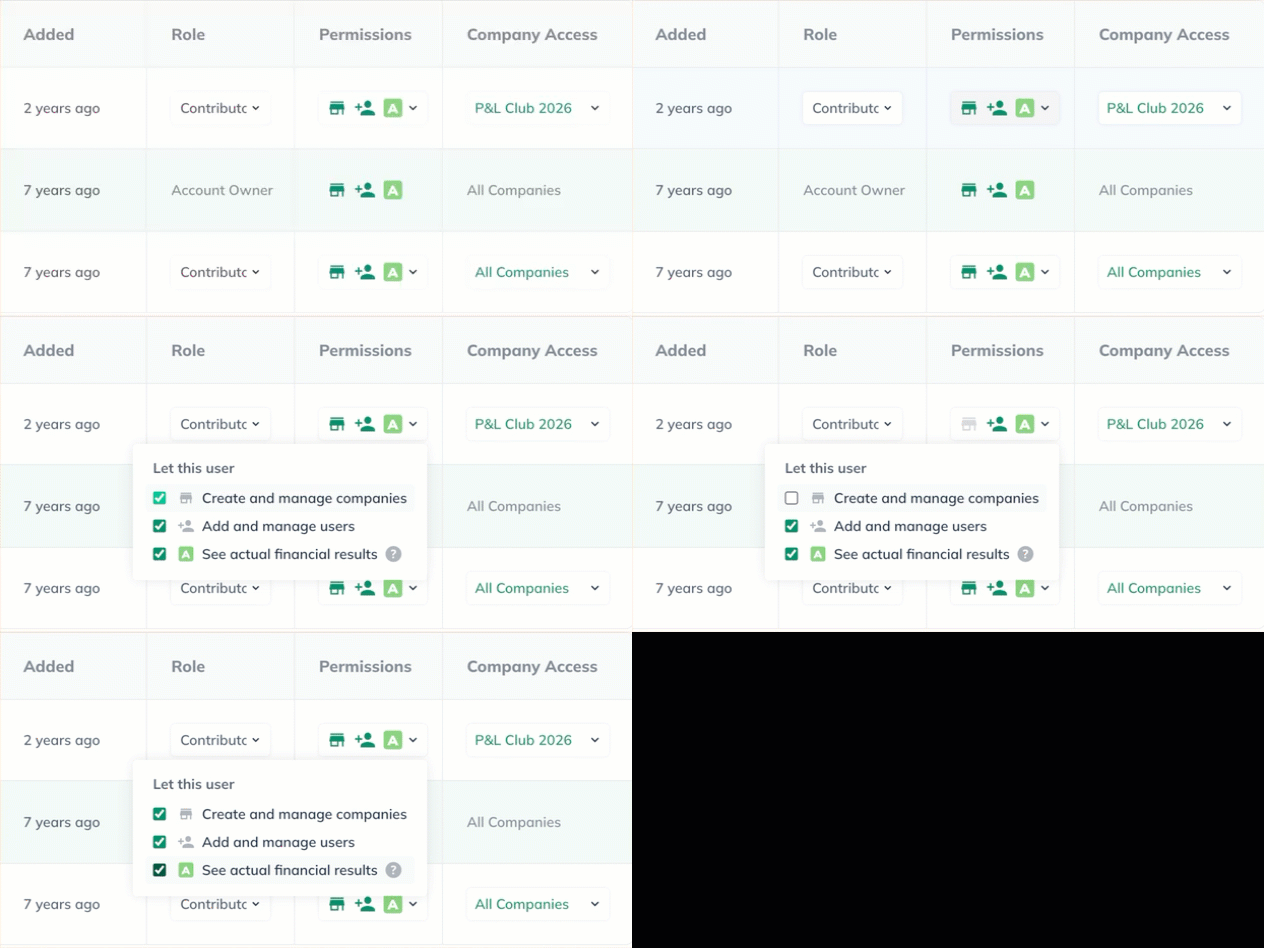
Click on the icons in the column to open a drop down to update the user's permissions:
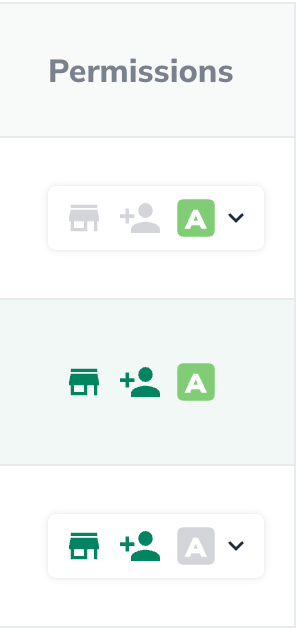
The saves will automatically change and you can see what permissions a user has based on if the icons are highlighted green:
To exit the account management page, click the back arrow near the upper-left corner of your LivePlan window.