
The New Plan Experience
This guide is designed for existing LivePlan users who are moving into the New Plan Experience. Through a series interactive guides, our goal is help you quickly re-orient: where familiar tools now live, what works a little differently, and what’s been streamlined.


Get personalized support by contacting our Customer Advocacy Team
You can also find answers in the FAQ section of this guide.
What are the key differences in the New Plan Experience?
Among many exciting updates, at a high level, the New Plan Experience focuses on:
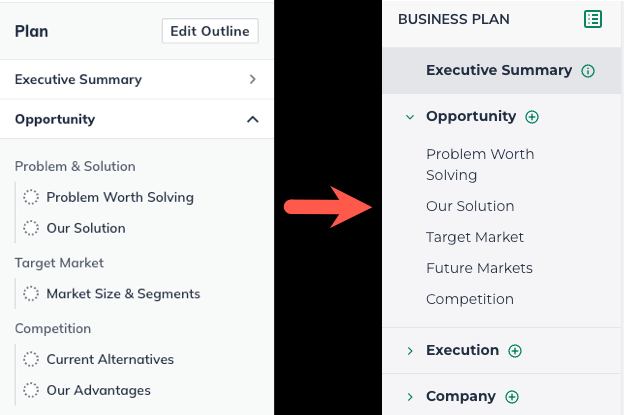
Sections replace Topics
In the Classic Plan Experience, plans were organized into three levels:
Chapters
Sections
Topics (where you write your text)
In the New Plan Experience, plans are now organized into:
Chapters
Sections (where you write your text)
Inline plan editing
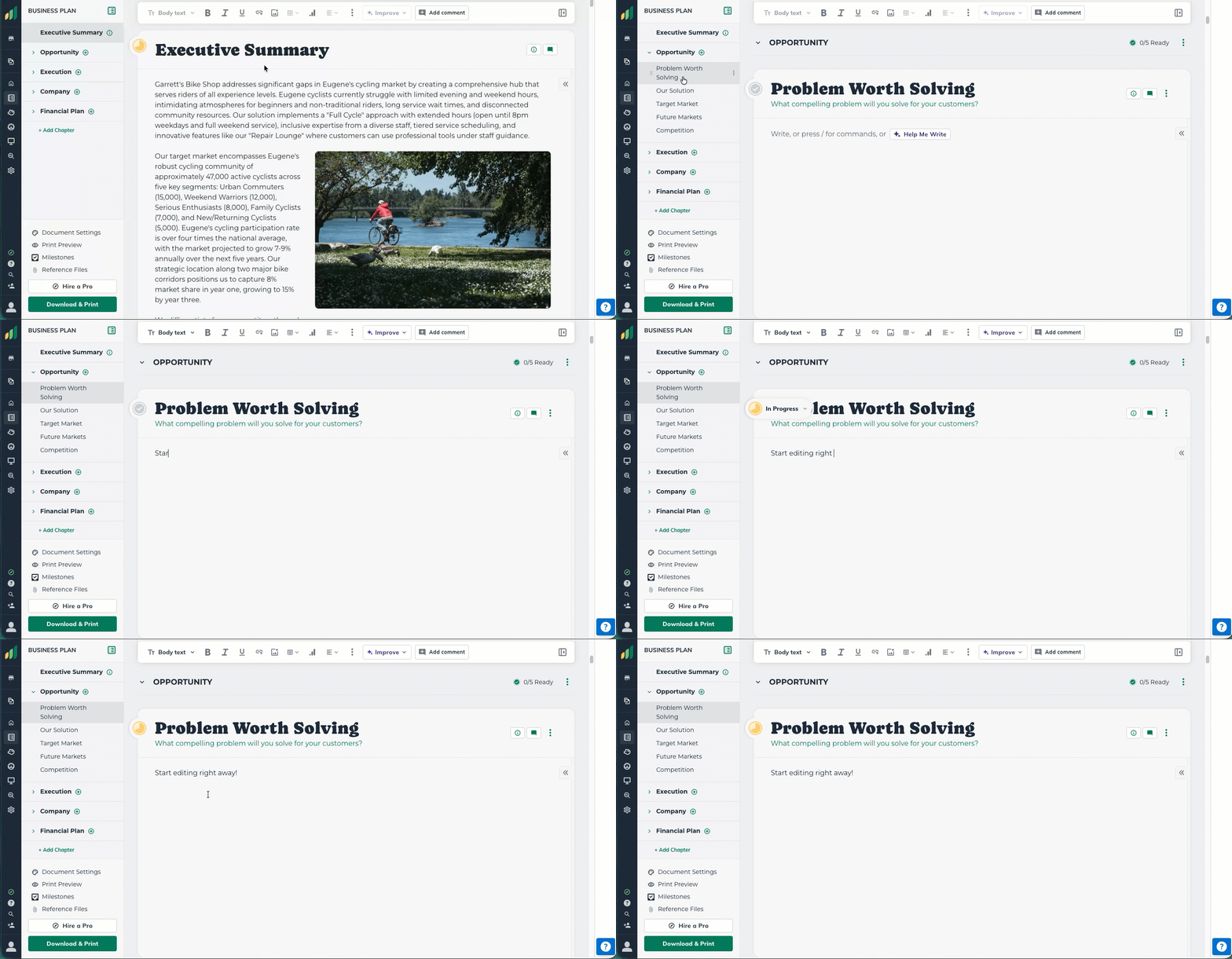
In the Classic Plan Experience, writing happened in a separate editor window that opened from each topic.
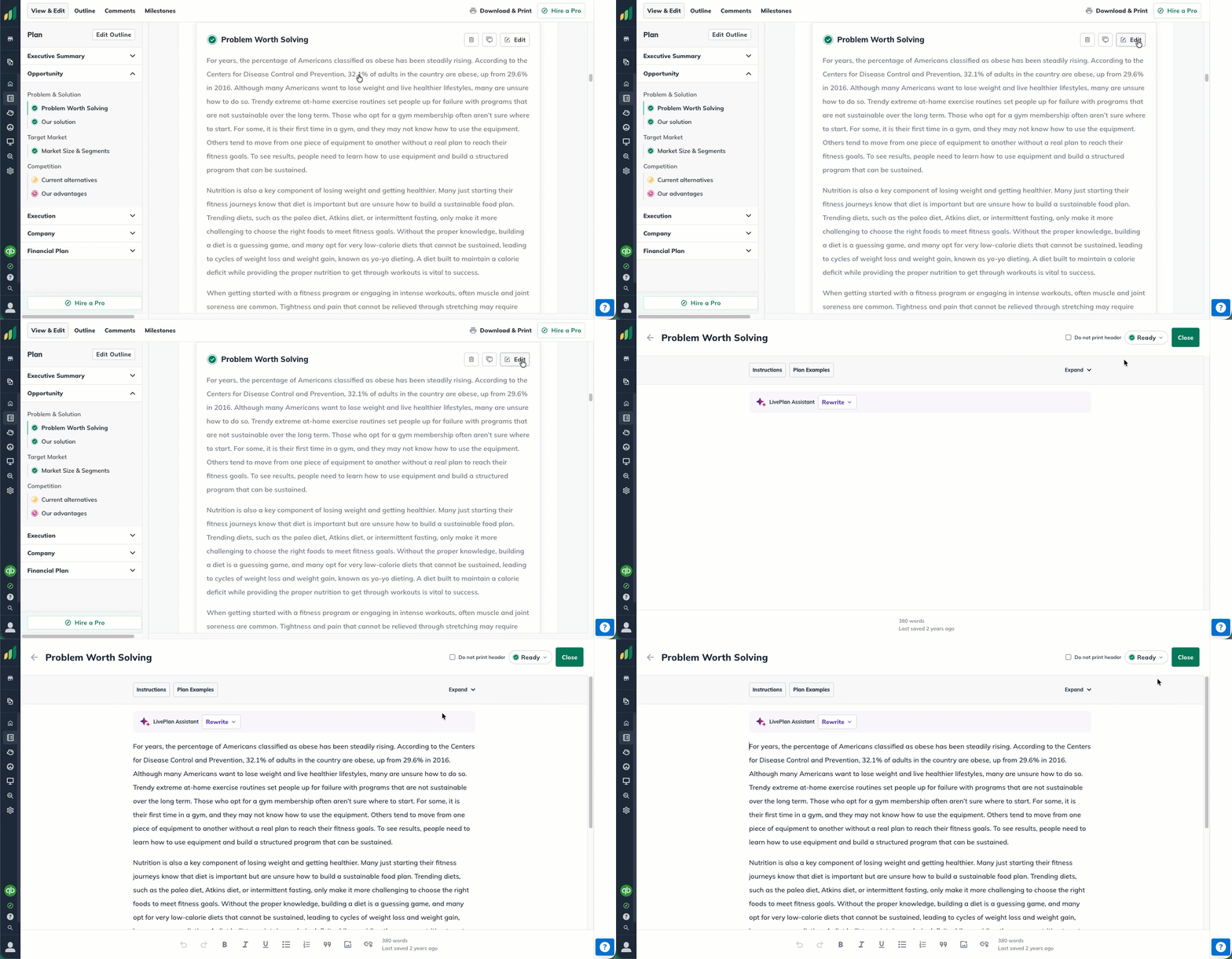
In the New Plan Experience, there is no separate editing window. When you select a section, you can immediately start writing, formatting text, adding images or charts, and using AI.
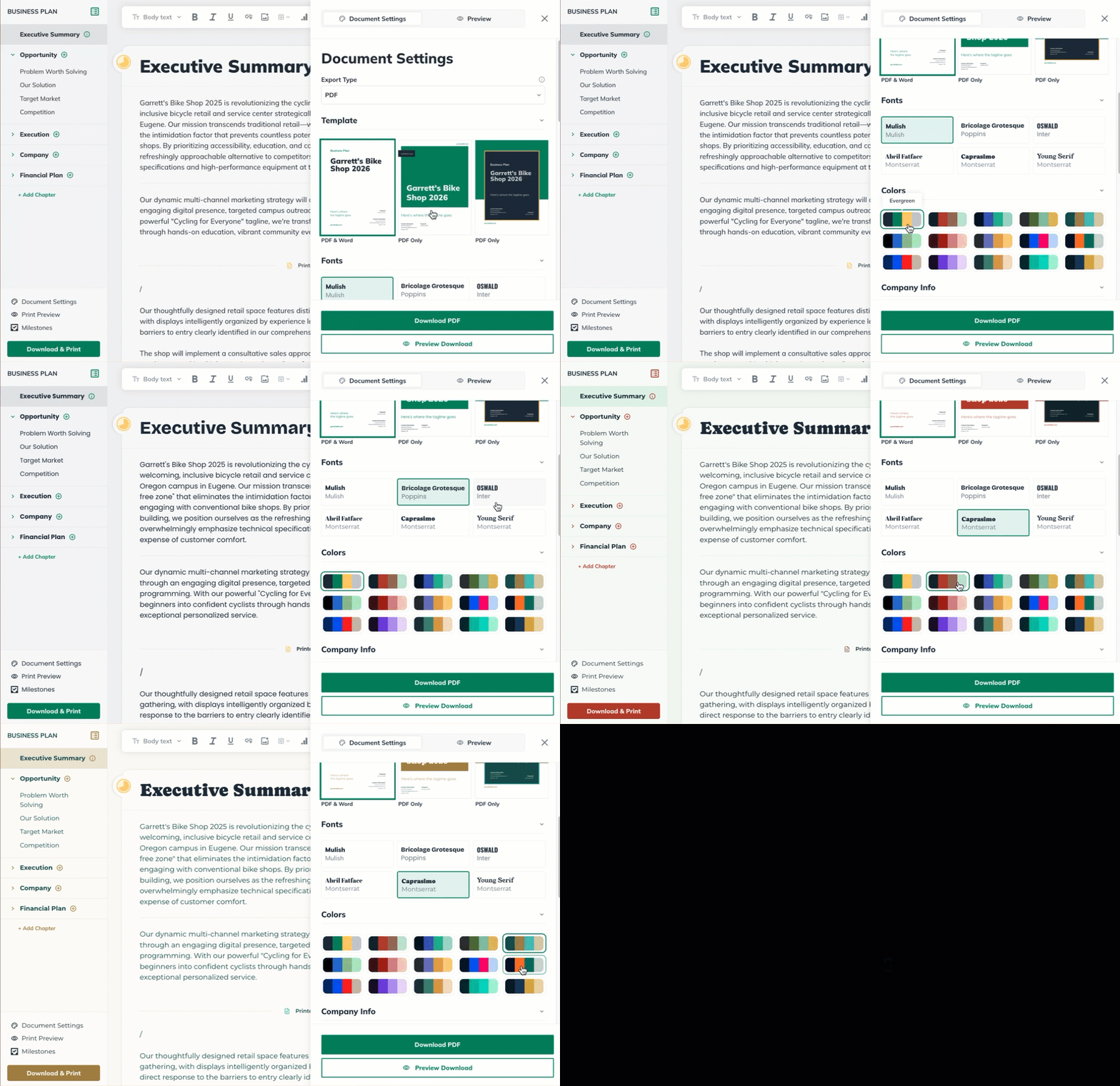
Custom themes, fonts, and real-time export preview
In the Classic Plan Experience, formatting was based on a set of predefined themes.
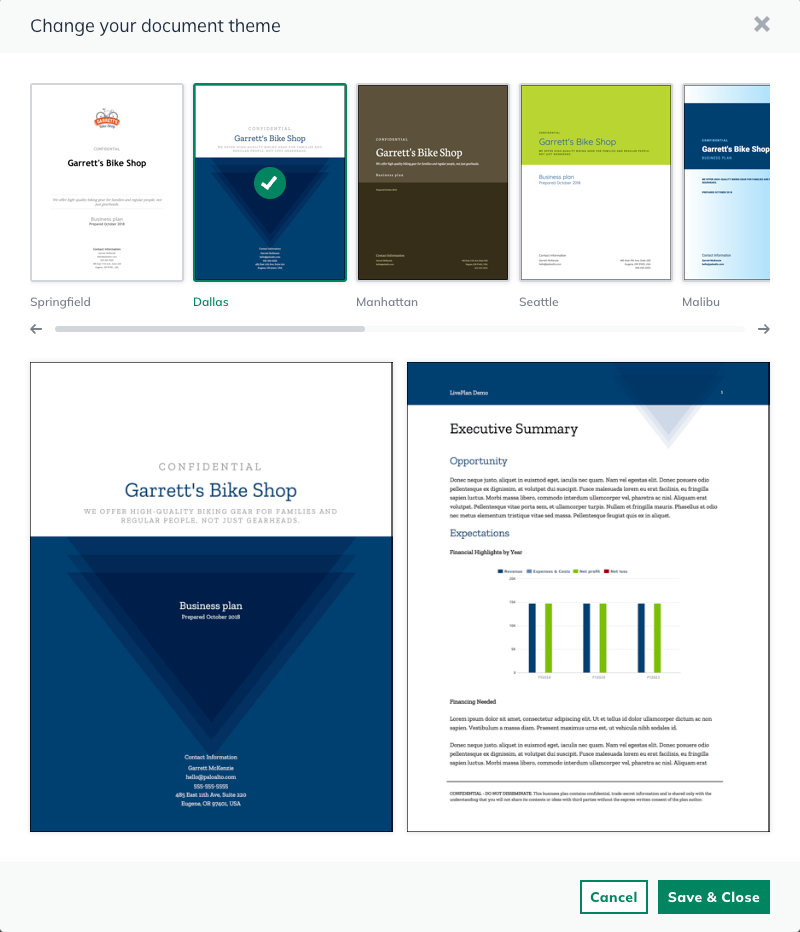
In the New Plan Experience, themes and formatting can be previewed before export, allowing you to apply fonts and color themes consistently across the plan.
Navigating & Editing The New Plan
Text editing now happens inside a single streamlined view. This means less clicks to use LivePlan’s proven business plan format. All while giving you even more flexibility than ever before.
To learn more about navigating and editing in the New Plan Experience, please read: Writing and editing text topics
Customizing The New Plan Outline
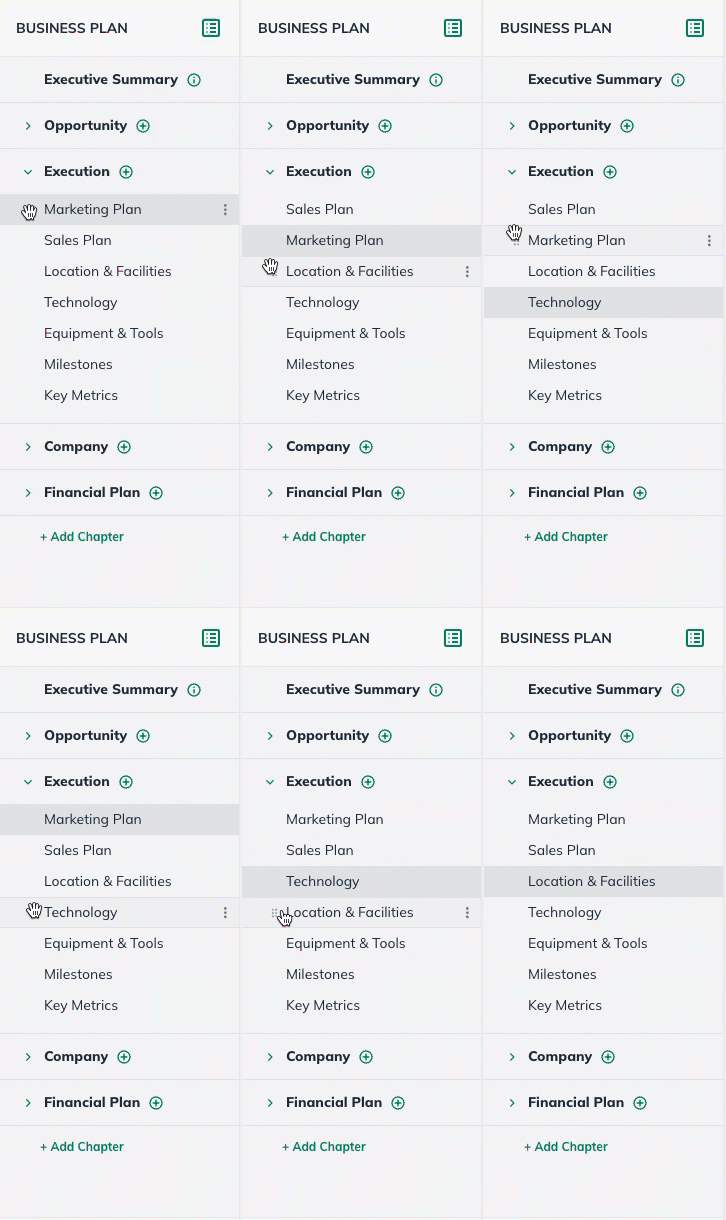
The LivePlan outline remains flexible and can be customized to match the structure and needs of a wide range of business types.
You can add new sections directly from the plan outline using the + menu. Available sections are organized in a single list, making it quicker to browse and add content as needed.
To learn more about customizing the outline in the New Plan Experience, please read: Using the Plan Outline
AI in The New Plan
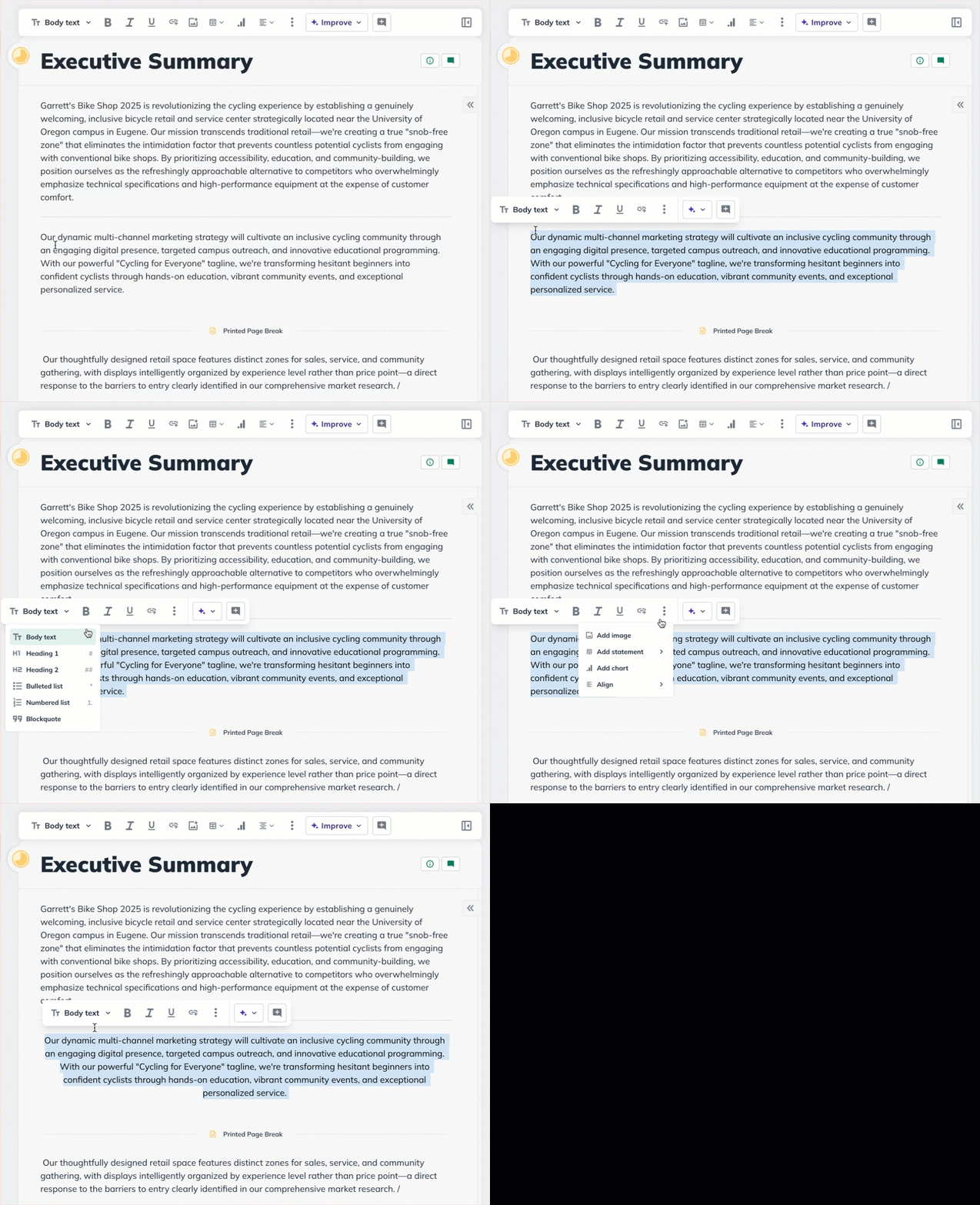
The LivePlan Assistant continues to be integrated directly into the text editor, but now works with a streamlined selection-based control.
Highlight text to rewrite or refine only what’s selected
Leave text unselected to have the LivePlan. Assistant work on the entire section
To learn more about the LivePlan Assistant in the New Plan Experience, please read: LivePlan Assistant
Adding Images In The New Plan
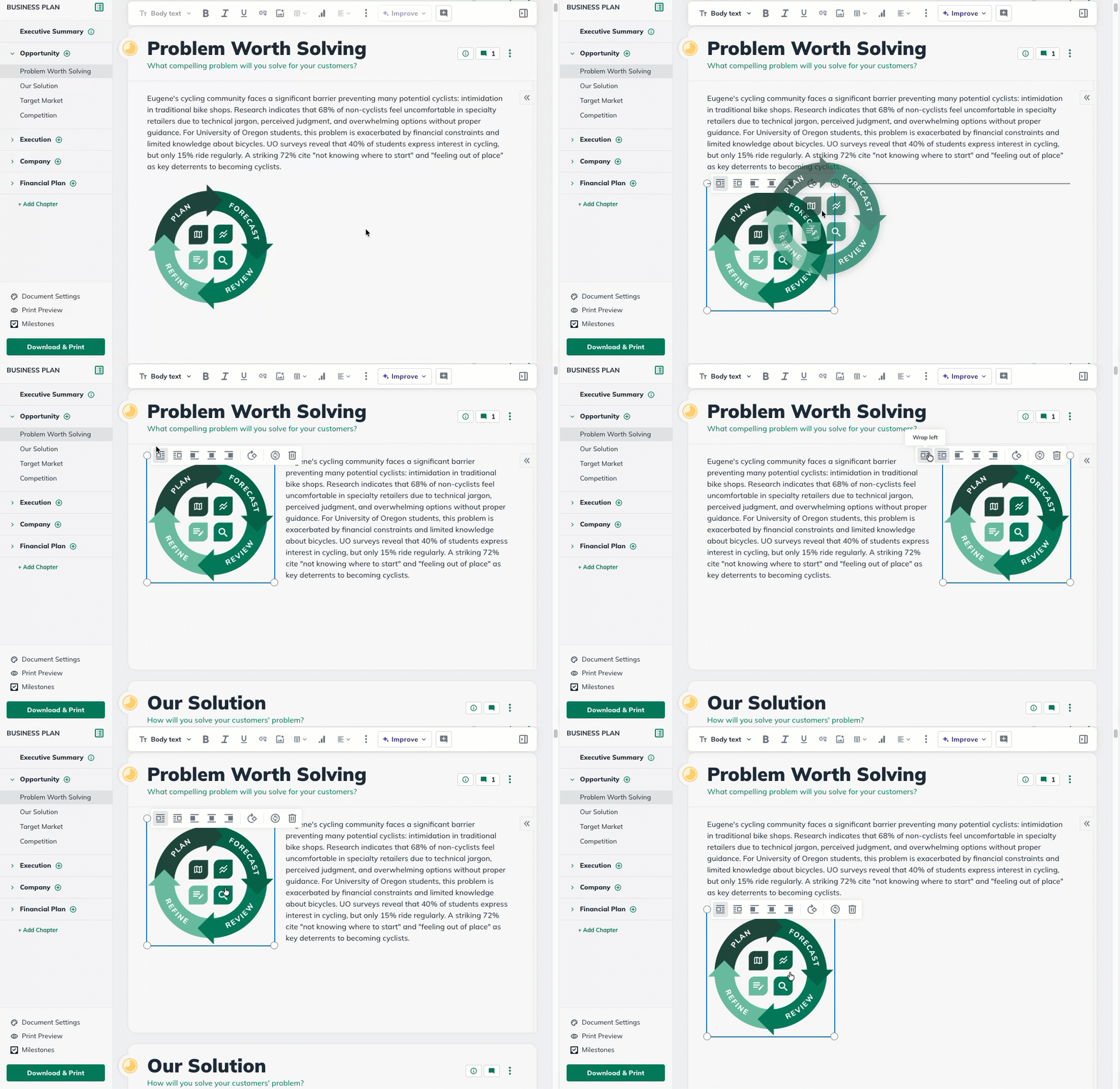
Images are still added directly within the text editor, but updated placement and sizing controls make it easier to include logos, product photos, and visuals that support your business narrative.
To learn more about the adding images in the New Plan Experience, please read: Adding and removing images
Exporting The New Plan
The Export of your plan is more customizable and personalized in the New Plan Experience.
One of the biggest improvements is Print Preview, letting you see exactly how your plan will look before exporting, including:
Text formatting and headings
Custom page breaks
Images
Charts and tables
To learn more about the export themes and formatting in the New Plan Experience, please read: How do I change the theme of my downloaded plan?
New Plan Experience FAQ
During conversion, your Classic plan outline will be simplified to two levels.
Once conversion is complete, take a moment to review your sections and adjust the outline if needed. Editing and reorganizing now happens directly at the section level, making it easier to refine your plan’s structure.
You can adjust content using inline formatting options like headings and bold text, then review fonts and colors in Document Settings and confirm the final layout in Print Preview before exporting.
If an image doesn’t appear as expected after conversion, you can click it to resize or reposition it directly in the section. If you’re still not seeing the result you want, removing and re-adding the image is a quick way to fine-tune its placement.
Features like Market Research, Plan Review, and others are available in the New Plan Experience. Plans created in the Classic Plan Experience will continue to work normally, but these newer features won’t appear until the plan has been converted.
Please review this guide to assess how you can access these new features: Why don’t I see some of LivePlan’s new features?
Get personalized support by contacting our Customer Advocacy Team