
Creating Your Pitch
Publishing your Idea Canvas as a web page
Once you’ve built out your Idea Canvas, you can export it as a PDF or share it via a public Web Link.
Summary: Sharing via Web Link
Click the publishing menu in the top right of the navigation bar.
Select your options, including whether to include status badges and your confidence score.
LivePlan generates a shareable web link that can be quickly shared.
Step-by-step guide: Sharing via Web Link
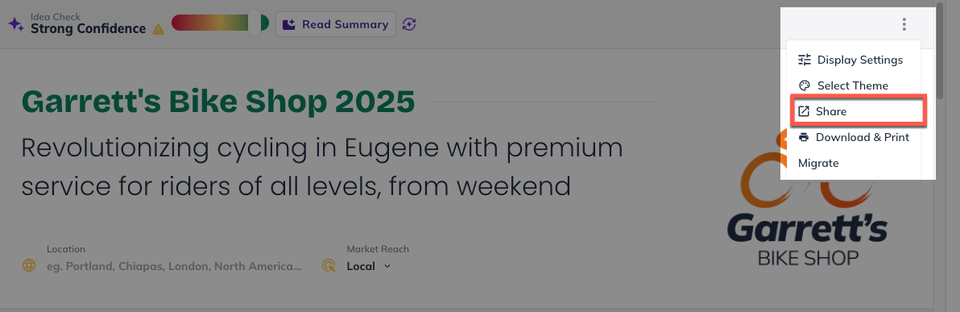
In the publishing menu in the top right of the navigation bar, click Share to display the Web Link menu.
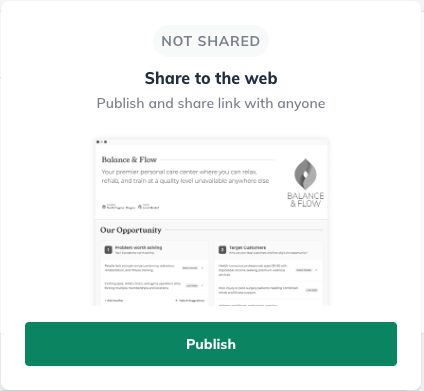
In the in Web Link menu, click Publish to generate a private URL link to a view-only version of your Idea Canvas.
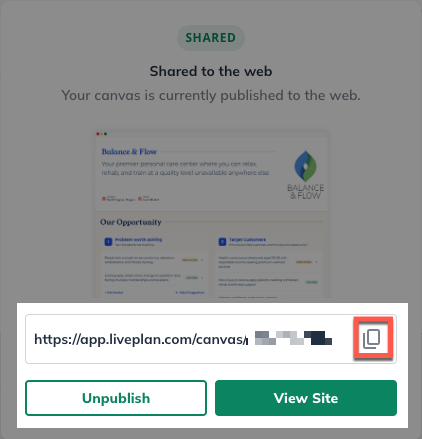
Once published, you can copy the private URL link into your clipboard to be pasted into emails or other communication.
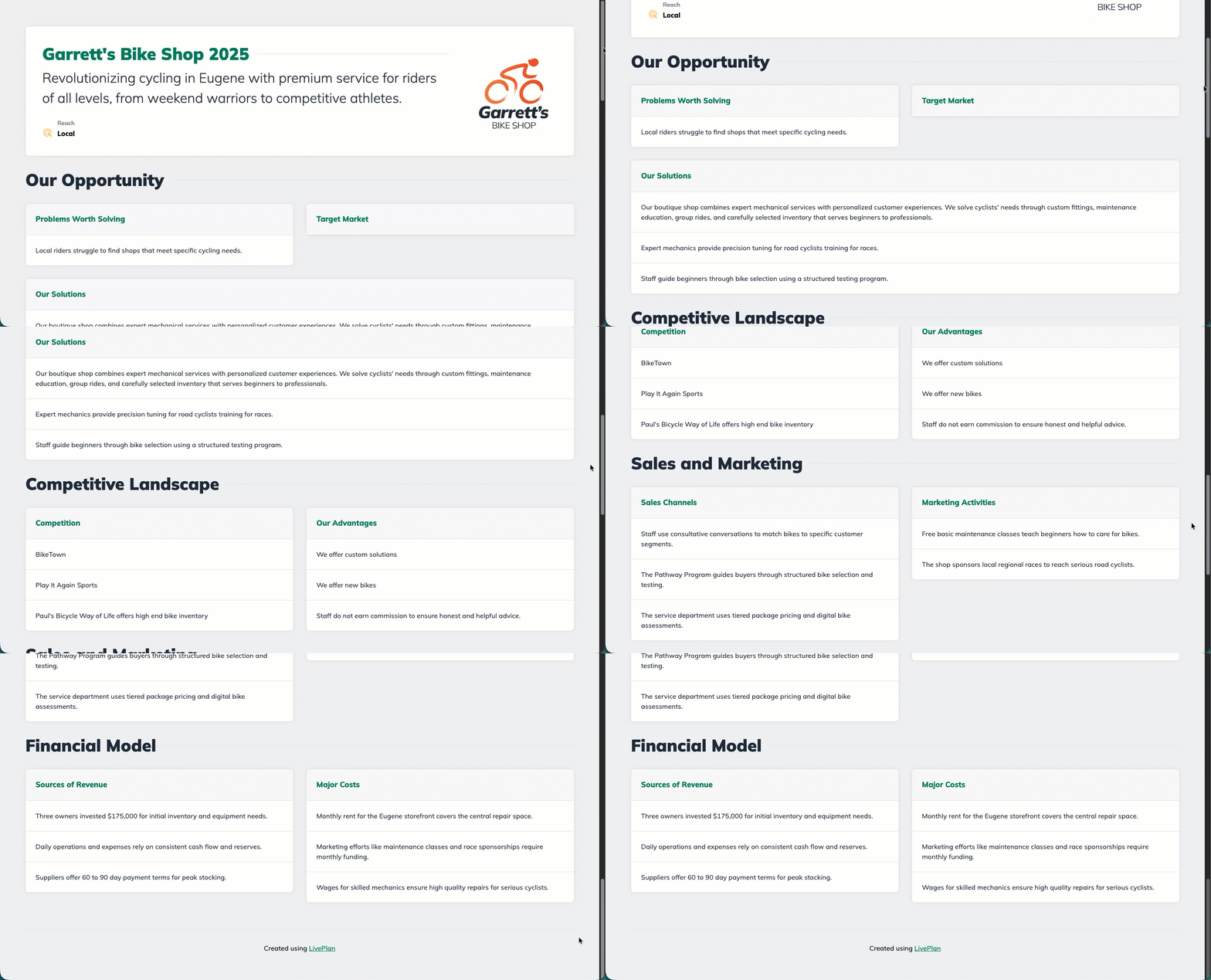
You can also view the currently published link by clicking View Site.
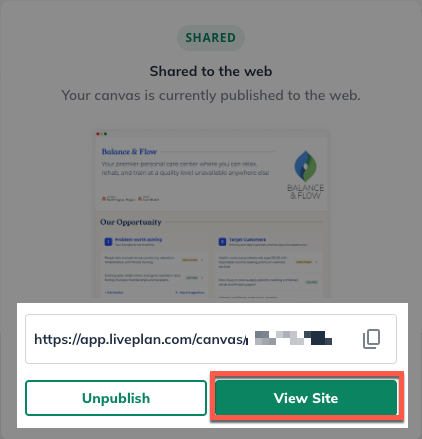
This will take you to the current version of your private URL link where you can review.
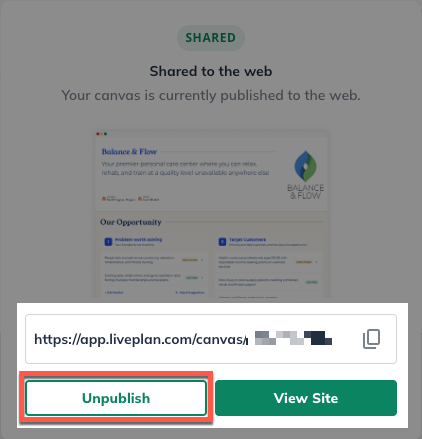
If you would like any currently active links to be unpublished to revoke access, click Unpublish.
Formatting your Idea Canvas
If you want to change the presentation of your Idea Canvas, you have a couple options:
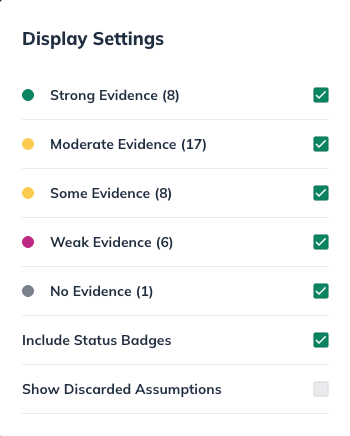
Display Settings lets you filter displayed assumptions by evidence level.
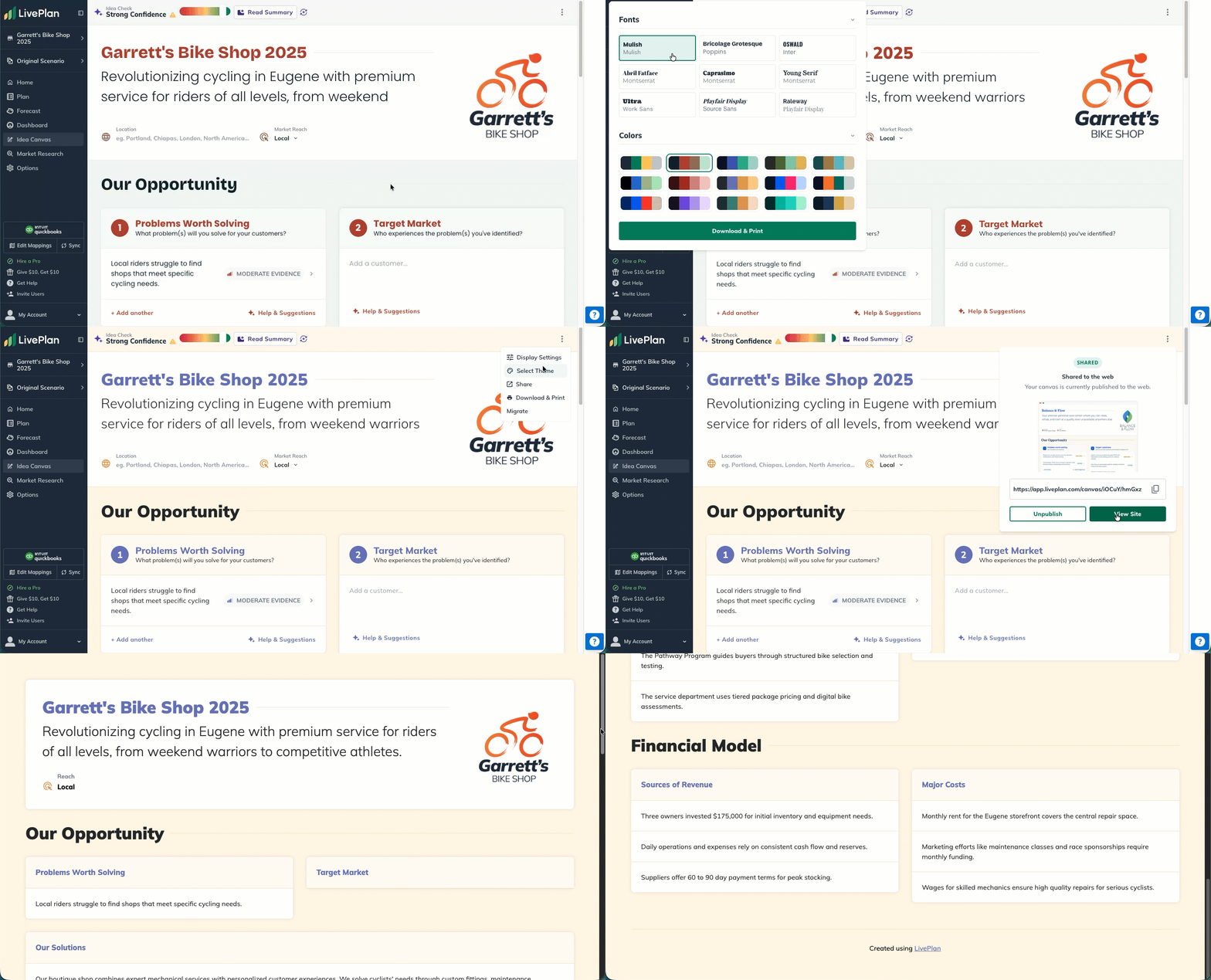
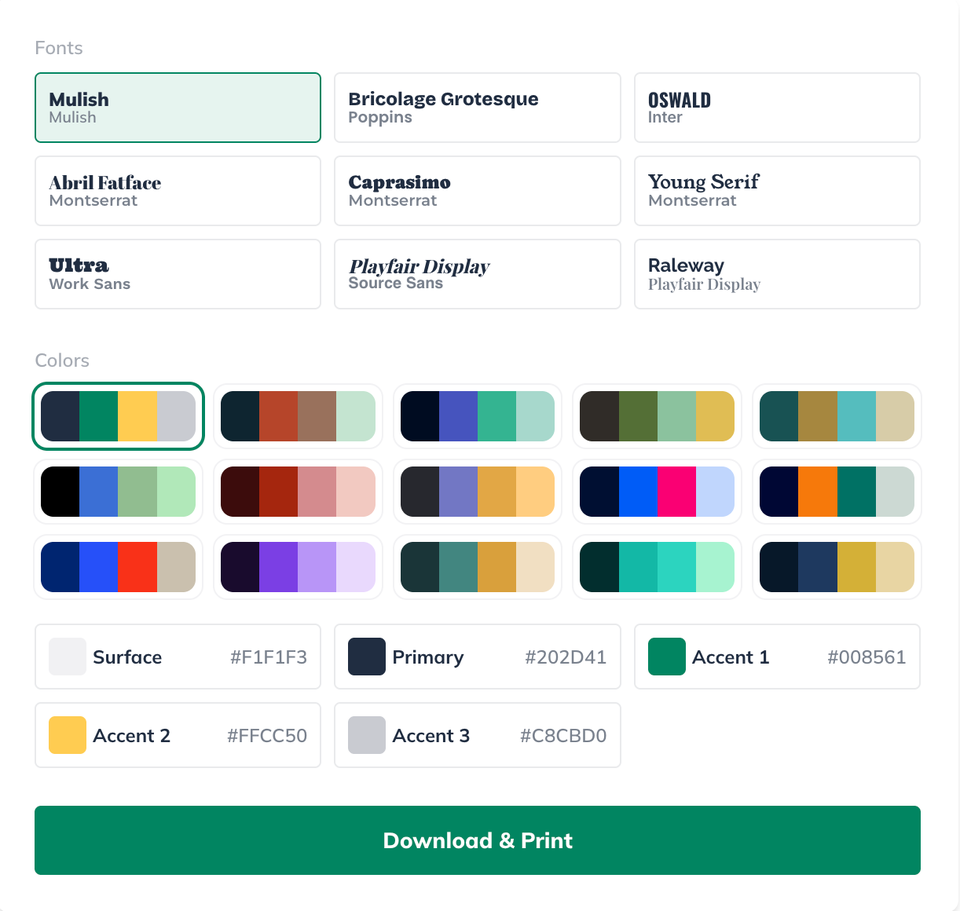
Select Theme lets you choose your font or color theme. You can also customize your color theme.
Published Canvas Display Settings
Display Settings lets you filter displayed assumptions by evidence level.
Why is this important?
This lets you curate which Sections of the Idea Canvas are shared so you only share what is prepared while you continue to iterate on less developed ideas.
Selecting Canvas Themes
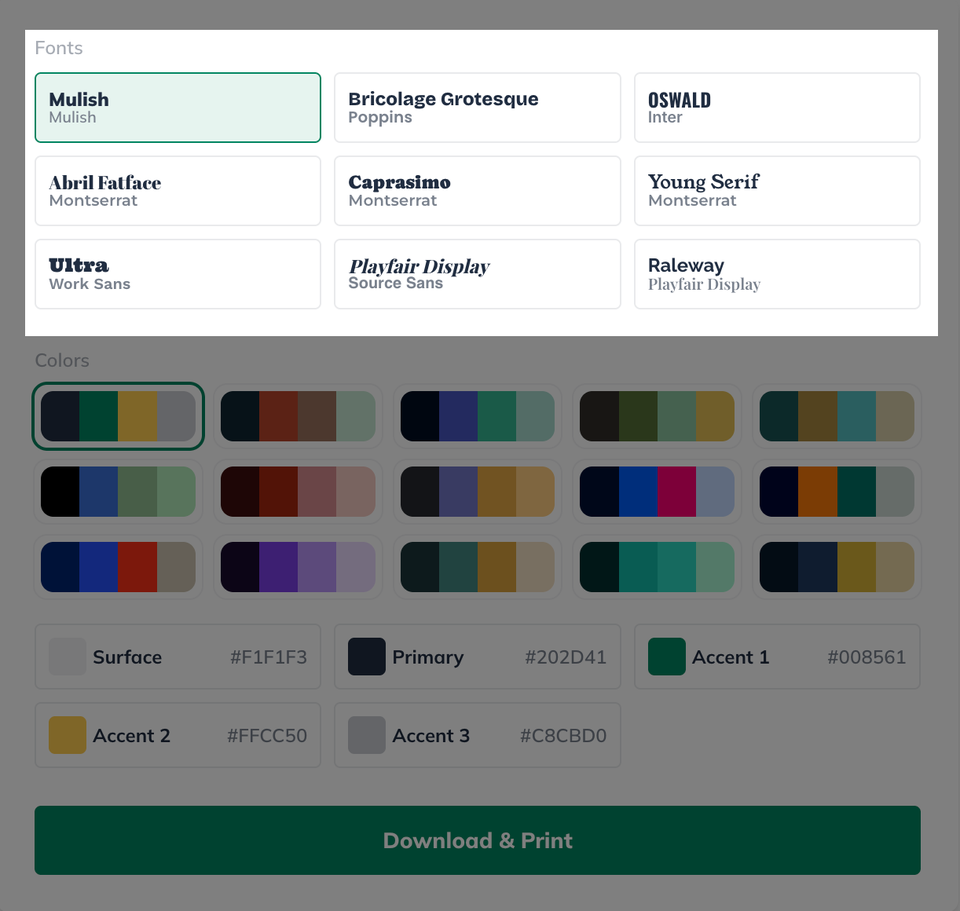
Select Theme lets you choose from one of 9 professional fonts.
Note: Any selected font will be immediately reflected in your Idea Canvas.
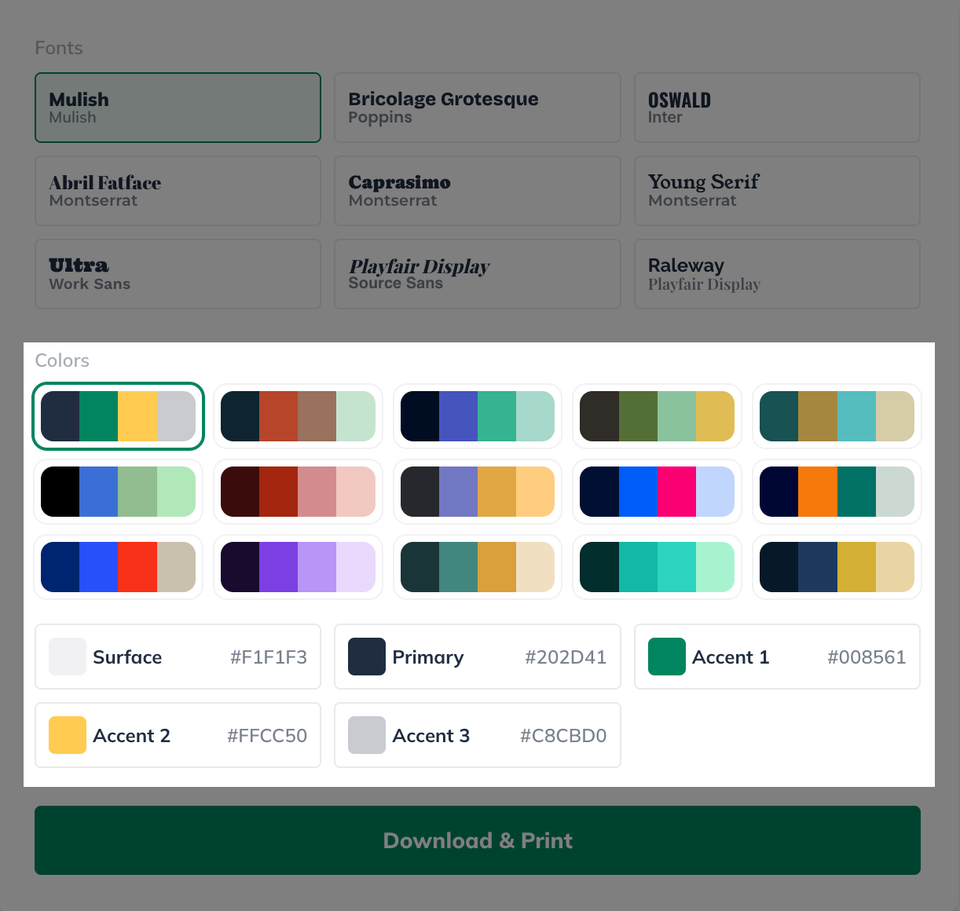
Select Theme also lets you choose from one of preset 15 color themes or you can customize your own color theme.
Note: Any selected color theme will be immediately reflected in your Idea Canvas.
Note: If you don't see the updated content on your Idea Canvas web page after republishing, you may need to refresh your browser window. It should appear after a refresh.