Forecasting Setup And Management
Customizing your views of forecast tables
The financial tables are where you’ll input the majority of your data when building your forecast. This article outlines some helpful features that are present across the forecast tables.
Toggling the forecast charts on and off
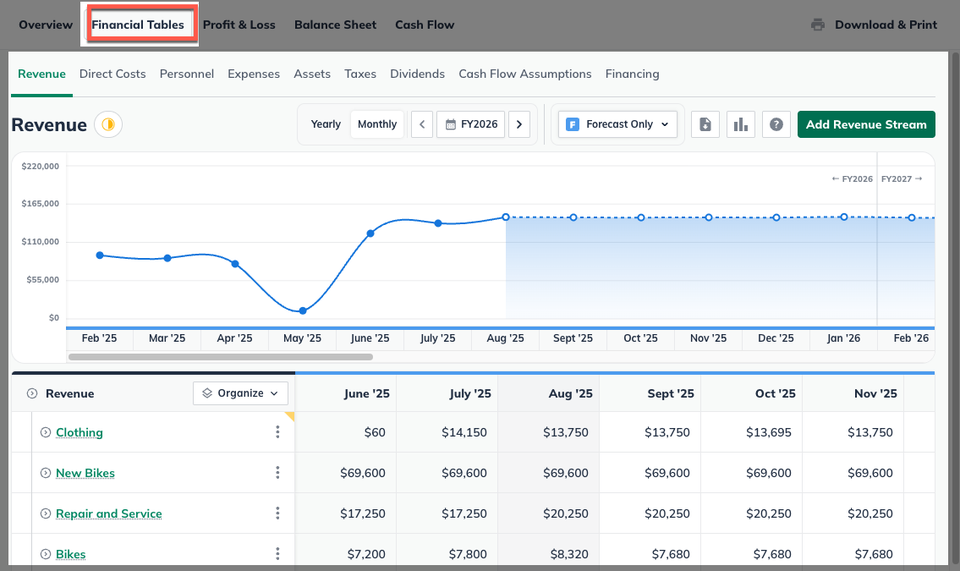
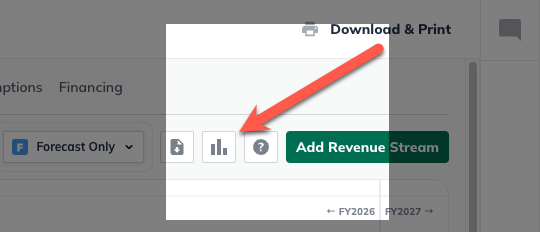
Some of the financial tables and statements have an accompanying bar chart to visually reflect the monthly and annual totals for that table. You can toggle these tables on and off by clicking on the chart icon near the top right of your table view.
Expanding and collapsing table rows
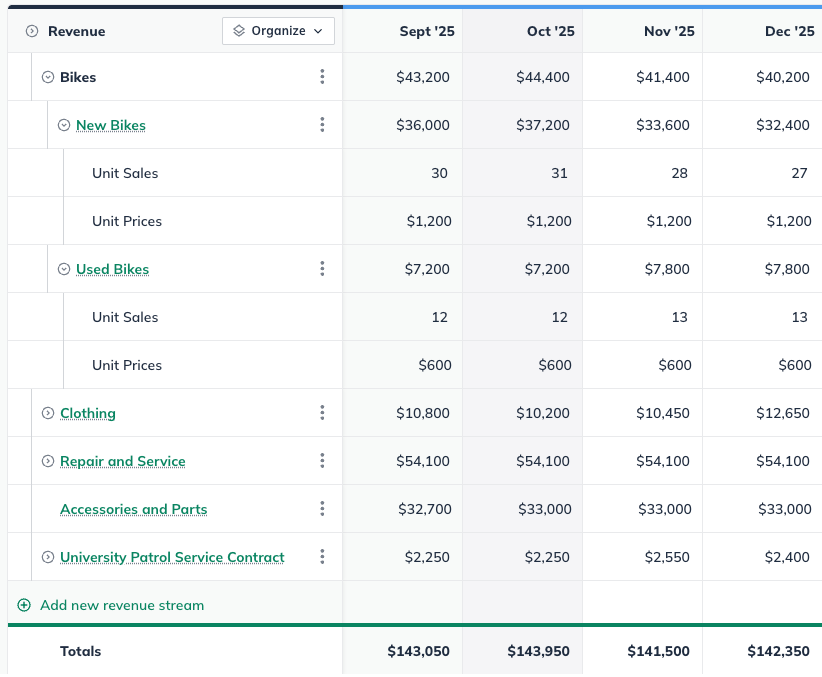
If a table row has items under it, an expand/collapse arrow will appear next to it. Just click the arrow to see the related entries underneath:
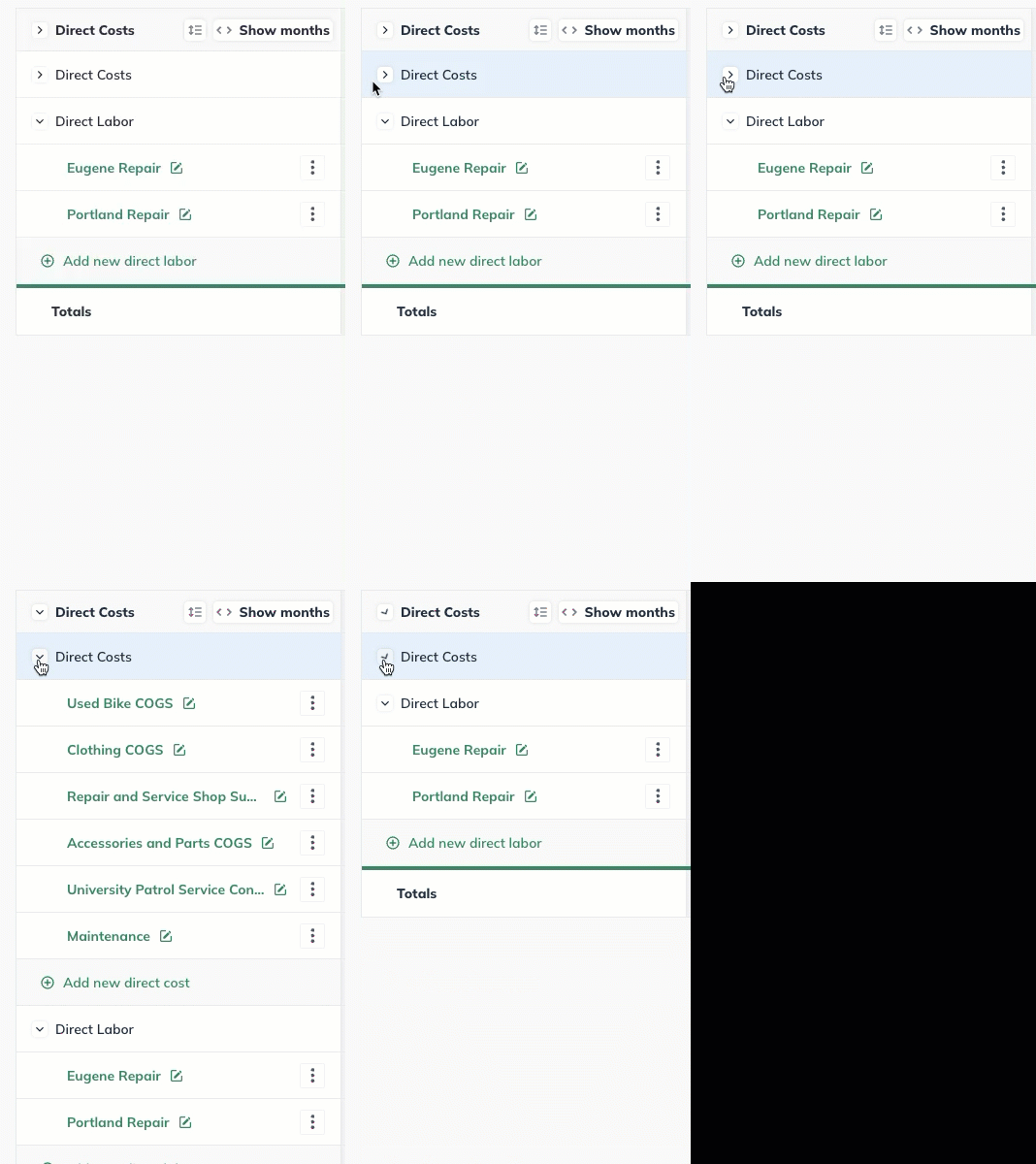
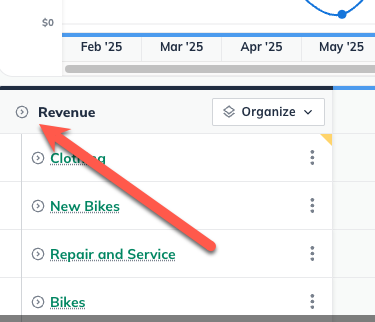
Click the arrow once again to collapse the forecast rows. To expand or collapse all tables in your current forecast, click on the arrow in the top line of the forecast table:
Forecast Groups
In your financial tables, you can create organizational groups that include one or more individual items. Each group is displayed as a parent entry, with the total for the group shown at the parent level and the corresponding subtotals for each item listed beneath it in a nested structure.
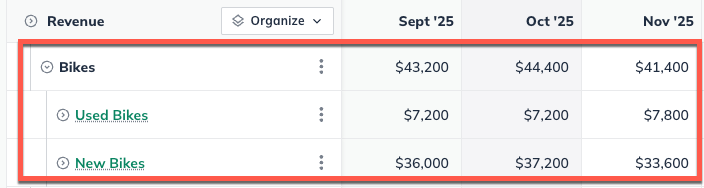
These groups can be expanded by clicking on the expand/collapse arrow that appears next to it.
Reordering items in your forecast
After you've added items to the forecast — revenue streams, direct costs, expenses, etc. — you can change the order in which they appear in the table. To move a row, click on the Reorder icon, in the top row of the forecast table:
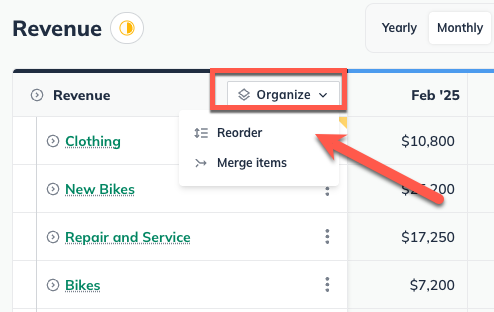
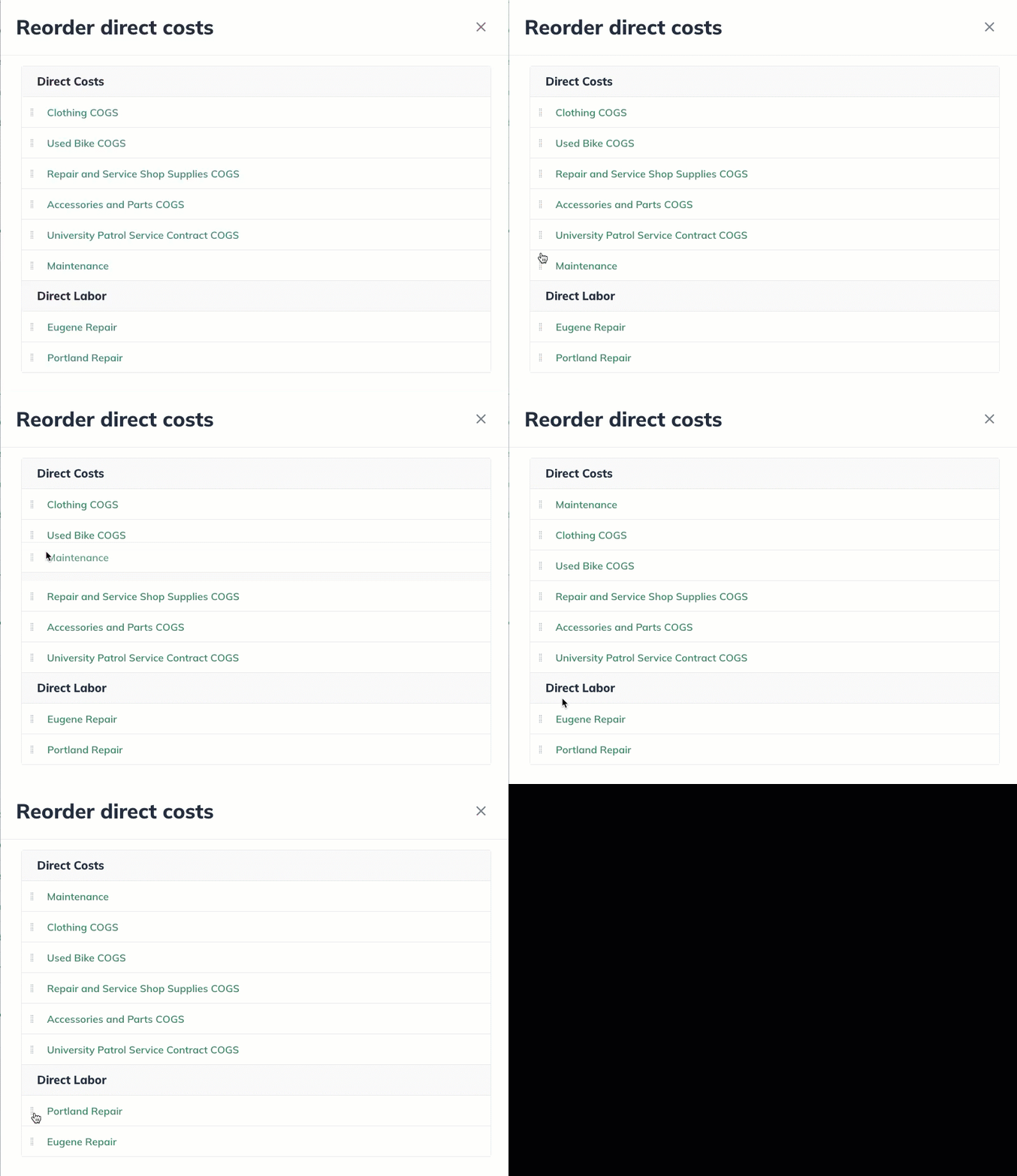
The reorder menu will open, listing all the items in the forecast section. Click on the drag control to the left of its name and drag it to the new position:
Reordering forecast groups
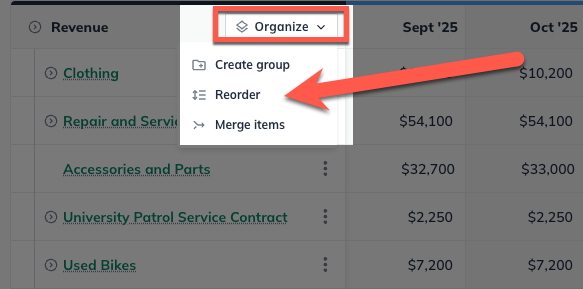
Existing forecast entries can also be added to a group by selecting Organize at the top left of the financial table and selecting Reorder from the dropdown.
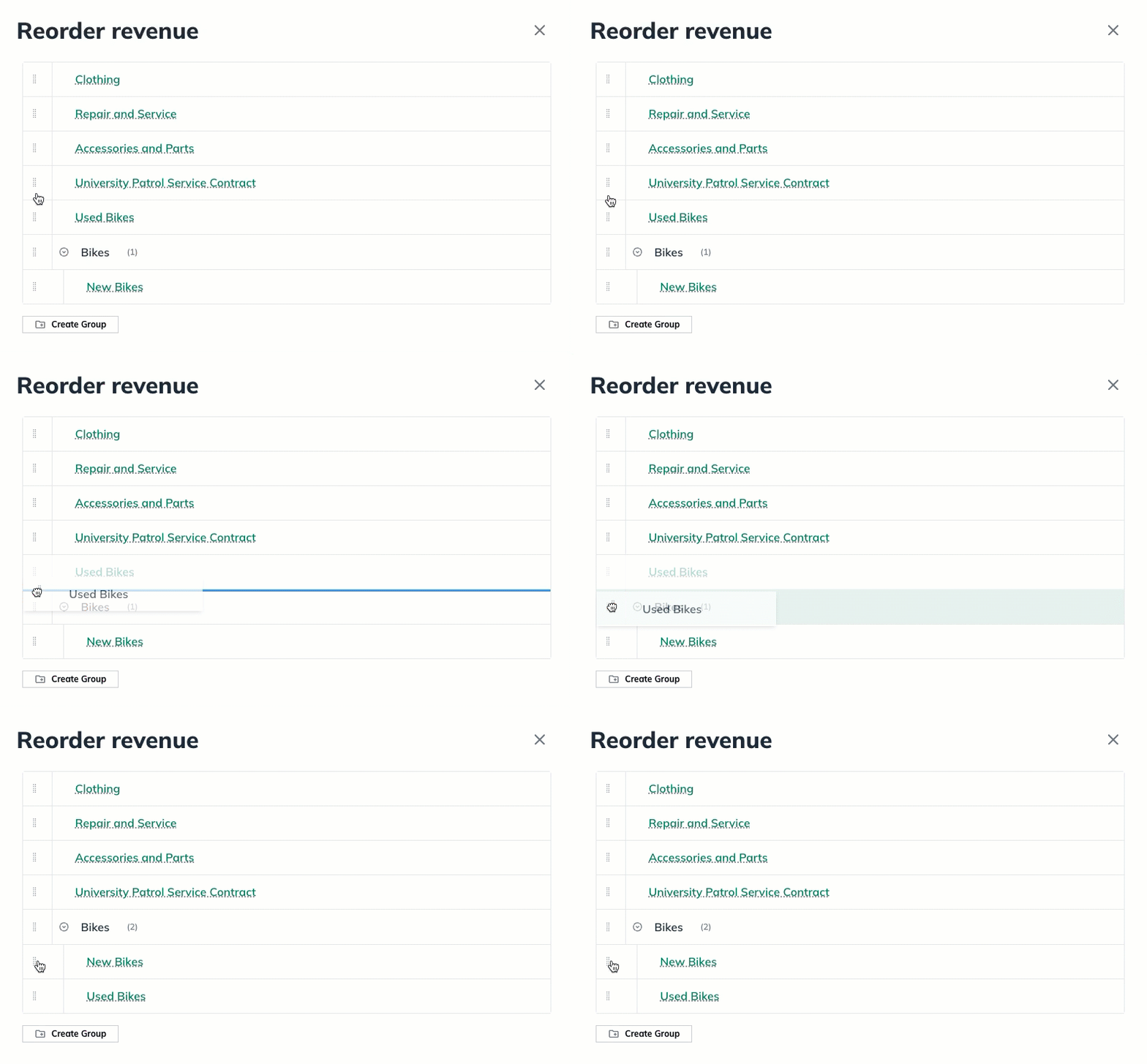
Existing forecast entries can then be dragged and dropped into existing forecast groups in the reordering window.
Showing monthly detail
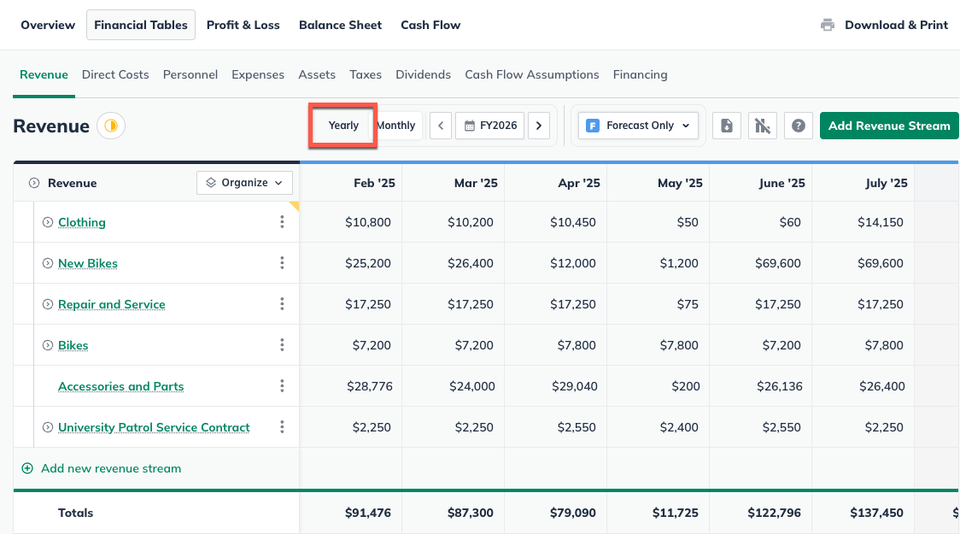
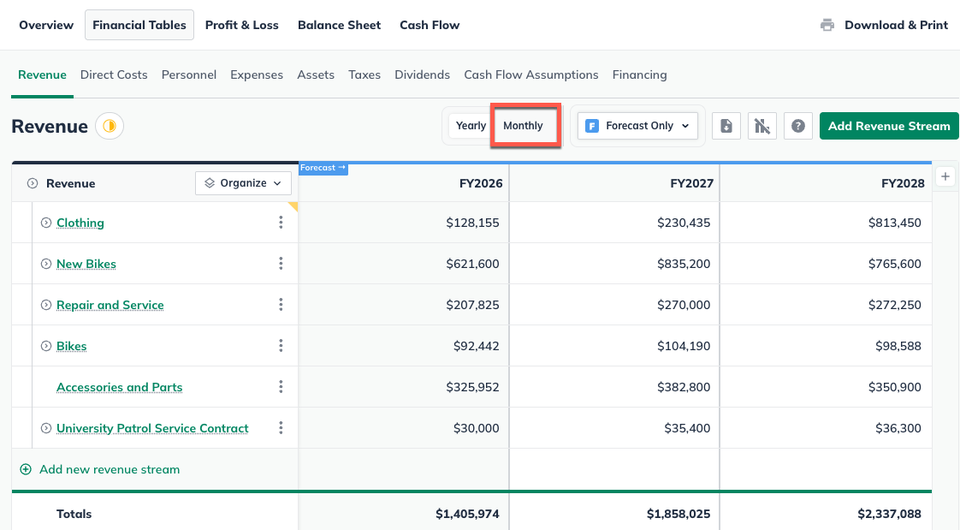
The Monthly and Yearly buttons in the top row of the forecast table allows you to choose whether you see annual columns or monthly columns in your forecast tables. This toggle is set to Yearly by default, but you can enable either view by selecting the view you would prefer. Your choice applies to all your forecast tables, and we save that setting until you change it.
For example, the revenue table shows only annual columns when monthly detail is hidden:
With monthly detail shown, the table shows monthly totals: