
Forecasting Financing Taxes And Advanced Topics
Adding and managing inventory
If your business buys products or materials before selling them, LivePlan’s inventory calculator helps you plan when you’ll need to buy more inventory and how those purchases affect your cash.
The inventory tool can calculate purchases automatically based on your direct costs and inventory settings. Additionally, if you already know you’ll place a specific order, such as a bulk purchase or an opening inventory order, you can add that purchase alongside the automatic calculation.
Set up inventory in your forecast
Before LivePlan can calculate inventory purchases, choose which direct costs should be treated as inventory. LivePlan uses those costs to estimate how much inventory your business uses as sales occur.
Including inventory in LivePlan
At a glance: Review the settings below, or open the full step-by-step walkthrough.
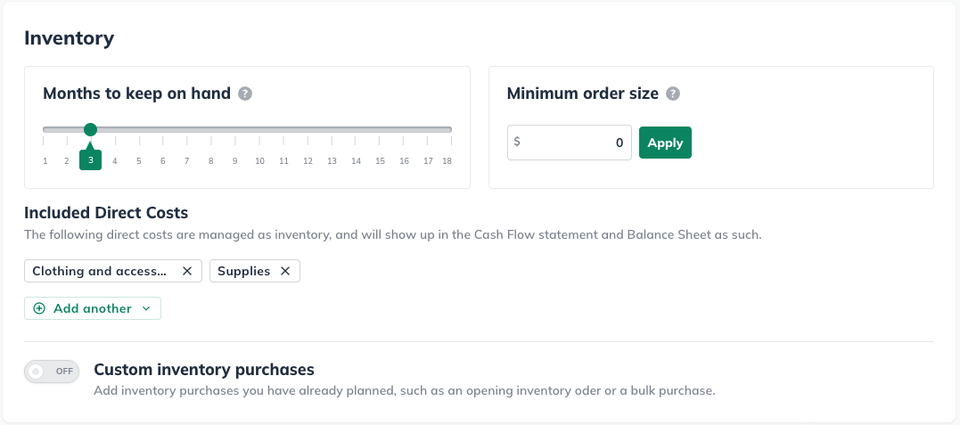
To include inventory in your forecast, navigate to the Cash Flow Assumptions table and adjust the inventory calculator settings:
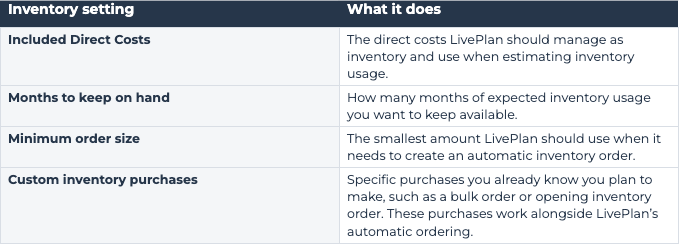
Months that you will keep inventory on hand.
Minimum amount that your business will order.
Direct Costs that require inventory.
Step-by-step: Including inventory in LivePlan
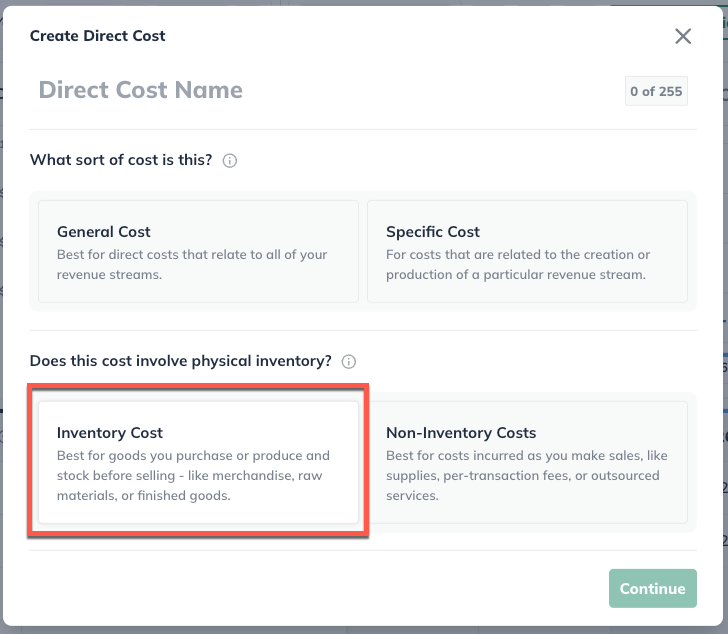
When forecasting a direct cost, select Inventory Cost to include it as part of your inventory.
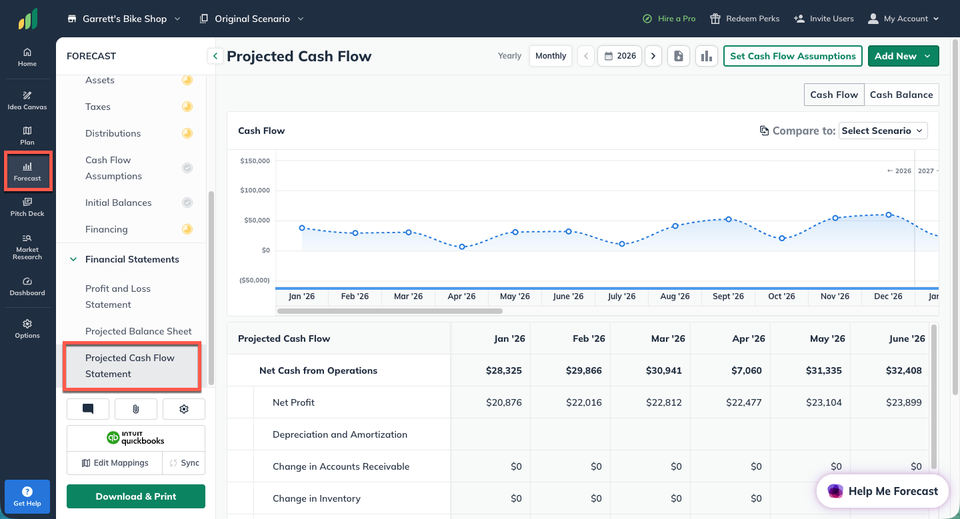
Once you've finished forecasting the direct cost, go to your Cash Flow Assumptions table
In this section, you can view and edit which direct costs are included in your inventory as well as adjust the inventory ordering settings
Adjust the first setting, which is Months to keep on hand. This is the number of months of inventory that you want to keep in stock.
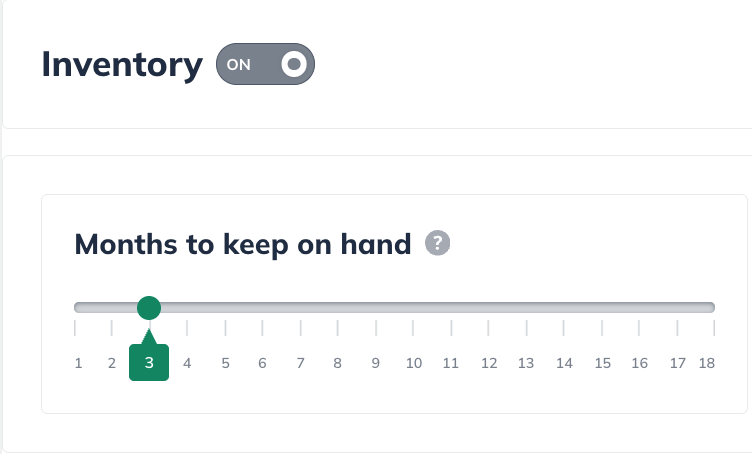
LivePlan will use your direct costs to calculate the right amount for each period. When the direct costs have accumulated to a point where you have less than the minimum amount of inventory on hand, LivePlan will forecast a re-order. That purchase will appear in your Balance Sheet and Cash Flow.
Note: It's generally smart to keep your inventory to the minimum that you need, since buying inventory means tying up cash that could be used for other things. Many businesses carry too much inventory, and that hurts their cash position.
Minimum order size: The second setting is the minimum order size. Enter the desired minimum order size, and then click the Apply button to save it:
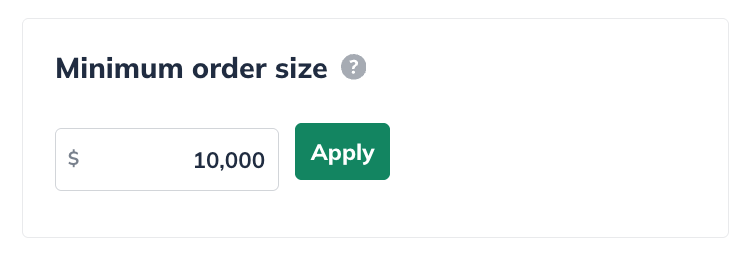
When LivePlan finds that you need more inventory, it automatically builds an order into the Cash Flow. But, if you are only a dollar short of what you will need, you probably don’t want the software to plan on ordering a dollar of inventory. Suppliers typically have a minimum order size. So, this setting establishes that minimum order size, which ensures that any new orders are always for a reasonable amount.
Note: Direct labor is not included in the inventory calculation.
Adding custom inventory purchases
If you already know that you’ll make a specific purchase, you can add it directly instead of trying to reproduce the amount by changing your automatic ordering settings.
This is useful for purchases such as a planned bulk order, a seasonal stock-up, or an opening inventory order for a start-up.
Adding Custom Inventory Purchases
At a glance: Review the settings below, or open the full step-by-step walkthrough.
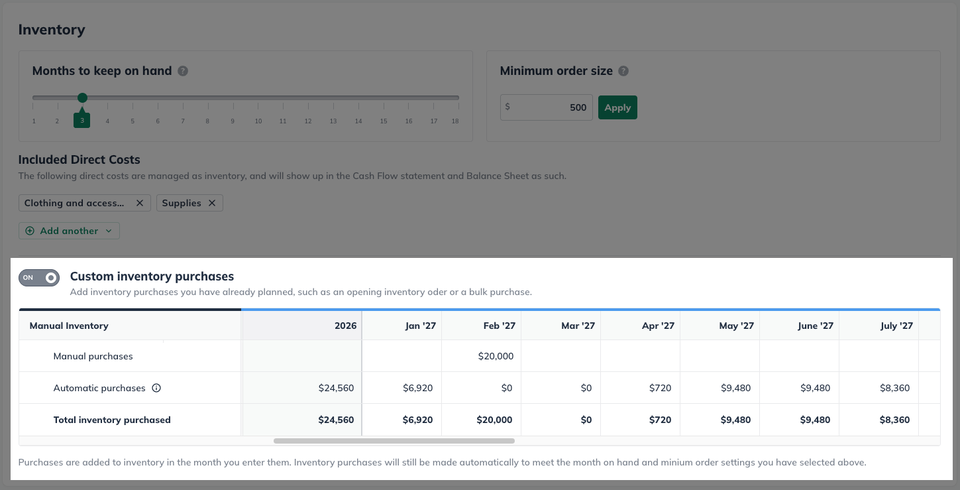
Toggle on Custom inventory purchases
In the manual purchases row, input any inventory orders that you plan to make.
Custom purchases will then be included with inventory in the period where you enter them.
Step-by-step: Custom Inventory Purchases
In the Inventory calculator, turn on Custom inventory purchases.
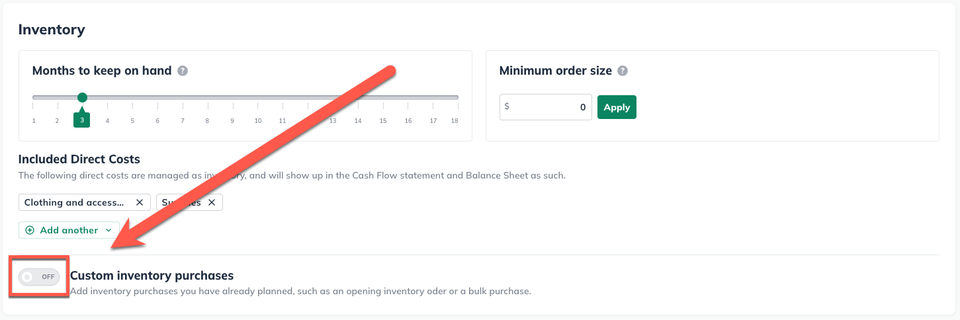
Enter the purchase amount in the month or year when you expect to make the purchase.
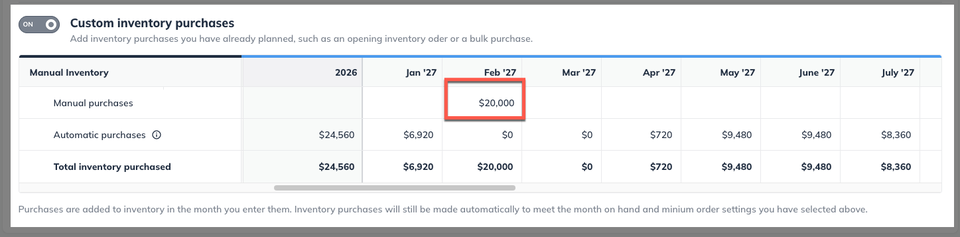
Review the Total inventory purchased row to see the manual purchase together with any automatic purchases LivePlan calculates for that period.
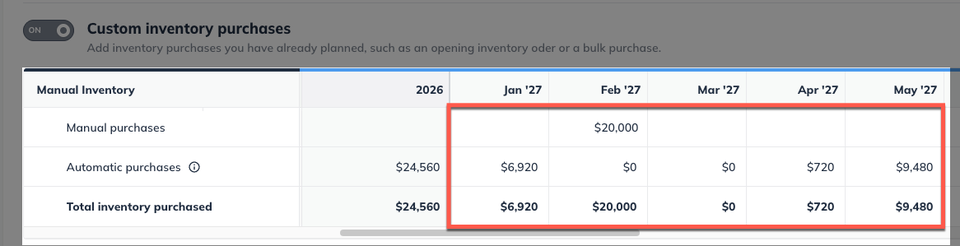
Custom purchases are added to inventory in the period where you enter them.
Note: LivePlan will still create automatic purchases when needed to meet the Months to keep on hand and Minimum order size settings you selected.
Important: Adding a custom purchase does not turn off automatic purchasing.
If a manual inventory purchase is not enough to meet your inventory requirements, LivePlan will forecast an automatic purchase to ensure your minimum inventory is met.
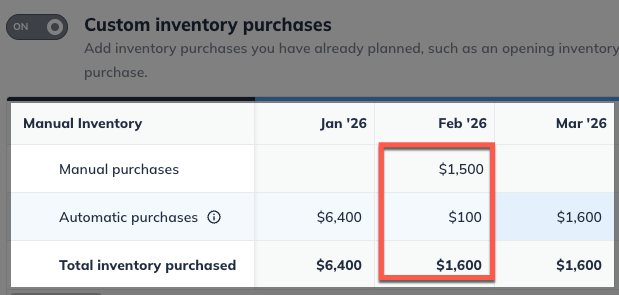
How LivePlan calculates inventory purchases
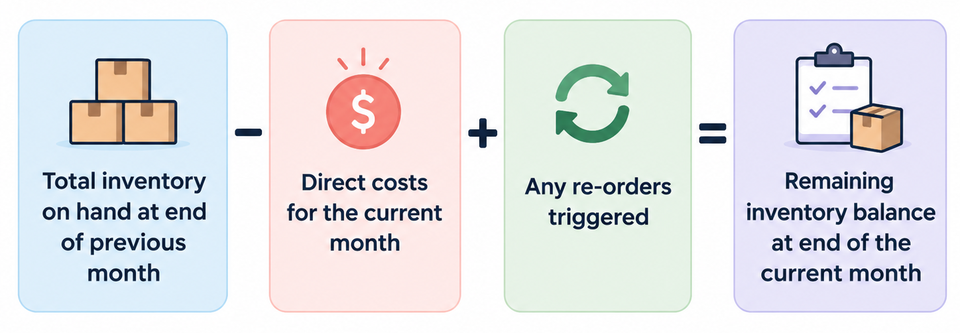
For each month or year in your forecast, LivePlan starts with the inventory you already have, subtracts the inventory used to support sales, and adds any manual or automatic inventory purchases.
Automatic purchases are triggered when LivePlan determines that you need more inventory to support sales and maintain the amount you chose for Months to keep on hand.
The Minimum order size prevents the calculator from creating unrealistically small automatic orders.
See an example of how inventory is calculated
For each month of your forecast, this is the inventory calculation formula:
Let's set up some data points for this example:
We'll say our example company will always keep three months of inventory on hand.
They also have a $1,500 minimum order size from their vendors.

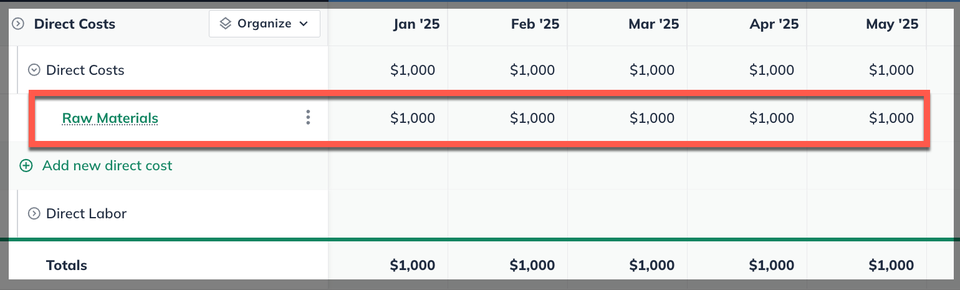
Let's also say that our example company has direct costs (COGS) totaling $1000 per month. - This means we're using $1000 of inventory per month:
Now let's put it all together using the formula:
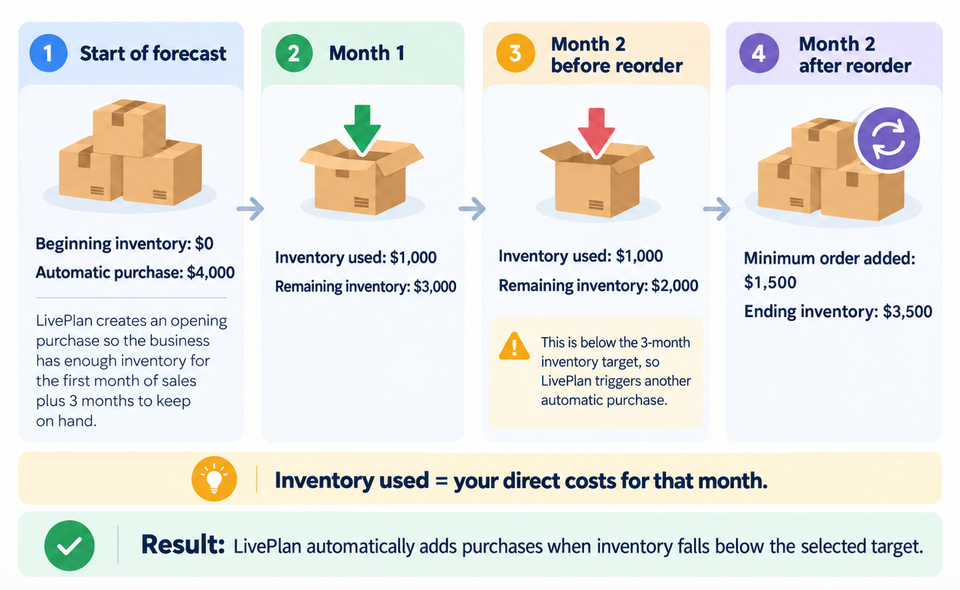
Step 1 - Total inventory on hand at end of previous month) We start with $4000 worth of inventory.
Step 2 - Subtract direct costs for the current month) We use $1000 in inventory in Month 1, and so we end Month 1 with $3000 in inventory.
Step 3 - Add any re-orders triggered) Then in Month 2, we again subtract the $1000 in direct costs for the month, leaving us with $2000, which triggers a re-order of $1500.*
Step 4 - Remaining inventory balance at end of current month) Adding that new order of $1500 to the $2000 we had on hand, we end Month 2 with $3500 in inventory, which will be shown on our Balance Sheet:
*Why was a reorder triggered? In Month 2, We're left with $2000 of inventory on hand. Since we need at least $3000 on hand, we must re-order to stay above that threshold. This triggers LivePlan to forecast a re-order, using the minimum order amount of $1500.
Entering Starting Inventory
How you enter inventory at the beginning of your forecast depends on whether the business already owns that inventory or is planning to purchase it after the forecast begins.
Existing company
Use Initial Balances
If your business already owns inventory before the first month of the forecast, enter its value as part of your Initial Balances. This represents inventory the company already has, rather than a new purchase.
To learn more, read: Entering initial balances for an existing company
Start-up company
Use Custom Inventory
If you’re forecasting for a start-up and already know the amount of your opening inventory order, add it as a Custom inventory purchase in the period when you expect to make the purchase.
If you don’t have a specific opening order planned, LivePlan can calculate inventory purchases automatically from your Months to keep on hand and Minimum order size settings.
Where inventory appears in your financial statements
Inventory affects more than one financial statement, but it appears differently in each one:
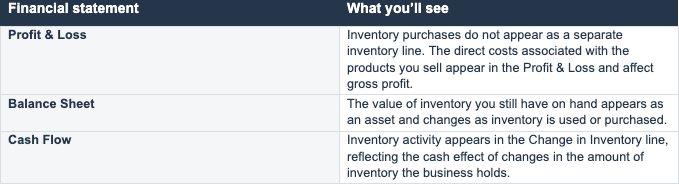
Click on any of the financial statements below to see more details on where inventory appears in that statement:


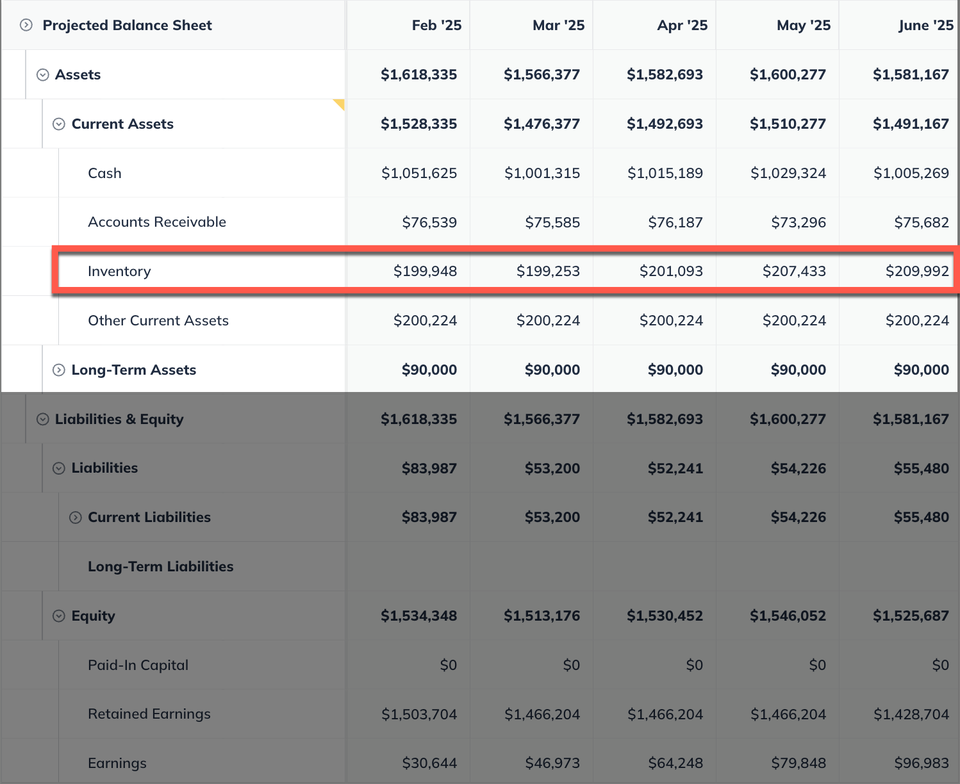
In the Balance Sheet, the value of your inventory is shown for each month or year, calculated according to the basic formula we detailed above:
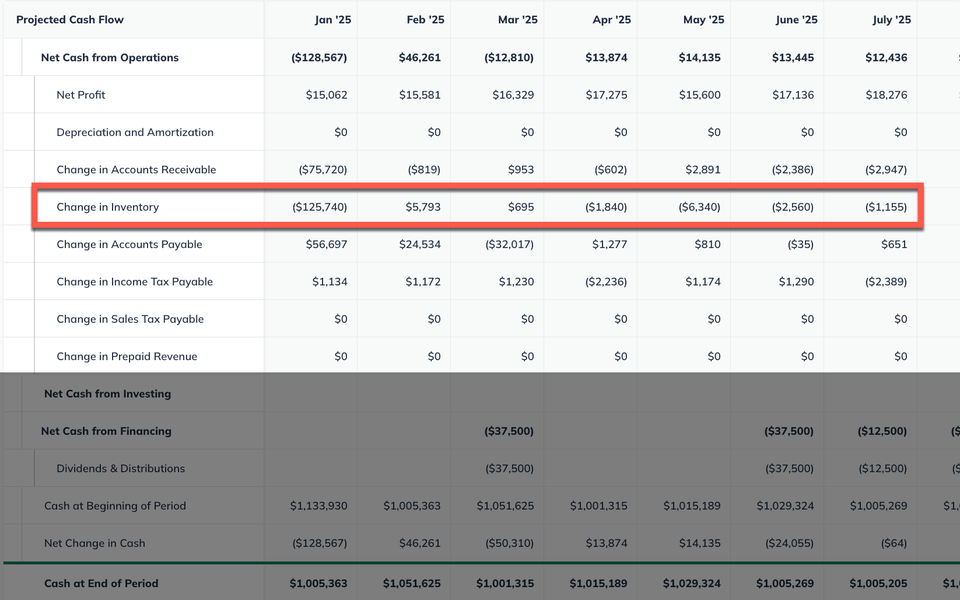
In the Projected Cash Flow table, you'll see a "Change in Inventory" line, showing how much inventory value the company gained or lost in a particular period.
This number is based on both the amount of inventory your company has purchased, and revenues from inventory sold, in that period. The resulting number is a net change, as shown below:
Inventory doesn't appear in the Profit and Loss table, but your direct costs do, and these help form the basis of LivePlan's inventory calculation.
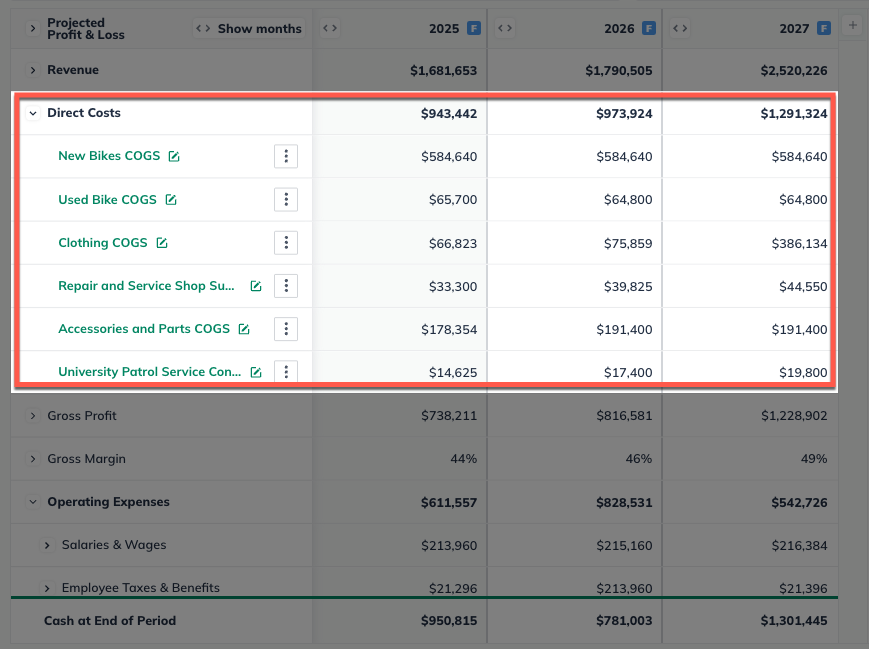
Note: Direct labor is not included in the inventory calculation.