
Downloading And Printing
Adding more detail to the Profit and Loss statement
By default, LivePlan compiles all the forecast details you've entered and compiles them to totals for display in the Profit & Loss statement. This format is typically preferred by lenders and investors. However, there may be instances where you need to present a plan document that includes more detailed information.
Note: If you need to share some of your in-progress forecast data, you can also print reports from the Forecast section.
If you'd like to show more forecast detail in your plan, add an Appendix chapter before downloading it. This chapter can include any or all of the following statements:
A Profit & Loss with monthly detail that can also include itemized lists of the following:
Your revenue streams (If you like, you can also display the units sold and unit pricing for each revenue stream.)
Your direct costs
Your personnel costs
A Balance Sheet with monthly detail.
A Cash Flow Statement with monthly detail.
Note: The Appendix will only display in the downloaded plan. You will not see it in the app.
Adding an Appendix to the plan
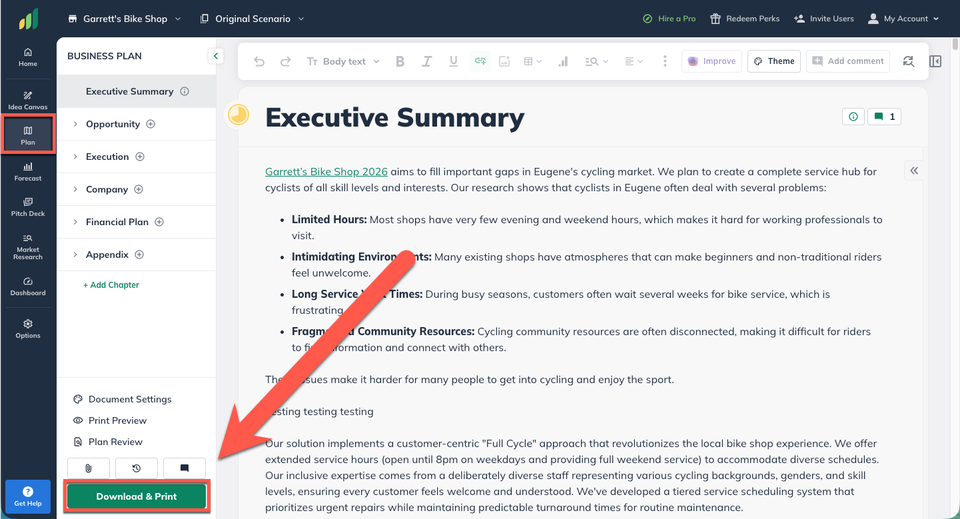
In the Plan section, click the Download & Print icon:
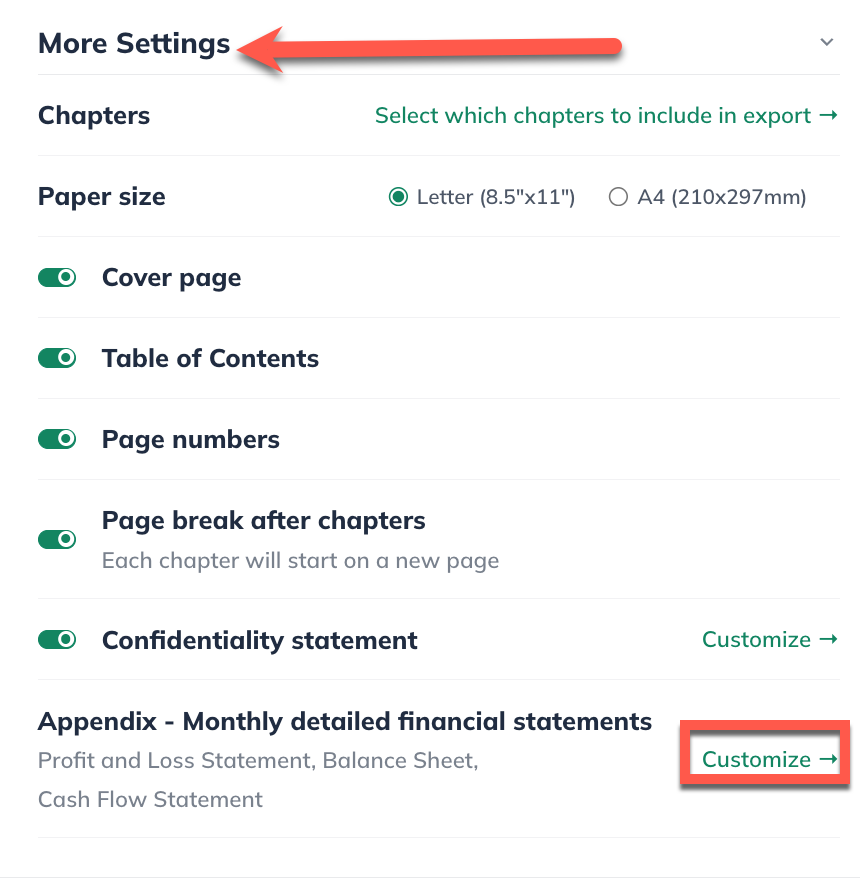
After the Document Settings menu slides out, scroll down to More Settings and click on Customize next to the Appendix option:
In the overlay that appears, toggle or un-toggle the buttons for any details you'd like to add to your Profit & Loss:
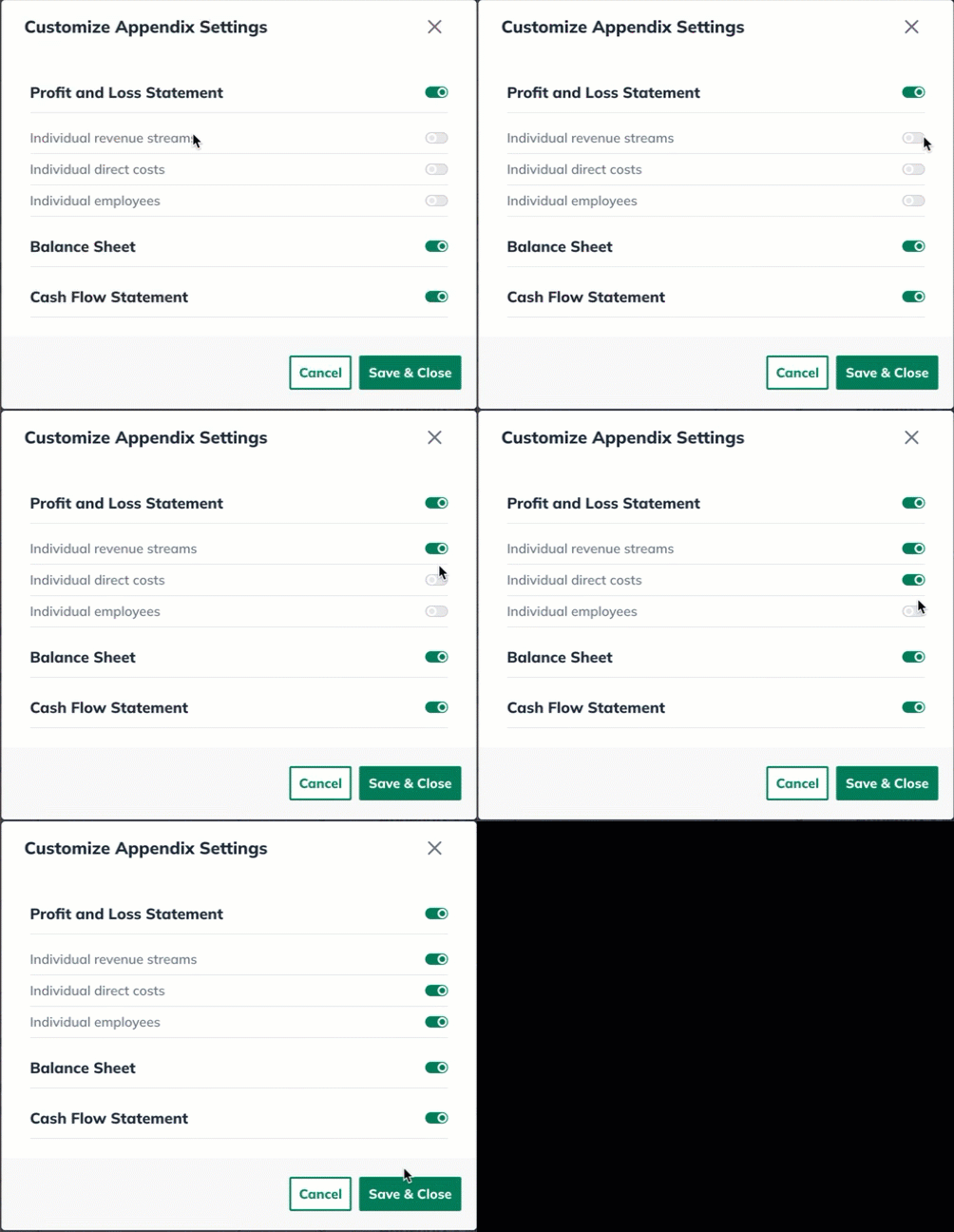
Note: Clicking individual direct costs will display direct costs and direct labor.
While clicking individual employees will show only regular labor.
Click Save & Close:

Differences in revenue details
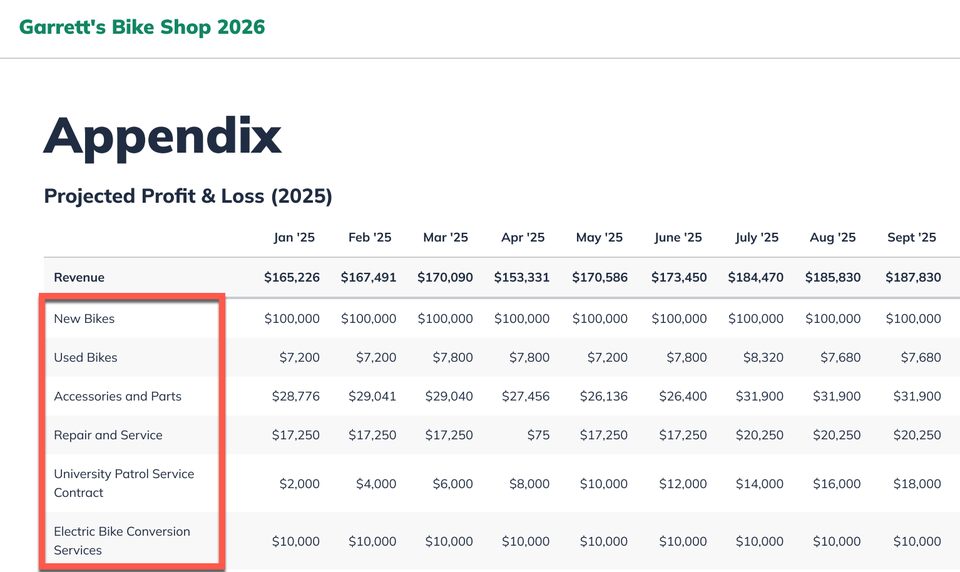
If you check the box for Show individual revenue streams:
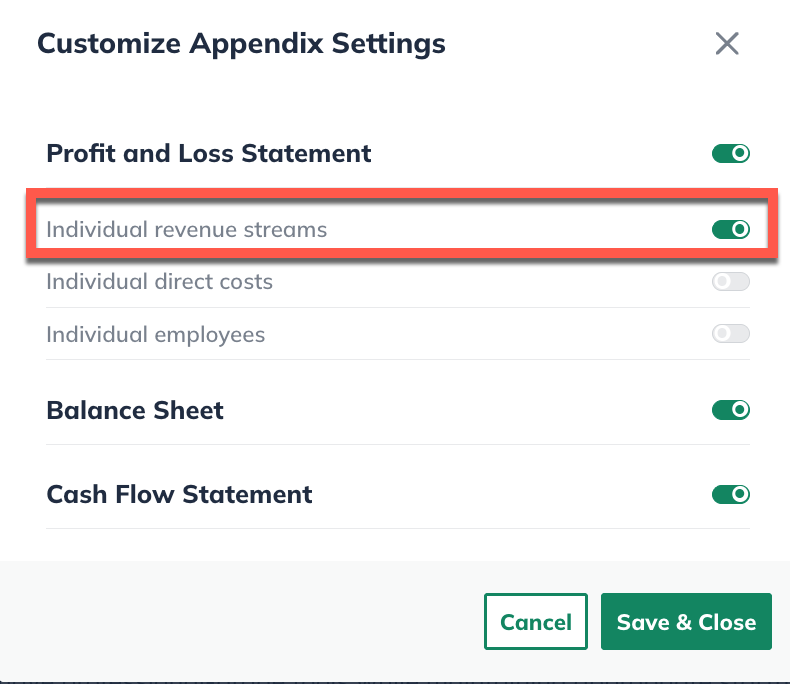
...You'll see an itemized list of your revenue sources in the downloaded plan, as shown below:
Finding your new Appendix chapter
The Appendix will be included as the final section of your plan if it is part of the plan export. Although you won't see it in the plan outline while editing, it will be added to your document when you download or print it.
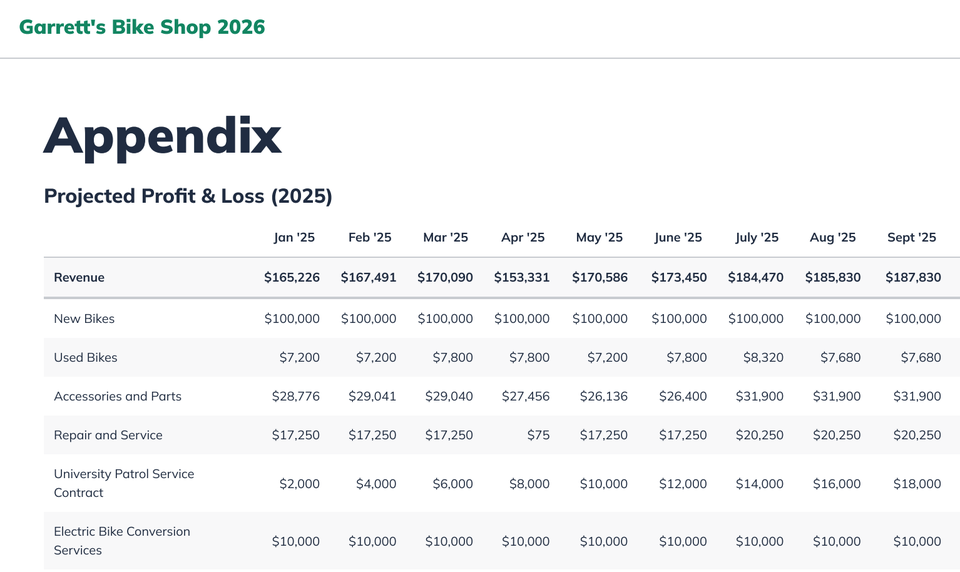
Note: This Appendix chapter will be formatted in "landscape" orientation in the downloaded plan to accommodate the monthly detail. All other chapters of your plan will be in "portrait" orientation.
All the data used to create this statement is still visible in your entries in the Forecast section. So if you're interested in sharing these details with someone online, you can always issue a pass to your plan.
Note: if you've already added a custom chapter to your plan as an appendix, then adding this monthly-detail appendix will result in your plan having two Appendix chapters: one in "landscape" orientation and the other in "portrait" orientation. You can change the title of your custom Appendix to reflect the difference between the two.