
Using the LivePlan MCP Connector
Early Access Preview:
The LivePlan MCP connector is an early access experiment. We're actively developing this feature and welcome your feedback. Please use at your own risk and review any changes carefully. AI-assisted changes to your company may not be easily reversible.
What is an MCP connector?
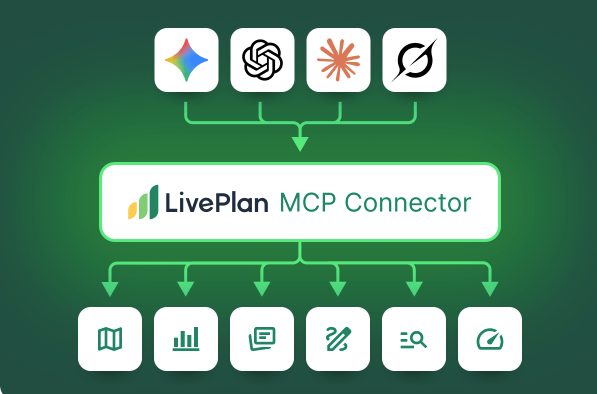
MCP stands for Model Context Protocol, an open standard that lets AI assistants connect directly to the tools and data they need to help you. Instead of copying and pasting information between your business software and an AI chat window, an MCP connector creates a live link between the two. The AI can read your data, take actions on your behalf, and keep everything in sync — all within the flow of a conversation.
The LivePlan MCP connector gives AI assistants direct access to your company data — your business plan, financial forecast, scenarios, and more. That means you can ask your AI assistant to review your plan, update a revenue line, build out a new scenario, or walk you through where your forecast stands — and it happens in LivePlan, not just in the chat window.
Anthropic — the company behind Claude — created the Model Context Protocol and leads its development as an open standard. As a result, Claude has a built-in connector directory and a particularly accessible setup experience for MCP. The LivePlan connector is designed and tested for use with Claude, and the instructions below reflect that.
What you can do with the connector
To use the LivePlan connector, you will need:
A LivePlan user profile with access to at least one LivePlan account — as the account owner or a contributor
A Claude account (any paid plan)
About LivePlan account types
LivePlan user profiles can be associated with multiple accounts in different roles. When you connect, the connector works with all of them: you'll be able to see and work with every account and company your LivePlan profile has access to. Your permissions through the connector match your permissions in LivePlan itself — the connector doesn't grant any access you don't already have. Owners and contributors can read and make changes. Here's how the connector handles each situation:
You own an account and are a contributor on others.
You'll see companies from all of those accounts, not just the one you own. When you list your companies, Claude will also see which account each company belongs to, which helps keep things straight.
You only use someone else’s LivePlan account.
This is common for clients of SBDCs, accelerators, or other advisory organizations that manage LivePlan accounts on behalf of the businesses they work with. This is now supported: you can connect the LivePlan connector and work with the companies you access as a contributor.
Premium-only tools
A few of the connector’s tools are only available in Premium accounts. These are typically related to the ability to enter or sync actual results. If you have a Standard account, you will not be able to use those tools.
How to connect
From the Claude Connectors Directory
LivePlan is not yet available in Claude’s directory of connectors. Our submission is under review. Once that process is complete, you'll be able to connect this way:
Adding LivePlan as a custom connector
In the meantime, you can connect LivePlan manually:
Step-by-step guide: LivePlan as custom connector
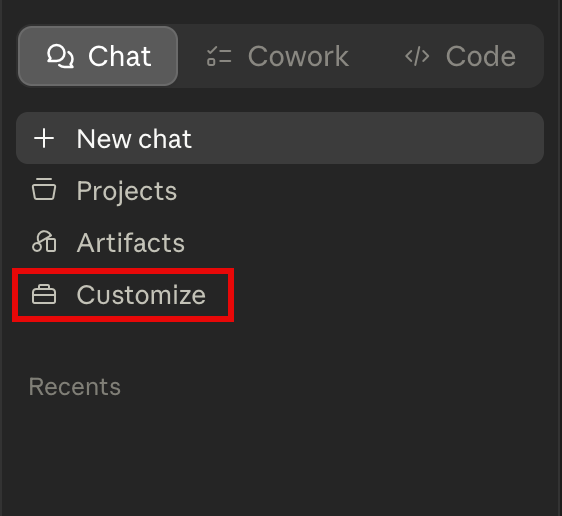
In Claude, click Customize in the left sidebar
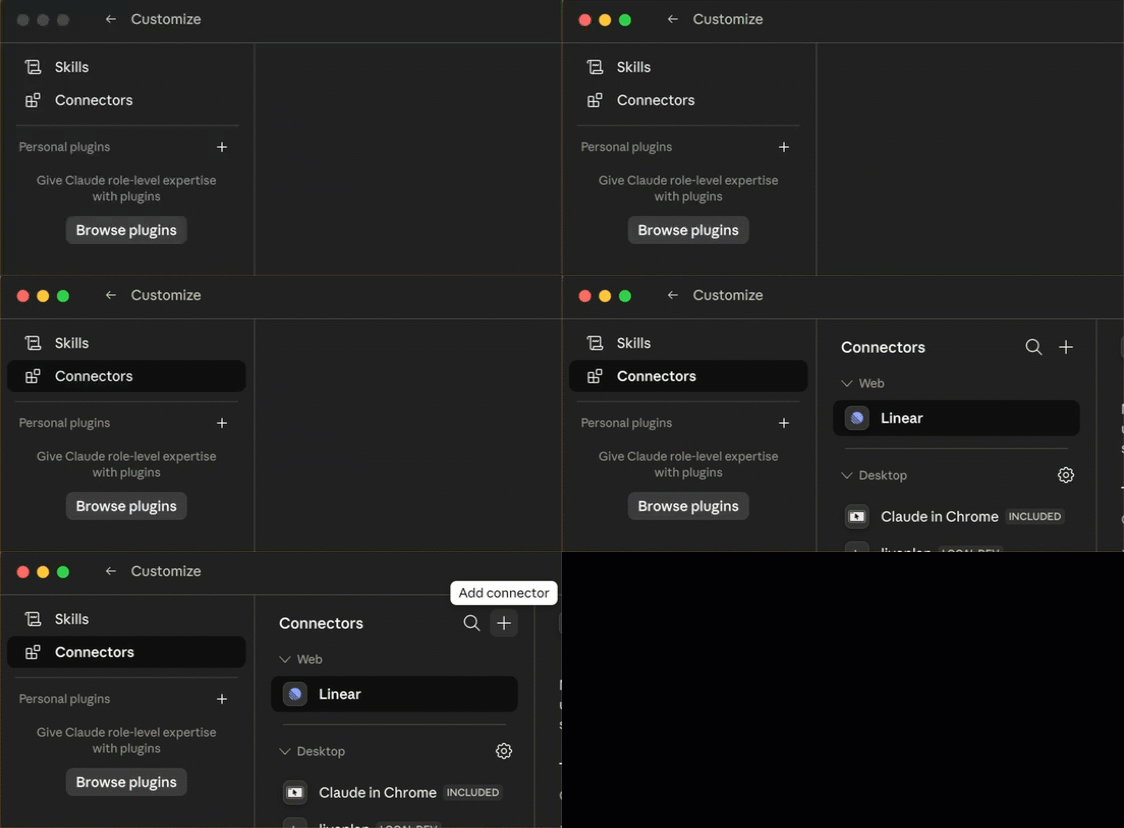
Click Connectors in the left sidebar, then click the + icon at the top of the Connectors panel
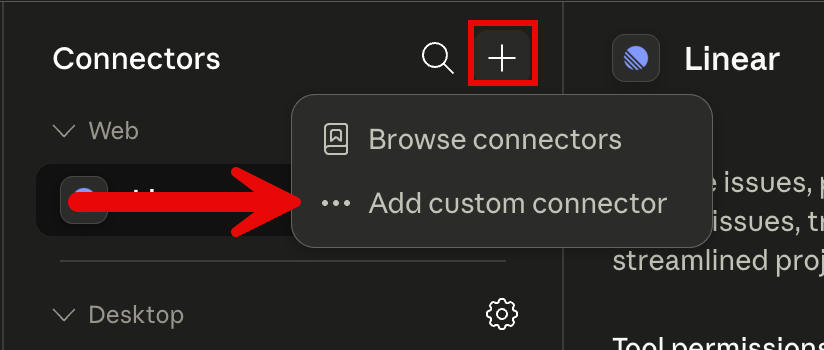
Choose Add custom connector
Enter a name for the connection (just “LivePlan” is fine) and the following URL: https://mcp.liveplan.com/mcp
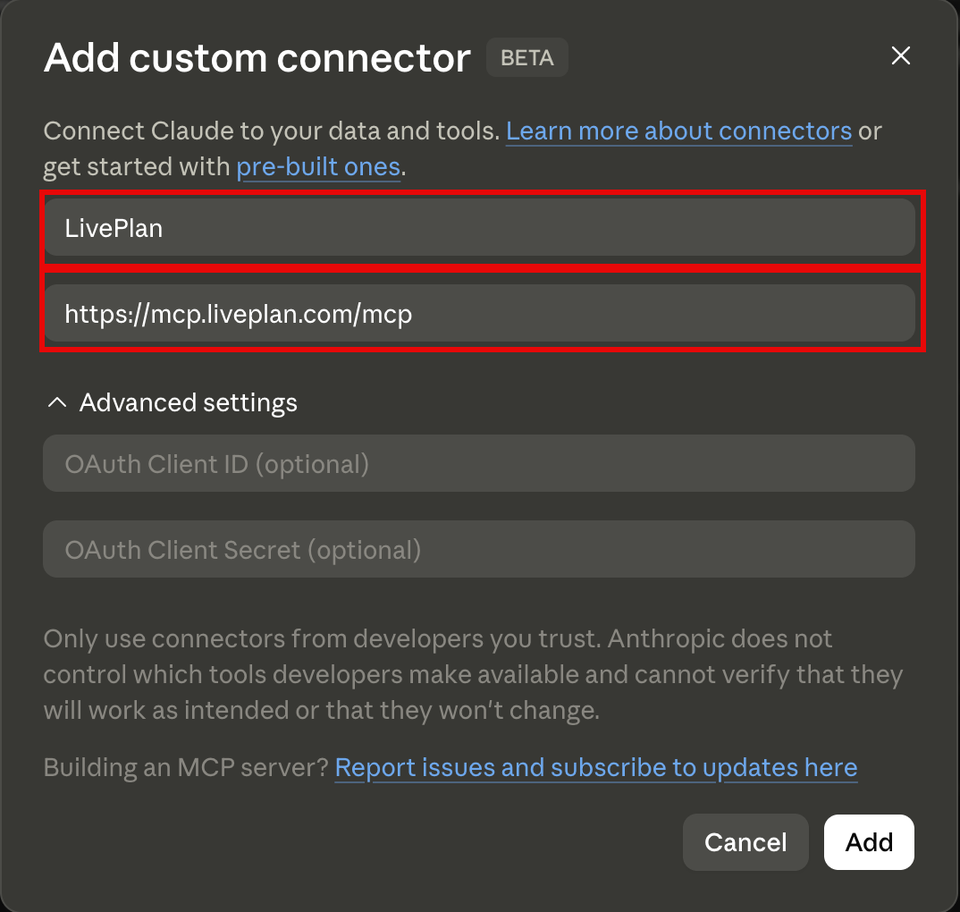
Click Add.
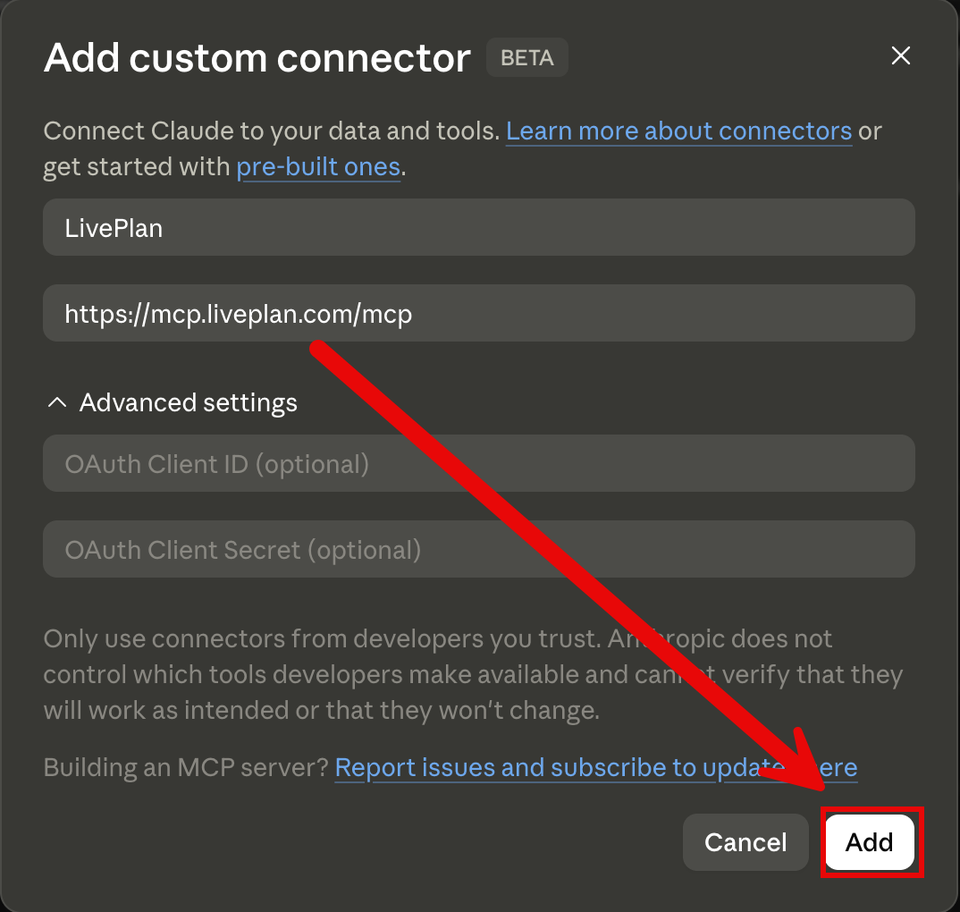
A browser window will open. Sign in with your LivePlan credentials to authorize the connection.
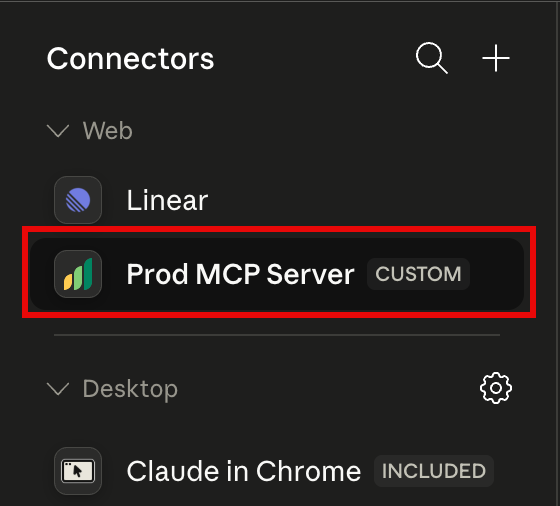
Once authorized, LivePlan will appear in your Connectors list.
Connecting to MCP with Gemini
Google currently doesn't allow developers to submit MCP servers to their 'Connected Apps' library.
The MCP server can currently only be added and used through Gemini CLI, Google's developer tool — not through the standard web or app interface.
Note: Users add the MCP server details to their ~/.gemini/settings.json:
Connecting to MCP with Chat GPT
If you're using Chat GPT, then you'll also need to do some additional steps to connect to LivePlan's MCP.
You'll first need to enable Developer mode in Chat GPT and then add LivePlan's MCP as a plugin.
Once you've added the MCP server, you'll be prompted to log in to LivePlan and authenticate the connection to ChatGPT. You'll then be able to access the LivePlan tools within your chatbot.
Using the LivePlan MCP Connector
Example prompts
Available Tools
The following tools are available through the LivePlan connector. Read-only tools retrieve data from your LivePlan company without making any changes. Write tools create, update, or delete data and will prompt you for confirmation depending on your permission settings.
Guided Prompts
In addition to individual tools, the connector includes a set of guided prompts — structured workflows that combine multiple tools to accomplish a specific task. These are available in Claude as prompt templates.
Analyze Financial Health: Retrieves your financial statements and provides a structured analysis of your business's financial health.
Review Plan Section: Reviews a specific section of your business plan and suggests improvements.
Forecast vs. Actuals Comparison: Compares your actual financial results to your forecast and identifies significant variances.
Import Financial Data: Guides the import of financial data from an external document into your LivePlan forecast, with guidance on how to categorize line items correctly.
Scenario Analysis: Models a "what if" change by walking through the creation of a new scenario and analyzing its impact.
Managing Tool Permissions
Once connected, you can manage how Claude uses LivePlan tools from the Connectors panel under Customize → Connectors → LivePlan. Tools are grouped into read-only and write categories, and you can set each tool or category to Always allow, Ask every time, or Never allow.
Read-only tools (such as Get Forecast Summary, Get Plan Content, and Get Milestones) often default to “Always allow.” (Claude sets those defaults, so you may see different behavior.) These tools let Claude read your LivePlan data but make no changes. Because they're read-only, Claude will use them without asking for confirmation regardless of your permission setting — so don't be surprised if Claude reads your data without prompting even if you've set things to "Ask every time."
Write tools (such as adding or updating revenue streams, expenses, and personnel) are where permission settings matter most. If you're new to the connector, setting write tools to "Ask every time" is a reasonable way to stay in control while you're getting a feel for how it works. Once you're comfortable, you can switch to "Always allow," if you’d like, for a more fluid experience.
Note: If Claude makes a change you didn't intend, you can ask it to reverse the change in the same conversation, and that often works. Or you can edit the data manually in LivePlan.
Troubleshooting
Note: Additional troubleshooting guidance will be added as we learn more from early users. If you run into something not covered here, please reach out to our support team.
Disconnecting
To remove the LivePlan connector, go to Customize → Connectors in Claude, click on LivePlan, and click Disconnect. This immediately revokes access to your LivePlan data.
Support and privacy
For help with the LivePlan connector, contact our Customer Advocacy team.
For information about how data is handled when you use the connector, see Section 4.10 of our Privacy Policy.